01What deleting a channel does
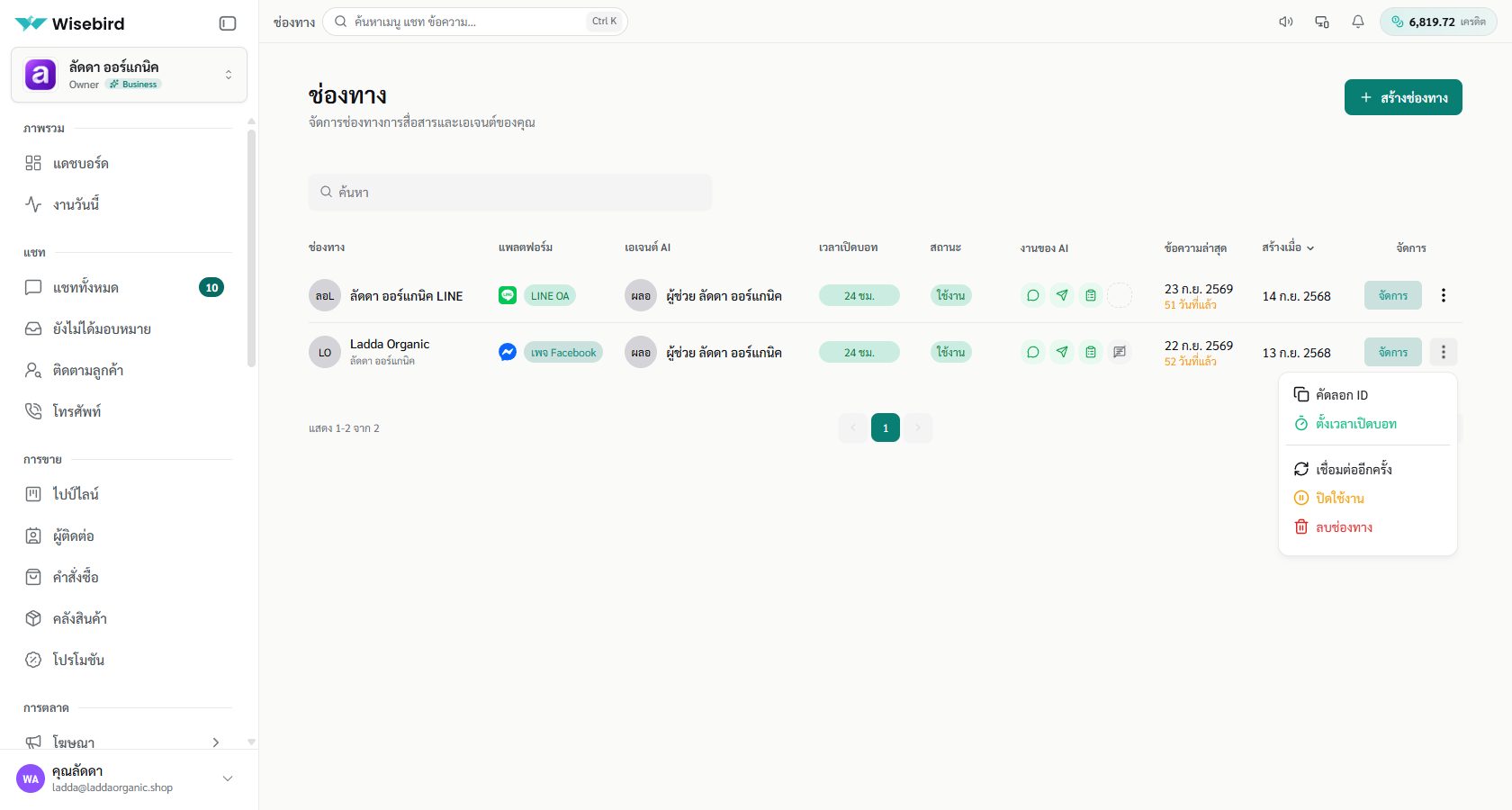
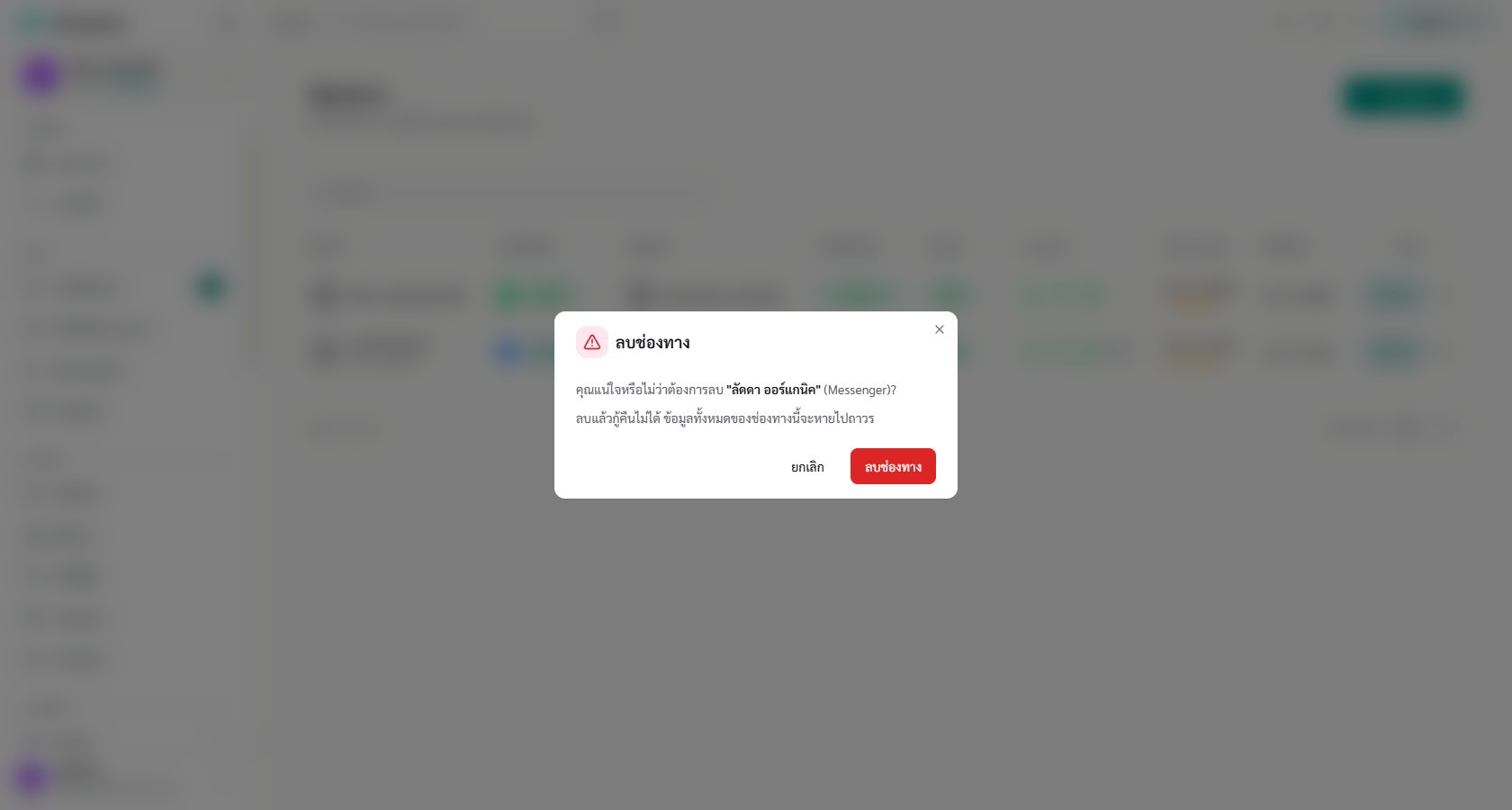
Press ⋮ at the end of the row on Channels and choose Delete Channel. You are asked to confirm. Once deleted:
- The channel leaves the list; customers who write to it don't reach the inbox and the AI stops replying
- That channel's chats are hidden from the inbox
- The connection to the platform is cut immediately (you must reconnect to use it again)
- The channel sits in the Trash for 30 days, then is deleted for good
02Way 1: connect the same Page or account again
Works for Facebook Pages, LINE OAs and TikTok accounts this shop connected before and then deleted.
Connect the channel as usual
Press Create Channel and follow the guide for the platform: LINE OA · Facebook and Instagram · TikTok, using the same Page or account.
Choose "Keep old data" or "Start fresh (delete old)"
When Wisebird sees it is this shop's old channel, a window titled "This channel was deleted from this business" says "This channel was previously deleted (it still has … chats)", with its chat, post and comment counts.
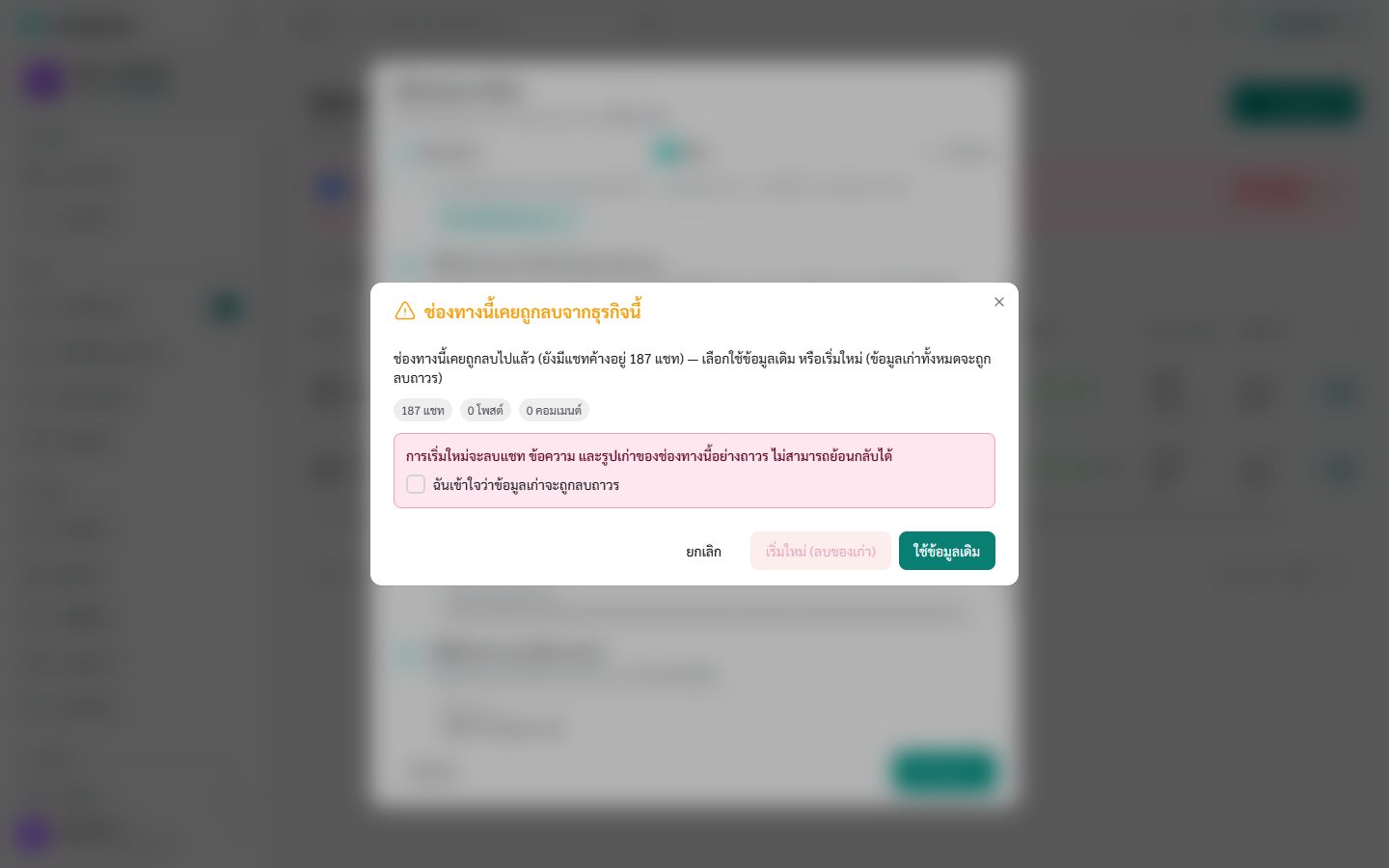
The keep-or-start-fresh window — Titled "This channel was deleted from this business", with the old channel's chat / post / comment counts, a red warning with a confirmation tick box, and the "Start fresh (delete old)" and "Keep old data" buttons Recommended
Keep old data
You get the old channel back with its old chats in the inbox and its old channel ID, using the name and agent you entered now. For LINE the Webhook URL stays the same, so nothing changes in LINE Developers.
Permanent
Start fresh (delete old)
Permanently deletes that channel's old chats, messages and pictures, then creates a new channel. Tick "I understand the old data will be permanently deleted" first.
Starting fresh can't be undone, and for LINE the new channel gets a new Webhook URL that you must paste into LINE Developers again.
03Way 2: restore it from the Trash
The Trash menu sits at the end of the "Team & account" group. Only the shop owner, or someone the owner allows, can open it.
Open the "Channels" tab and press "Restore"
Each item shows when it was deleted and how many days are left before it is deleted for good. Restoring brings the channel back together with its old chats in the inbox.
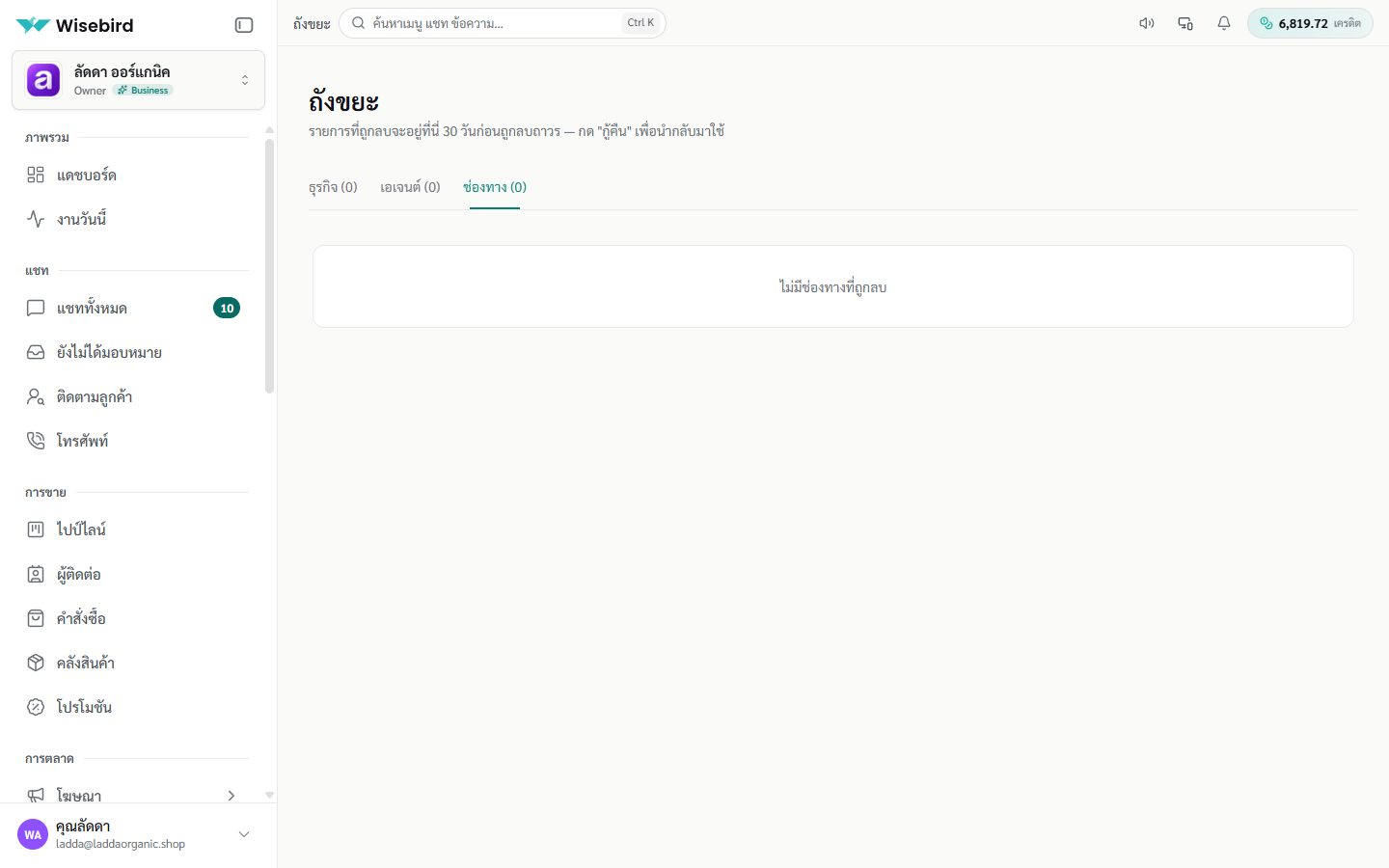
Trash, Channels tab — The demo shop has no deleted channel — when there is one, its row has "Restore" and "Delete permanently" Reconnect the restored channel
Deleting cut the platform connection, so a restored channel can't receive messages until you reconnect it.
Facebook Page / Instagram / TikTok
Press ⋮ on its row → Reconnect
LINE OA
Open the channel's page, issue a new Channel access token in LINE, paste it with the Channel Secret, then save