01Before you start
- You have a LINE Official Account (free to create in LINE Official Account Manager)
- You are an admin of that account and sign in to LINE Developers with the same LINE account
- In Wisebird you are the shop owner or an admin allowed to connect channels. If you don't see the Create Channel button, ask the owner for access
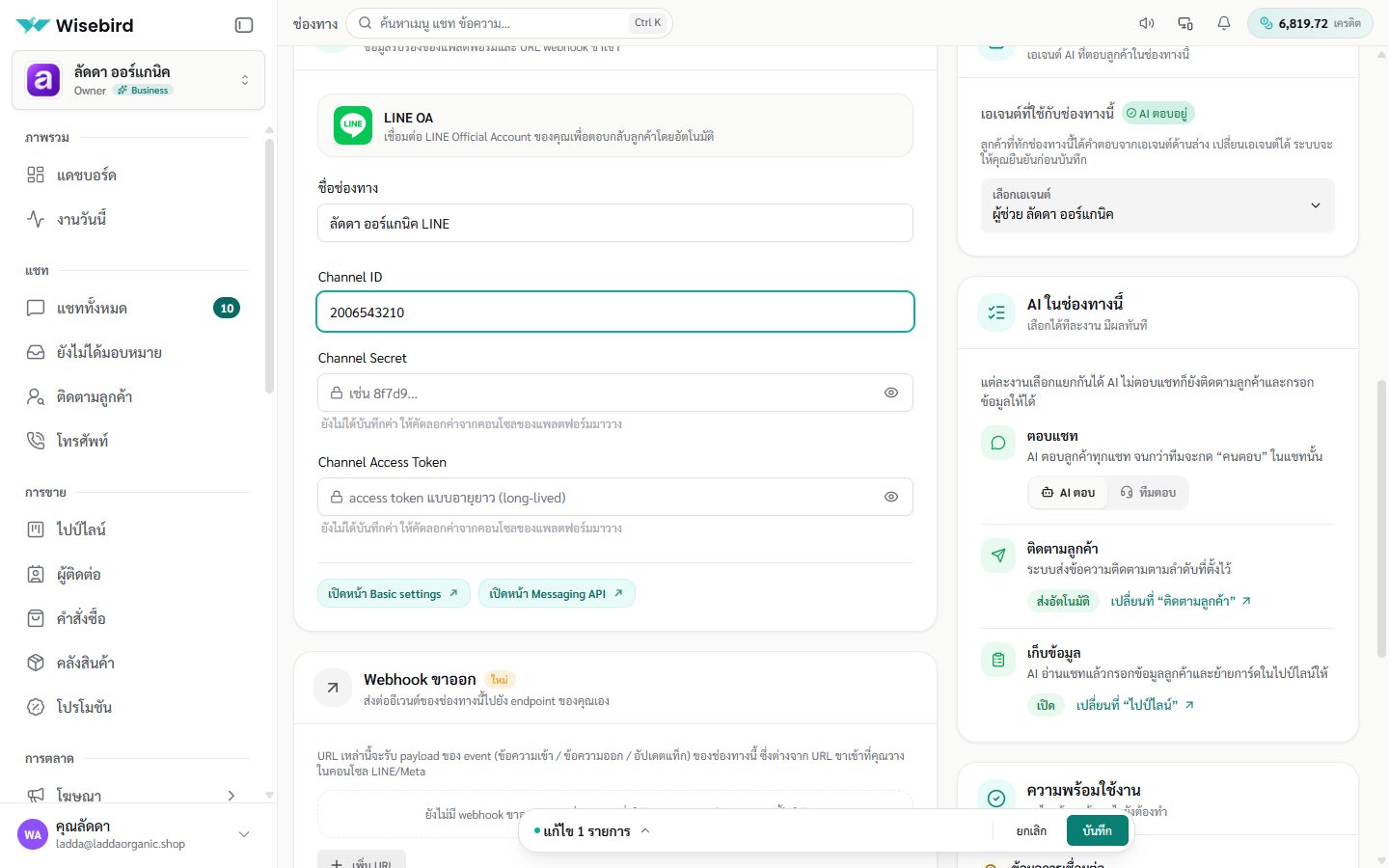
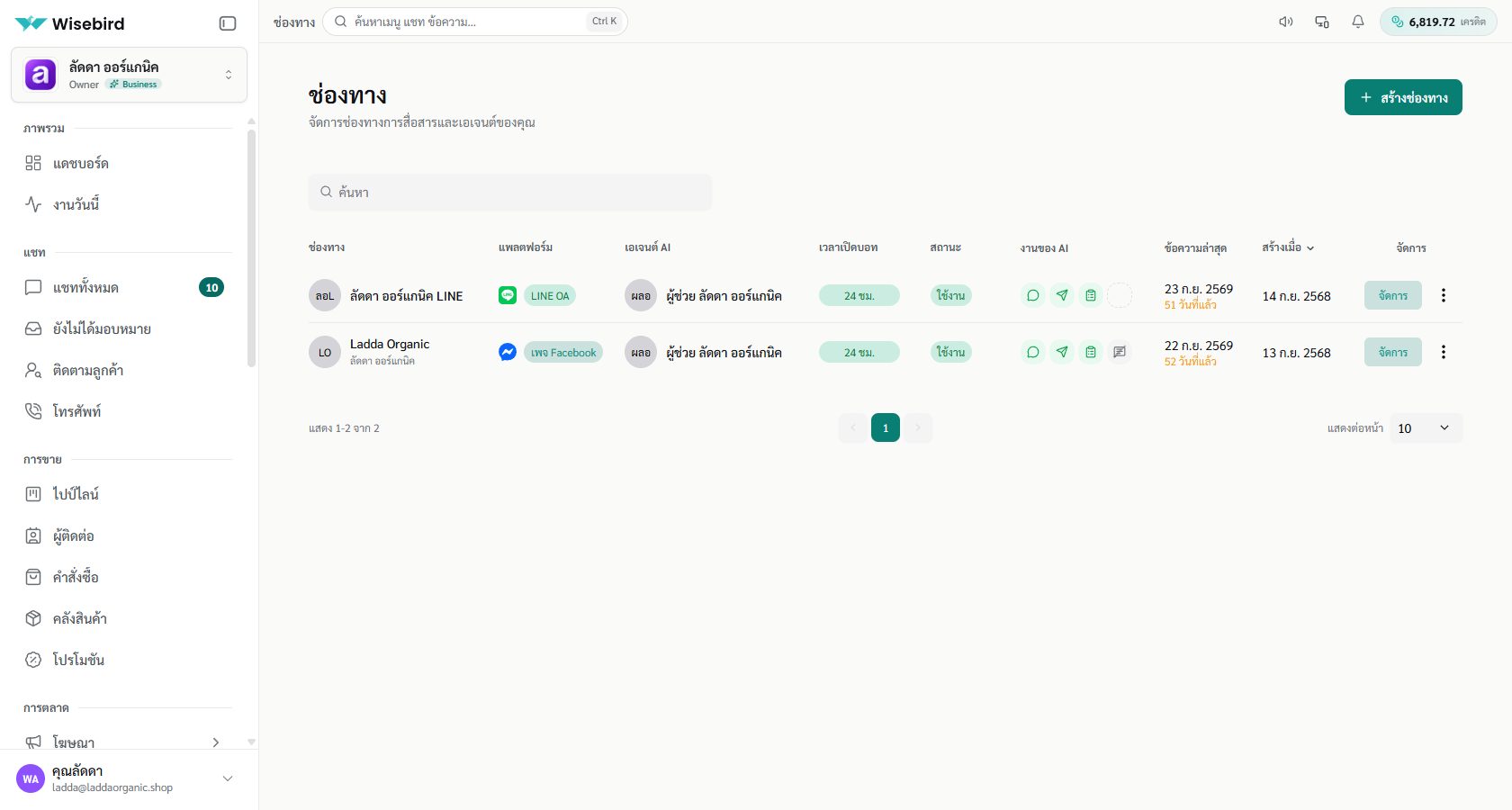
All of the shop's channels live under Channels in the "Setup" group.
02Create the LINE channel in Wisebird
Keep Wisebird and LINE's back office open side by side — you'll copy values back and forth.
Press "Create Channel" and choose LINE OA
ChannelsCreate ChannelLINE OANext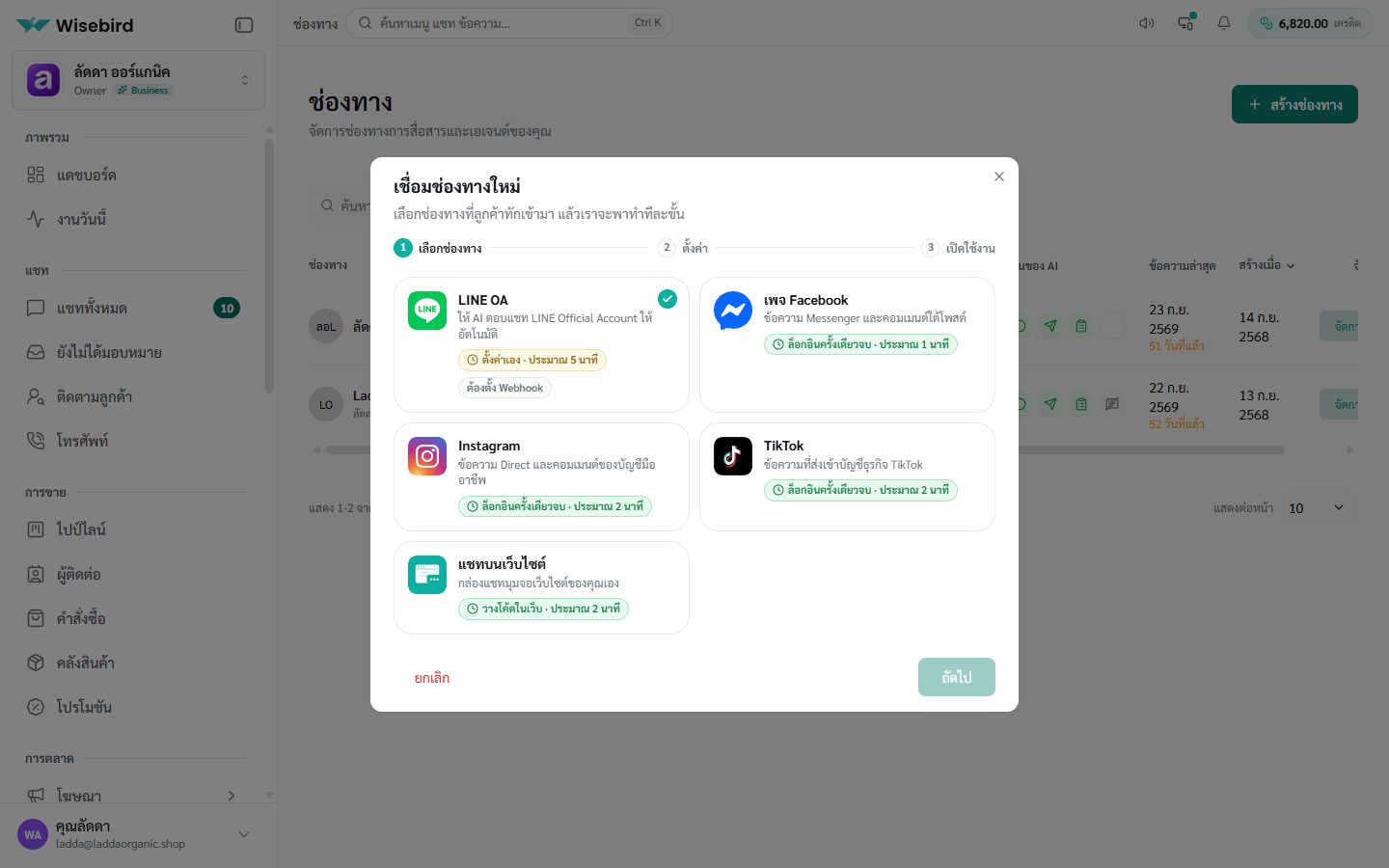
Choose a channel — The LINE OA card says "Manual setup" and "Webhook needed" Turn on Messaging API for the OA
In LINE Official Account Manager
SettingsMessaging APIEnableChoose a providerScreenshot: Messaging API in LINE OA ManagerThe "Enable Messaging API" button and the provider pickerScreenshot coming soon Already enabled? Skip this step.Copy the Channel ID and Channel secret
In LINE Developers Console, open this OA's channel → Basic settings tab and scroll down; the two values sit next to each other.
Paste them into Channel ID and Channel Secret. Once the Channel ID is filled in, the "Open Basic settings" button in Wisebird's window goes straight to your channel.
Screenshot: Basic settings in LINE DevelopersWhere the Channel ID and Channel secret areScreenshot coming soon Issue a Channel access token
Messaging API tabChannel access token (long-lived)IssueCopy the whole token and paste it into Channel Access Token.
Screenshot: Channel access token in LINE DevelopersThe Issue button and the token it gives youScreenshot coming soon Name the channel, pick an agent, press "Create channel"
The channel name shows in the inbox and reports. You can pick the agent now or later — without one, messages arrive but no AI answers.
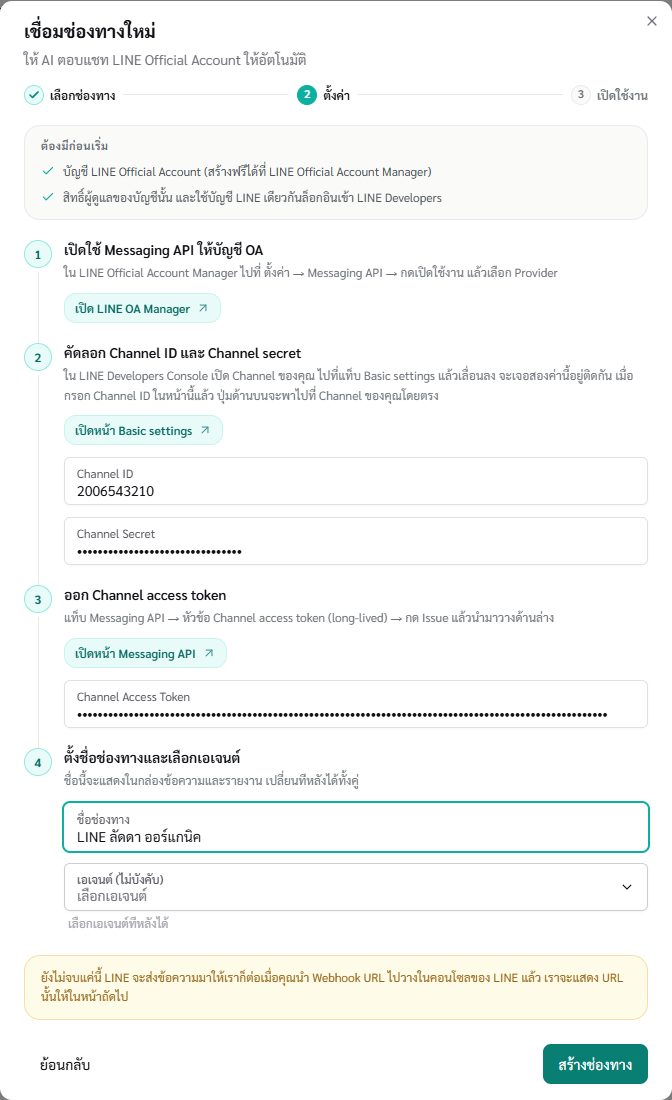
Values from LINE filled in — Channel ID, Channel Secret, Channel Access Token and the channel name all filled in Before saving, Wisebird asks LINE whether the values really work. If not, a red message appears under the wrong field, for example:
"LINE does not accept this access token"
Issue a new token in the Messaging API tab and paste it again
"This access token belongs to a different LINE channel…"
Check that the Channel ID and the token come from the same channel
"A LINE Channel ID is 8–12 digits"
Copy the Channel ID again — not the OA's @name
03Paste the Webhook URL into LINE (the step most often missed)
When the channel is created, the window says "One step left" and shows this channel's Webhook URL. LINE only sends customer messages to Wisebird once that URL is in place.
Copy the Webhook URL
Press Copy next to the URL. It belongs to this channel only — never paste it into another channel.
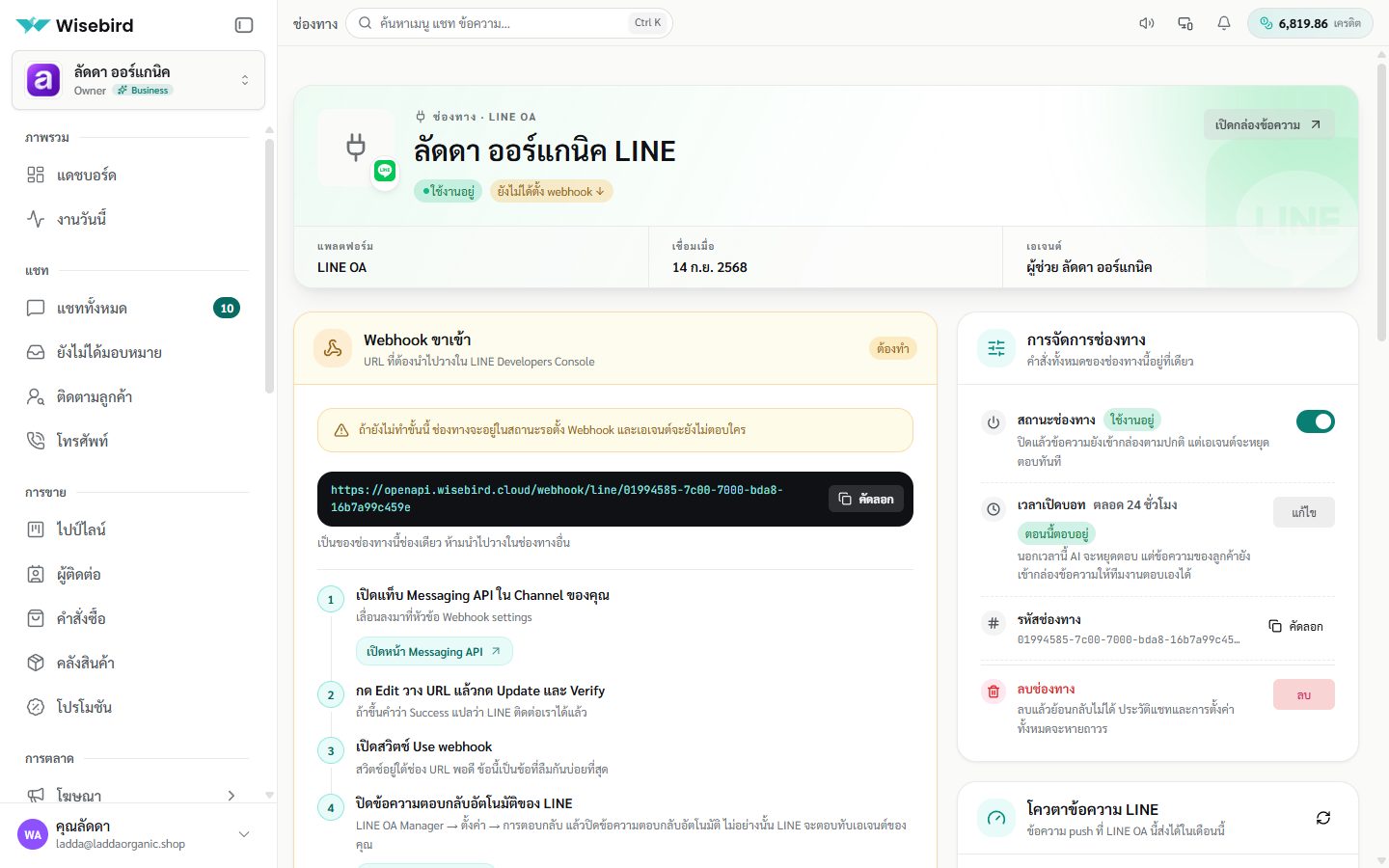
The "Inbound webhook" card — The LINE channel's page has the URL to copy, with the same steps as the setup window Paste it in LINE Developers and press Verify
LINE DevelopersYour channelMessaging API tabWebhook settingsEditPaste the URL → Update → Verify. Success means LINE can reach Wisebird.
Screenshot: Webhook settings in LINE DevelopersThe Webhook URL box, Edit / Update / Verify, and the Success resultScreenshot coming soon Turn on "Use webhook"
The Use webhook switch sits right under the URL. If it is off, LINE sends nothing even after a successful Verify.
Screenshot: the Use webhook switchThe switch must be green (on)Screenshot coming soon Turn off LINE's auto-reply
LINE OA ManagerSettingsResponse settingsAuto-reply messages offLeft on, LINE answers customers on top of your agent.
Screenshot: response settings in LINE OA ManagerThe auto-reply switch — offScreenshot coming soon Press "Done" and message the OA
Message the shop's LINE OA from your phone. It should appear in All chats within seconds, and the agent should reply.
If the LINE OA supports it, you are asked whether to import existing followers as contacts. Import them or press "Skip".
04Looking after the channel
Press Manage on the channel's row to open its page. There you can:
- Change the agent that answers this channel (the "Agent" card)
- Edit the Channel ID / Channel Secret / Channel Access Token after issuing a new token in LINE, then press Save in the bar at the bottom
- Turn the channel on or off and set the bot hours (the "Channel controls" card)
- See this month's LINE message quota — replies right after a customer writes are free; only push messages count
- Check the Readiness card for anything still left to do