01Connect a Facebook Page
One Page brings both Messenger messages and comments under your posts. A computer is easiest.
Open the connect window and choose "Facebook Page"
ChannelsCreate ChannelFacebook PageNext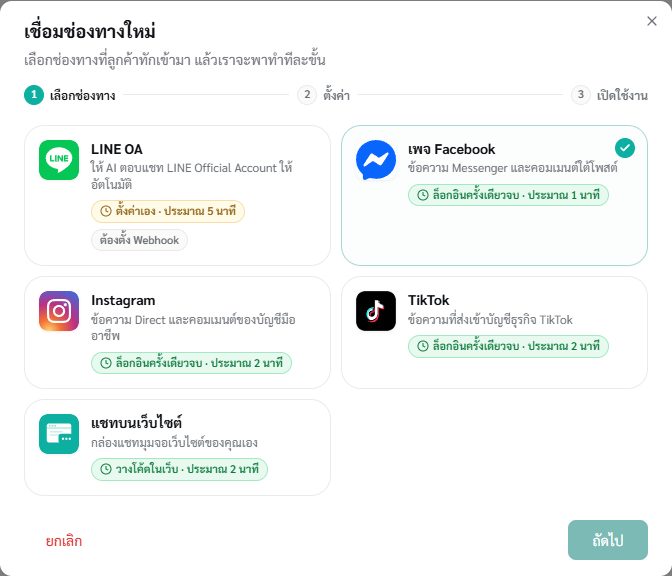
Choose Facebook Page — The Facebook Page card says "Sign in and done · about 1 minute" Look at the "Opt in to all current and future" pictures before pressing the button
Facebook asks twice — which Pages and which Businesses Wisebird may see. Both times choose the top option, Opt in to all current and future…, as framed in red in the pictures.
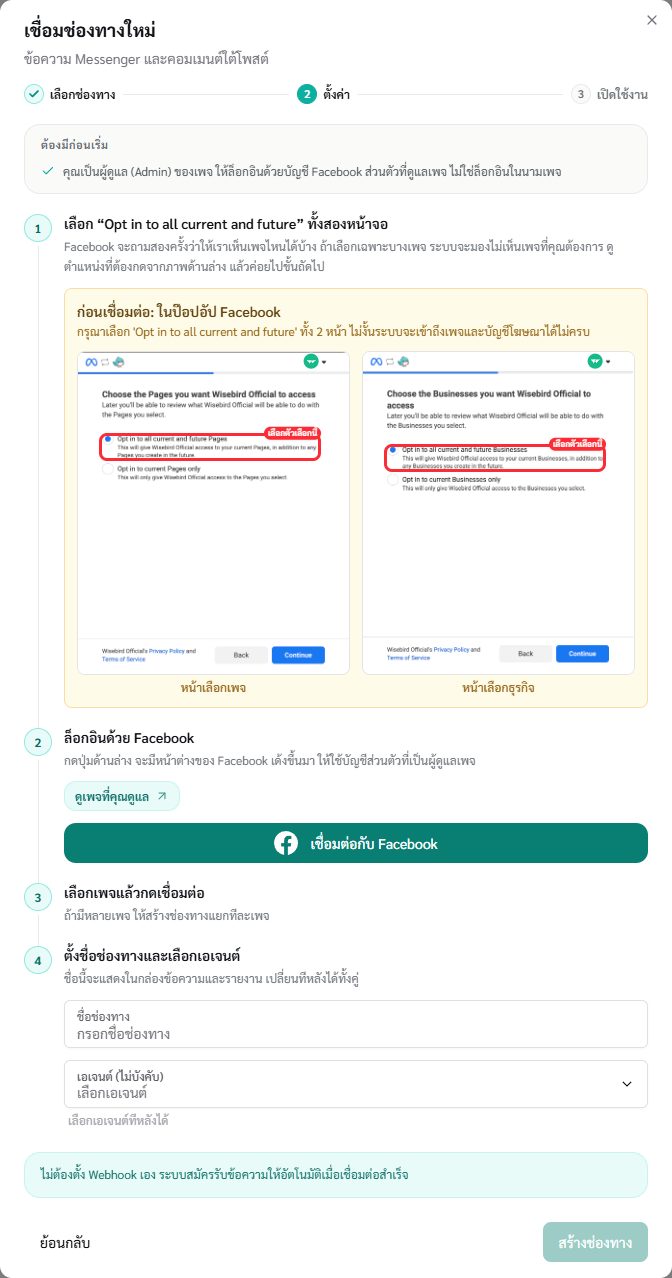
Steps in the connect window — Example Pages and Businesses screens, the "Connect with Facebook" button and the channel name box If you choose "Opt in to current … only" and tick only some Pages, Wisebird cannot see the Page you want and may miss some ad accounts.Press "Connect with Facebook" and allow access
Facebook's window pops up. Sign in and continue to the end — don't close it half way.
Screenshot: Facebook "Choose the Pages…"Choose Opt in to all current and future Pages, then ContinueScreenshot coming soon Screenshot: Facebook "Choose the Businesses…"Choose Opt in to all current and future Businesses, then ContinueScreenshot coming soon Pick the Page and press "Connect"
Back in Wisebird you see the Pages you manage. With many Pages, search by name or ID. Press Connect next to the Page; it turns into Connected.
Screenshot: the Page list after signing in"Select a page to connect" — picture, name, ID and Connect button (needs a real Facebook sign-in to capture)Screenshot coming soon One Page is one channel. For several Pages, create one channel per Page.Name the channel, pick an agent, press "Create channel"
No webhook to set — Wisebird subscribes for you. New messages arrive in All chats from now on, and older chats are brought in in the background; see Importing chat history and Facebook labels.
02Connect an Instagram account
Brings Direct messages and comments. Get two things ready first:
- The Instagram account is a professional account (Business or Creator)
- "Allow access to messages" is on in the Instagram phone app (it can't be done on the web): Settings → Messages and story replies
Choose Instagram, then a sign-in method
ChannelsCreate ChannelInstagramNextRecommended
Instagram Login
Sign in with Instagram directly. No Facebook Page required.
Alternative
Facebook Login
Sign in with Facebook. Works when the IG account is linked to a Page you manage.
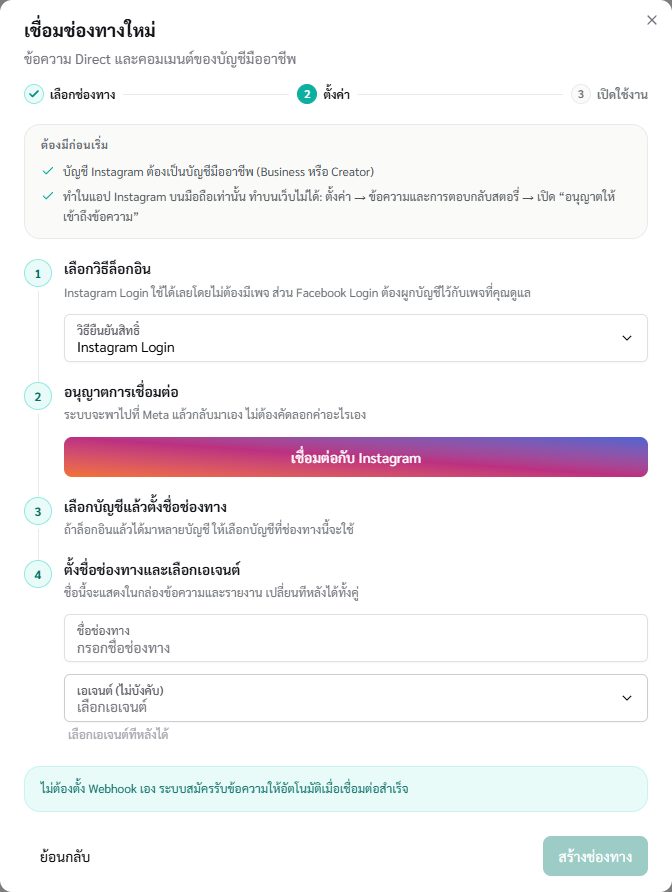
Instagram steps — The "Authorization method" box, the "Connect with Instagram" button and the channel name box Pick the account, name it, press "Create channel"
If the sign-in returned several accounts, choose the one for this channel. The channel name is filled in as @handle; you can change it.
03After connecting
Press Manage on the channel's row to see the connected Page, its Page ID, the answering agent, and the Channel controls card with Reconnect (for an expired connection or new Facebook permissions) and Test (to check the AI really answers this Page).
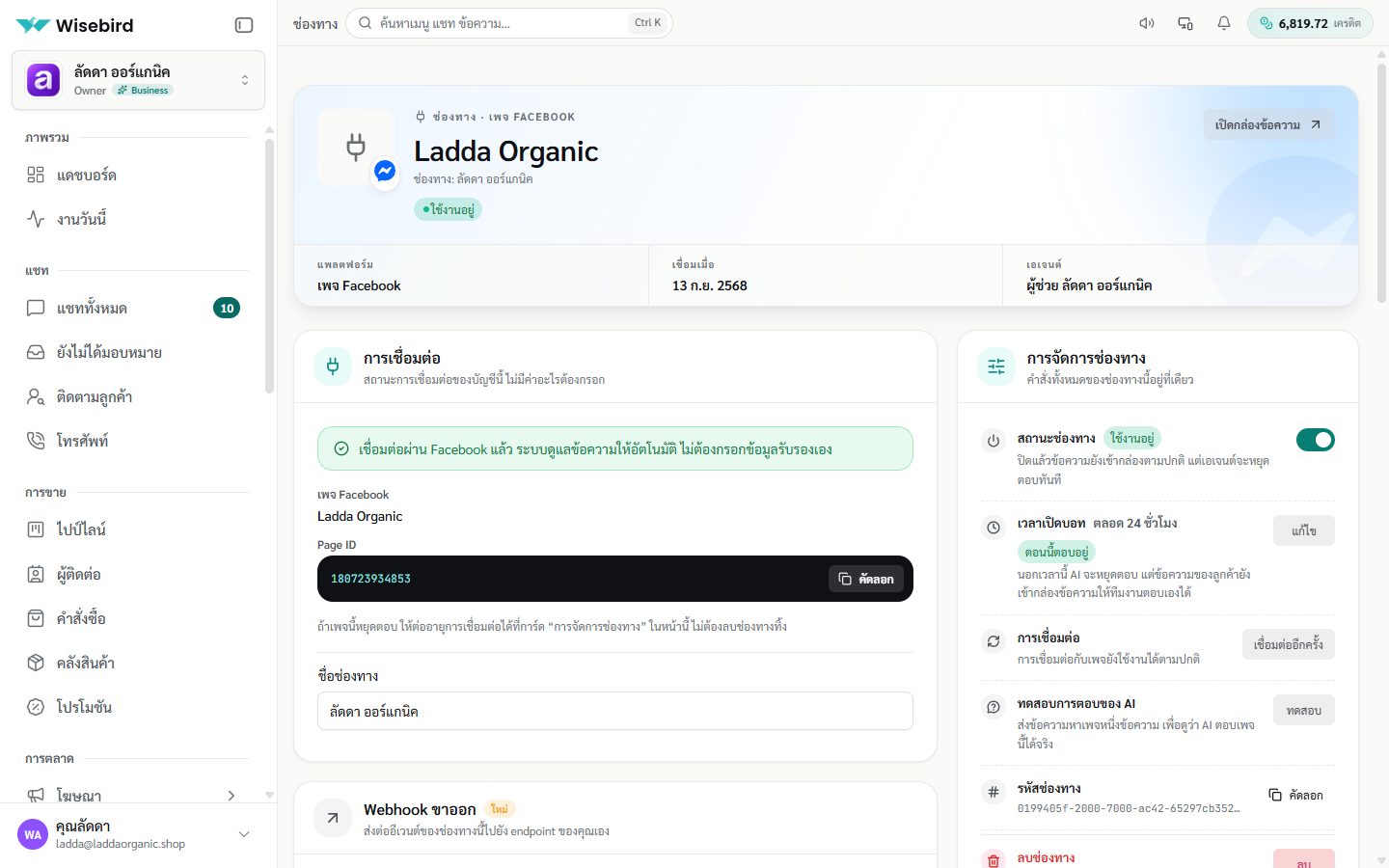
If one day it says "Reconnect needed", see Facebook updated its permissions — reconnect.