01How you know a Page needs reconnecting
Only people who can manage channels (the owner or admins) see this warning, in three places:
- The Channels page: an orange Reconnect needed label under the Page's status, and in the row's ⋮ menu "Reconnect" turns orange with "Facebook updated its permissions — please reconnect"
- The channel's page: the Channel controls card shows an orange "Facebook updated its permissions" row with a reconnect button
- The bell at the top right: "… needs reconnecting" — pressing it opens the channel with the reconnect window already open
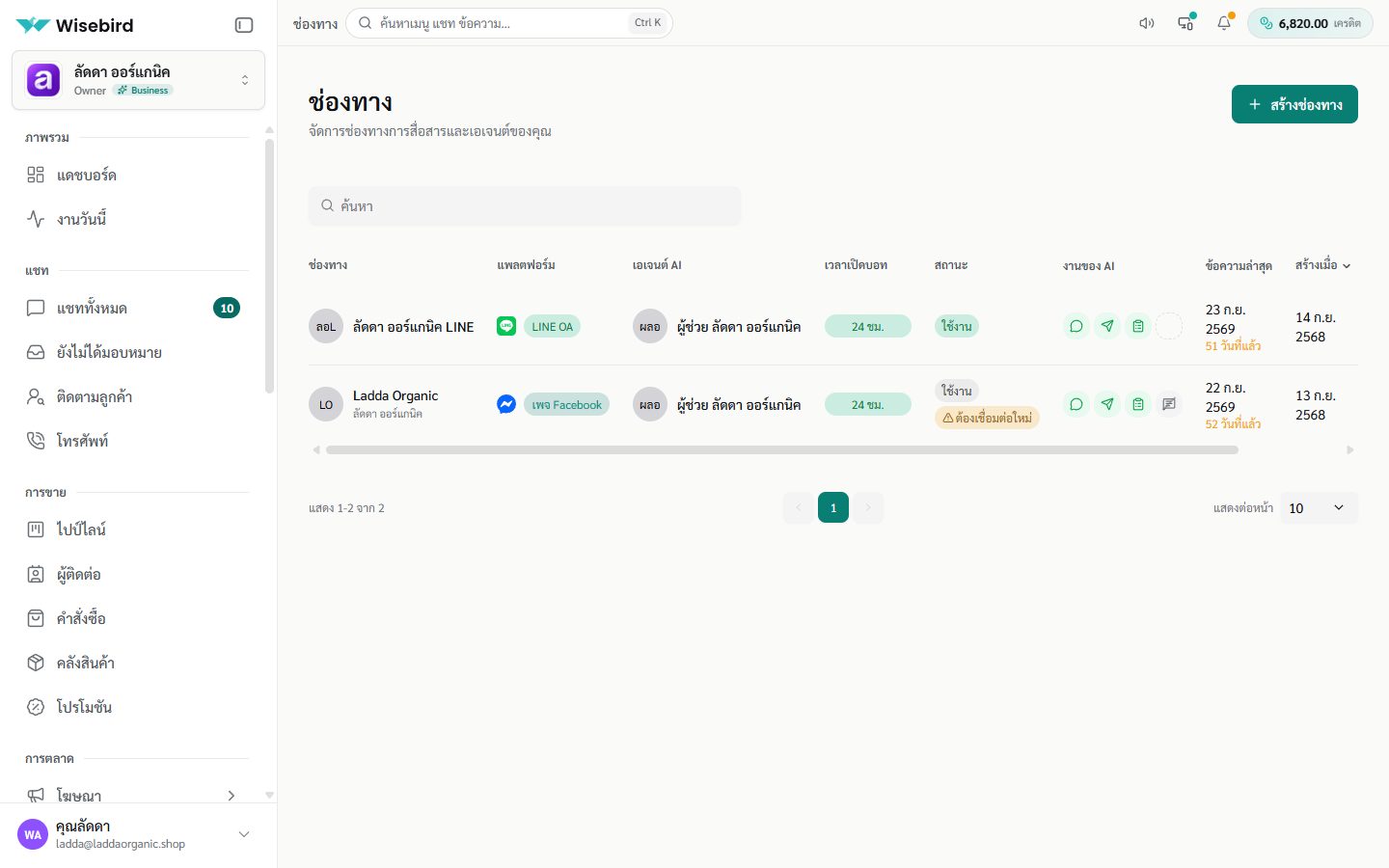
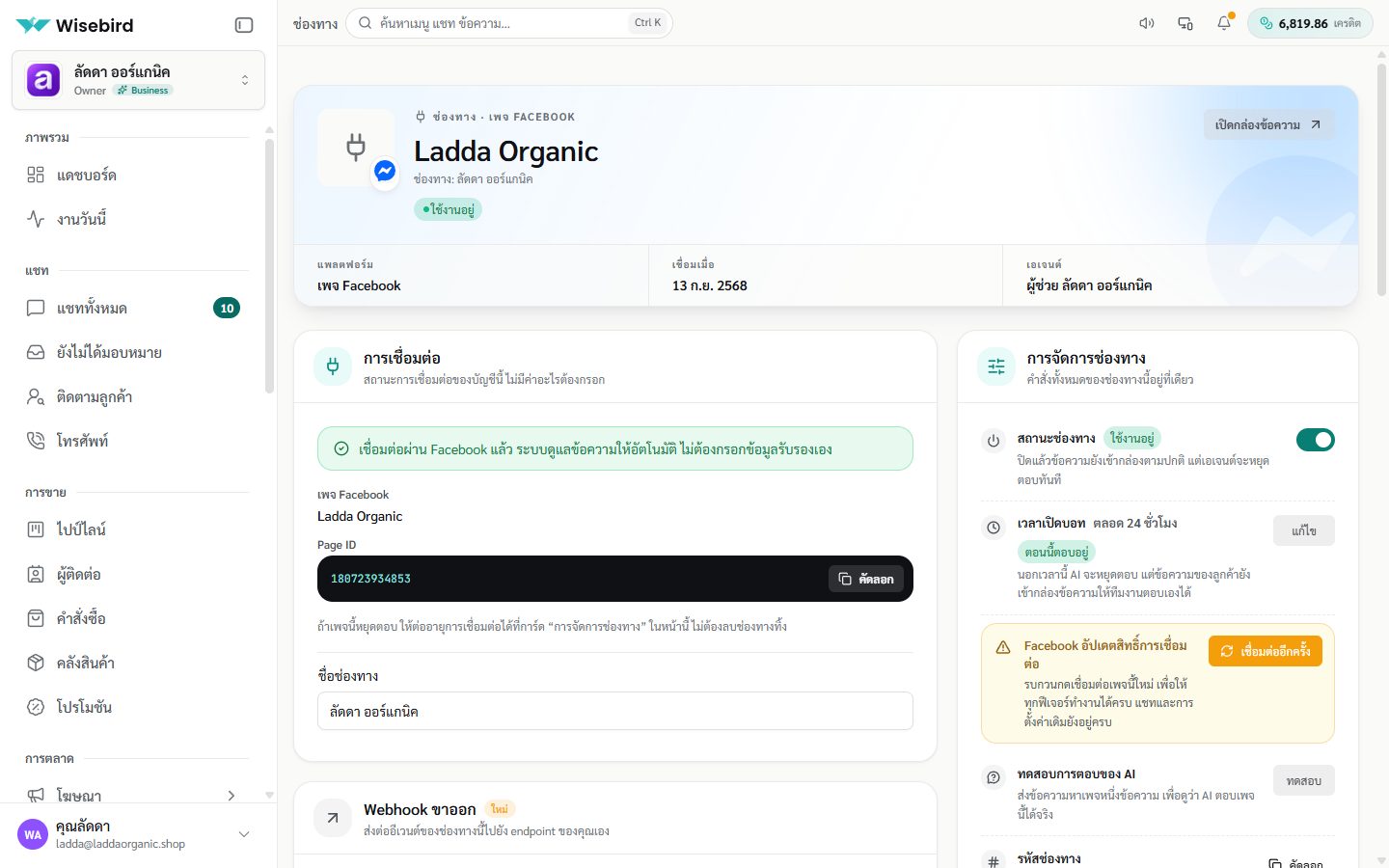
Orange "Reconnect needed"
The Page still sends and receives messages, but some features (such as posts and comments) may not fully work
reconnect soon
Red "Token expired"
The channel cannot send or receive messages at all
reconnect now — same steps
02How to reconnect
Press "Reconnect"
From the ⋮ menu at the end of the row on Channels, from the Channel controls card on the channel's page, or from the bell item.
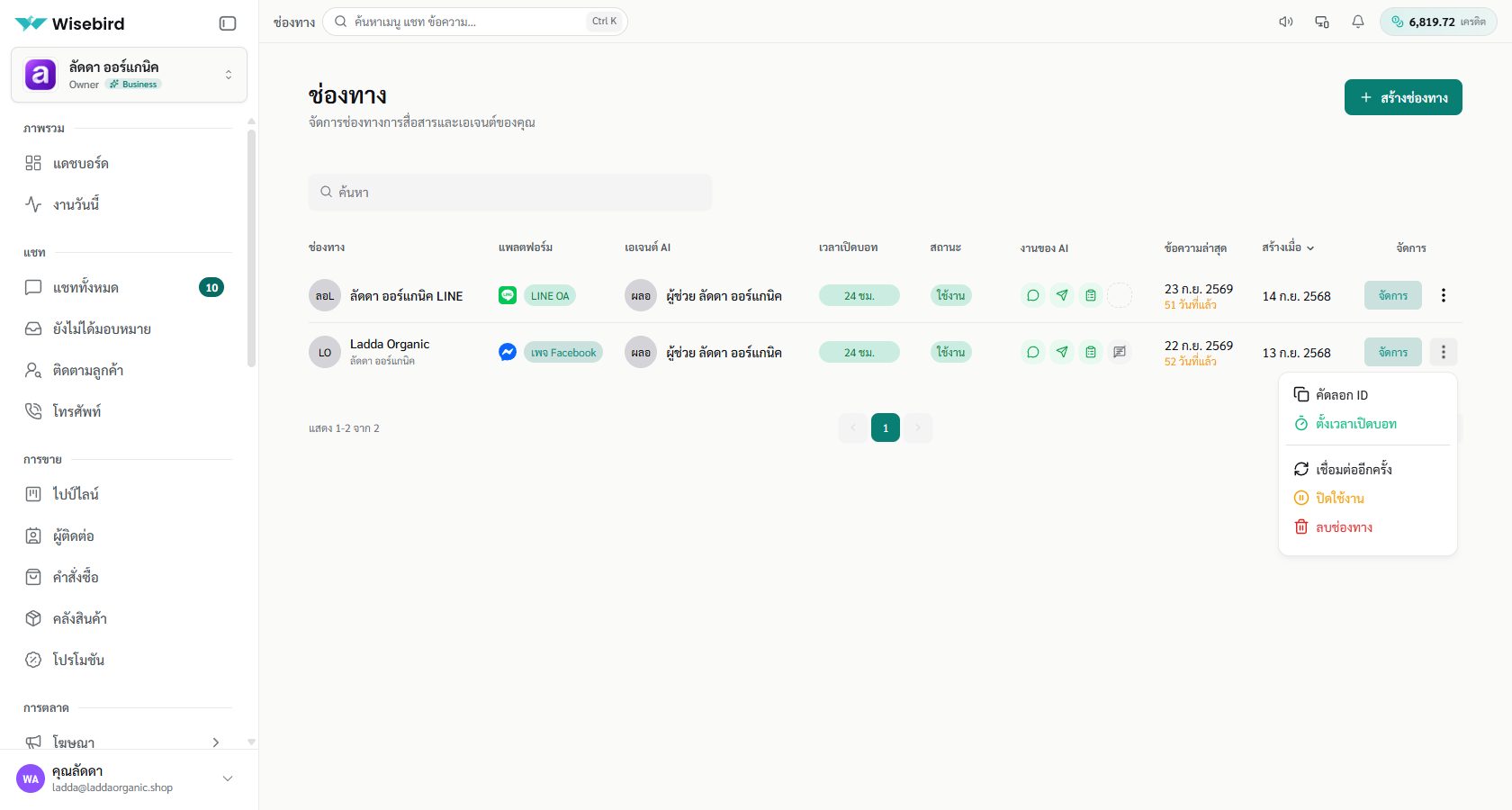
The row's ⋮ menu — Choose "Reconnect" (when a reconnect is needed this item is orange) 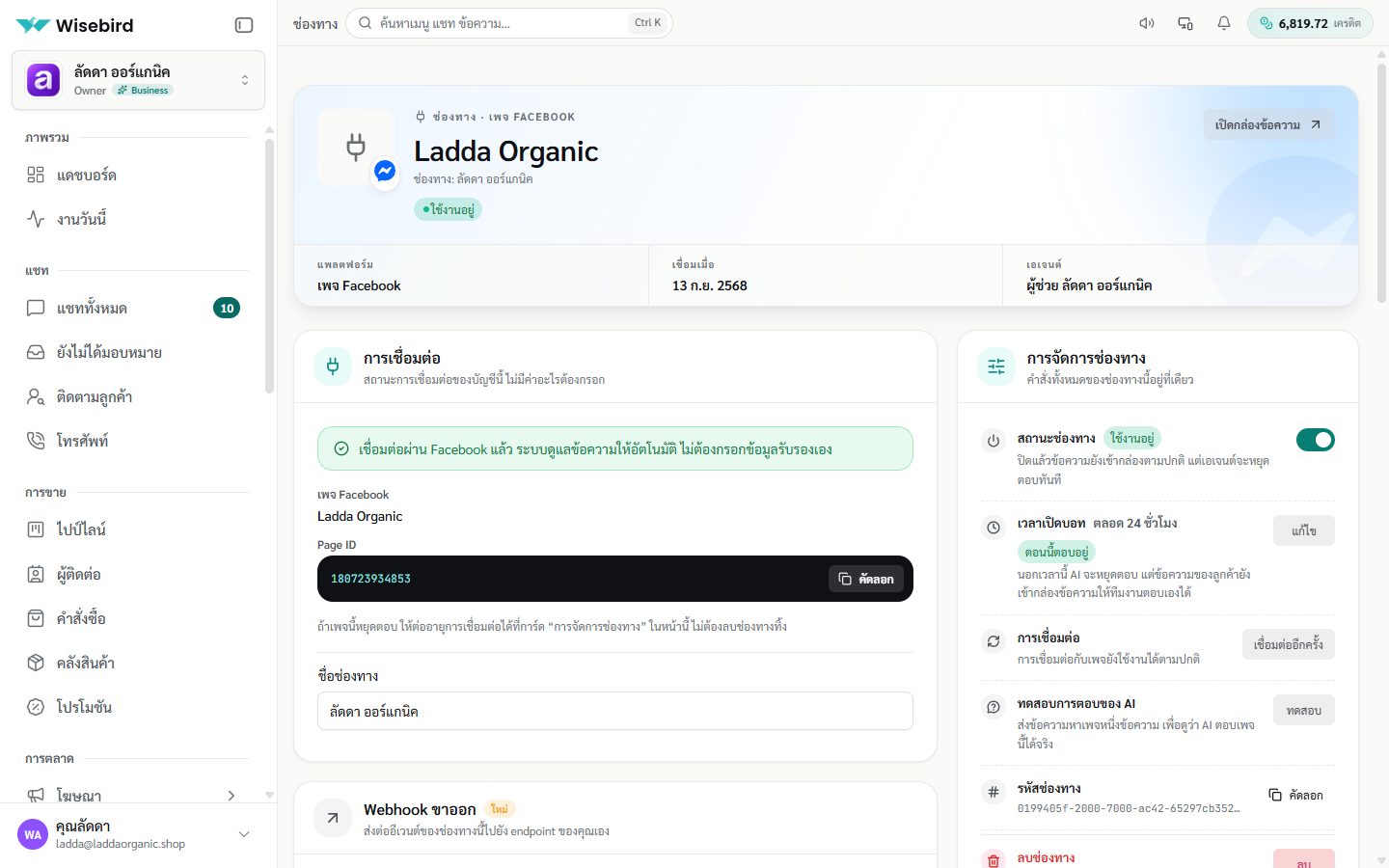
The Channel controls card — The "Connection" row has a "Reconnect" button — when Facebook updates its permissions this row turns orange Press "Connect with Facebook" and allow everything
Facebook asks for permissions again, including any you declined before. Accept them all, and choose Opt in to all current and future on both the Pages and the Businesses screen.
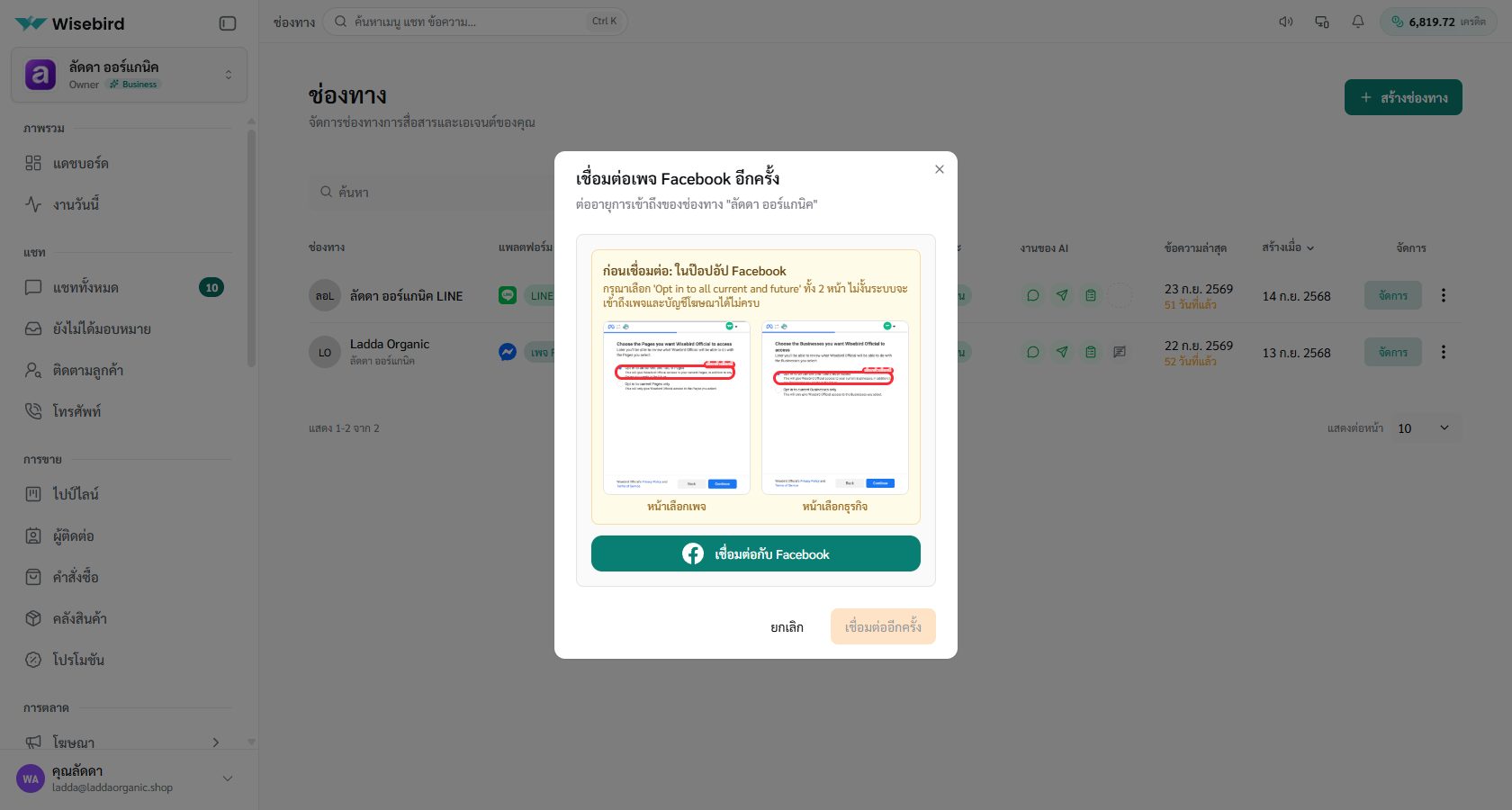
The "Reconnect Facebook Page" window — Example of the options to choose, and the "Connect with Facebook" button Press "Connect" on the same Page, then "Reconnect"
Back in Wisebird only this channel's Page is listed. Press Connect, then the Reconnect button at the bottom. You'll see "Channel reconnected successfully".
Screenshot: the reconnect window after signing inThe same Page with its "Connect" button, and "Reconnect" now enabled (needs a real Facebook sign-in to capture)Screenshot coming soon If it says the signed-in account has no access to the original Page, that Facebook account doesn't manage this Page. Sign in with one that does, or ask the Page admin to do it.