01Before you start
- Your Wisebird account must be an owner of both the old and the new business. If not, you'll see "You must be an owner of the previous business" or "You must be an owner of this business"
- You still need to manage the Facebook Page / LINE OA / TikTok account, because you will connect it again
- Finish within 30 days of deleting it in the old business; after that the old data is deleted for good and cannot be moved
02Moving it
In the old business: delete the channel
In the old business, go to Channels, press ⋮ on that channel's row → Delete Channel → confirm. The channel goes to the old business's Trash.
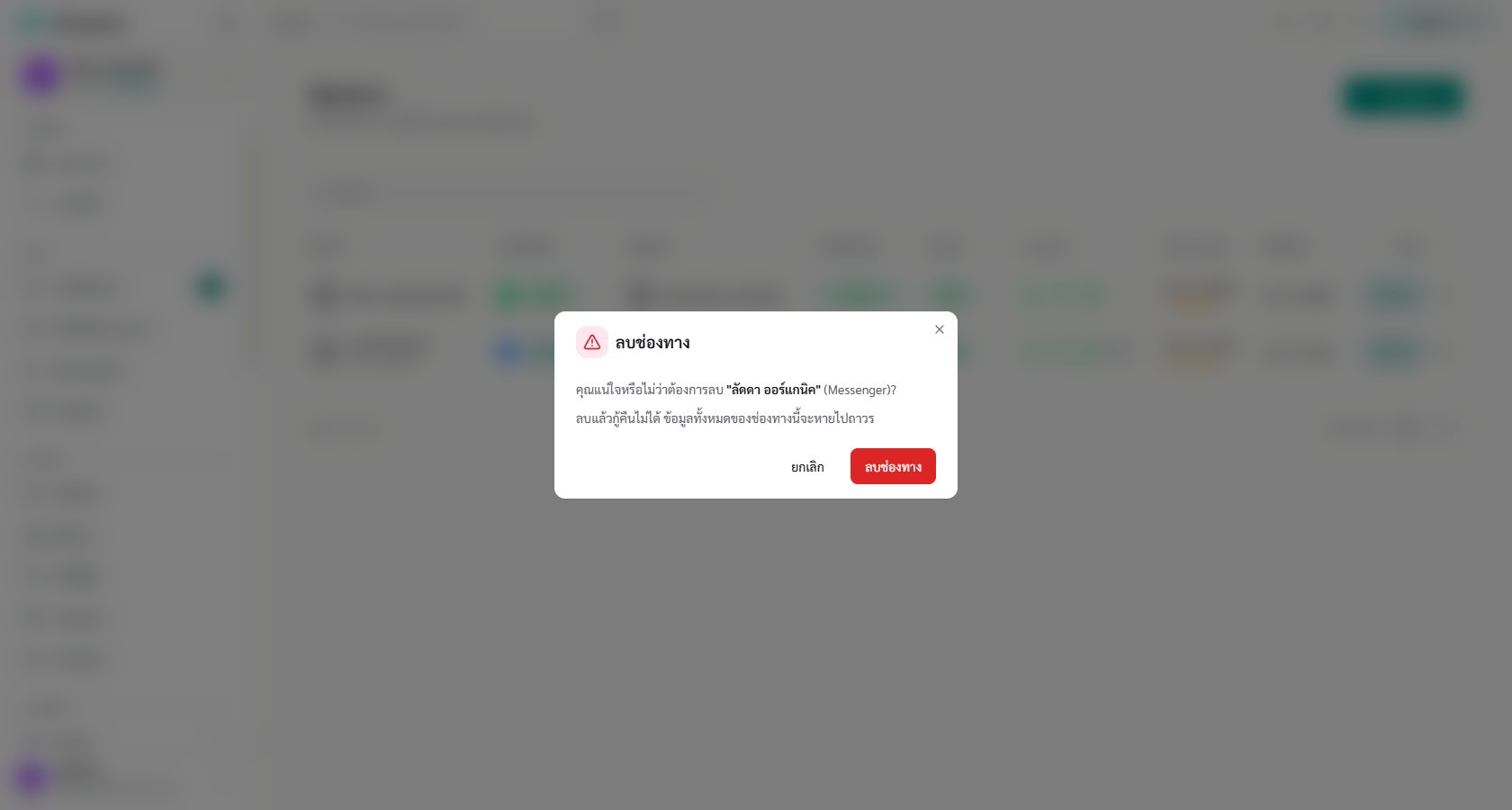
Confirming the delete in the old business — After deleting, the channel's chats are kept for 30 days, so they can still move to the new business Don't press "Delete permanently" in the old business's Trash, or there will be nothing left to move.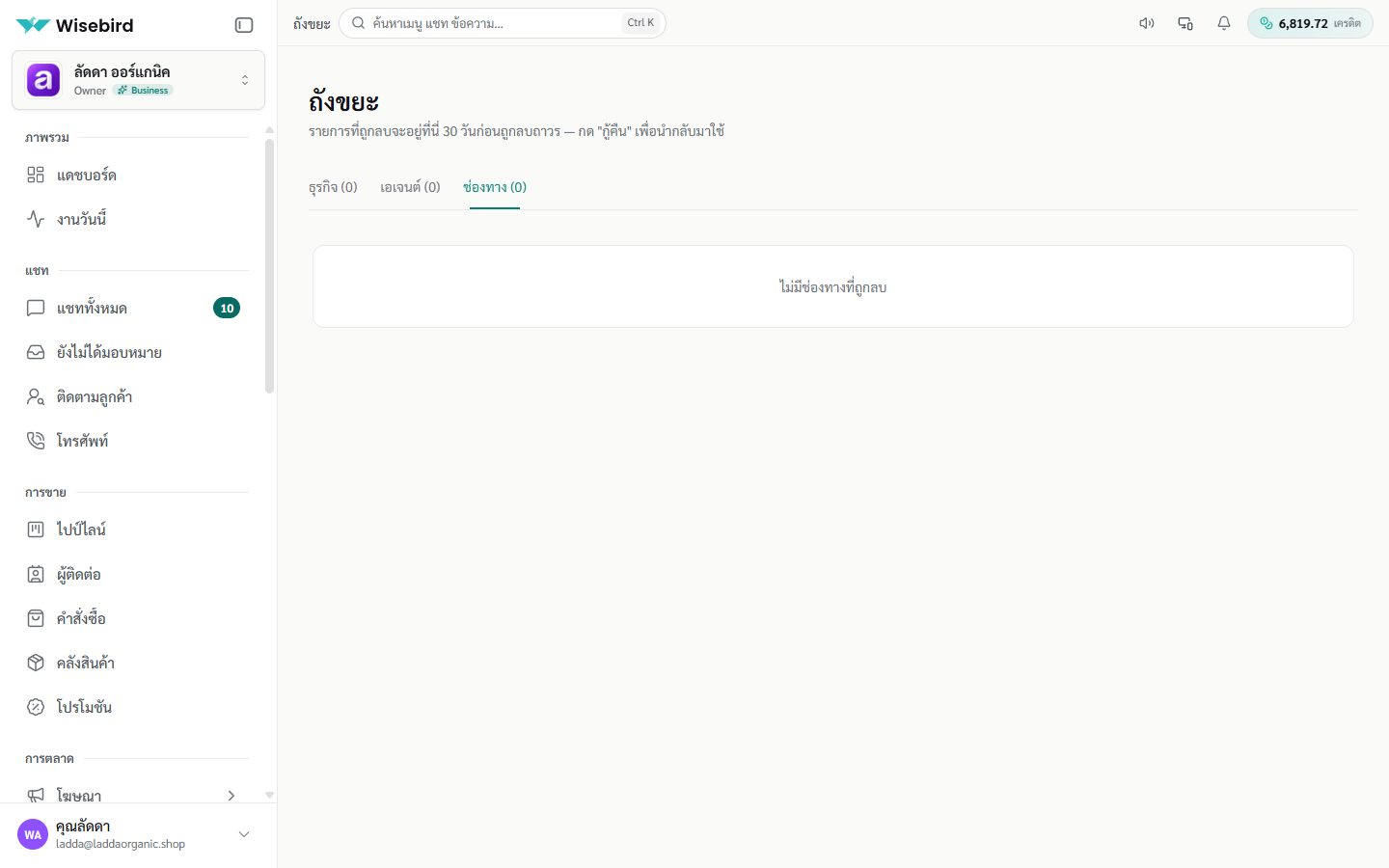
The old business's Trash — A deleted channel sits in the "Channels" tab with the days left (the demo shop has no deleted channel) Switch to the new business
Press the business name at the top left of the menu and pick the new business. If it doesn't exist yet, create it first.
In the new business: connect the same Page or account
Go to Channels → Create Channel and connect the same Page or account following LINE OA · Facebook and Instagram · TikTok. Pick one of the new business's agents.
Choose "Move data here" or "Start fresh (delete old)"
A window titled "This page was connected to another business" names the old business and shows how many chats, posts and comments it has.
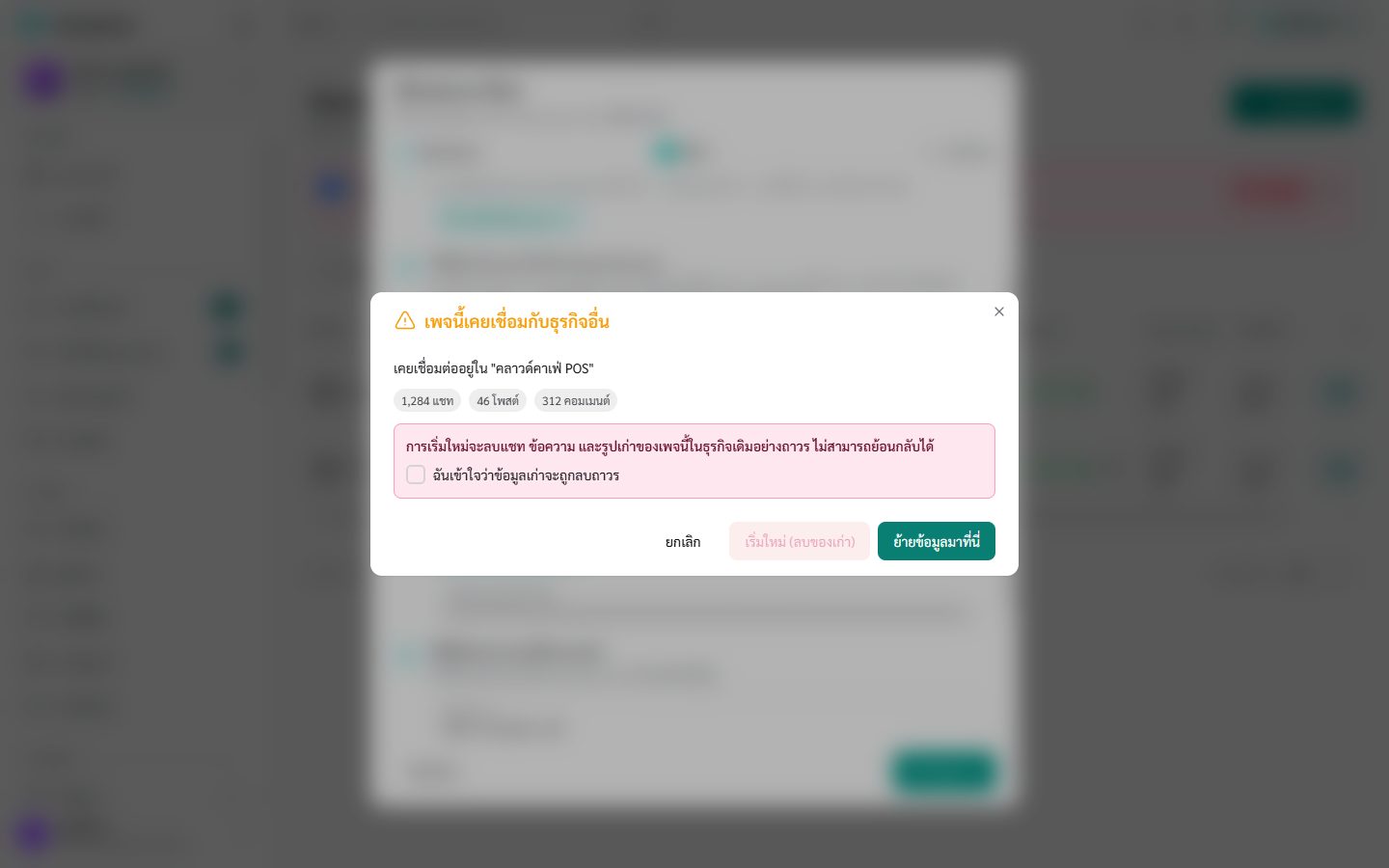
"This page was connected to another business" — "Previously connected in …" with the old business's name, chat / post / comment counts, a red warning with a tick box, and "Start fresh (delete old)" (enabled once ticked) and "Move data here" Keep history
Move data here
That channel's chats, messages, pictures and contacts move into the new business. The channel itself moves over whole — for LINE the same Webhook URL keeps working.
Permanent
Start fresh (delete old)
Permanently deletes this Page's old chats, messages and pictures in the old business and starts an empty channel. Tick "I understand the old data will be permanently deleted" first.
Starting fresh can't be undone, and for LINE the new channel gets a new Webhook URL that you must paste into LINE Developers again.Wait for the chat history to move
With Move data here, the channel works straight away and the chat history follows in the background. Channels shows "Moving chat history… X/Y".
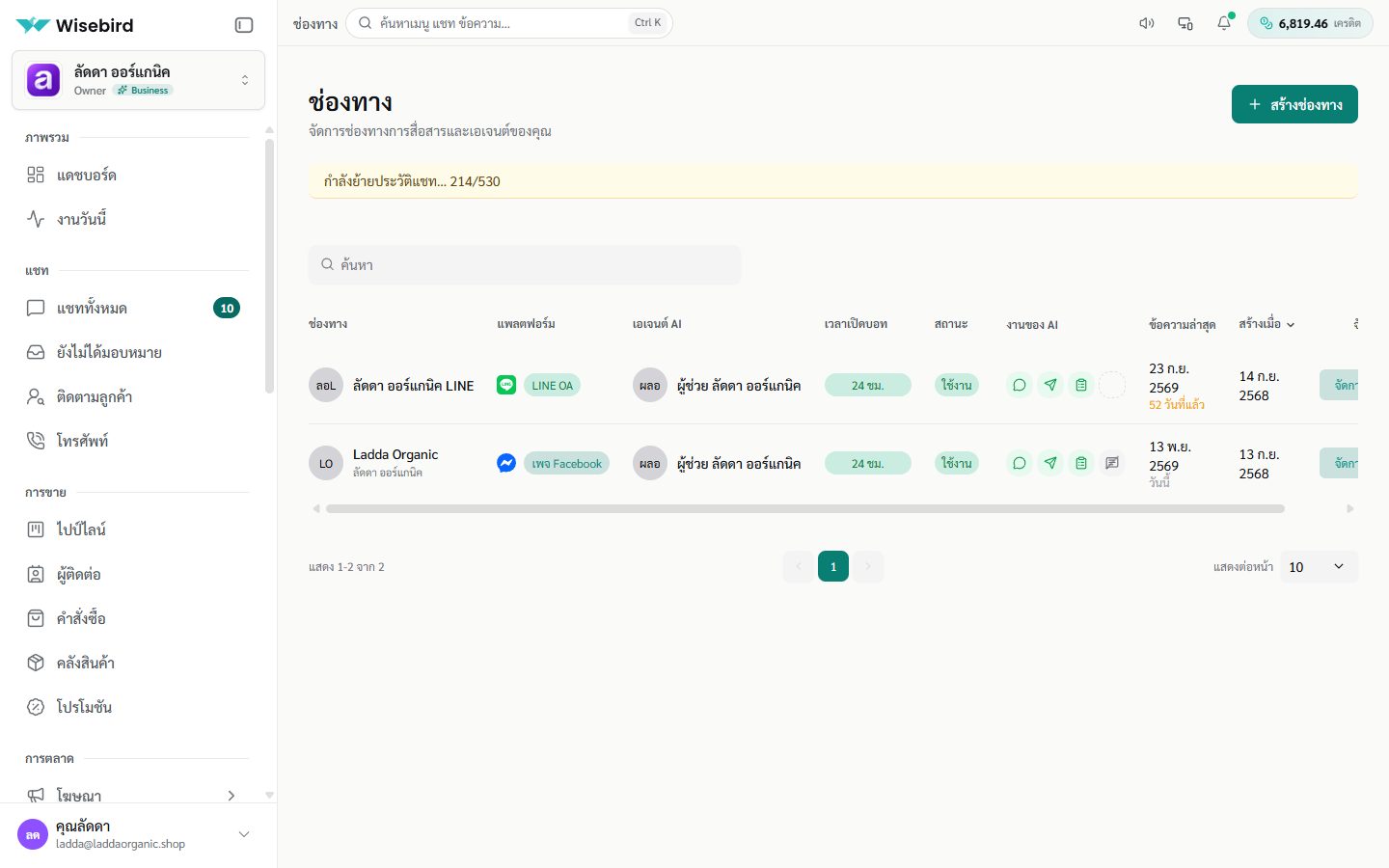
The "Moving chat history…" bar — An amber bar at the top of the Channels page counting the chats moved so far; it then says "Chat history moved successfully" "Chat history moved successfully"
Done — open an old chat in [All chats](/inbox)
"Moving chat history failed"
Press **Retry** on the bar; the old data is not lost meanwhile
still failing? contact the Wisebird team