01What belongs in the Knowledge Base
Put in things that rarely change and that customers ask often. Anything that involves calculating money belongs where the system can calculate it.
Yes
Shop and product information
FAQs, how to use, ingredients, care, shipping, returns, opening hours
No
Prices and promotions
Put them in Products and Promotions so prices are always calculated correctly
Supported files:
02Upload files
Open the agent’s Knowledge Base
My agentsChoose the agentKnowledge BaseFiles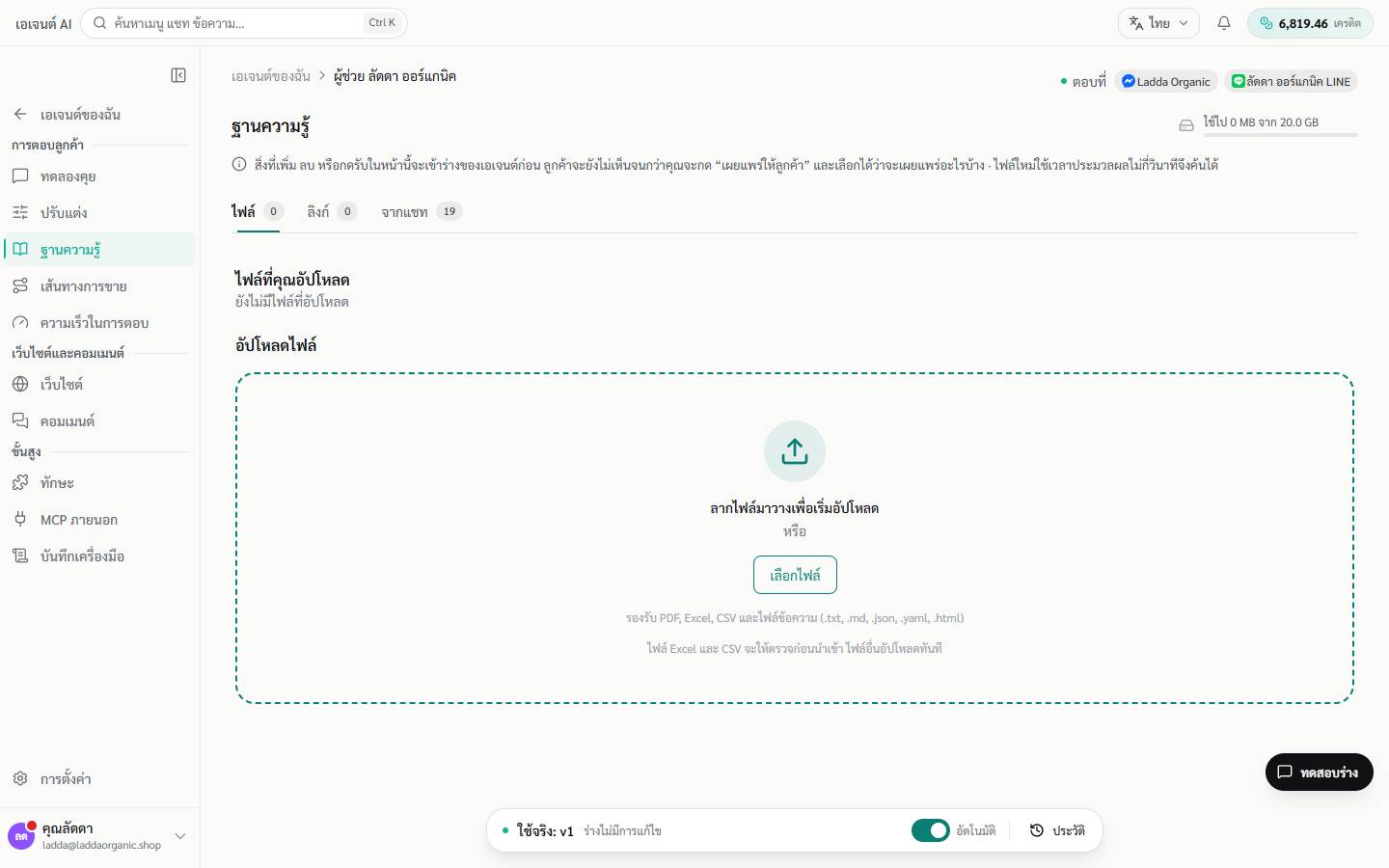
The Knowledge Base page — Files · Links · From chats tabs at the top, the upload box below Want the agent to read a web page too? Use the Links tab › Add Link.
Drop files in, or press "Browse files"
You can pick several files at once. PDF and text files upload straight away; Excel, CSV and picture files are checked first (next steps).
Check the spreadsheet before importingExcel and CSV
Check files before import shows the real table from your file. The row used as column names carries a Header tag.
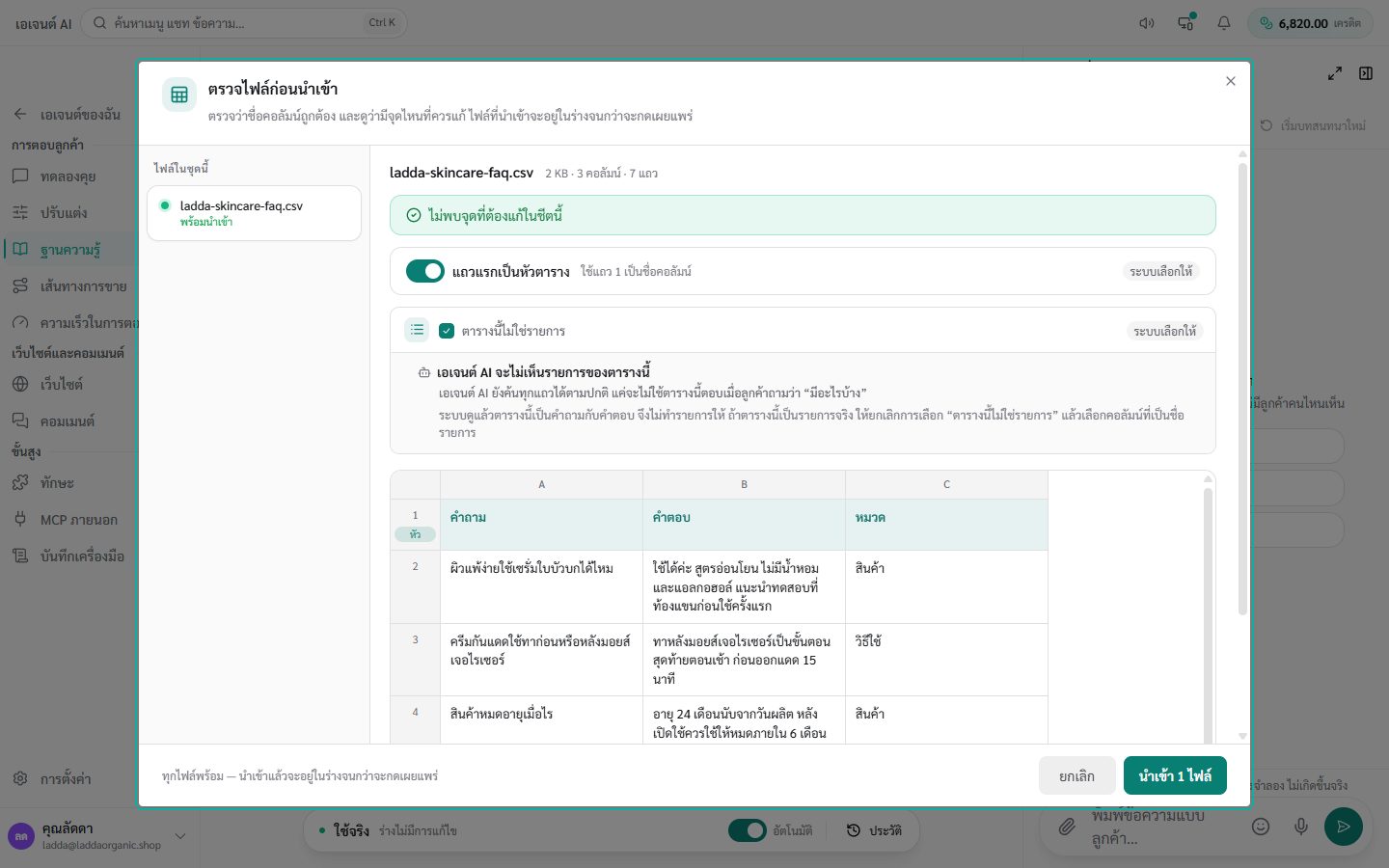
The "Check files before import" window — Left: the files in this batch · right: the check result, the "First row is the header" switch and the table from the file Row 1 really holds the column names (e.g. Question · Answer)
Keep "First row is the header" on
Row 1 is data, not column names
Turn the switch off
otherwise that first row gets attached to every other row
You see a warning, such as empty header cells or merged cells
Fix it in Excel as the warning suggests, then choose the file again
The system always picks a setting first (marked Chosen for you); press Restore to go back to it. Then press Import 1 file(s).
If the file looks like a product list (product names and prices), you are offered Import as products. Use it, so prices and promotions are calculated from your catalogue.Check the text the AI read in your picturesPictures
JPG, PNG, WEBP or GIF pictures (up to 10 MB), such as a menu, a promotion flyer or a price board, open a check window. The AI reads each picture and shows the text it found beside it.
- Edit the text in the box: the AI answers customers from this text, not from the picture
- Check numbers, prices and claims about benefits first; if the AI misread them, customers get the wrong information
- Press Read again if it is off; if the AI could not read the picture, type the text yourself
- Press Import when done. The picture goes into the draft like any file, and the AI can send it to customers too
Try it in the test panel, then publish
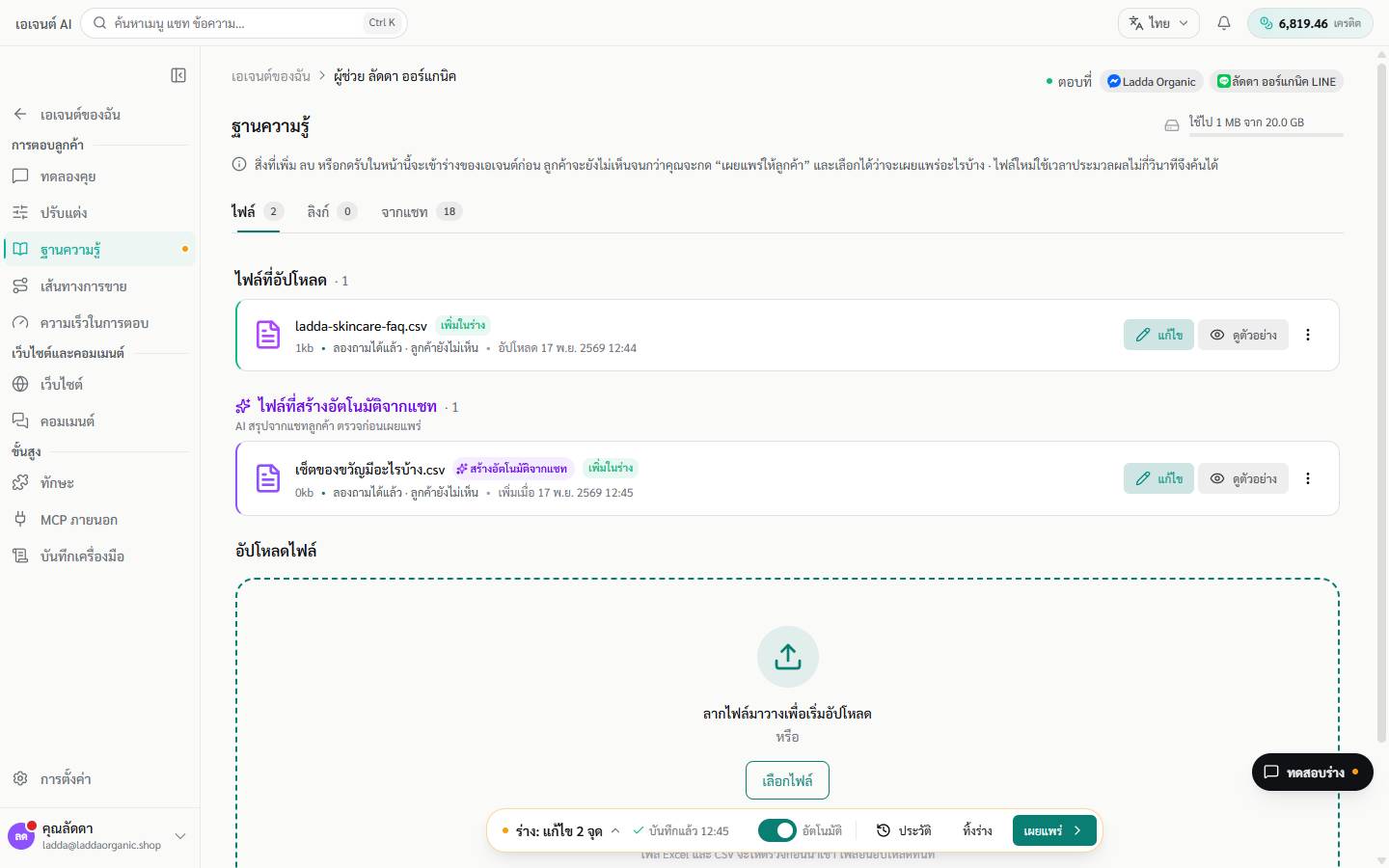
A new file is marked Added in draft and says "Ready to test · customers can’t see it yet". A new file takes a few seconds to process before it can be searched. Ask like a customer in the Test draft panel on the right, then press Publish in the bottom bar when you are ready.
/guides/agent-test-publishTest and publish guide
03Preview, download and take a file out
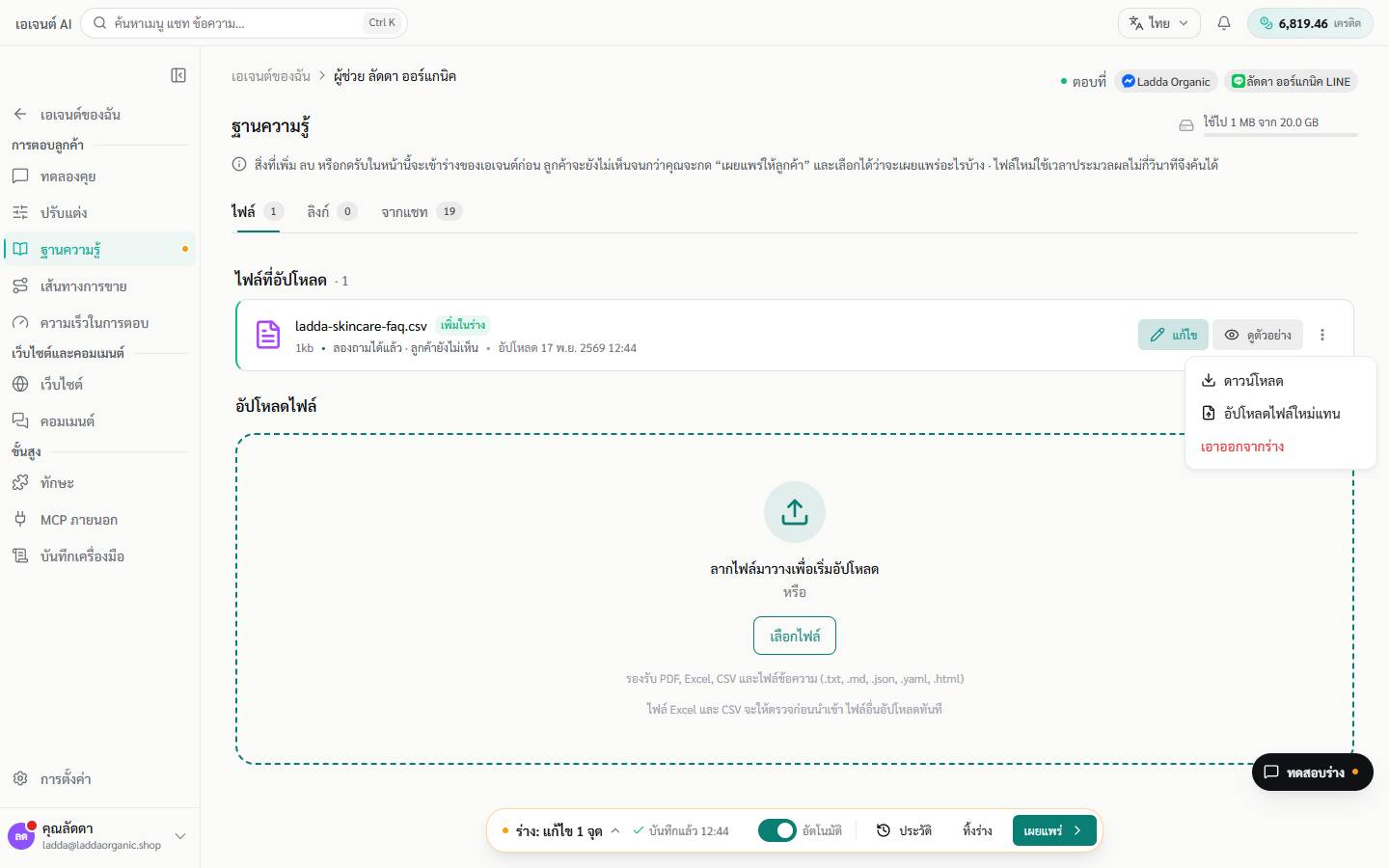
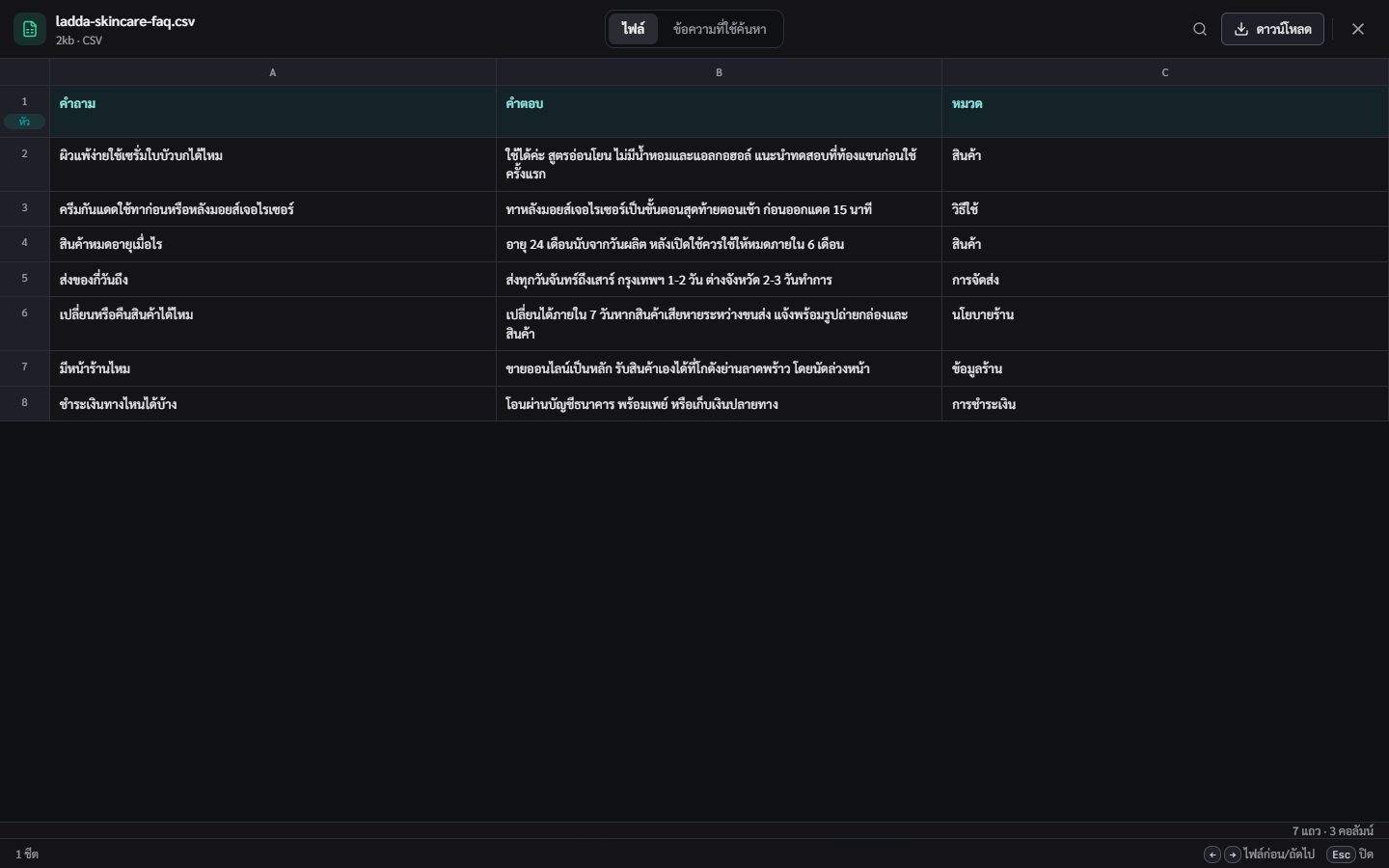
- Preview — opens the file full screen in its own form (table, PDF, text); ← → move to the next file, Esc closes
- The Searchable text tab in the preview is what the agent actually answers from — anything missing there, the agent can’t answer
- Download — the original file you uploaded (some files uploaded long ago have no download)
- Delete — the file keeps answering customers until you publish, and can be put back before you publish
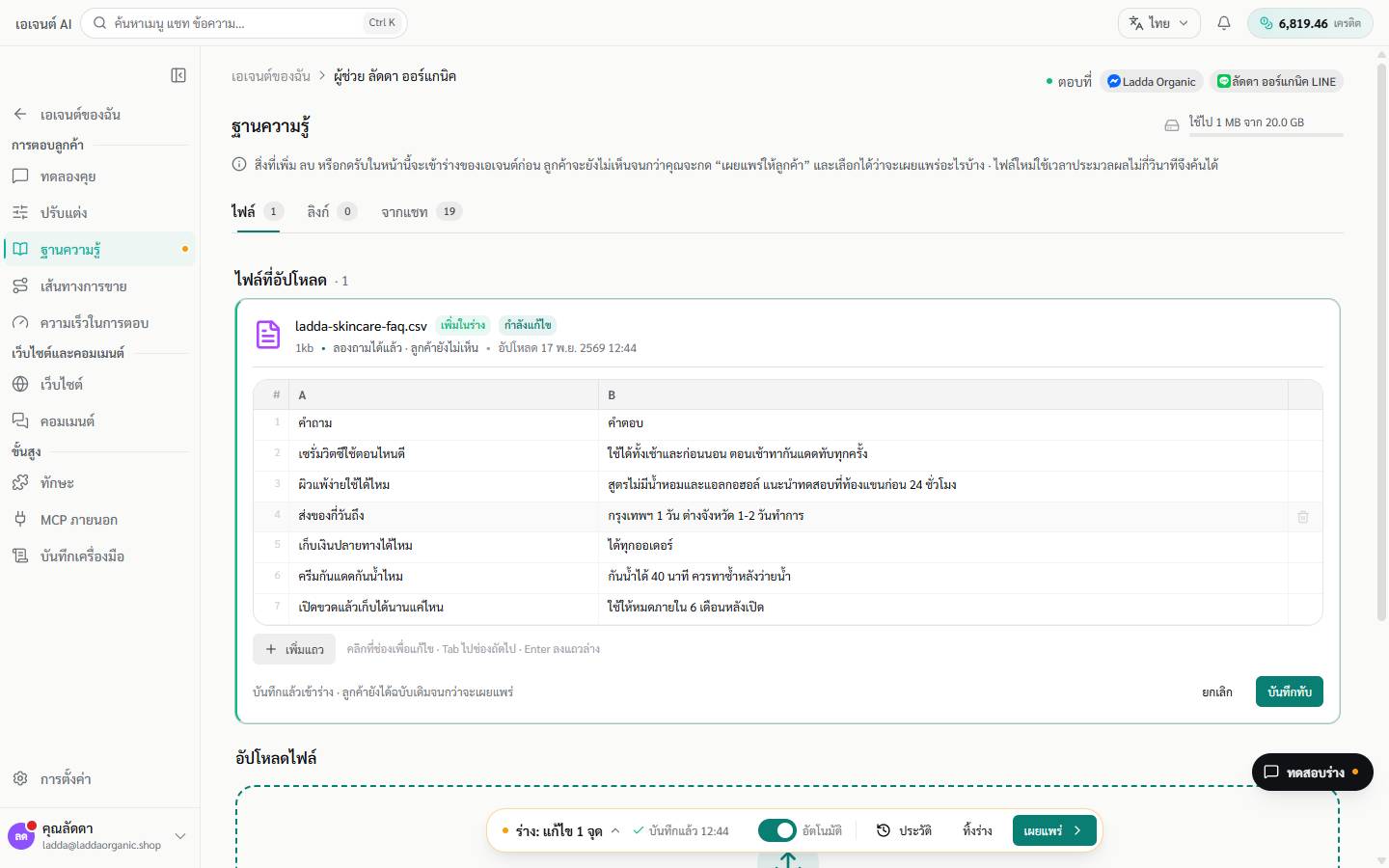
- Edit — for a picture, edit the text the AI answers from; text, CSV and Excel files are edited right in their card; press Save over. The edited version goes into the draft tagged Edited in draft, and customers keep the previous version until you publish. Changed your mind? Press Back to the original. (An Excel file saved over keeps its values only: colours, formulas and merged cells are lost.)
- Upload a new file instead — for a PDF, or a file too large to edit here: pick the corrected file and it takes the old one’s place, no need to delete anything
- Files AI summarised from your chats are listed under Files created automatically from chats (purple tag), below your uploads, and are edited the same way