01Connect an ad account
Once per account. After that Wisebird pulls spend and results several times a day on its own.
Connect the shop's Page first
The connect button only works once the business has a Page on that platform. To connect TikTok ads, for example, add the TikTok account on Channels first.
If you see "connect a TikTok page before connecting ad accounts", press Connect a page and come back here.Press "Connect Facebook ad account" (or TikTok)
You are taken to Facebook / TikTok to log in and allow access, then brought back to choose which ad accounts to connect.
- Only accounts that advertise this shop's Pages are listed, with the Page each one advertises
- Other accounts are hidden under "Show N more accounts that don’t match your pages" and cannot be picked
- Tick the accounts you want and confirm
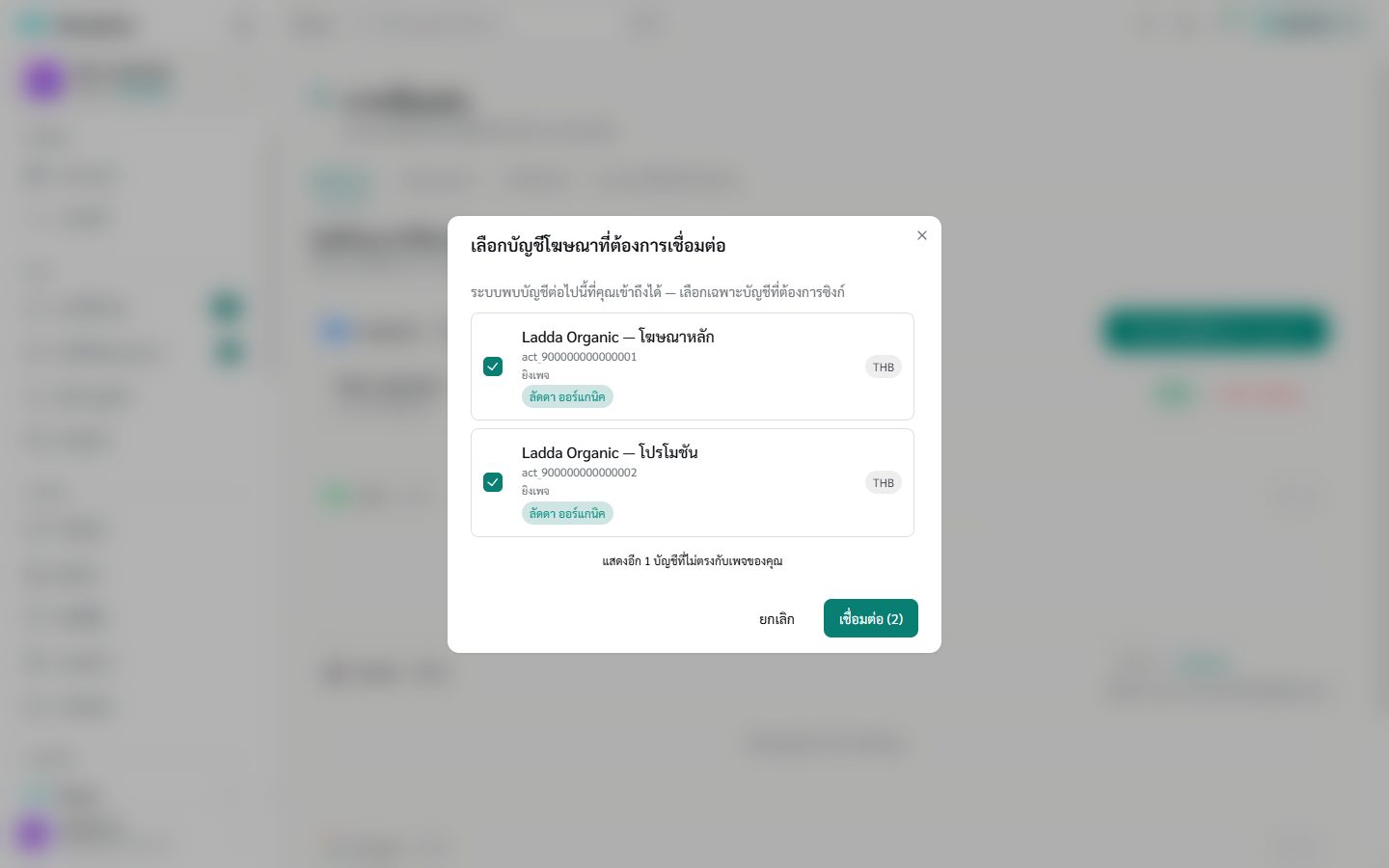
Choosing ad accounts — After allowing access in Facebook — the ad accounts with a "Promotes" chip naming the shop’s Page each one advertises, already ticked; accounts that match no Page are hidden below (account names are samples) 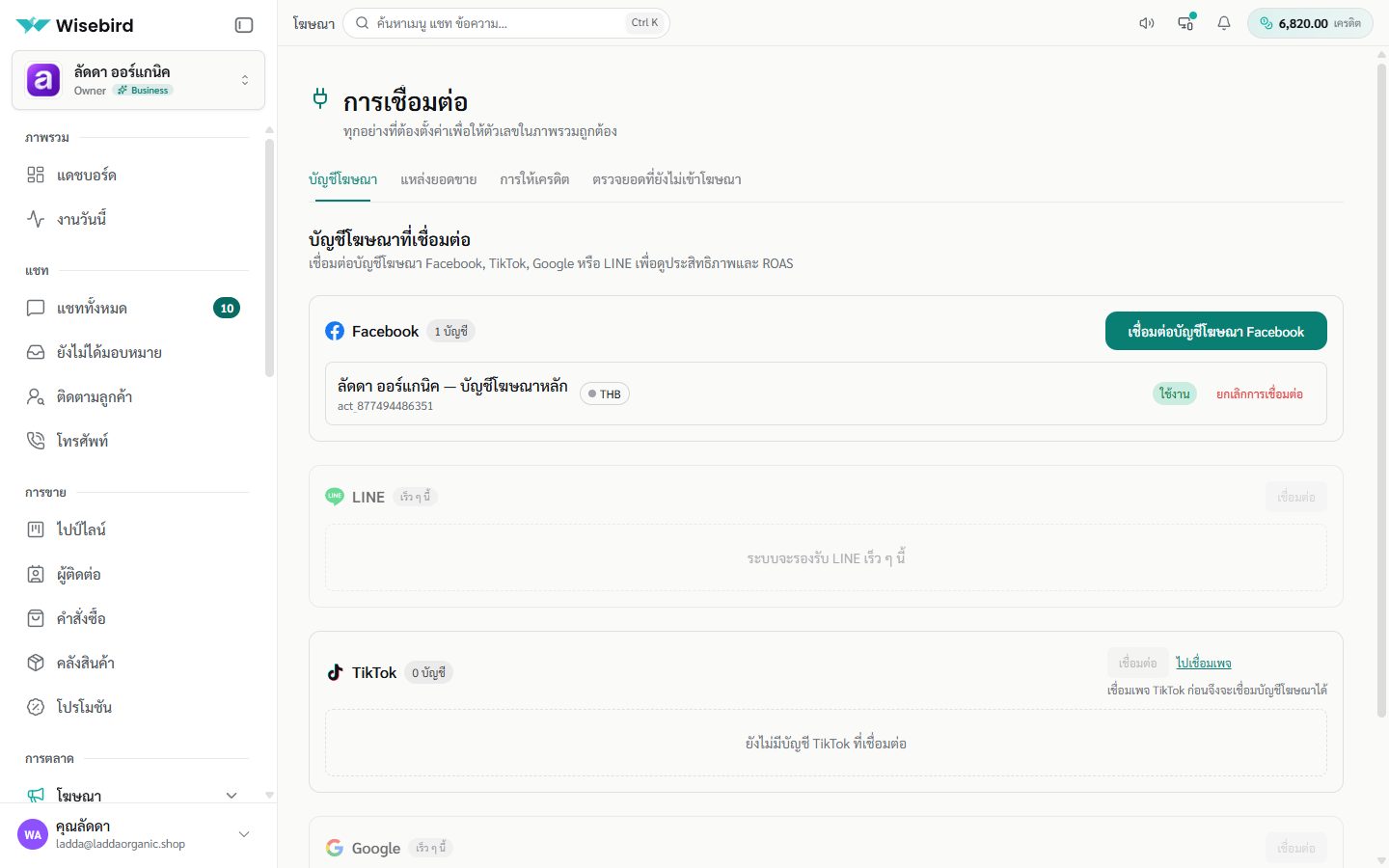
Connected ad accounts — One card per platform; a connected account shows as "Active" Let Wisebird pull the history
A new account pulls its past results on its own, which can take a while; numbers fill in as it goes. After that it updates every day. For the latest figures right now, press Sync now at the top right of the Overview.
Today's figures can still move — Meta takes about 2–24 hours to settle them.
02Read the cards at the top
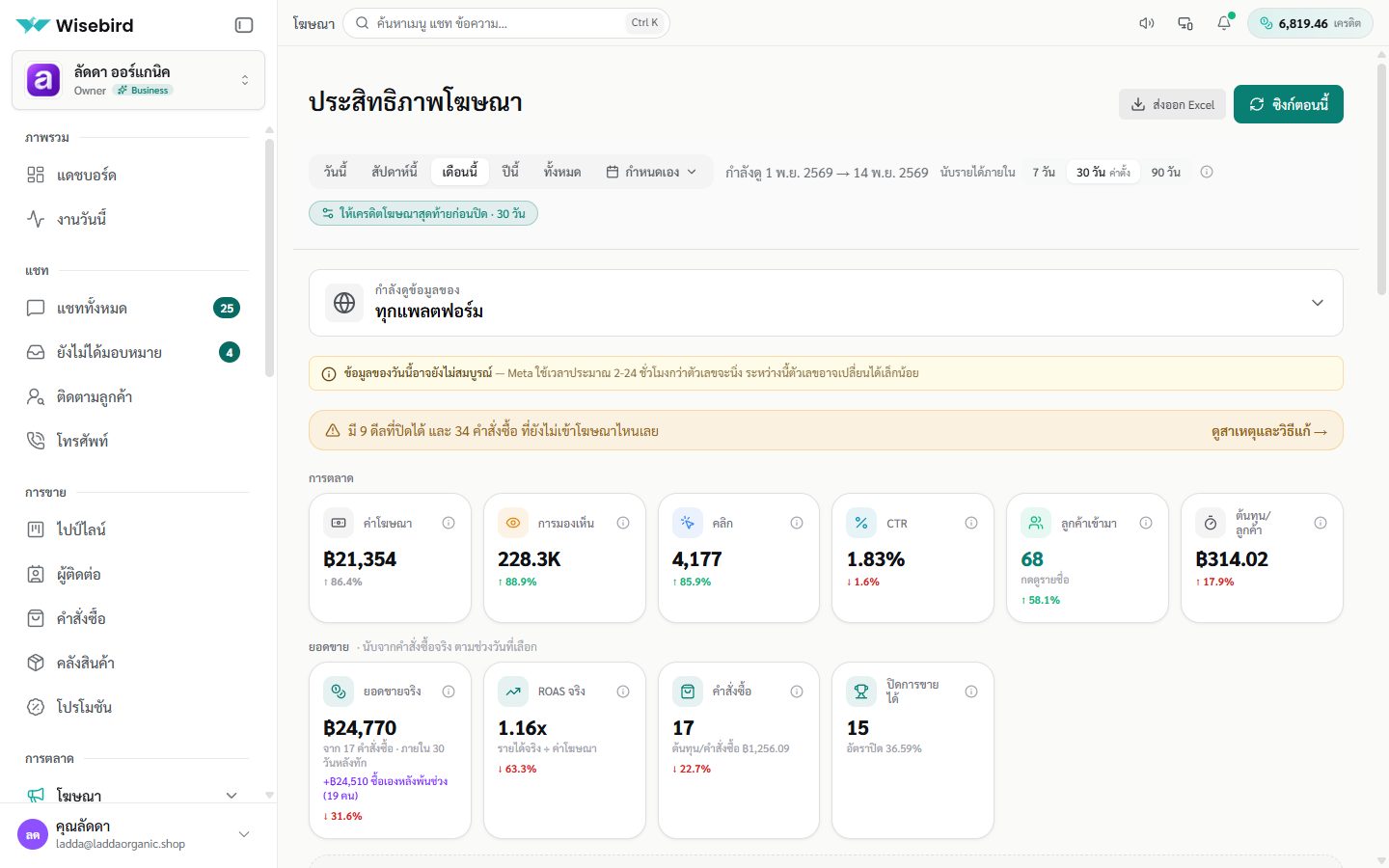
Marketing
Customers in
People who messaged you or visited the shop's website from an ad. Not the platform lead count, and organic chats are not included. The small "unique" figure counts each chat once.
Marketing
Cost per customer
Spend ÷ customers in — what one customer cost.
Sales
Real sales · real ROAS
Money from recorded orders that happened within the chosen number of days after the customer came in from an ad. Real ROAS = real sales ÷ spend.
Sales
Orders · deals won
Orders credited to ads, and pipeline cards won in this period.
Pick a date range
Press Today · This week · This month · This year · All or Custom. Every card, chart and table follows. The green/red arrows compare with the previous period of the same length.
Pick "count revenue within" 7 / 30 / 90 days
An order counts as ad revenue when it happens within this many days after the customer came in from an ad. Later purchases show on a separate purple line, "Bought later, outside the window", and are not in ROAS.
This picker is for viewing only. The business setting (marked "default") is changed under Attribution — see the sales sources guide.Keep the platform figures separate
The dashed box Figures the platform reports is what Meta / TikTok believe their ads earned, counted by the pixel on a website. Shops that close sales in chat see this lower than reality, or "—", because nobody tells the platform.
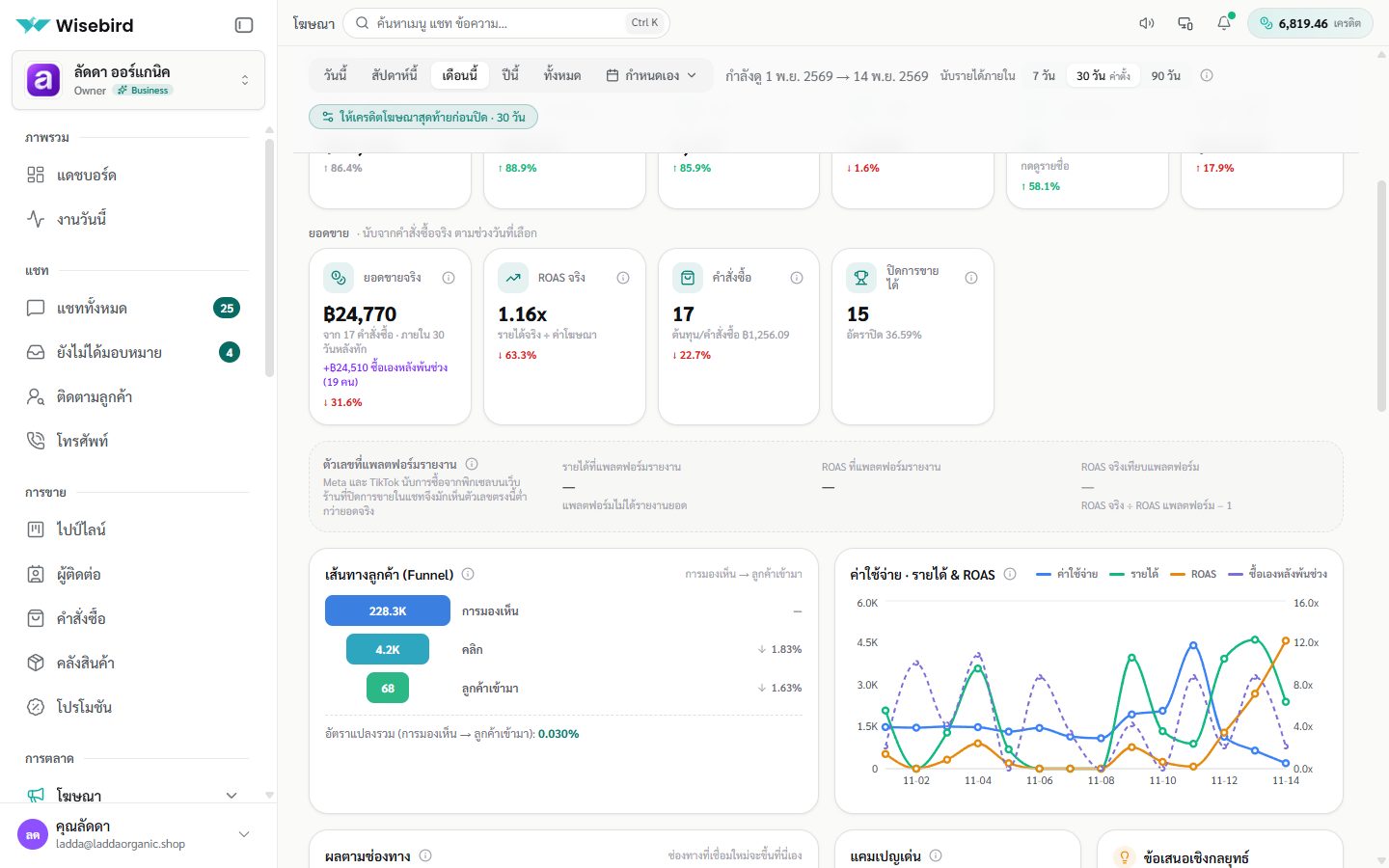
Real sales next to the platform figures — Real sales on top, the platform box below it, then the customer funnel and the trend chart Never add the platform figures to real sales — it is the same money counted in two places.
03The per-campaign table
Scroll down to the table of every campaign, with an Organic row (customers who came in on their own) and a Total row.
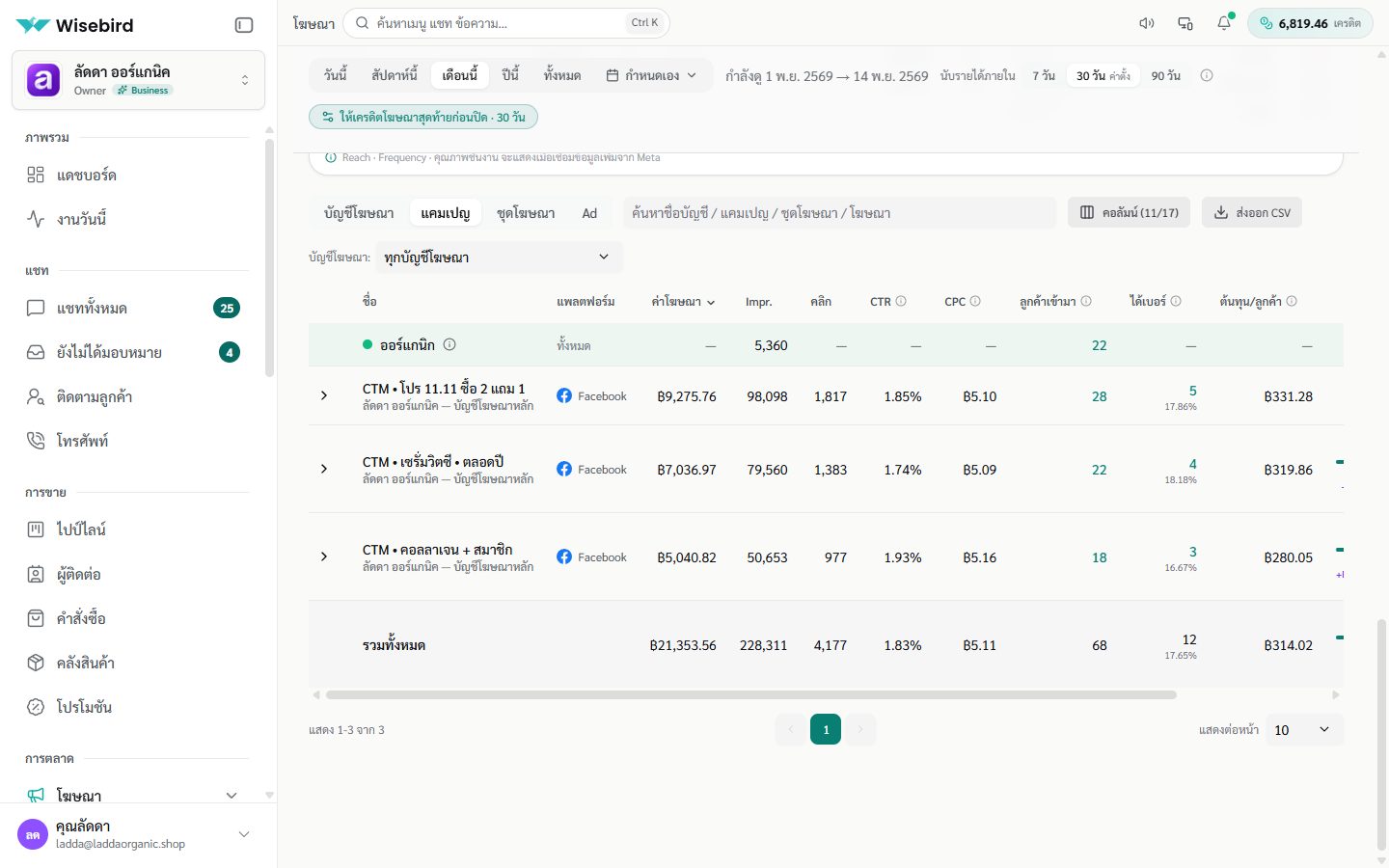
Choose the level
Press Ad account · Campaign · Ad set · Ad, or the ">" arrow at the start of a row to open the level below. Search by name, and click a column header to sort.
Click "Customers in" or "Got phone" to see the people
A list opens with one row per customer: how they came in, which ad, when, their pipeline stage and how much they have bought. Press Open chat to continue the conversation.
The left panel filters by chat or website · Page · has a phone or not · pipeline stage. The Customers in card at the top opens the same list for the whole business.
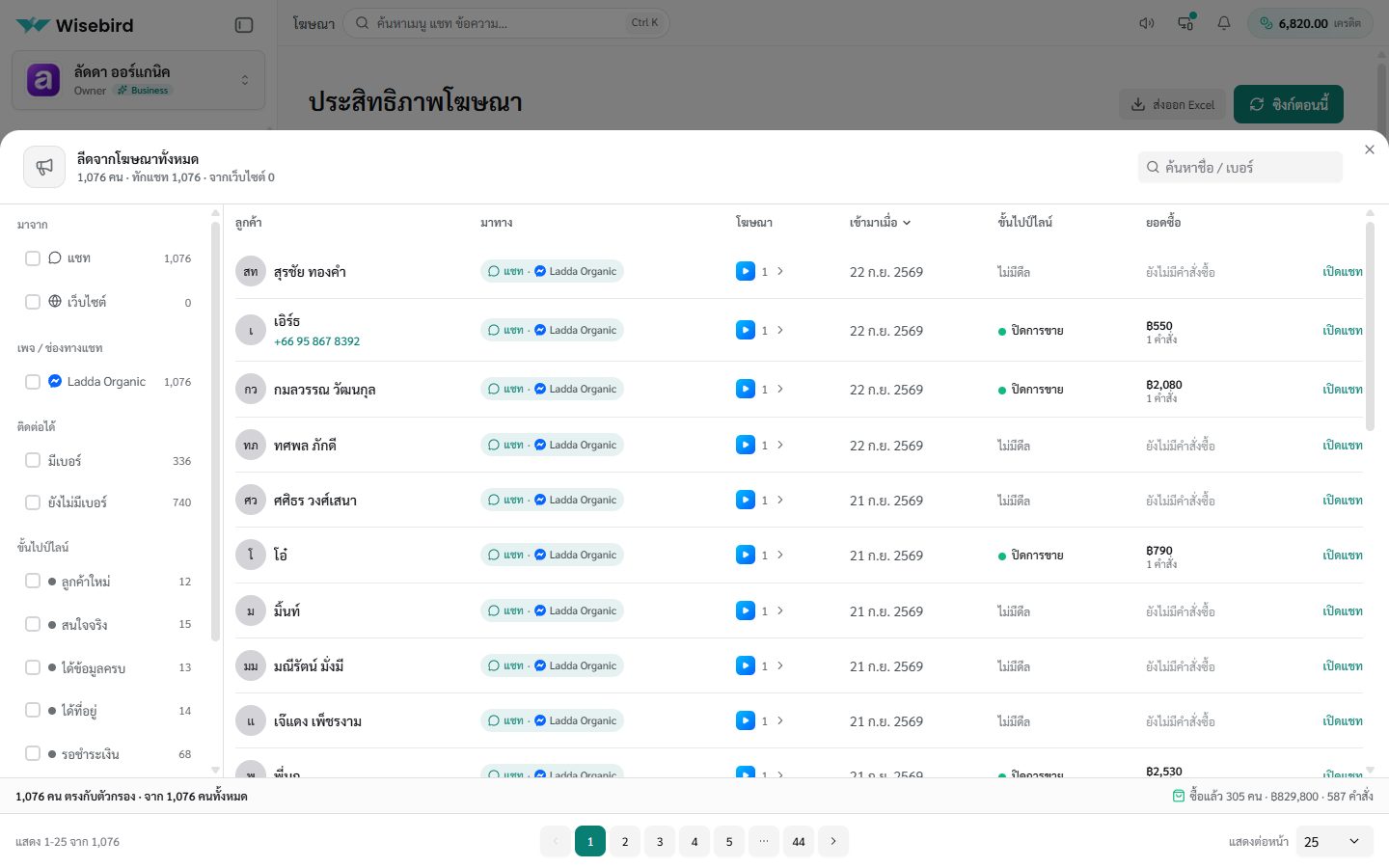
Leads from ads — Each customer with the ad that brought them, their pipeline stage, what they bought and an Open chat button The Revenue cell can be clicked too — it lists the orders behind the number, grouped by customer, with the ad each order was credited to.Add tag or pipeline-stage columns
Press Columns. There are three tabs:
- Metrics — show or hide columns such as deals won, close rate, cost per order or the platform figures
- Tags — pick up to 5 of your tags; each becomes a column counting the chats from that row that carry the tag right now, with a percentage of customers in
- Pipeline — pick up to 5 stages; each counts the people sitting in that stage now
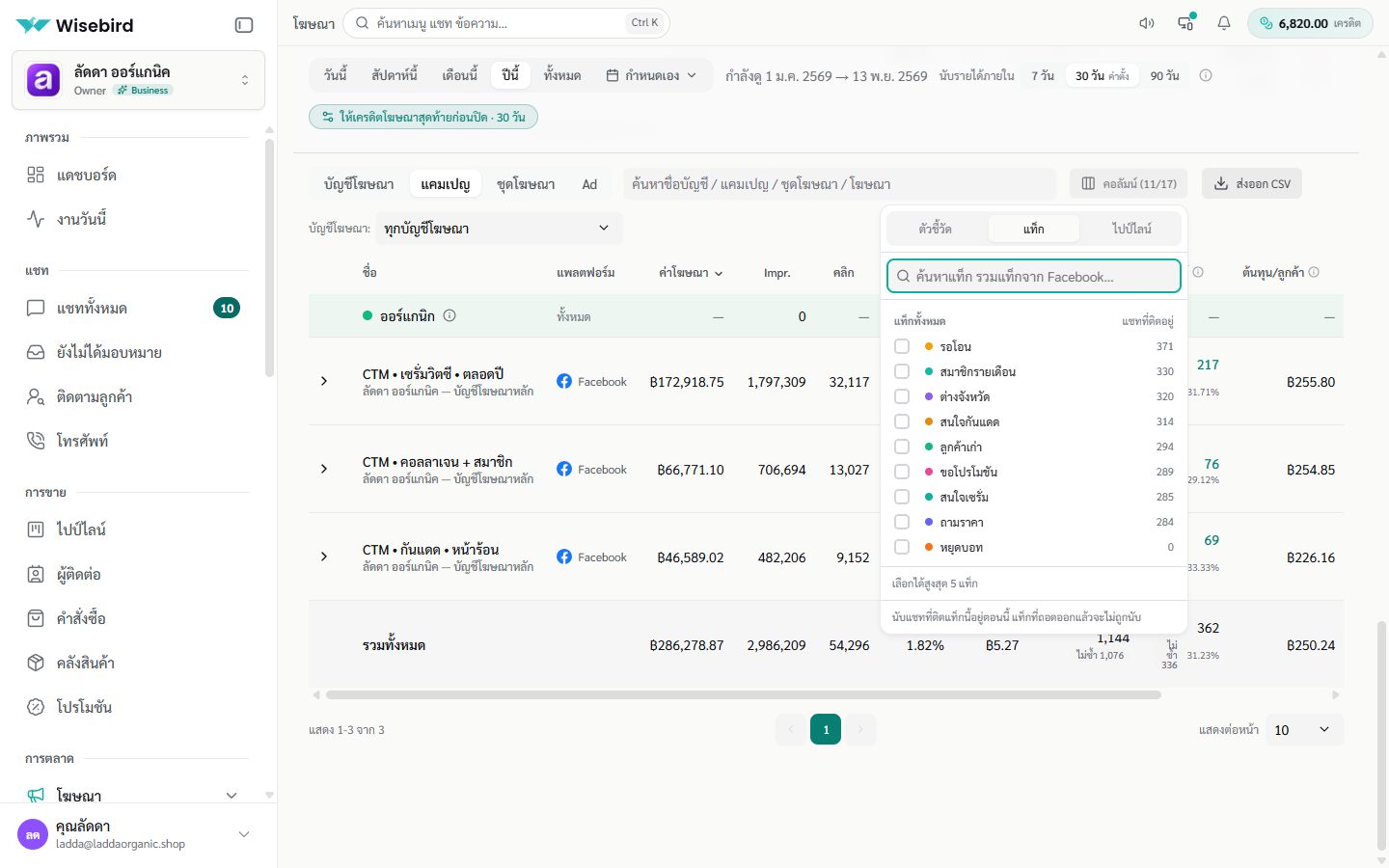
Choosing tag columns — Search your tags; the number on the right is how many chats carry each tag Click a number in a tag column to see who tagged which chat and when, and remove a wrong tag from there. Your column choice is remembered in this browser only.