01Connect a sales source
The page is a 3-step setup. Do one step at a time; finished steps get a tick.
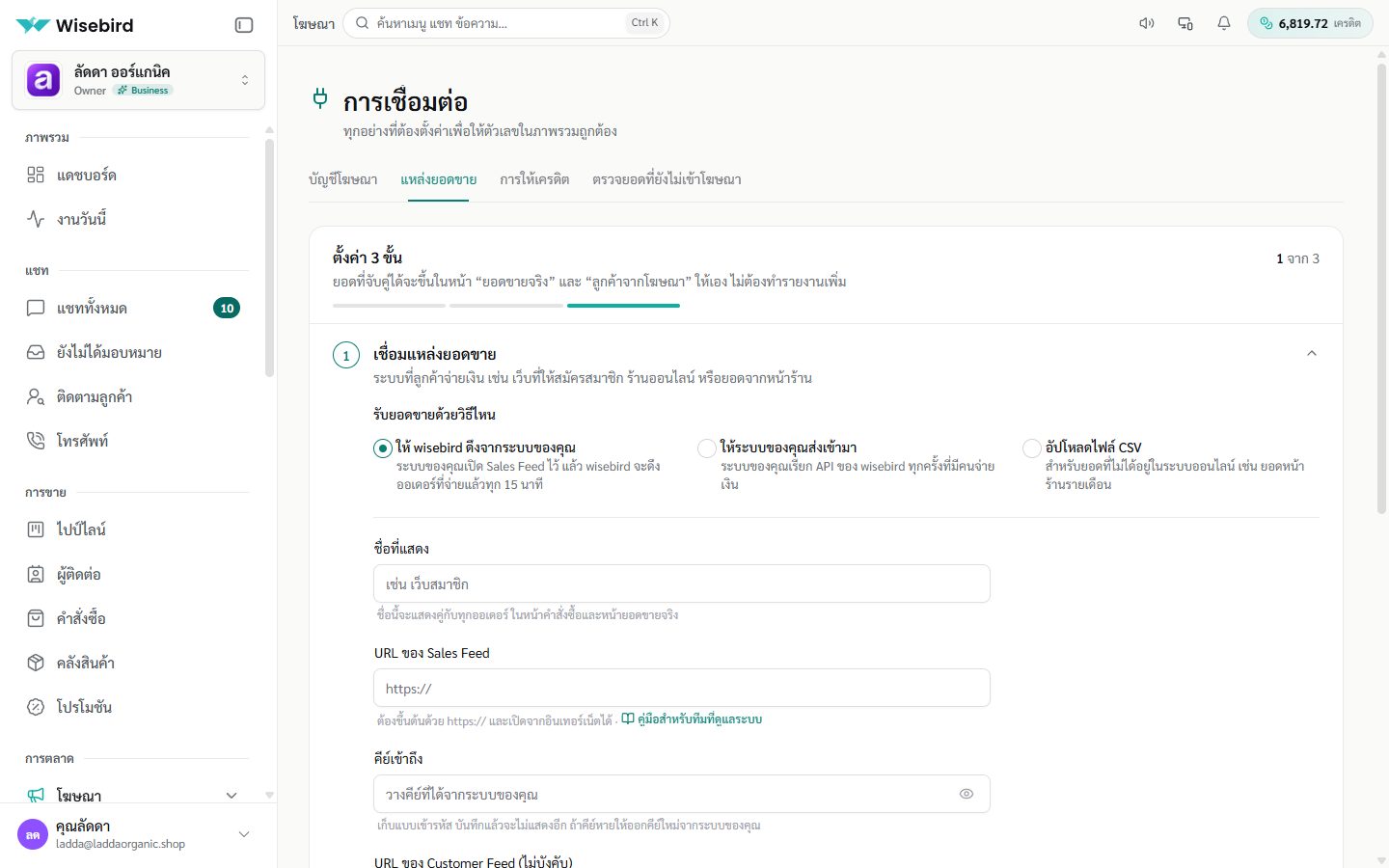
Choose how sales arrive
Your system can expose a Sales Feed
Choose "let wisebird pull from your system"
paid orders are pulled every 15 minutes
Your system can send data out on every payment
Choose "let your system send them in"
your system calls the Wisebird API
The sales are not online, e.g. monthly in-store totals
Choose "upload a CSV file"
The Guide for your tech team button opens the technical document (data format, examples) — send it to whoever runs your website.Fill in the name, URL and key
- Display name — shown with every order on the Orders page, e.g. "Member site"
- Sales Feed URL — must start with https:// and be reachable from the internet
- Access key — stored encrypted and never shown again; if lost, issue a new one in your system
- Customer Feed URL (optional) — every customer with the ads they clicked; it uses the same key, so it must be on the same domain as the Sales Feed
- Count sales from — every order in the system, or only from today
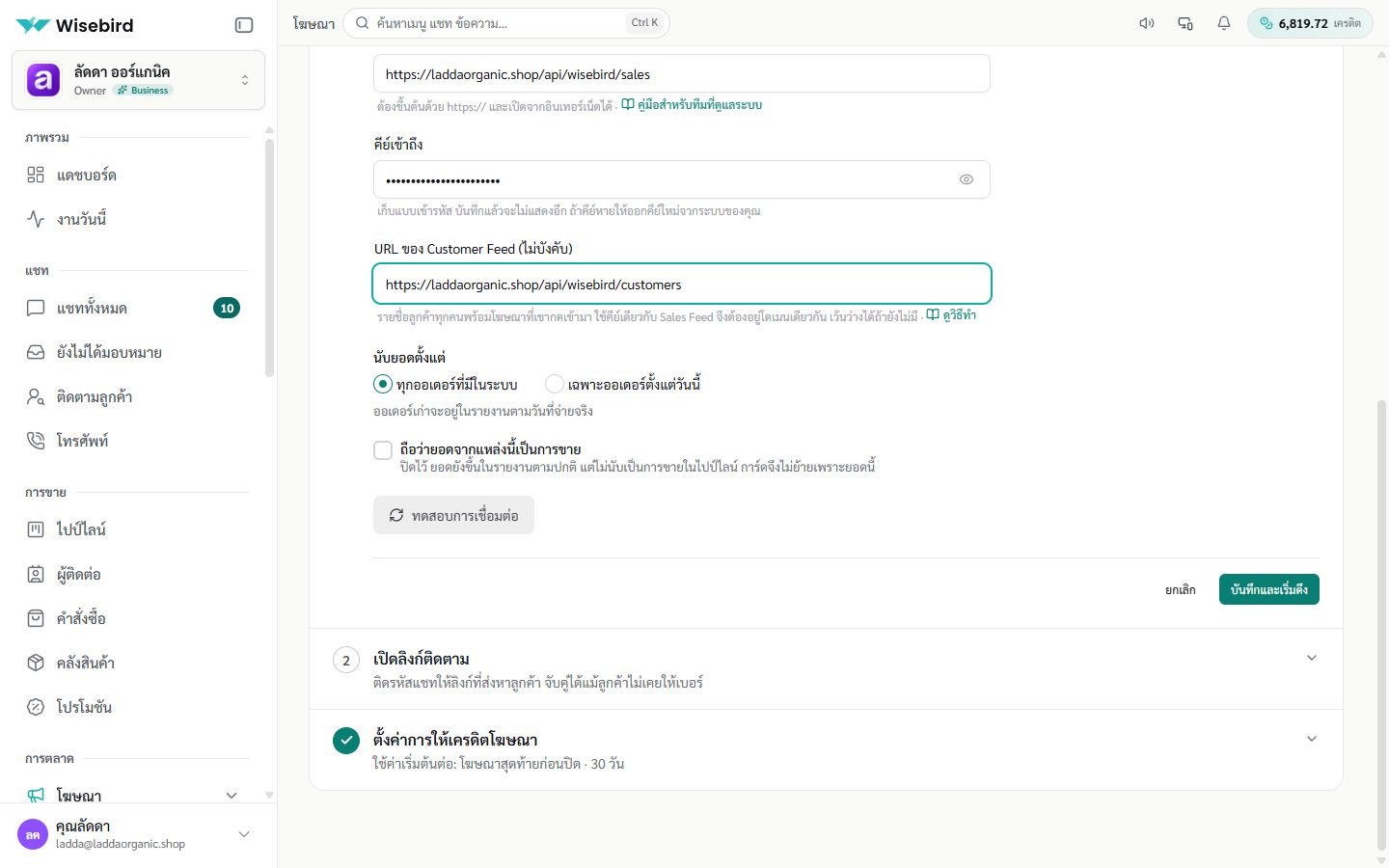
Filling in a sales source — A shop with both a Sales Feed and a Customer Feed Treat sales from this source as sales: when off, the money still shows in reports but pipeline cards do not move because of it.Press "Test connection", then "Save and start pulling"
The test reads the Sales Feed (and the Customer Feed if set) and reports what it found, such as the number of orders and customers with an ad id. If it passes, save — pulling starts right away and repeats every 15 minutes.
Turn on tracking links (step 2)
Turn on Add a chat code to links automatically and add your shop's website domain. Links to that domain sent by the AI or your team in chat get a chat code at the end. When the customer signs up or pays on the site, Wisebird matches it back to the chat — even without a phone number.
Only customers who receive a link after you turn it on can be matched, so turn it on early. Your website must keep the code and send it back with the order.
02Customer Feed: customers who never chatted
Some people click an ad and sign up or buy on your site without ever writing in. The Customer Feed sends your customer accounts with every ad they arrived from, so their sales can be credited to an ad.
- Make your ad links carry the ad id in a URL parameter named ad_id, and have your site save it on the customer account
- An account that matches nobody becomes a new contact on Contacts, under the "From website" tab
- On the Ads overview these people count in Customers in and carry a "From website" flag in the list
03Set attribution
Set once for the whole business; every page that credits sales to ads uses it.
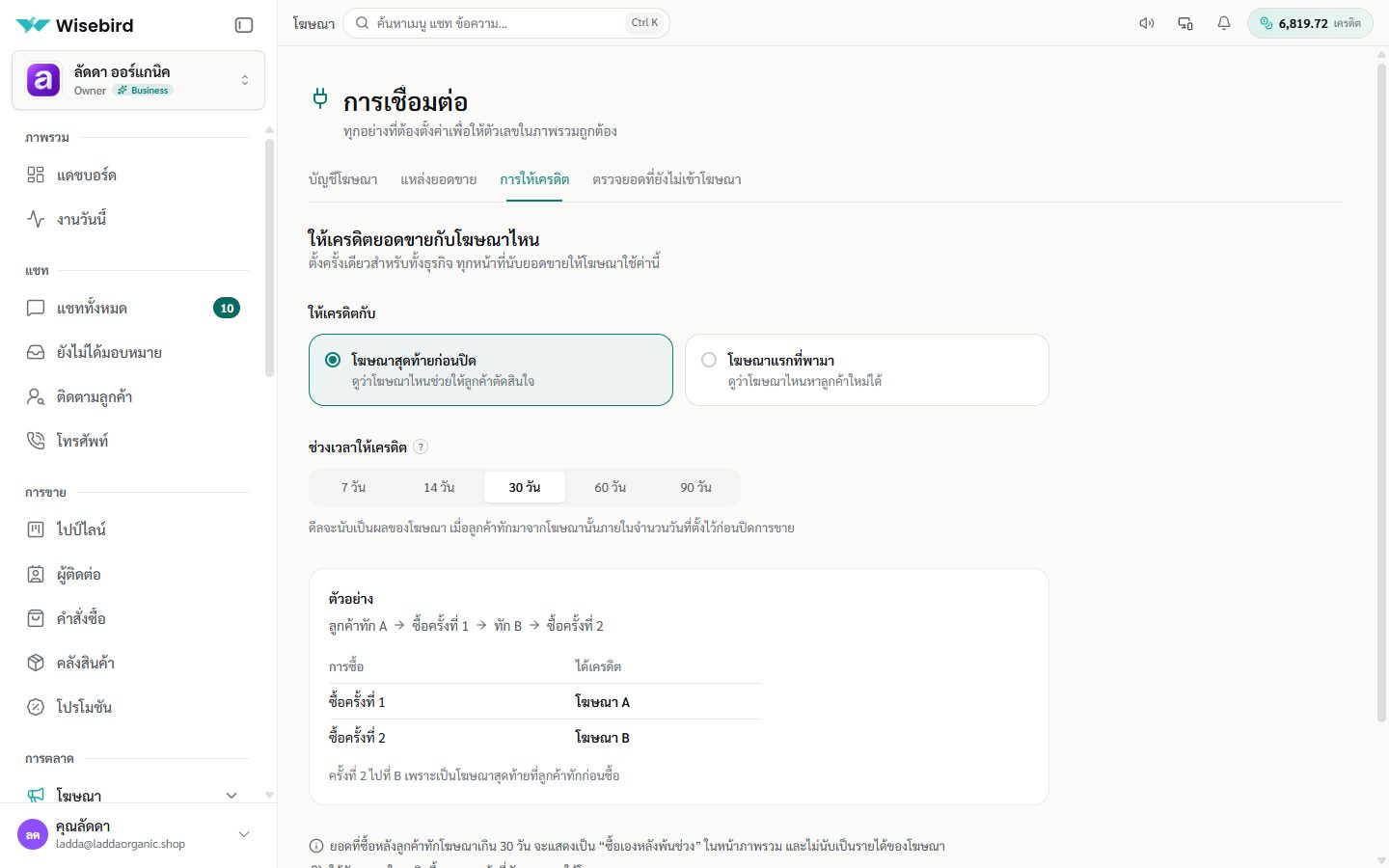
Choose which ad gets the credit
Option 1
Last ad before the sale
Shows which ad helped the customer decide — the default.
Option 2
First ad that brought them
Shows which ad finds new customers.
Choose the attribution window and save
Choose 7 / 14 / 30 / 60 / 90 days. Purchases made more than this many days after the customer came in from an ad show as "Bought later, outside the window" on the Overview and are not ad revenue.
04Check sales not yet credited to an ad
This tab answers why the money credited to ads is less than total sales, and what to fix. It has its own date and platform filters.
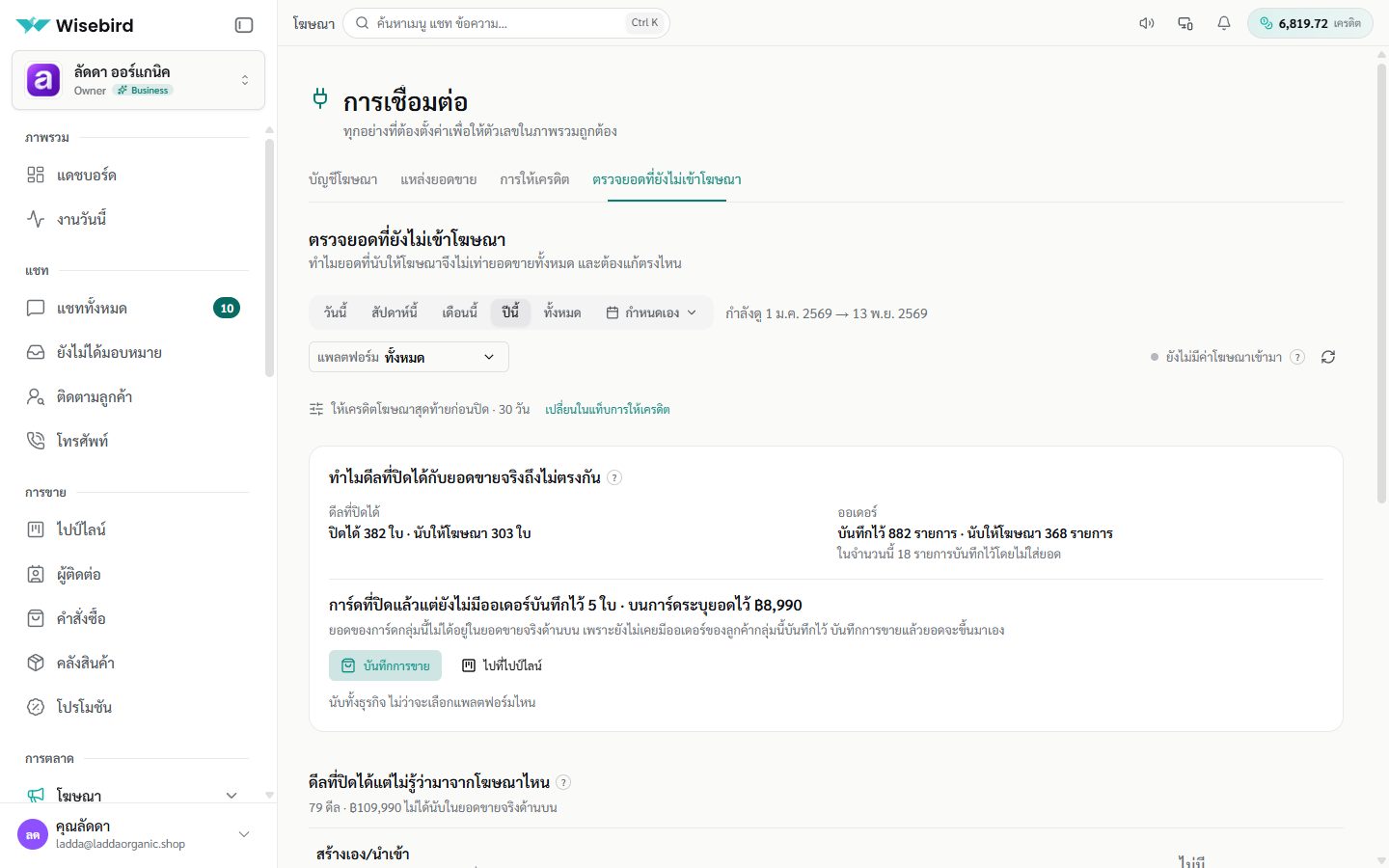
Won cards with no order recorded
Press "Record sale" or "Go to pipeline"
the amount on a card does not count until it is an order
The chat has no ad information
The customer came in on their own, or the platform sent no ad data — nothing to fix
Came in outside the attribution window
Try a wider window on the Attribution tab
Ad account not connected
Connect it on the Ad accounts tab