Marketing · Posts and comments

Posts and comments — answer comments under your posts from one place

Many customers comment under a post before they ever message. Wisebird brings in your Facebook / Instagram Page's posts and comments, and you can answer under the comment (everyone sees it) or in a private chat — yourself, or with a draft from the AI.

About 10 minutesA connected Facebook / Instagram Page · adminLast updated Nov 13, 2026
In the print dialog, choose "Save as PDF"

In short

  1. Posts shows views, ad spend, customers gained and ROAS for every post
  2. Comments is the comment queue: Needs reply · AI drafted · Replied · Hidden/deleted
  3. Reply under the comment: everyone sees it · Message privately: once per comment, within 7 days
  4. A customer's comments also appear in their chat in the inbox; whichever page you answer from, both show the same
Done 0/6

01Your Page's posts

MarketingPostsPost list

The table lists every post of your connected Pages. Every number is the total for the chosen date range (the list itself is not filtered by date).

  • Reach · Views — the same numbers Facebook shows on the post
  • Views from ads · Ad spend — when the post was used as an ad
  • Customers gained — people who messaged from that post's ads
  • ROAS — real sales from that ad divided by its spend
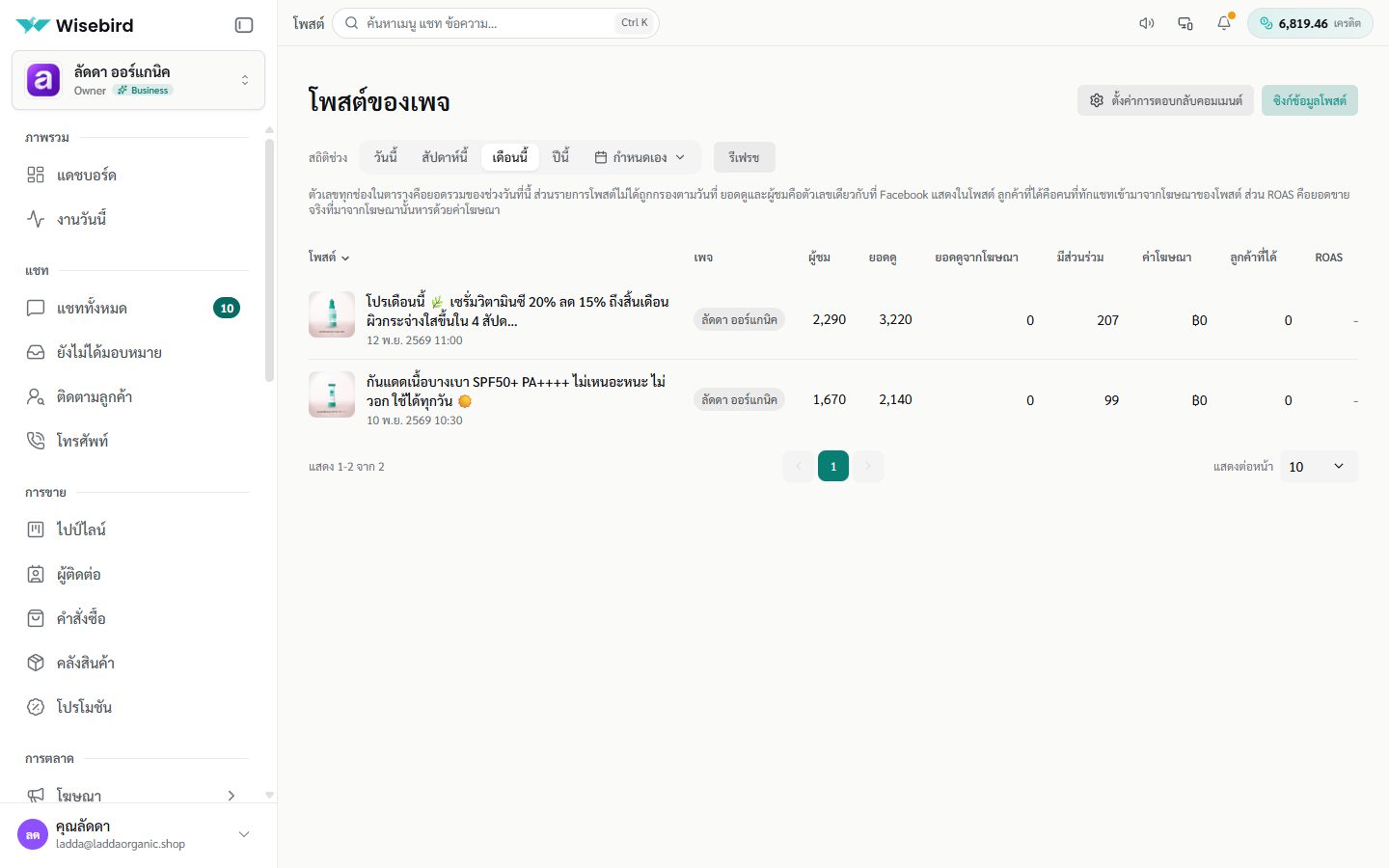
Your Page's posts
Your Page's posts — One row per post, with its Page, viewers, views, views from ads, engagement, ad spend, customers gained and ROAS for the chosen period. With no posts yet, press "Sync post data" to bring them in
If you cannot see the Posts menu, or no posts come in, your plan may not include it, or the Page needs to be reconnected to allow reading posts — check Channels for a "Reconnect" badge.

02Answer from the Comments page

MarketingPostsComments
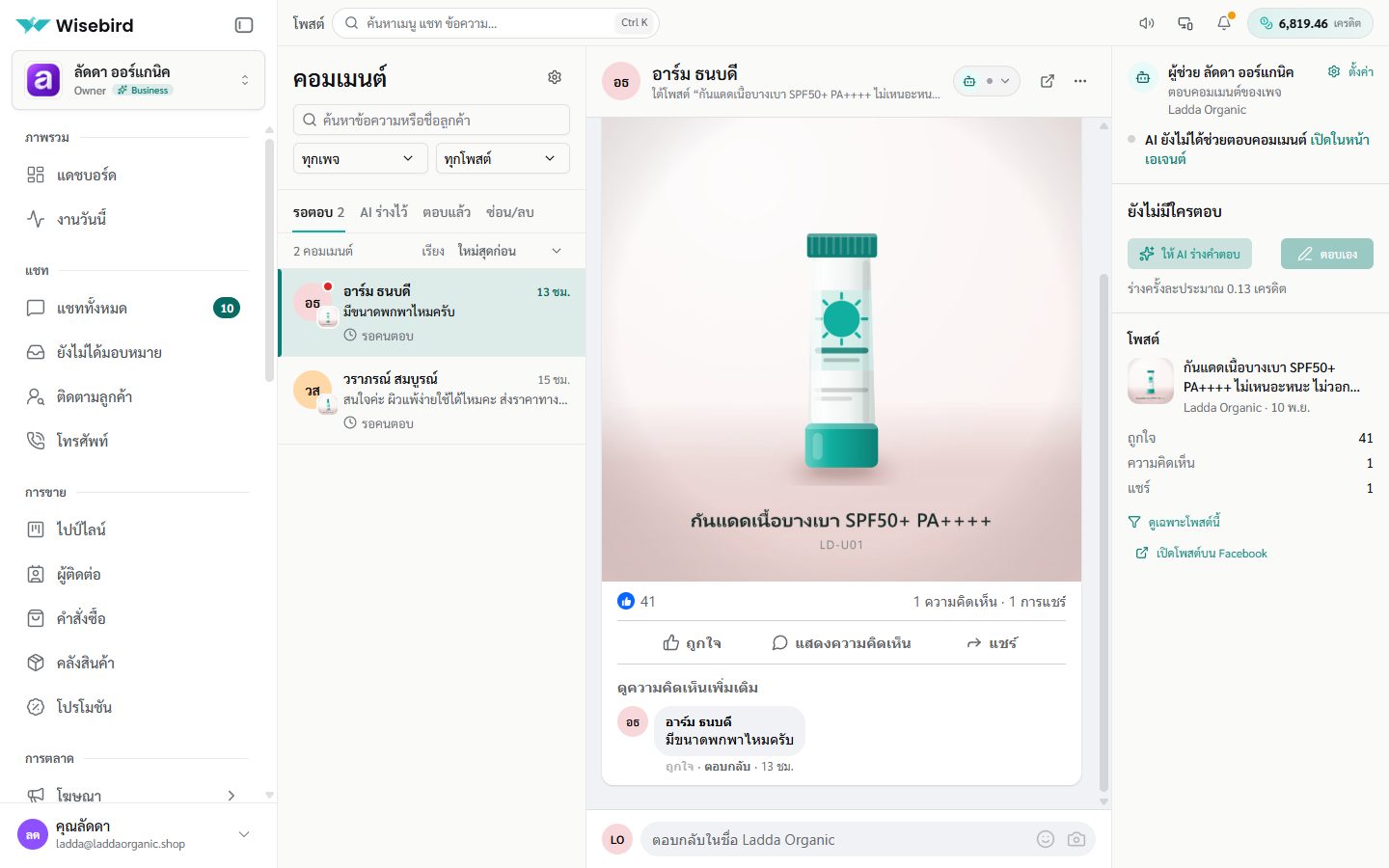
Comment queue
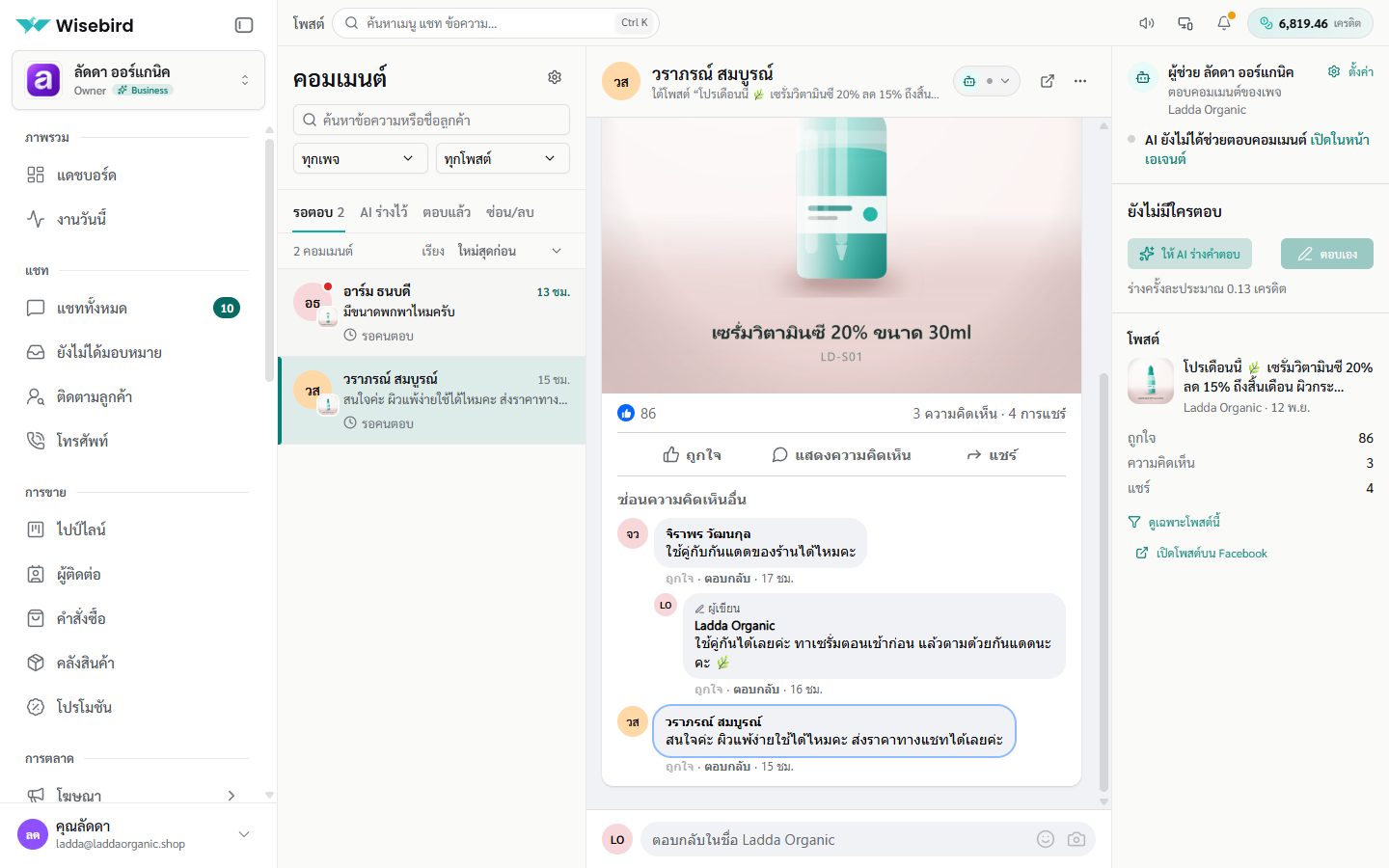
Comment queue — Comments on the left, split into tabs by status; the thread of the selected comment on the right
  1. Pick a comment from "Needs reply"

    Filter by Page or post, or search by text or customer name. Just connected the Page and want older comments? Press Fetch past comments.

    • Needs reply — nobody has answered
    • AI drafted — the AI wrote an answer waiting for review
    • Replied — the Page answered, here or on Facebook
    • Hidden/deleted — hidden or deleted comments
  2. Reply under the comment

    Type in the box under the thread and press Send. If the AI drafted an answer you see The AI's draft with Send · Edit · Skip · Redraft (redrafting uses a few credits, shown before you press).

    Comment thread and reply box
    Comment thread and reply box — Middle: the post, every comment under it (the Page's own reply is marked "Author"), the selected comment outlined, and the "Reply as…" box at the bottom. Right: "Let AI draft a reply" (with its credit cost) and "Reply myself", plus the post's numbers
  3. Message privately when it should not be public

    Turn on Also send a private message in Messenger to message the customer in chat — for a personal price, an address or bank details.

    Facebook and Instagram allow a private message from a comment once per comment, within 7 days of the comment. After that the Page cannot send anything more until the customer replies.
  4. Hide an unsuitable comment

    Press Hide comment. The commenter and their friends still see it; nobody else does. You can unhide it any time. Hidden or deleted comments move to the Hidden/deleted tab.
03Answer from the inbox

A customer's comment lands in their chat in the inbox straight away — the same chat they use to message the Page — so comments and messages sit together in real time order.

Badges in the chat list:
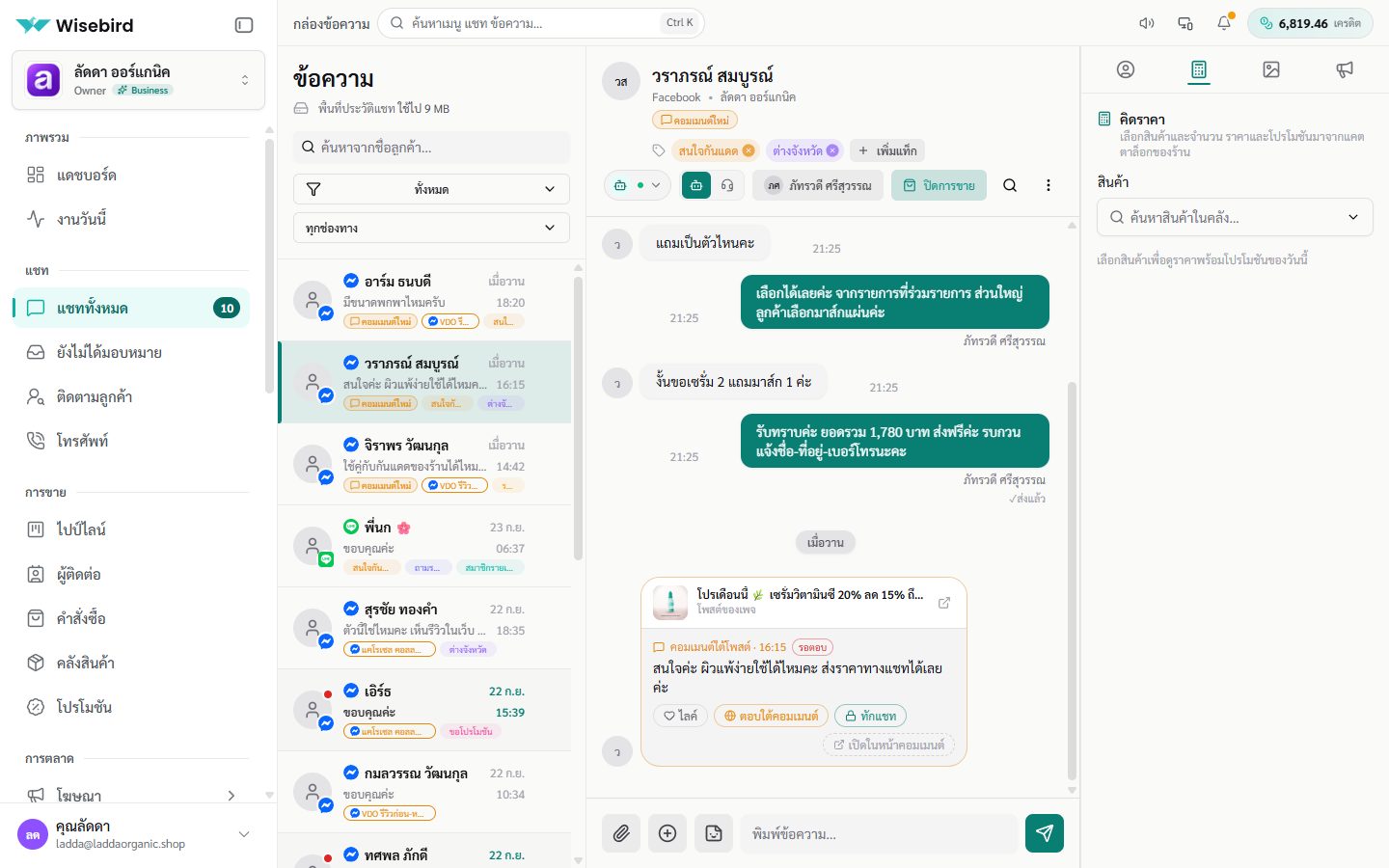
Comment — only commented, never messagedFrom a comment — started with a comment, then messagedNew comment — a comment nobody has answered
A comment card in the chat
A comment card in the chat — A comment-under-post card in the chat thread with Like · Reply under comment · Message privately · Open in Comments, and the "New comment" chip in the chat list
  1. Press "Reply under comment" or "Message privately" on the card

    The bar above the message box says where your message goes: an amber bar Reply under comment · everyone who sees the post will see it, or a teal bar Private message from this comment · can be sent once.

    Comment replies are text only; attached files wait until you go back to the normal chat. In a chat that only has comments, pick a comment before typing.
  2. Type and send

    The send button reads Reply under post or Message privately. A reply under a comment shows as a dashed bubble labelled "Reply under post · everyone sees it".

04Let the AI help with comments

Press Reply settings (the gear) on the Comments page. You are taken to the Comments page of the agent that looks after the Page.
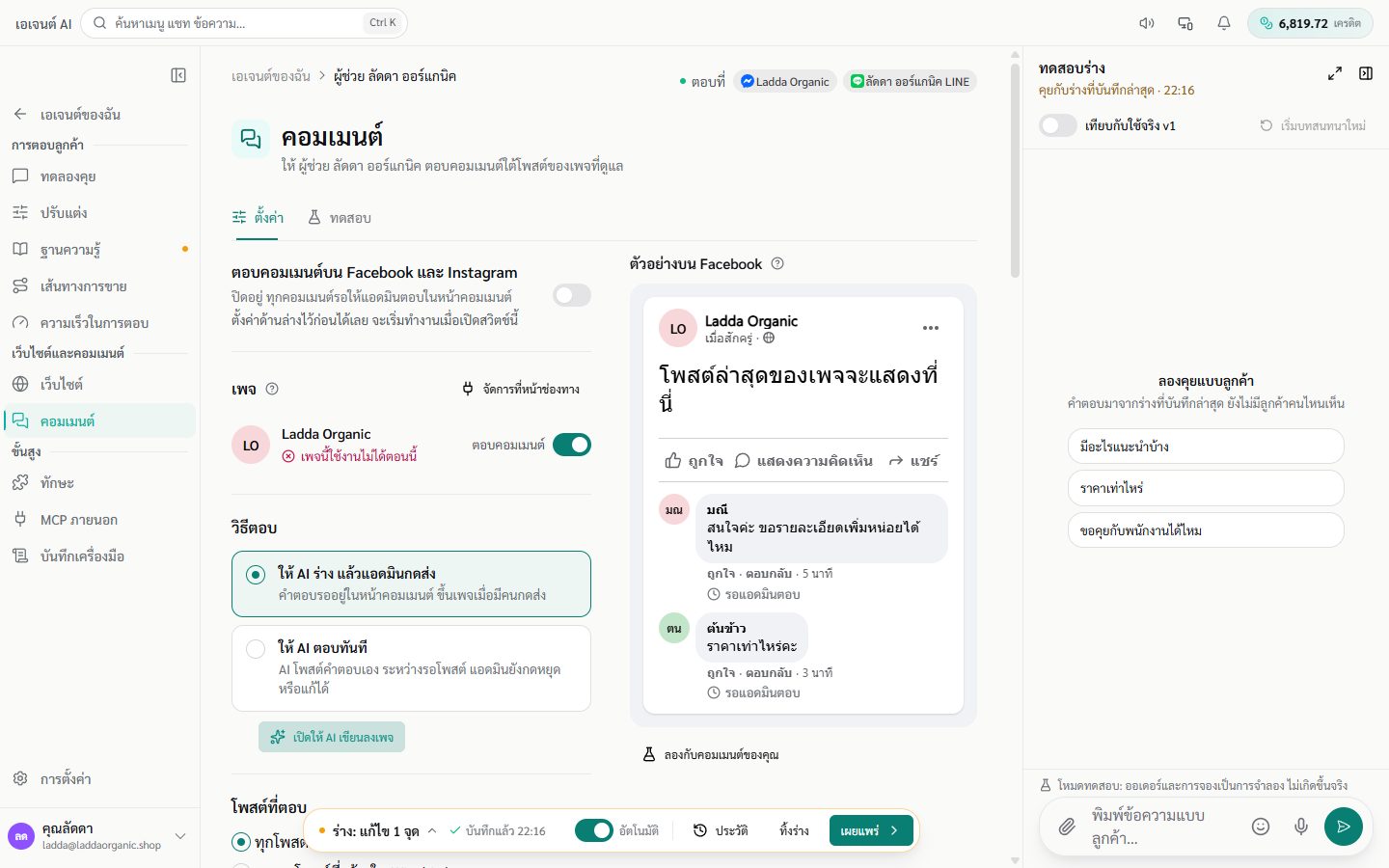
Agent comment settings
Agent comment settings — On the right, a preview of how it looks on Facebook and a test chat
  • Reply to comments on Facebook and Instagram — while off, every comment waits for an admin
  • How to reply — AI drafts and an admin sends, or the AI replies right away (you can still stop or edit before it posts)
  • Posts to reply to · Reply style · Length — which posts, and the same voice as in chat
  • Move to Messenger — for prices, orders or personal details the AI answers briefly and messages privately
  • Never say in comments — topics the AI keeps out of public view, one per line
This page edits the agent's draft. When you are done press Publish in the bar at the bottom so the settings apply to real customers.

Last updated Nov 13, 2026Still not working? Contact the Wisebird team — we are happy to help.