01The Promotions page
Open Promotions under Sales.
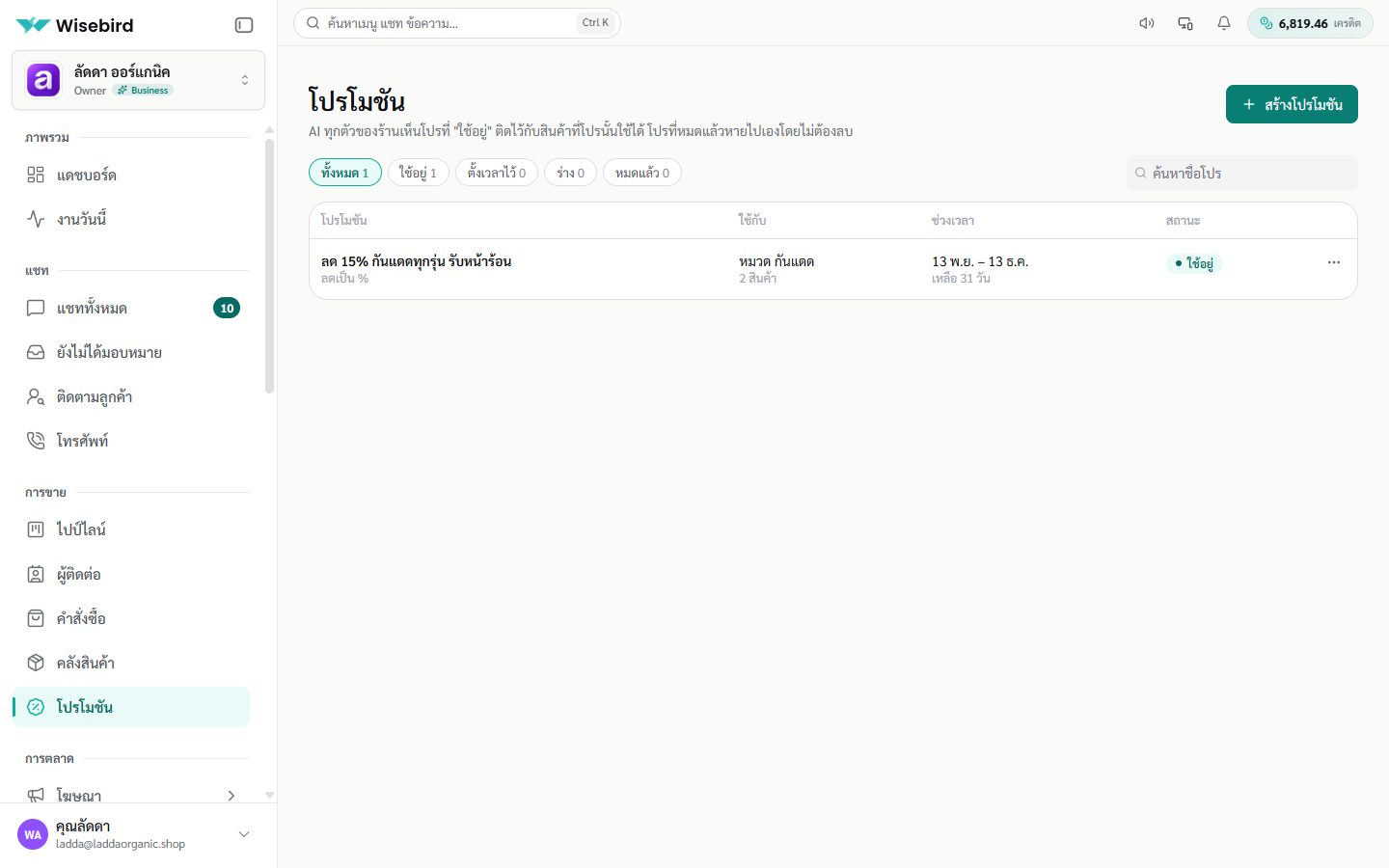
Promotion status:
02Create a promotion
Name it and pick a type
Press New promotion, enter a Name (your team sees it; the AI never uses it with customers), then choose a type.
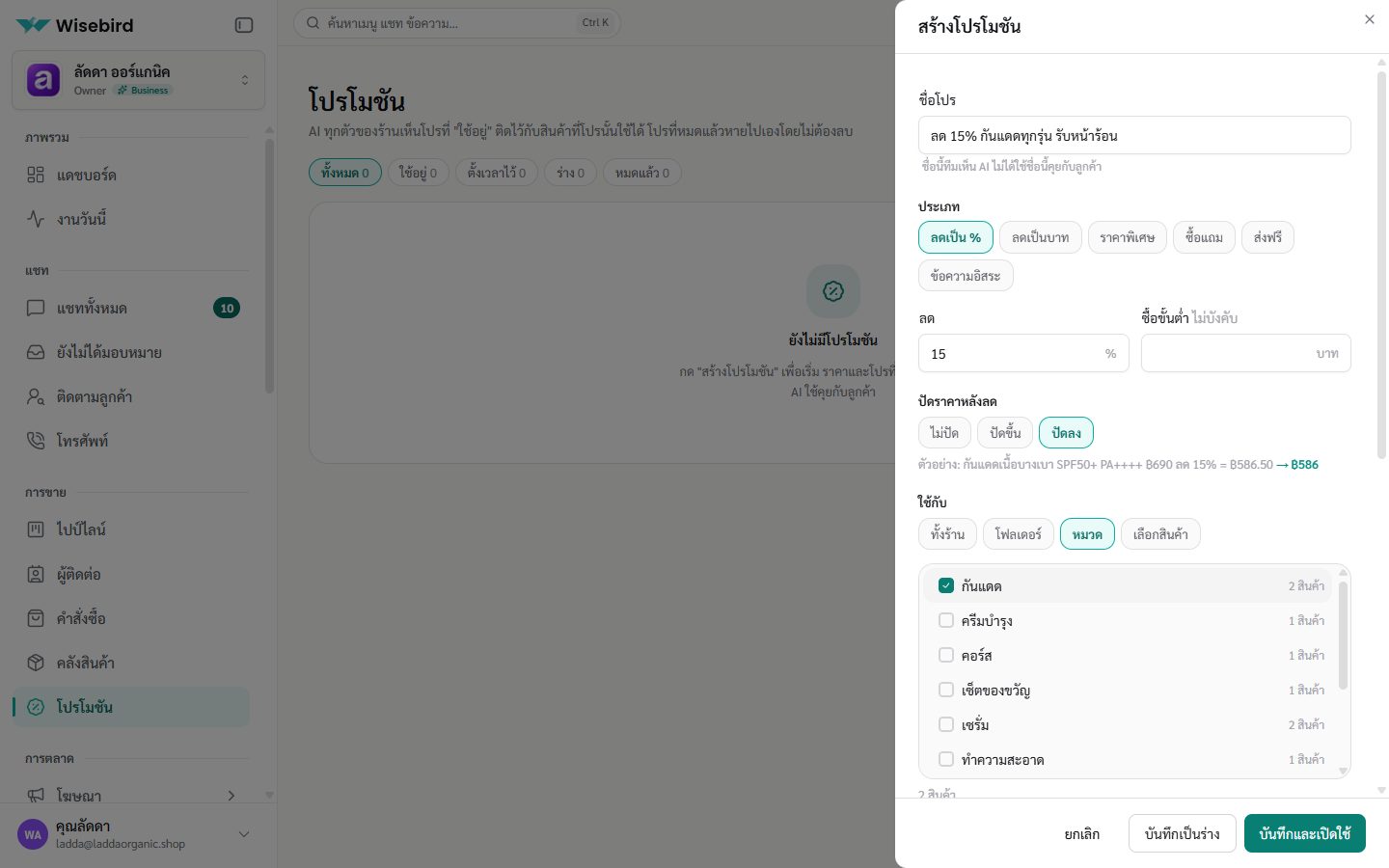
The New promotion form — Example: 15% off, rounded down, for the sunscreen category. Under the rounding choice is a worked example of the price after discount % off
A percentage off; you can round the result to whole baht
Baht off
A fixed amount off each unit
Special price
Sell at this price per unit, e.g. 690 down to 590; you can set **Max per order**
Buy & get
Buy so many, get a gift — from your library or typed in (e.g. a desk fan)
Free shipping
On every order, or above a minimum spend
Free text
Something the AI tells customers; no money is calculated
Add a Minimum spend to a % off or baht off promotion and it becomes a whole-order discount, e.g. "spend 1,500, get 10% off".Choose the products and the dates
- Applies to: Whole shop · Folders (sub-folders included) · Categories · or Pick products one by one
- Products not included — leave some products out
- Starts / Ends — or tick No end date
- Extra conditions — the AI reads them as written, e.g. "orders through chat only"
- Poster — attach a picture; the AI sends it to customers and stops when the promotion ends
Check what the AI will see, then save
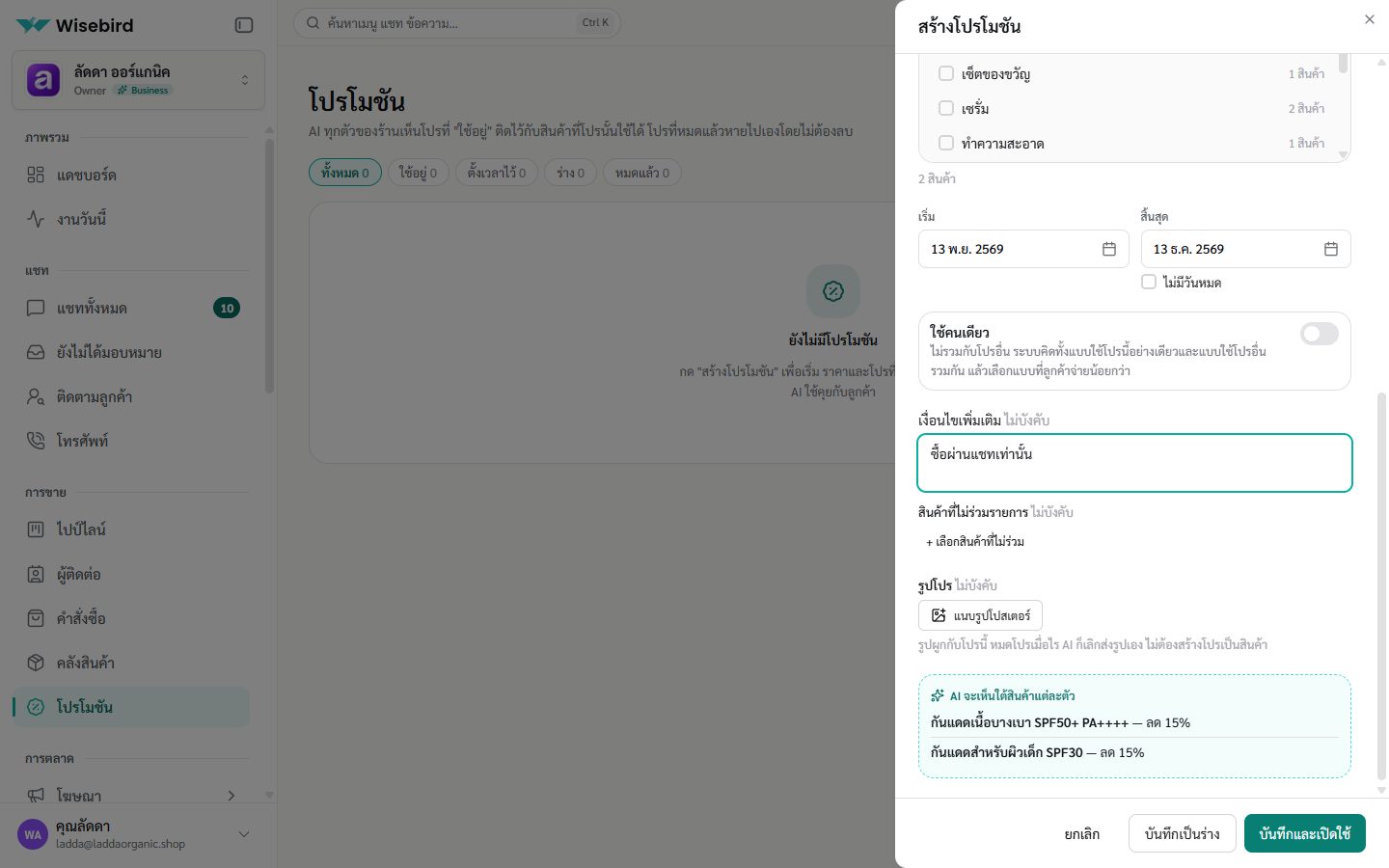
The "What the AI sees under each product" box — At the bottom of the form: the products that really get this promotion, with the reason for any that don't Save and activate
The promotion starts now (with a later start date the button reads Save and schedule, and it starts by itself on that day)
Save as draft
Kept for later; the AI does not see it yet
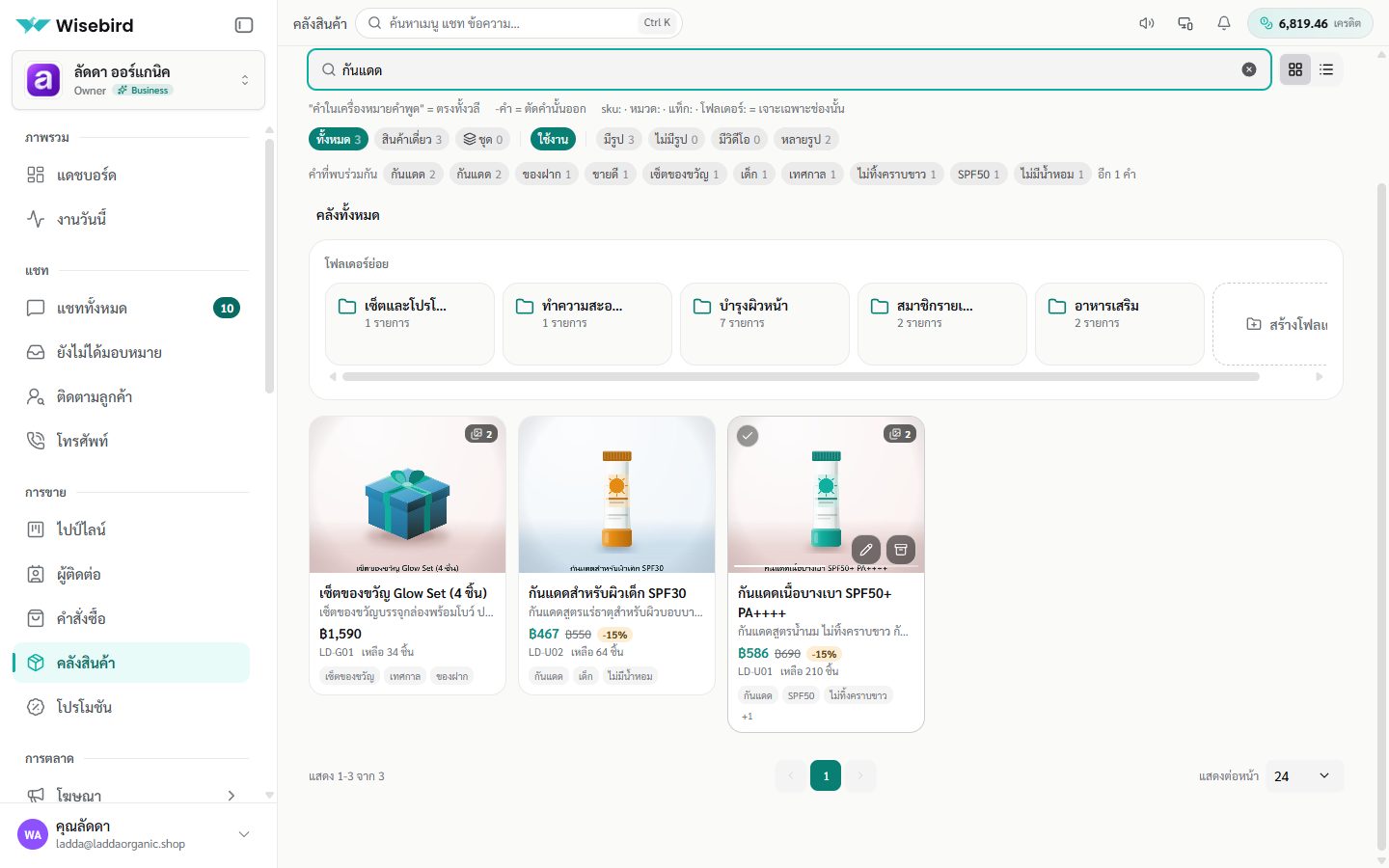
The promotion price on product cards — The Library shows the price after the promotion, the old price struck through, and a -15% badge
03How prices are worked out when several promotions apply
Every total a customer sees — from the AI, from your team, or at close — follows the same rules, so the numbers always agree.
Layer 1
Price promotions
% off, baht off and special price never stack — each unit gets the lowest price
Layer 2
Gifts
Buy & get promotions add together, and on top of price promotions
Layer 3
Whole order
Minimum-spend discounts and free shipping, worked out on the total after price promotions
The AI uses the pricing tool every time it gives a total — it never does the sums itself — and if a customer asks for more than the promotions give, the AI hands over to your team.
04Pricing a basket in chat
For when someone on the team is answering a customer and needs a total — no calculator needed.
Open the "Price" tab and pick products
In a chat, press the calculator icon (Price) in the right-hand panel. Pick products in the Products box and adjust quantities with − / +.
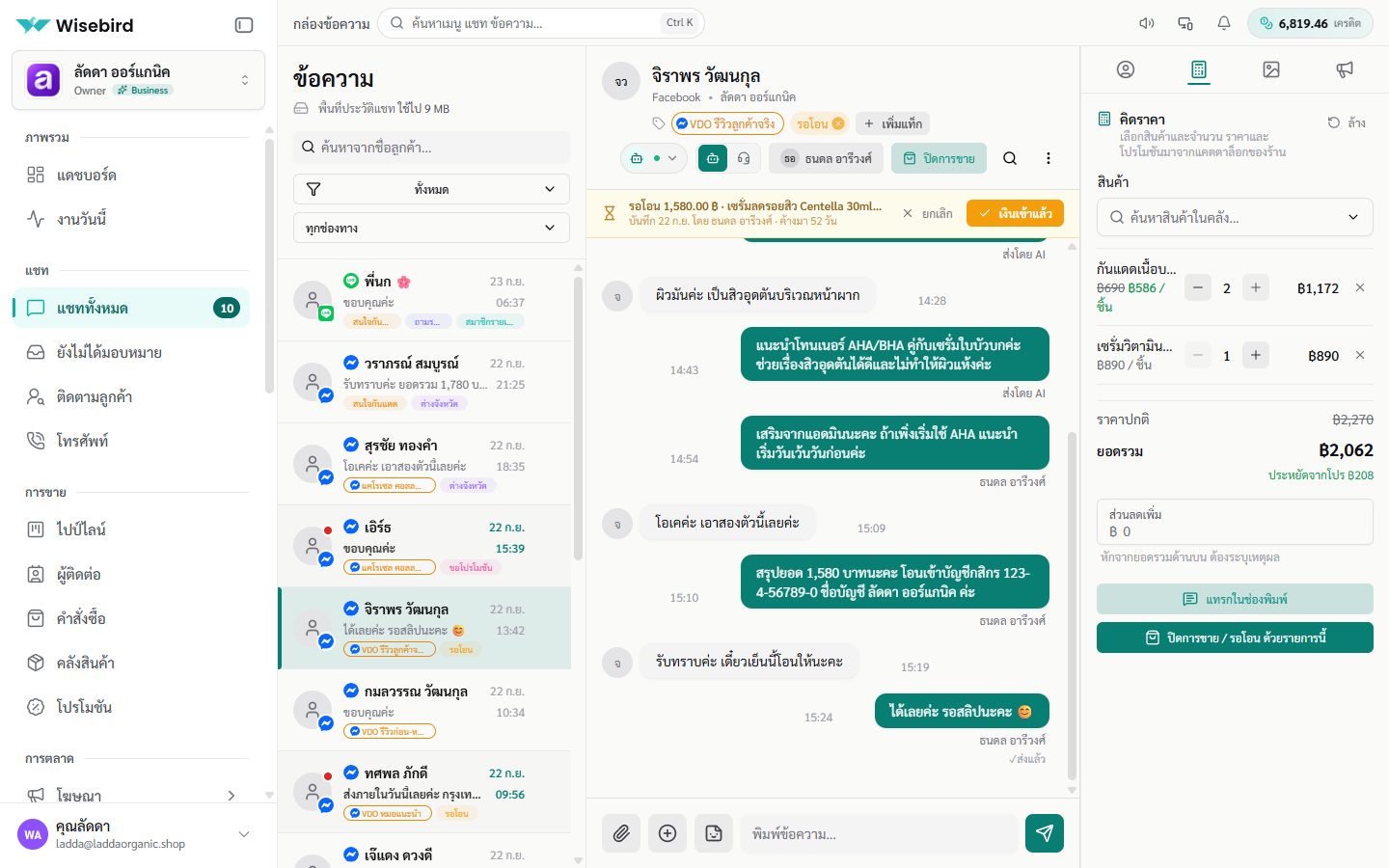
The Price tab in a chat — Two sunscreens at the promotion price of 586 baht; it shows the regular price, the total and how much the promotions save If a bigger set is better value, a Better-value set card appears — press Switch to this set to use it.Send the summary, or close the sale
Insert into reply box
Puts the item list and total in the reply box; check it and send it yourself (nothing is sent automatically)
Close sale / await payment with this basket
Opens the close-sale window with these products already in it
An Extra discount (more off than the promotions) always needs a reason, and only people with Give extra discounts beyond promotions can use it — the owner and admins already can. Change who can at Roles & Permissions.If you save it as awaiting payment, the agreed price is kept even if the promotion ends before the customer pays — Payment received still uses that price.