01See your sales and orders
Open Orders under Sales.
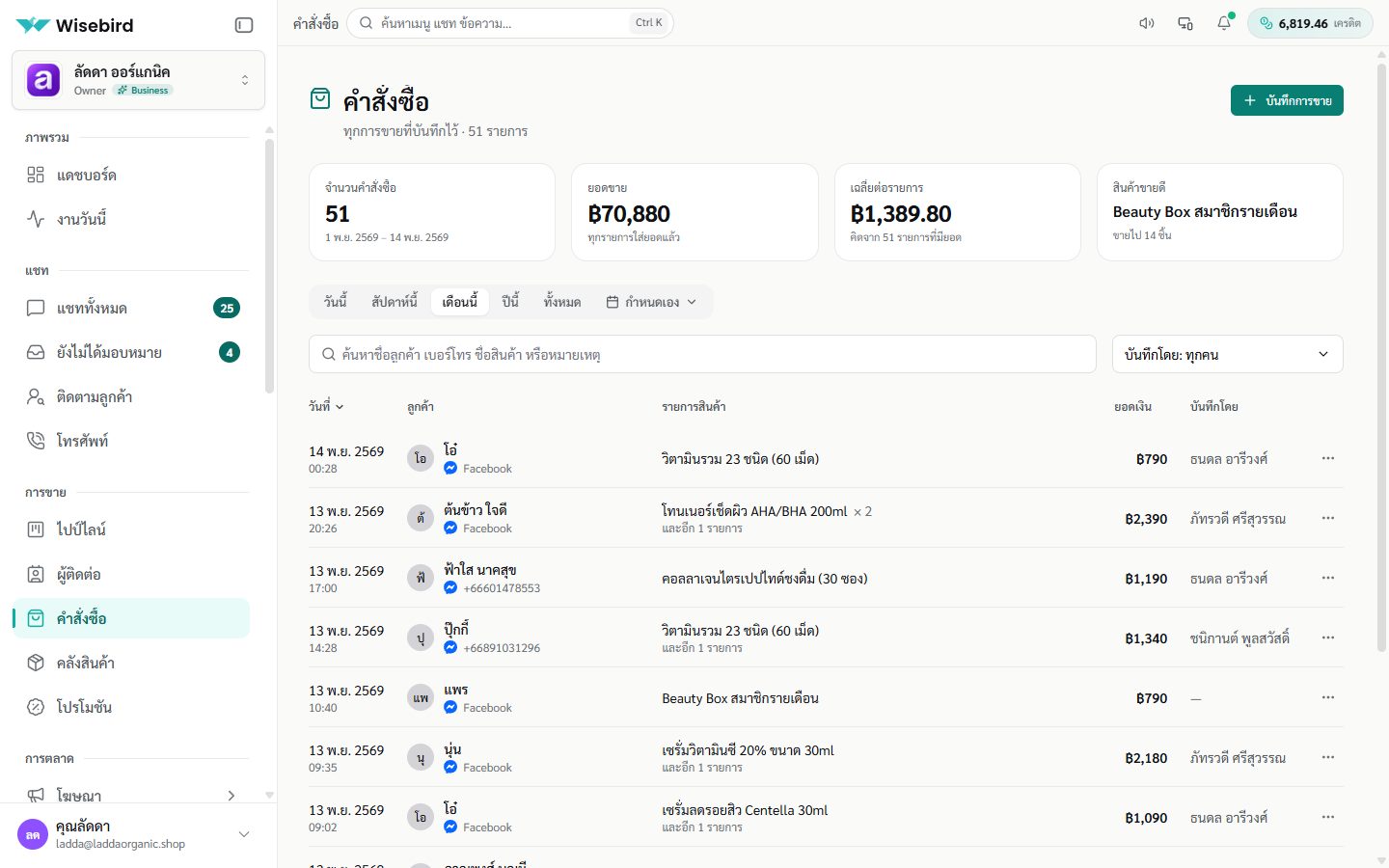
Card
Orders
All orders in the period
Card
Sales
Only orders with an amount — the line below says how many have none
Card
Average per order
Sales divided by the orders that have an amount
Card
Best seller
The product sold most, counted in units
- Search by customer name, phone, product name or note
- Recorded by filters by team member, or by orders that came from your other systems
- Press the Date · Customer · Amount headers to sort
02Open one order
Press an order's row and Sale details opens on the right.
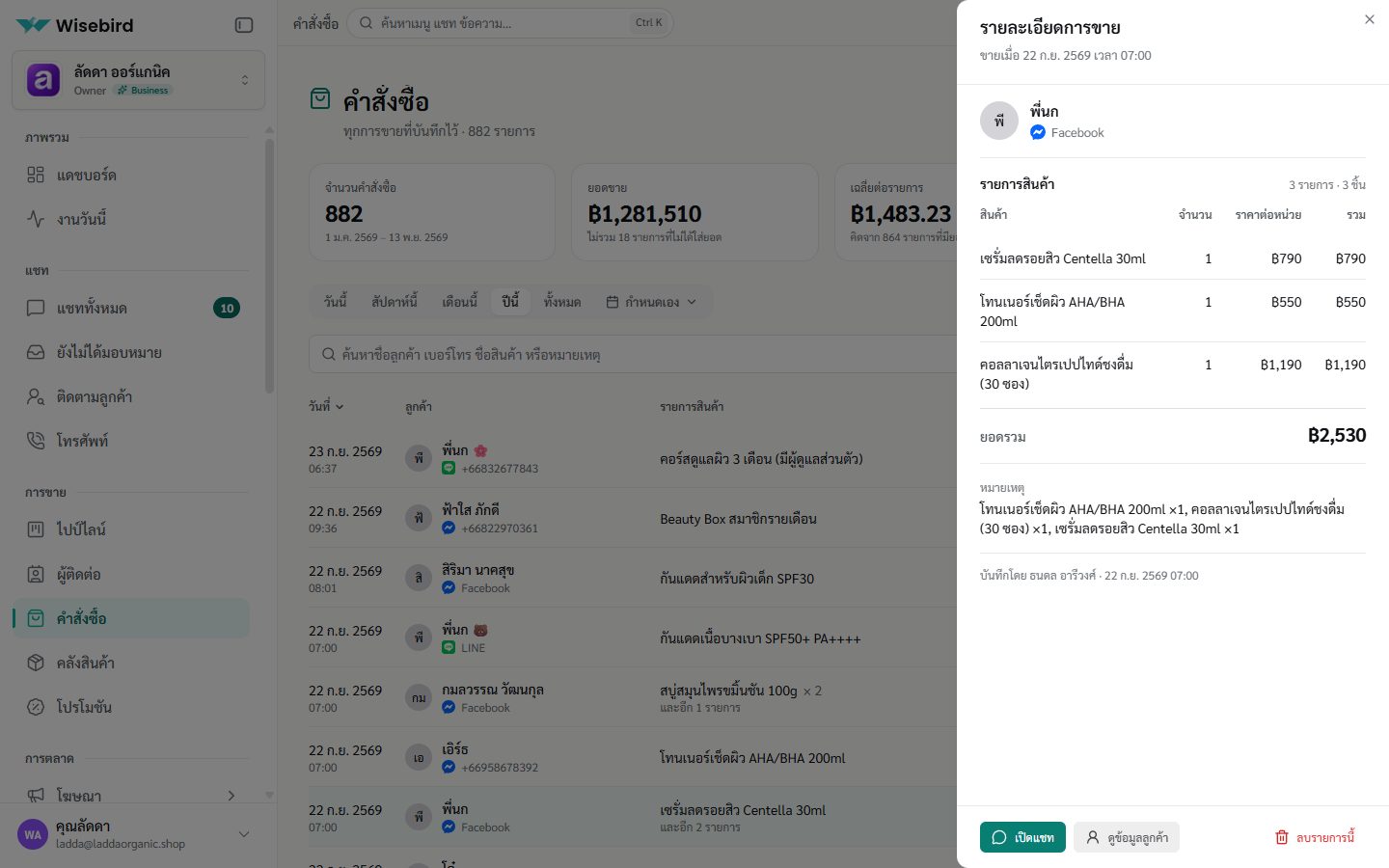
- Open chat — go to this customer's chat
- View customer — go to their contact page
- Delete this entry — for a mistake; the amount comes off the customer’s lifetime spend and the sales reports (orders from a connected system cannot be deleted here — cancel them in that system instead)
The ⋯ button at the end of each table row has the same menu, without opening the details.
03Record a sale made outside chat
For example a customer who bought in the shop or ordered by phone. If the customer is already chatting with you, use Close Sale in the chat instead, so the sale is tied to that chat.
Press "Record Sale" and pick the customer
Press Record Sale at the top right, then search for the customer by name, phone or e-mail.
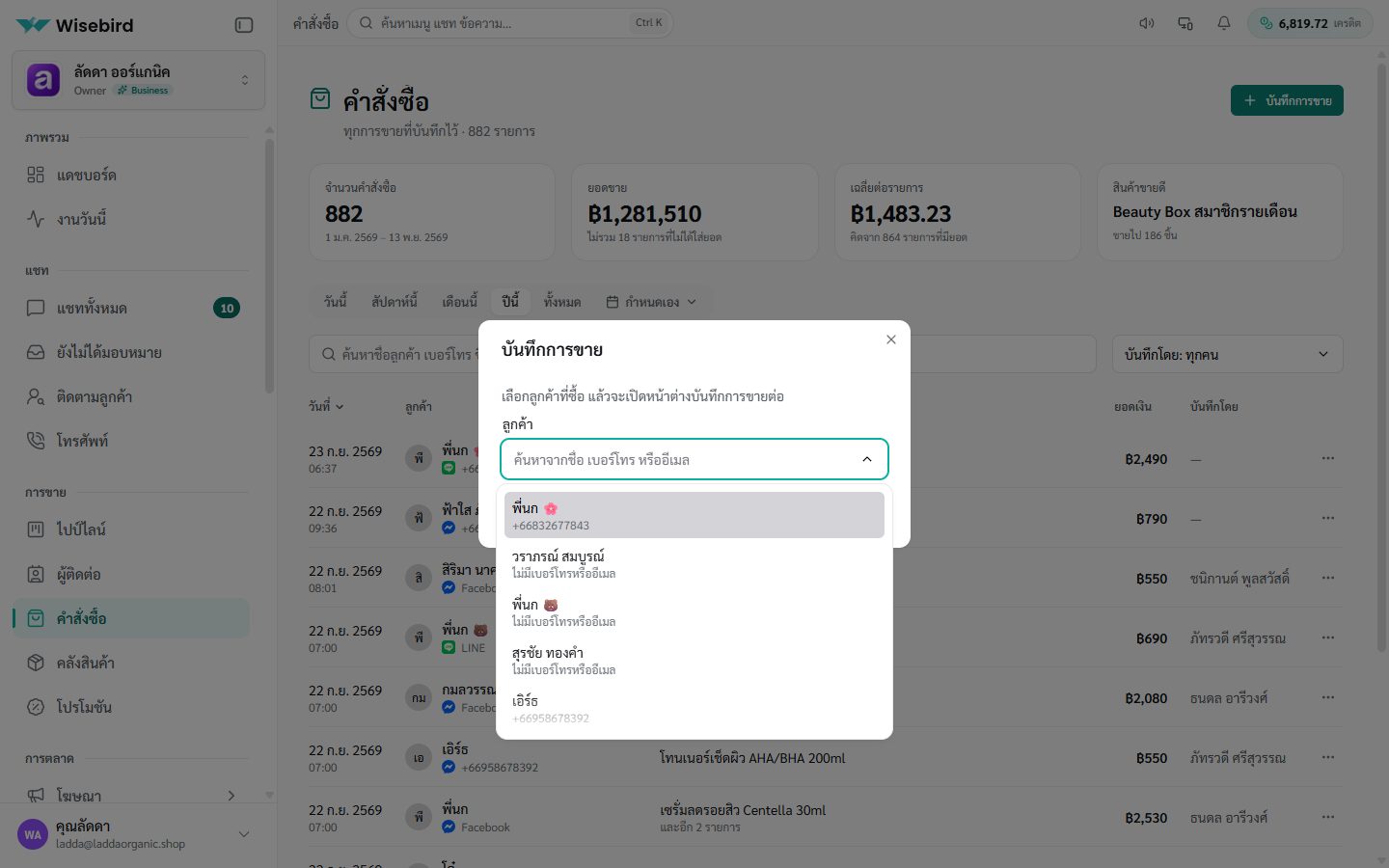
Pick the customer — The list comes from Contacts; the phone or e-mail under each name tells same-name customers apart Customer not in the system yet? Create them first on Contacts with Create Contact.Pick the products and the sale date
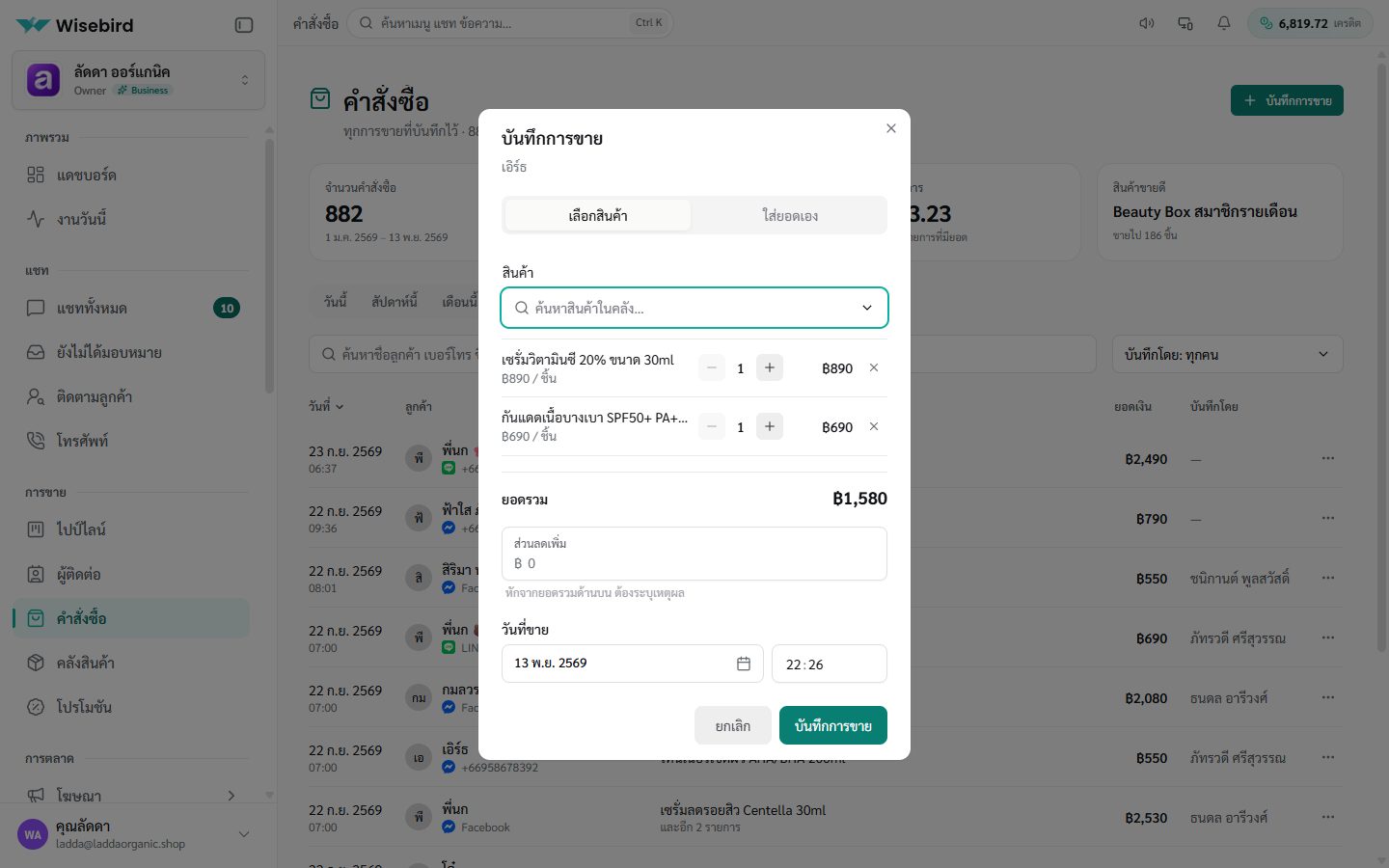
Record Sale window — Pick products from your library and adjust quantities with − / +; the total adds itself up Pick products
Choose from your product library; prices follow the promotions running on the sale date
recommended — best-seller reports can count it
Enter amount
Type the amount only — for things that are not in the library
Set the sale date and time to when it really happened (not in the future). A sale recorded after the fact uses the promotions that were running on that day.
Extra discount (if any), then save
To take more off than the promotions do, enter it in Extra discount with a reason such as "regular customer", then press Record Sale.
Only people with the permission Give extra discounts beyond promotions can use that field (the owner and admins already can). Change who can at Roles & Permissions.