01The account menu
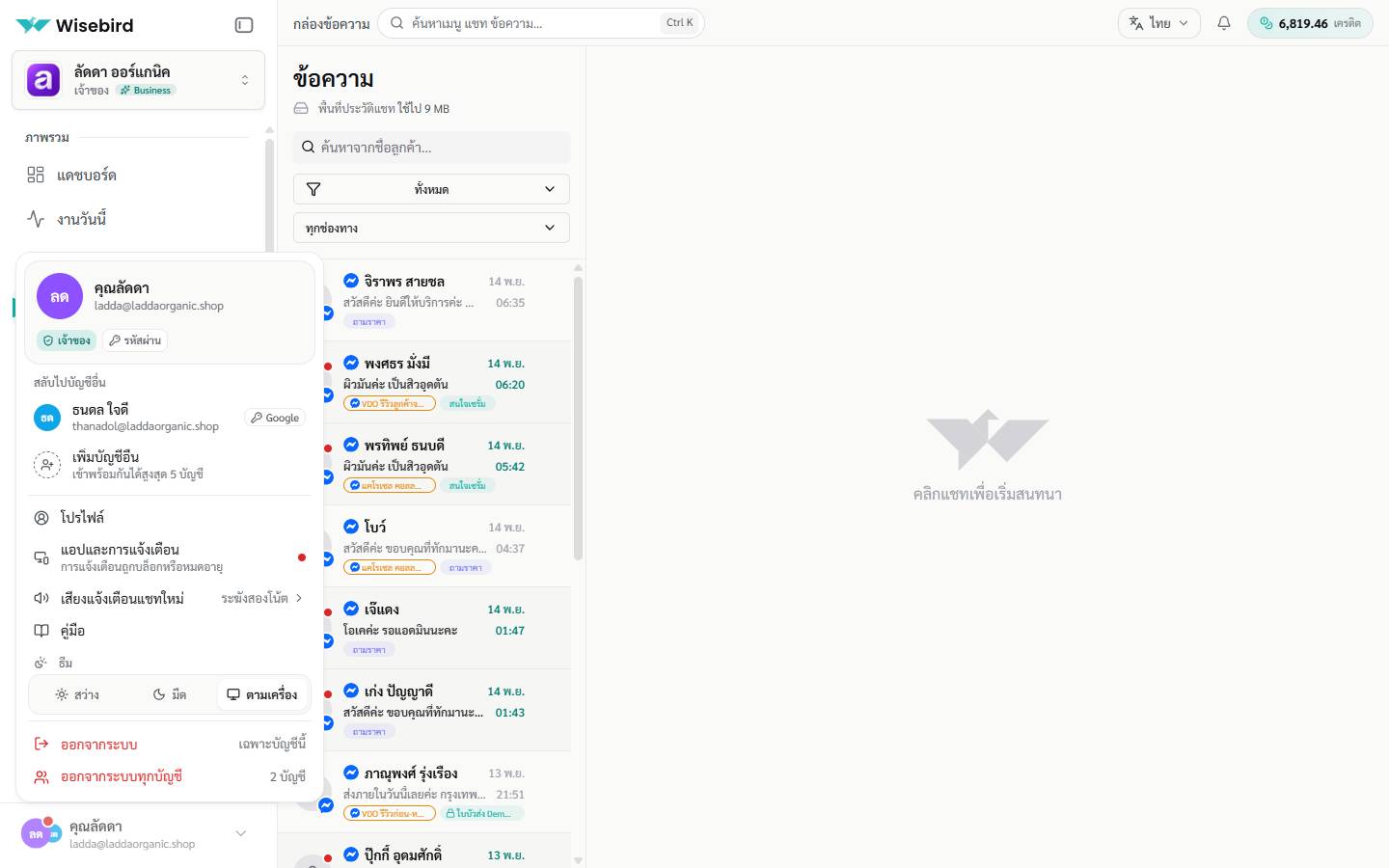
Press your name and e-mail at the bottom left of the menu. At the top is a card for the account in use: its name, e-mail, role in the selected business, and how it signed in this time, such as Google or a password.
Below the card, Switch to another account shows up to 2 of your most recently used other accounts with their names and e-mails. Any more are behind See all · add account. With 2 other accounts or fewer you see Add another account instead.
02Add a second account
Press "Add another account"
In the account menu press Add another account (with more than 2 other accounts, press See all · add account › Add account). You land on Sign in to another account, which shows the accounts already signed in.
Sign in to the second account
Enter the second account's e-mail and password and press Add this account, or use the Google button.
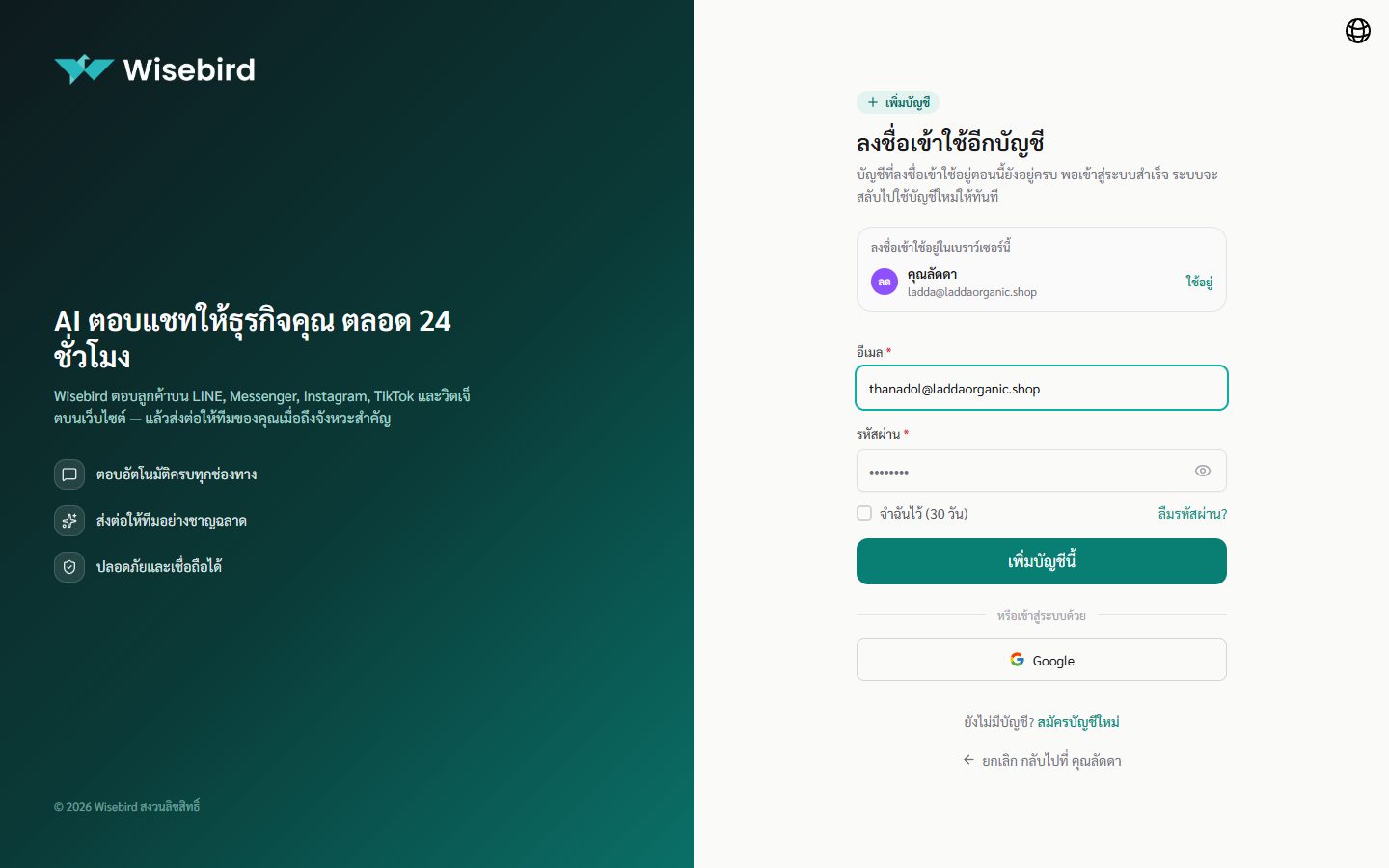
The "Sign in to another account" page — The current account stays listed as signed in · press "Cancel, back to …" if you change your mind Once signed in, Wisebird switches to the new account straight away. The first account stays signed in.
No second account yet? Press the sign-up link at the bottom of this page.
03Switch accounts and sign out
Switch account
Press your name at the bottom left, then press the account you want under Switch to another account. If it is not there, press See all · add account. The page reloads in the same section of the business that account used last.
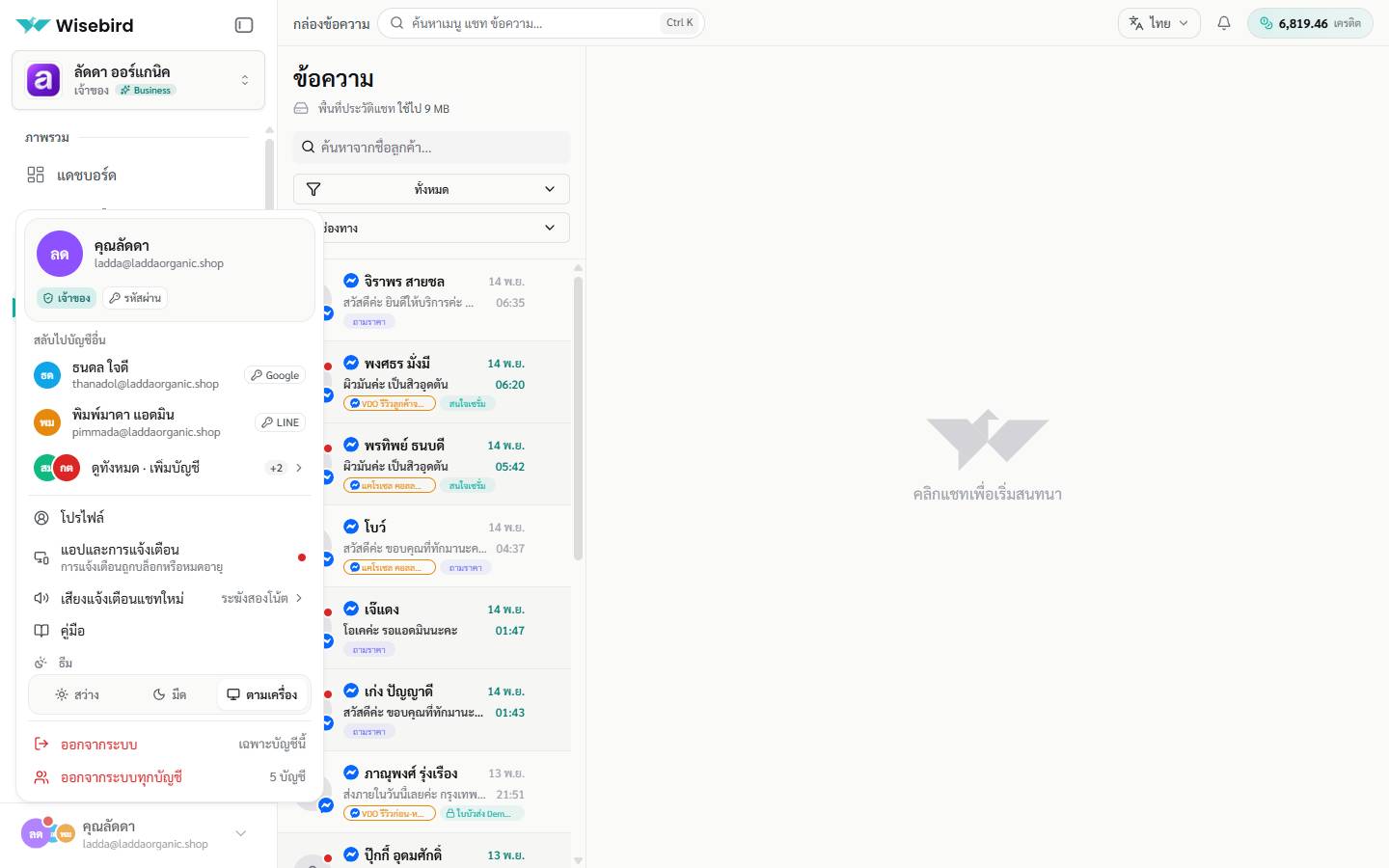
Switching with several accounts — Press an account to switch · the rest are under "See all · add account" Sign out of one account or all of them
Sign out of the account in use only
Press "Sign Out" (this account only) in the account menu
Wisebird switches to the most recently used account that is still signed in
Sign out of every account in this browser
Press "Sign out of all accounts" in the account menu and confirm
On a shared computer, press Sign out of all accounts before you leave it.