01The "App & notifications" page
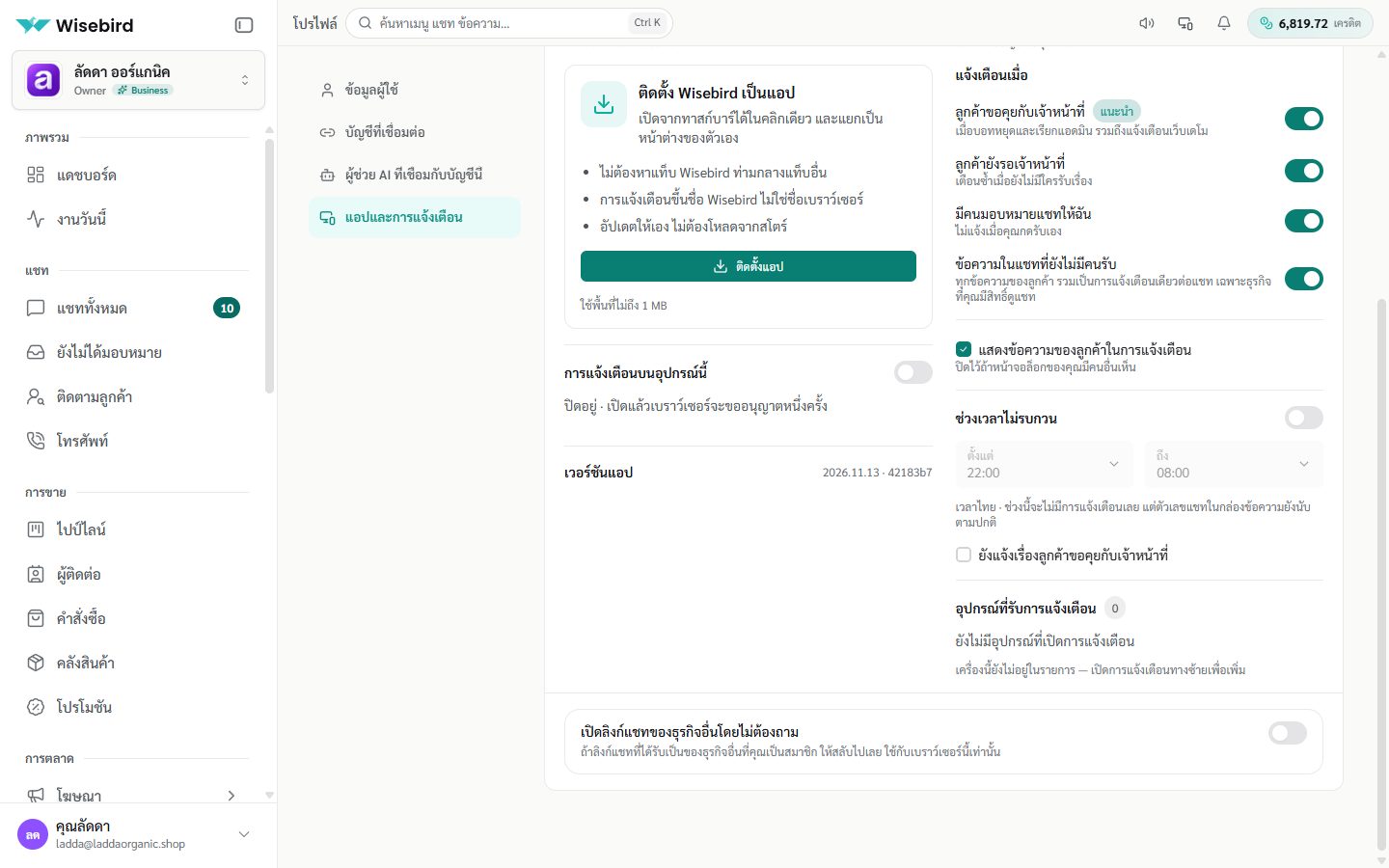
Press your name at the bottom left › App & notifications (or Profile › App & notifications). The page has two sides.
Left
This device
Install the app and turn on notifications — only for the browser or device you are using.
Right
All your devices
Which events, whether customer text shows, quiet hours and your device list — saved with your account.
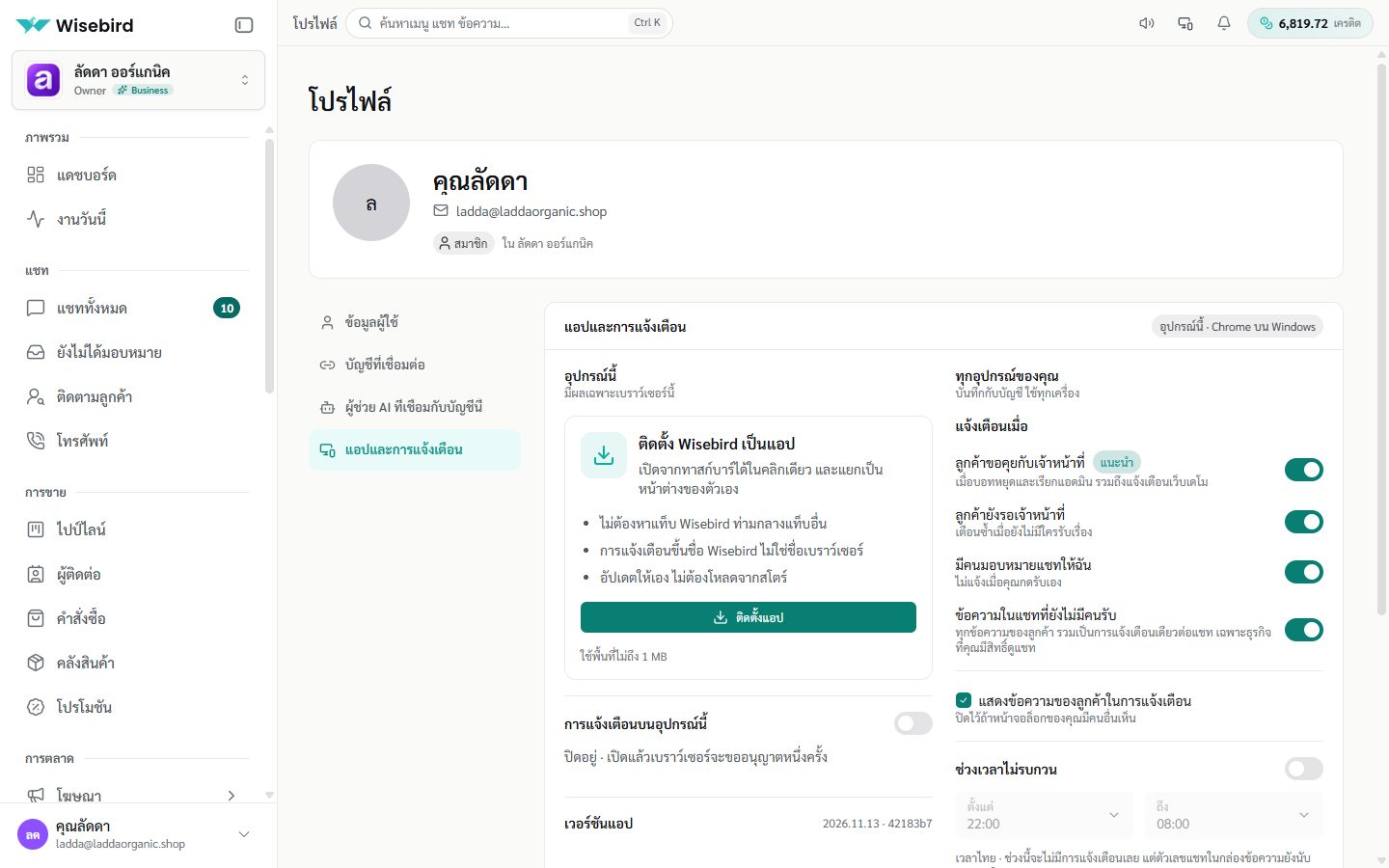
02Install as an app
The app takes less than 1 MB and updates itself whenever Wisebird ships something new — nothing to press.
Android and computers (Chrome / Edge)
Open App & notifications and press Install app on the Install Wisebird as an app card, then confirm in the browser's window.
No button? Install from the browser menu › Install Wisebird (or "Add to Home screen").
Screenshot: the install prompt on AndroidChrome on Android asks whether to install Wisebird — press "Install" and the Wisebird icon appears on your home screenScreenshot coming soon iPhone and iPad (Safari)
On iPhone, install through Safari — and notifications only work once it is installed (iOS 16.4 or later).
- Open wisebird.cloud in Safari and tap the Share button in the bottom bar
- Scroll down, tap Add to Home Screen, then Add
- Open Wisebird from the Home Screen icon and come back to App & notifications to turn notifications on
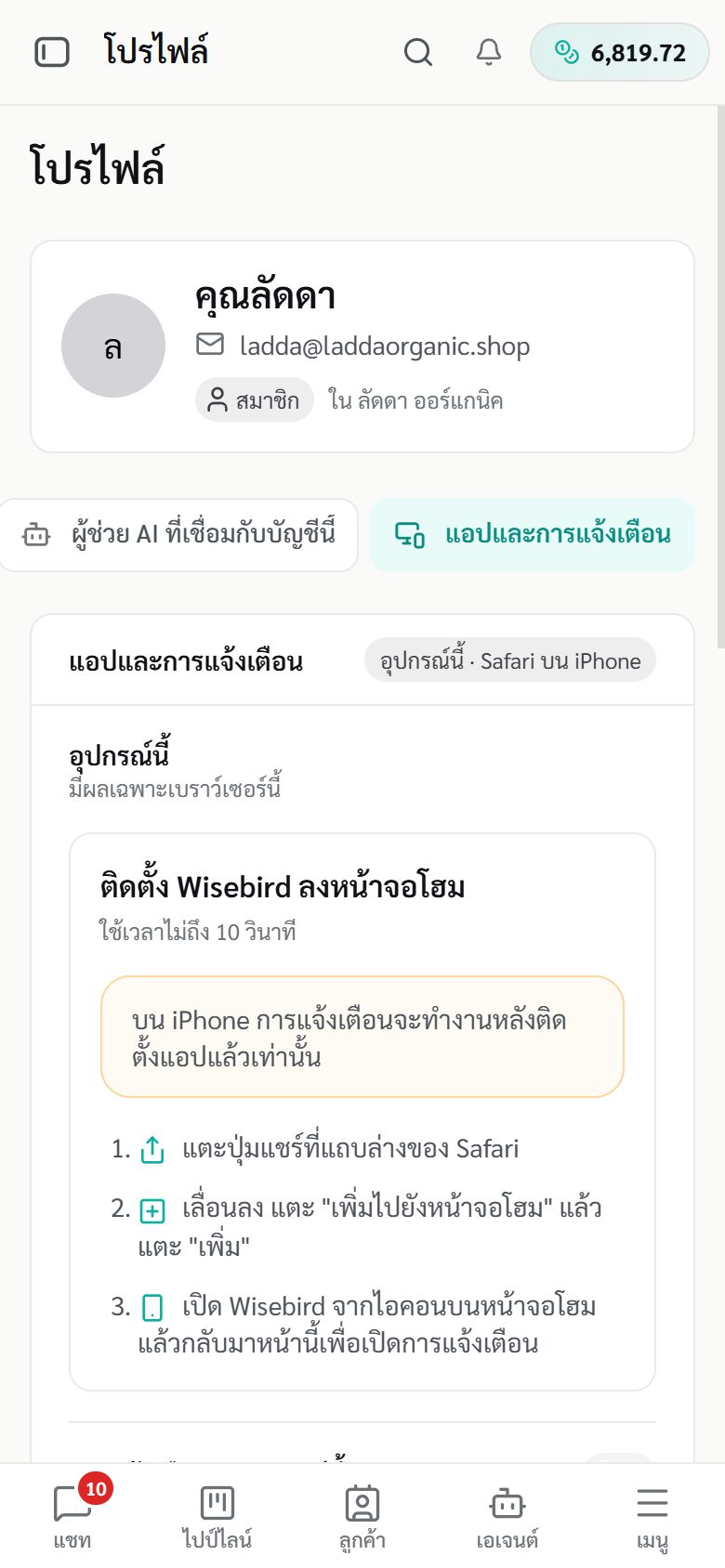
The install card on iPhone — App & notifications on an iPhone shows the three install steps Screenshot: the Wisebird icon on the iPhone Home ScreenAfter "Add", the Wisebird icon sits on your Home Screen — always open the app from itScreenshot coming soon Opened from inside LINE, Facebook or Instagramskip if you use a normal browser
A Wisebird link tapped inside a LINE, Facebook or Instagram chat opens in that app's in-app browser, which cannot install apps. A yellow notice says so.
Tap ⋯ and choose Open in Safari (iPhone) or Open in browser (Android), then follow the steps above.
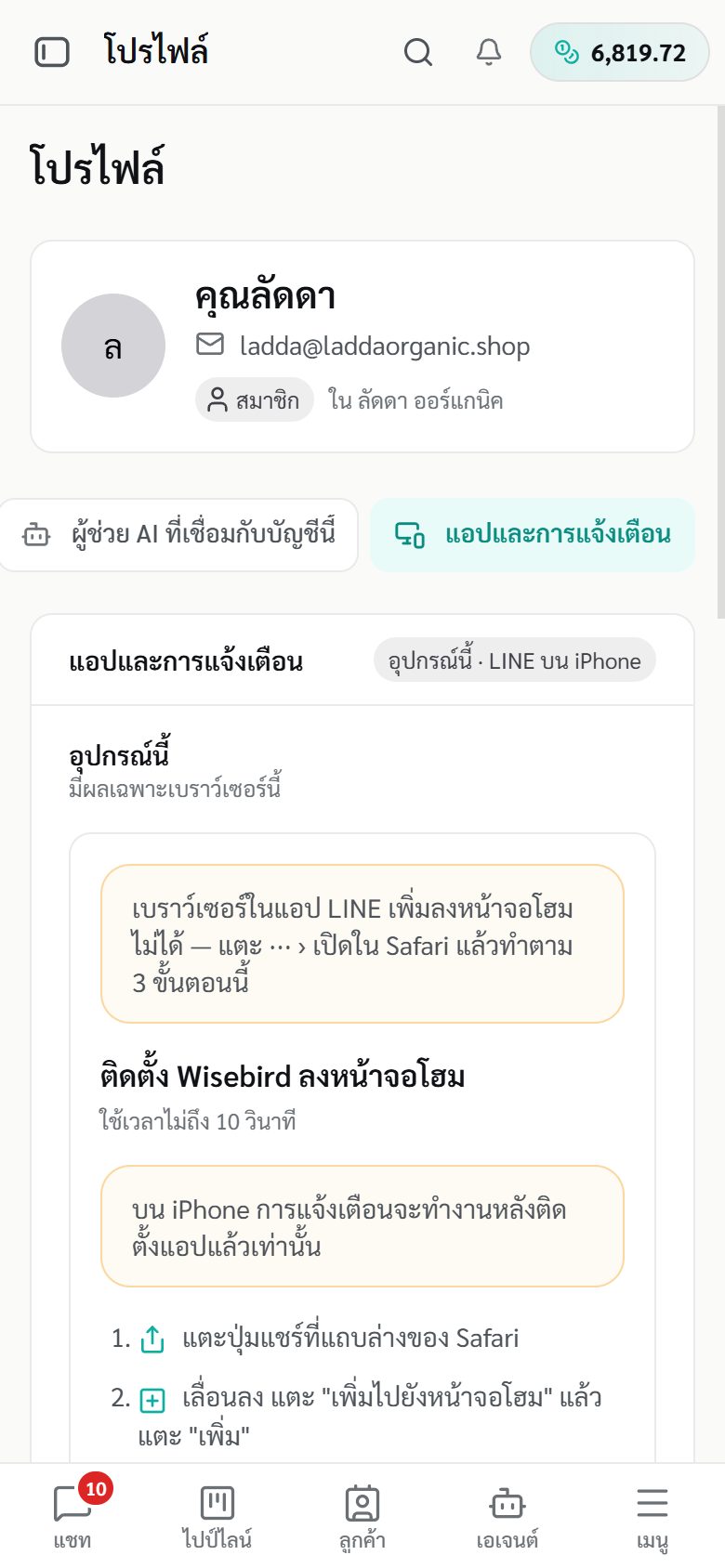
The notice inside the LINE app — "The browser inside LINE cannot add apps to the Home Screen — tap ⋯ › Open in Safari"
03Turn on notifications on this device
Turn on the switch and allow
Under This device, turn on Notifications on this device (on a phone, the Turn on notifications button). The device asks once — press Allow.
Then press Send test; the notification appears within a few seconds.
Screenshot: a Wisebird notification on a phoneA "customer asked for an agent" notification on the lock screen — tap it to open that chatScreenshot coming soon Pressed Block by mistake? The page shows how to allow it in your browser or phone settings — do that, then press I allowed it, check again.Watch the dot on your account picture
When this device needs setting up, a dot appears on your account picture at the bottom left and on the App & notifications row of the account menu. Press that row to go to App & notifications.
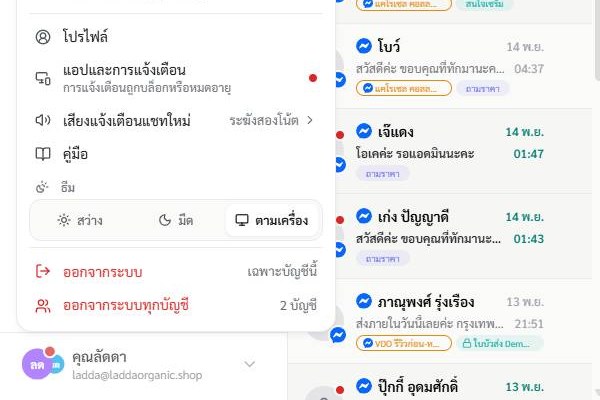
The dot on the account picture and the App & notifications row — Teal dot = this device is not set up yet · red dot = notifications are blocked or expired
04Choose events and quiet hours
All your devices is saved with your account — set it once for every device.
- A customer asks for an agent (recommended) — when the bot stops and calls your team
- A customer is still waiting for an agent — a reminder while nobody has taken it
- Someone assigns a chat to me — not when you take one yourself
- Messages in chats nobody has taken — every customer message, folded into one notification per chat, only for businesses where you can see chats
- Show the customer's message in notifications — turn off if others can see your lock screen
- Quiet hours — pick a start and end (Thai time); no notifications at all in that window. Tick Still notify me when a customer asks for an agent to keep that one
05Manage devices
Devices receiving notifications lists every device with notifications on. The one you are using is marked This device, with when each was last used.
Lost or replaced a phone, or want one to stop? Press Revoke beside it and confirm. That device gets no more notifications until they are turned on again there; its sign-in is not affected.