01The inbox at a glance
Open All chats in the left menu. The number beside it is how many chats are still unread.
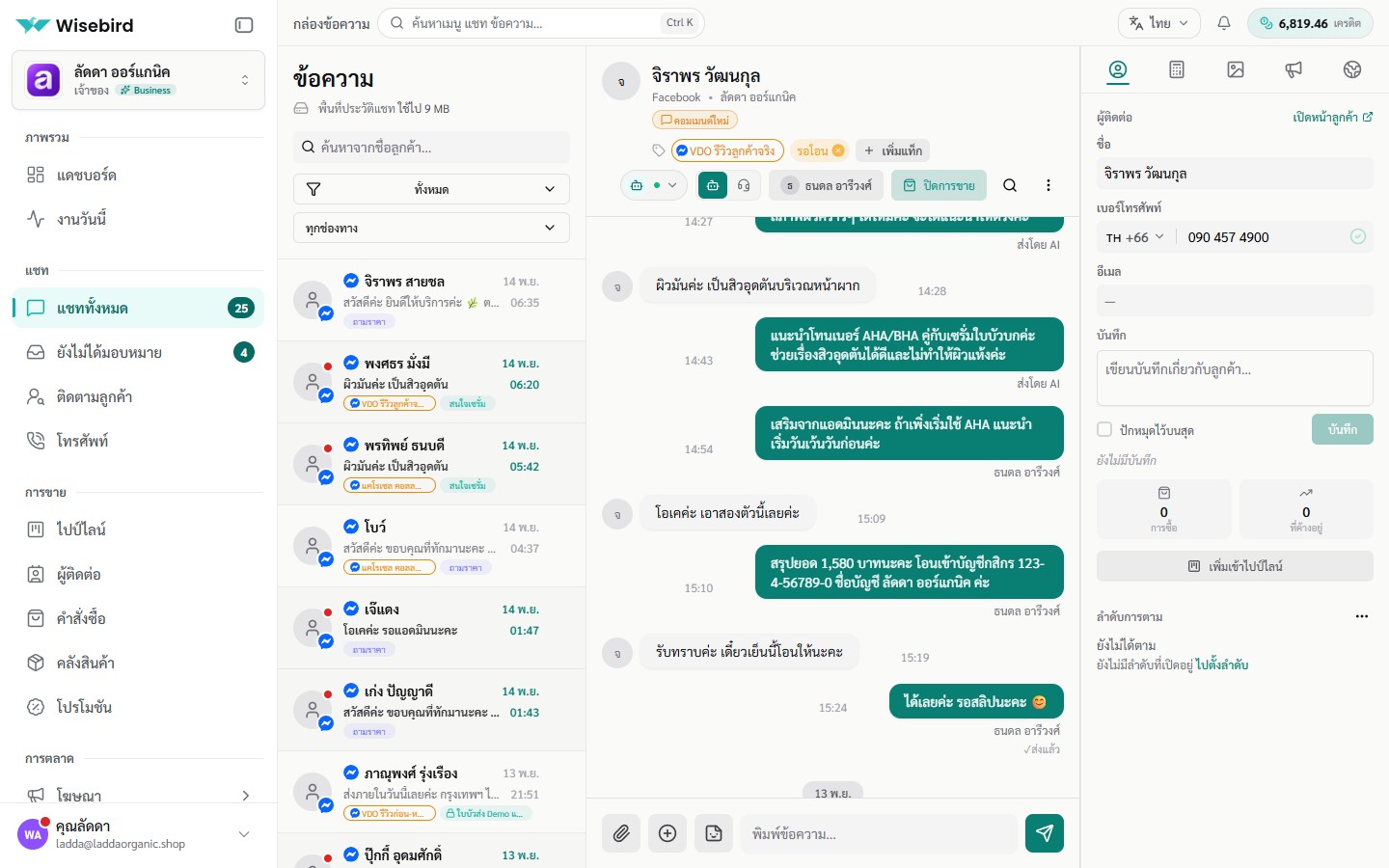
Left
Chat list
Newest chats on top. The icon on the picture shows the channel, the coloured labels are tags and the ad the customer came from, and a red dot means unread.
Middle
Conversation
The header holds tags, who answers, the owner, the Close Sale button, search in chat and the ⋮ menu.
Right
Conversation details
Four tabs: Contact · Price · Media · Ads
02Filter down to what needs doing
Open the filter
Press the button with the funnel icon (it starts on All) above the chat list. There are five groups to choose from.
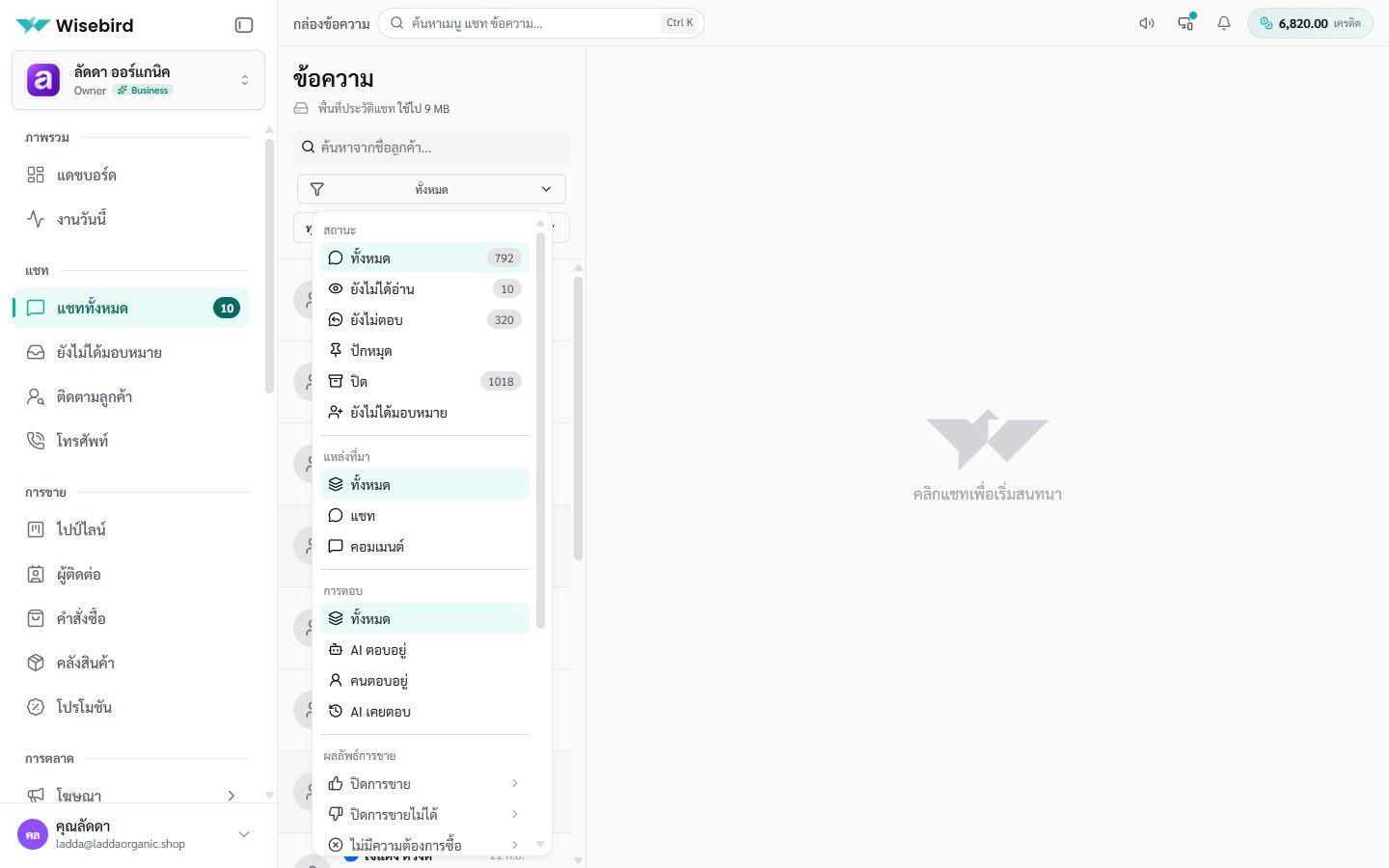
Chat filters — Status · Source · Who answers · Sales outcome · Tags — the numbers on the right count the chats in each status Choose what you want to see
- Status — All · Unread · Awaiting reply · Pinned · Closed · Unassigned
- Source — Chat, or comments under a post
- Who answers — AI answering · Team answering · AI has replied
- Sales outcome — Won · Lost · No intent · Awaiting payment · Undecided
- Tags — type to search, pick as many as you like
If you look after several channels, use the All channels button under the filter to see one Page or LINE OA.
Filters live in the page link, so refreshing the page or sending the link to a teammate keeps the same view.
03Share the work: assign, claim, collaborators
New chats nobody owns yet sit under Unassigned. Open it each morning to hand out the work.
Assign a chat or claim it
In the chat header, press the button showing the owner's name (or a person icon if there is none), then choose:
- Primary owner — the person responsible for this chat. Beside each name is how many open chats they have, so you can spread the work evenly
- Claim for me — assign it to yourself in one click
- Unassign — send the chat back to Unassigned
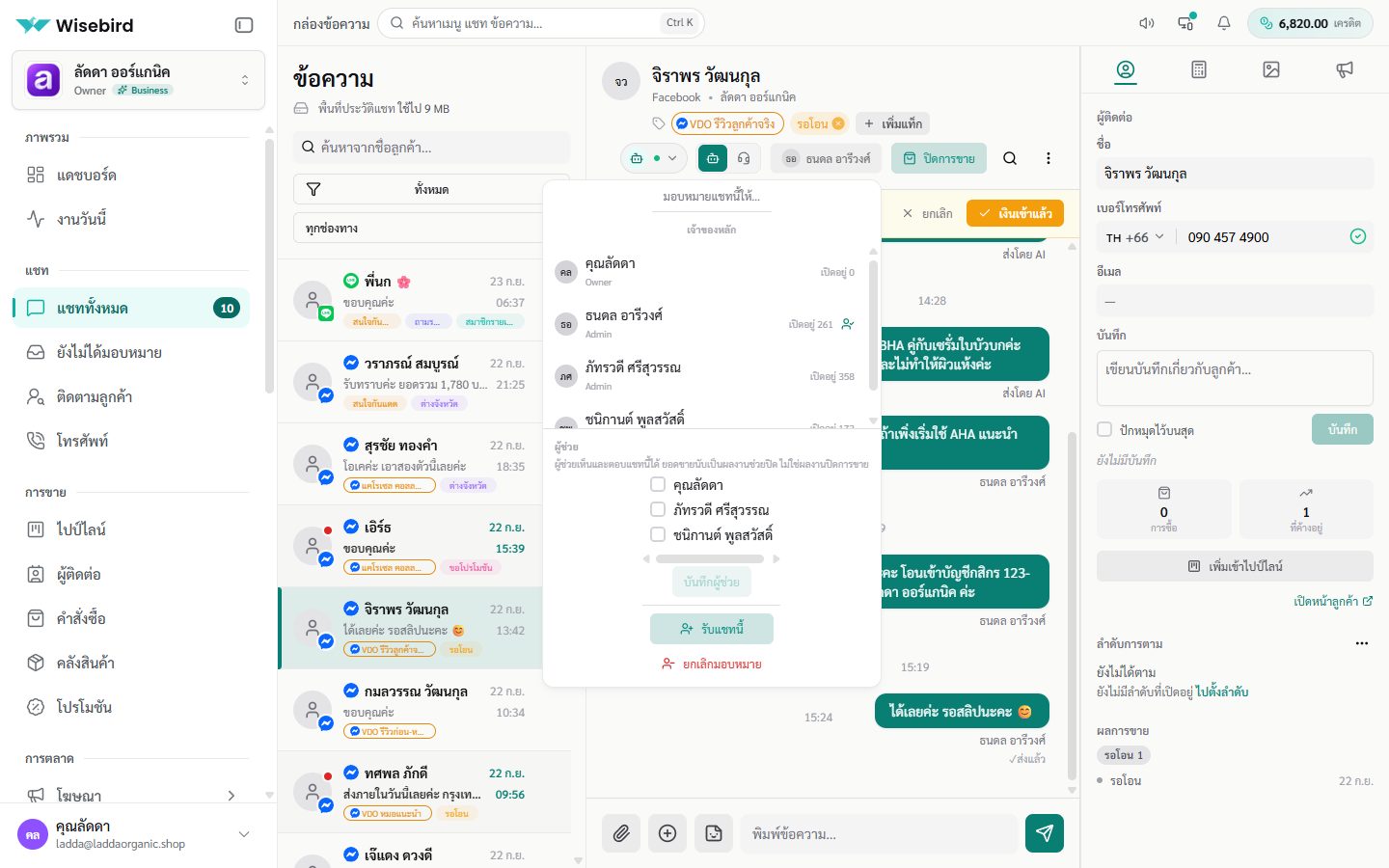
Assigning a chat — Pick the primary owner at the top, tick collaborators below and press "Save collaborators" Add collaborators
Tick names under Collaborators and press Save collaborators. Collaborators can see and answer the chat, and a sale counts as an assist for them — the win itself stays with the primary owner.
The business owner decides who sees which chats (for example, admins see only their own) in Settings, on the Sales tab.
04Pins, tags and the chat menu
Use the ⋮ menu in the chat header
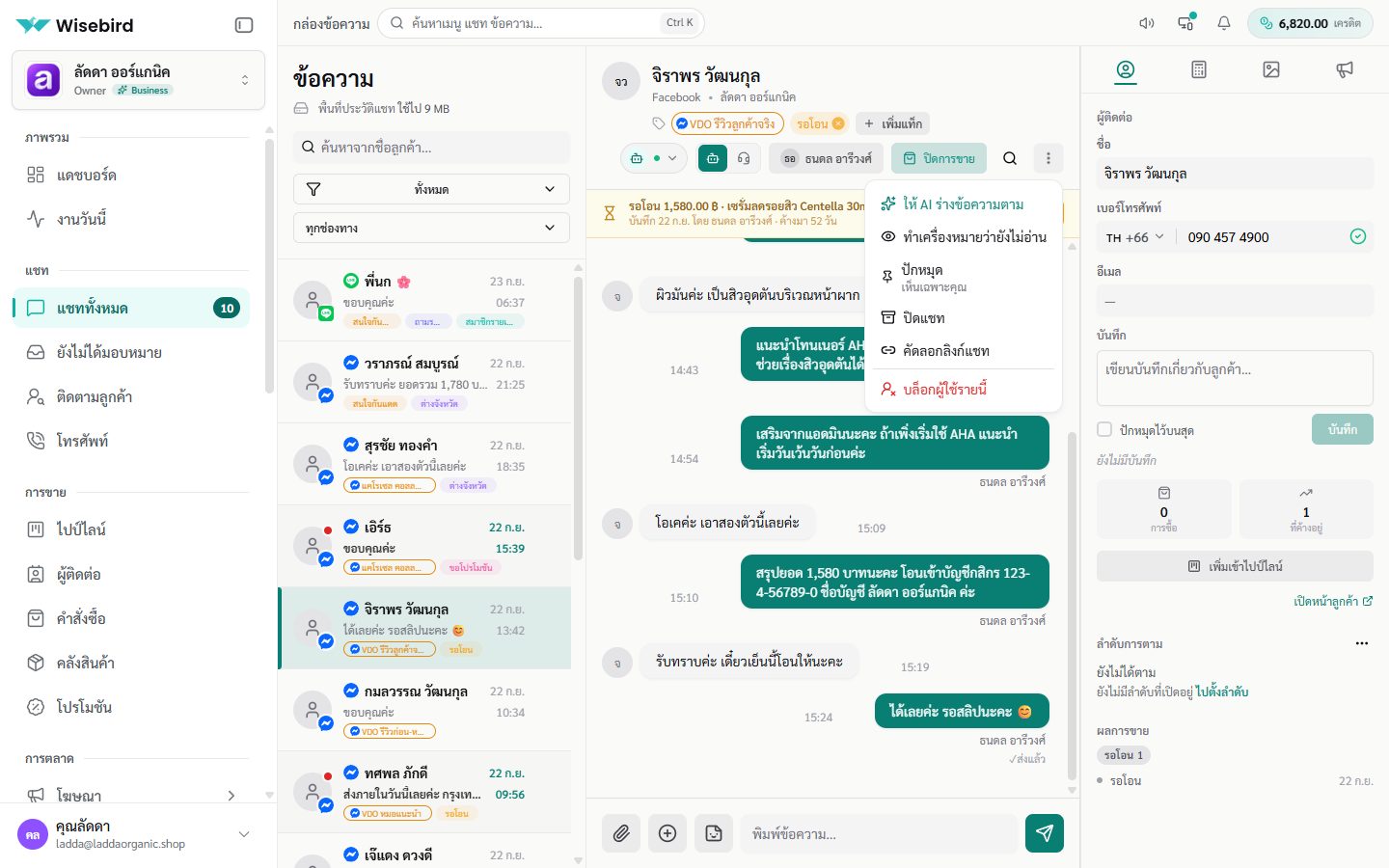
The chat menu — The ⋮ button at the right of the chat header - Draft a follow-up with AI — let the AI write a message to a customer who went quiet (see the follow-up guide)
- Mark as unread — keep it to come back to later
- Pin chat — the chat moves to the top of the list for you only; teammates never see your pins. See your pinned chats with the "Pinned" filter
- Mark as closed — take the chat off your working list. If the customer writes again, it reopens by itself
- Copy chat link — a teammate can open the same chat straight away
- Block this person — (Facebook only) a real block on Facebook, for the whole Page, not just this chat
Tag a chat
Press + Add tag in the chat header and pick a tag. To remove one, press × on its label. Tags help you filter chats and count results on the ads pages.
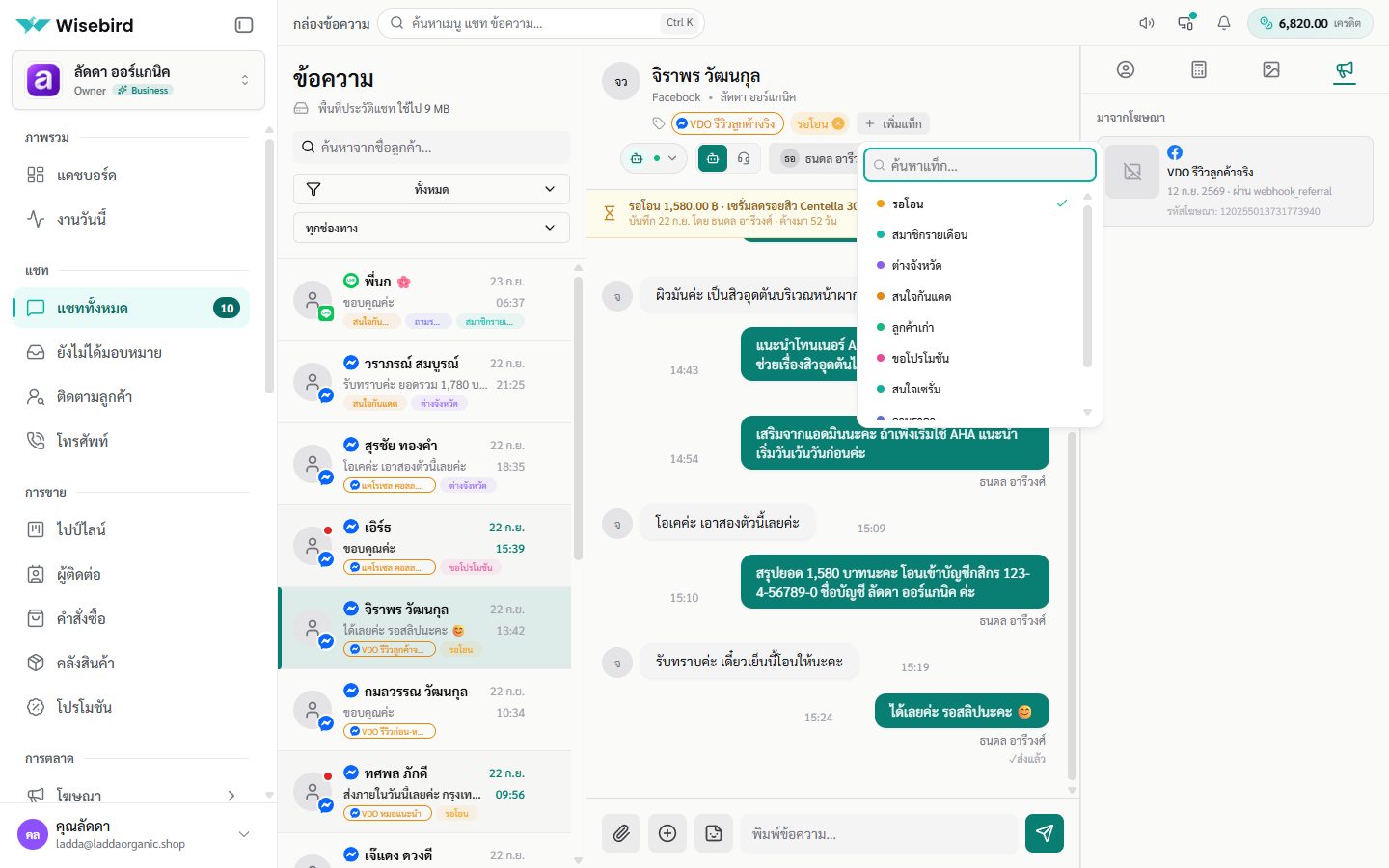
Adding a tag, and the Ads tab — The shop's tags · on the right, the Ads tab shows which ad the customer came from Create or edit tags on the Tags page.
Tags with a lock are system tags, such as "Ad Response", added automatically when a customer comes from an ad. They cannot be removed from a chat.
05The customer panel on the right
- Contact — name, phone, email, notes about the customer (tick "pin to top" if you like), number of purchases, Add to pipeline, follow-up sequence and sales outcome
- Price — pick products and Wisebird prices them with today's promotions (see the "Replying to chats" guide)
- Media — every picture and file in this chat
- Ads — the ad the customer clicked to start the chat, with the date
Press Open contact (top right of the Contact tab) for the customer's full history on the Contacts page.