01What is on the list page
Open Contacts under Sales in the left menu.
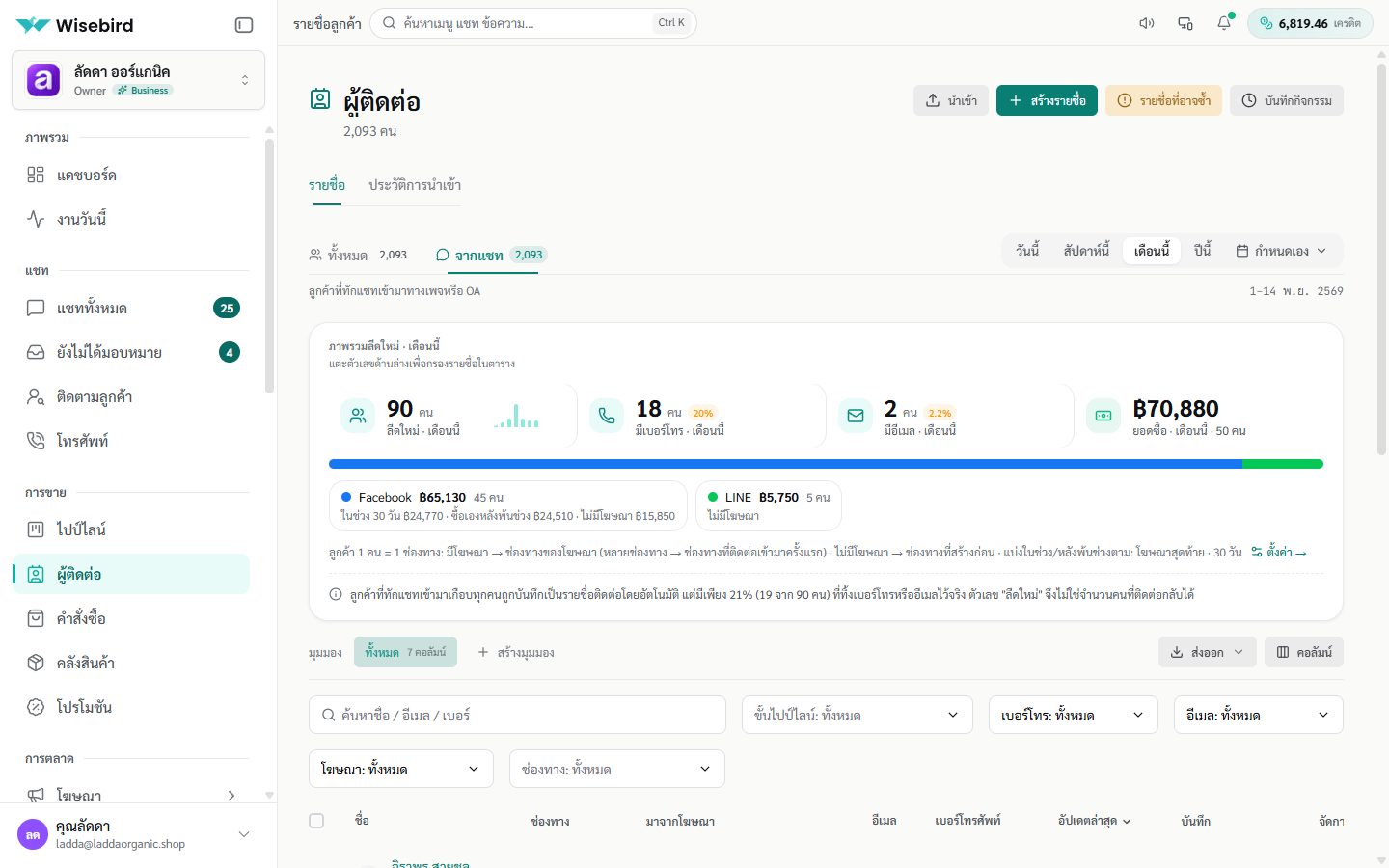
Tab
From chat
People who messaged your Page or LINE OA — this tab opens first
Tab
From ad forms
People who filled in a Facebook or TikTok lead form
Tab
From website
Customers who signed up or bought on a website you connected
Tab
Imported / All
People from files you imported, and everyone together
The Today · This week · This month · This year · Custom buttons on the right only change the period of the new leads card. The table below still lists everyone in the tab until you tap a number on the card.
02Find customers and arrange the table
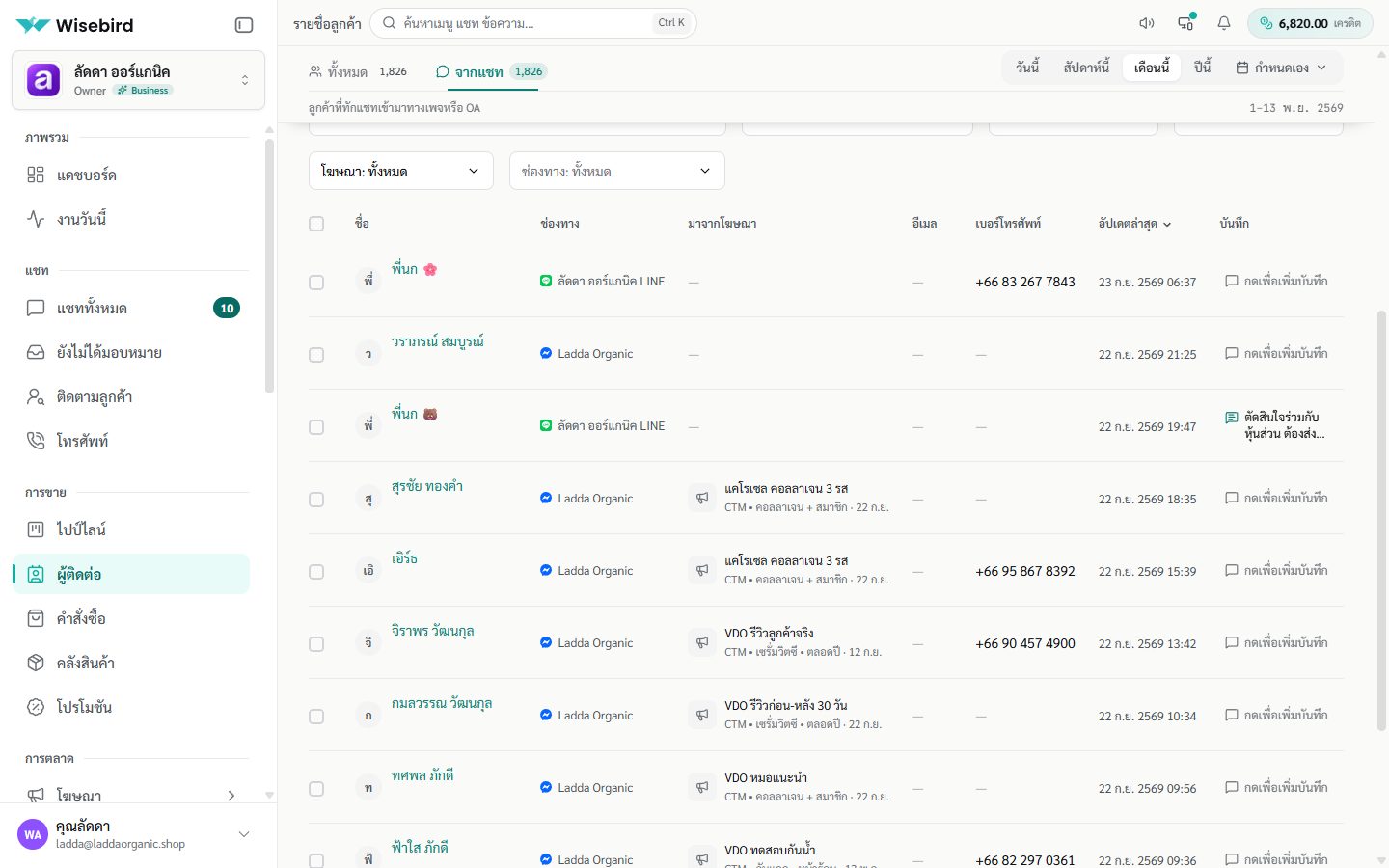
Search and filter
Type in Search name / email / phone. A number typed as 08x or +66 is found either way.
Common filters:
Pipeline stagePhoneEmailAdsChannelEach filter takes several values. Active filters show as chips under the bar — press × on a chip to remove it.
Act straight from the row
- Under the name are Chat (opens their chat) and Call · the button next to the name copies the name
- The From ads cell shows the latest ad the person saw — press it to see every ad they met and the purchases that followed
- Press a column header to sort, e.g. by last updated
Choose columns with views
The Views bar holds saved sets of columns. Press New view to make one, or Column to add or remove columns.
Views are shared with the whole team — a change shows on everyone's table — and only admins can choose columns.Need a file? Press Export. It exports with the filters and sort order you are using.
03Take notes about a customer
Notes are for your team only — the customer never sees them. Use them for things agreed on the phone, special terms, or what to follow up.
Open the notes panel from the table
Press the row's Notes cell (empty ones say "Click to add a note"). A panel opens on the right.
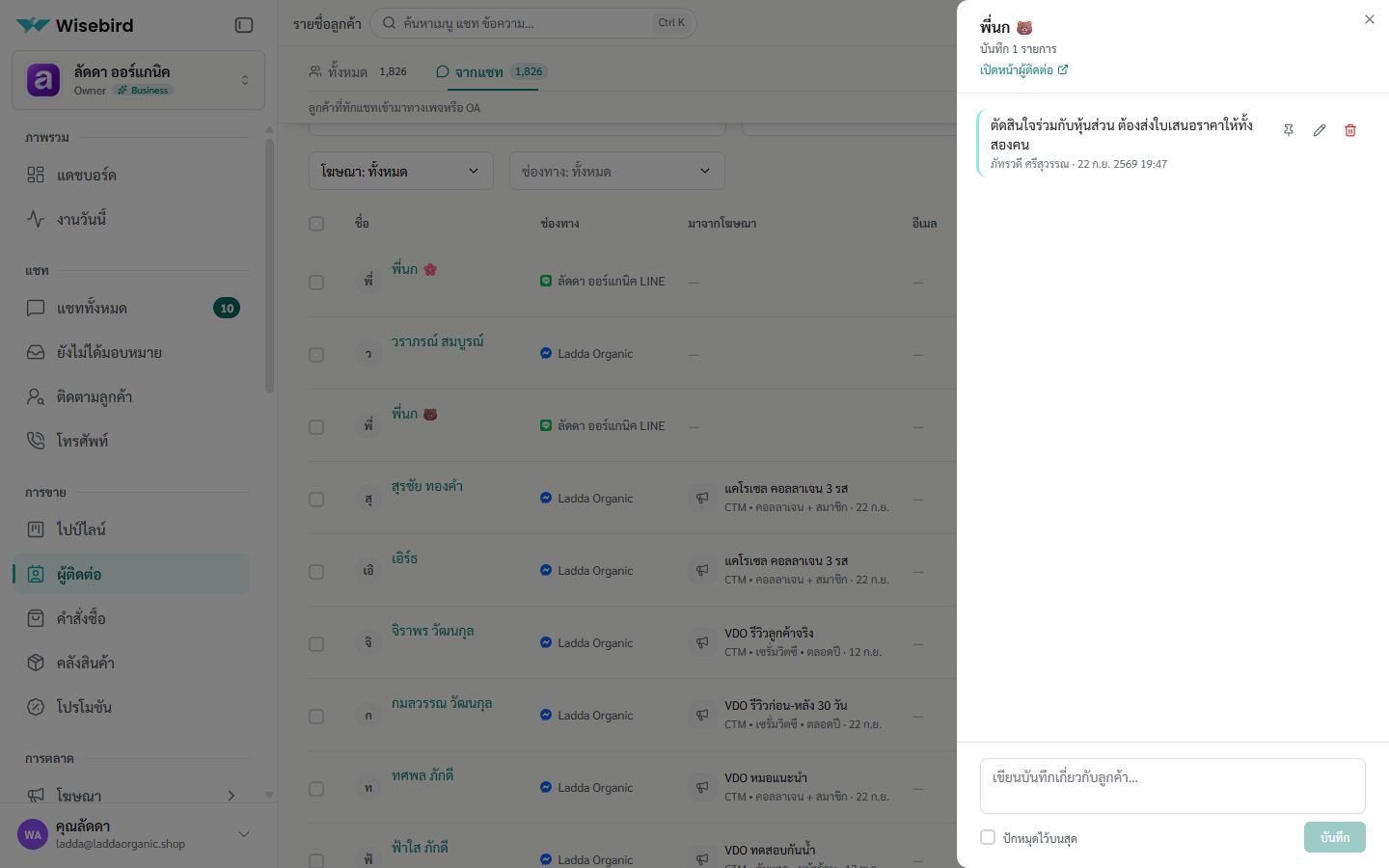
A customer's notes panel — Edit, pin or delete existing notes; write a new one at the bottom and save Tick Pin to top for something important — pinned notes show in the table before the others.
04One customer's page
Press a customer's name in the table to see everything about them on one page.
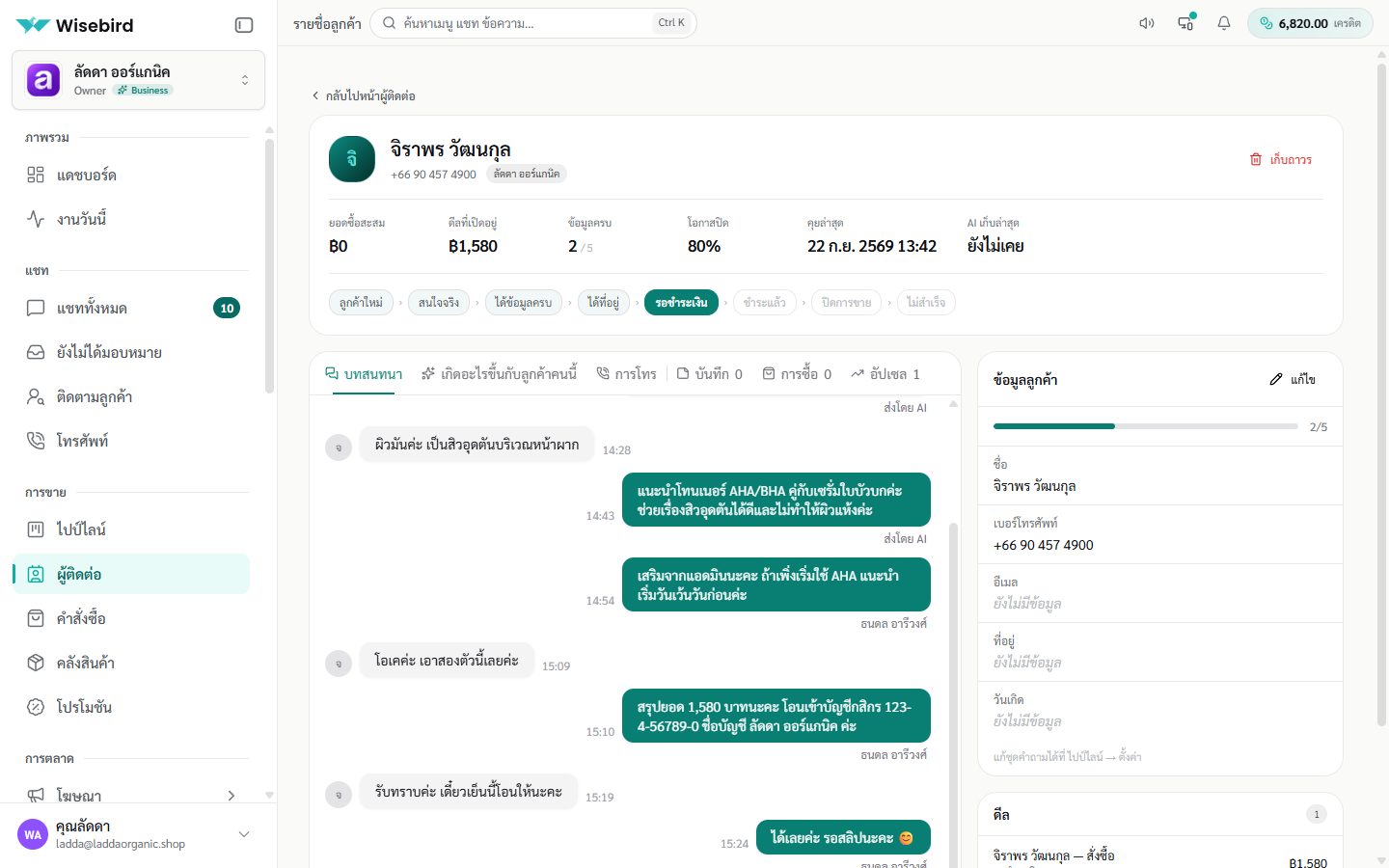
- Chat tab — the customer's chat (read-only; press "Reply in inbox" to answer)
- What happened tab — a timeline of every event: came from an ad, moved stage, purchase recorded
- Calls · Notes · Purchases · Upsales tabs — one topic at a time
- The Customer information box on the right — press Edit to add phone, e-mail, address, birthday
05Import a list from Excel or CSV
Use this when you have an old customer list in a file and want it together with the people who chat with you. Up to 20,000 rows per file; each row needs at least a phone number or an e-mail.
Choose the file
On the Contacts page press Import, then drop the file in or press choose a file.
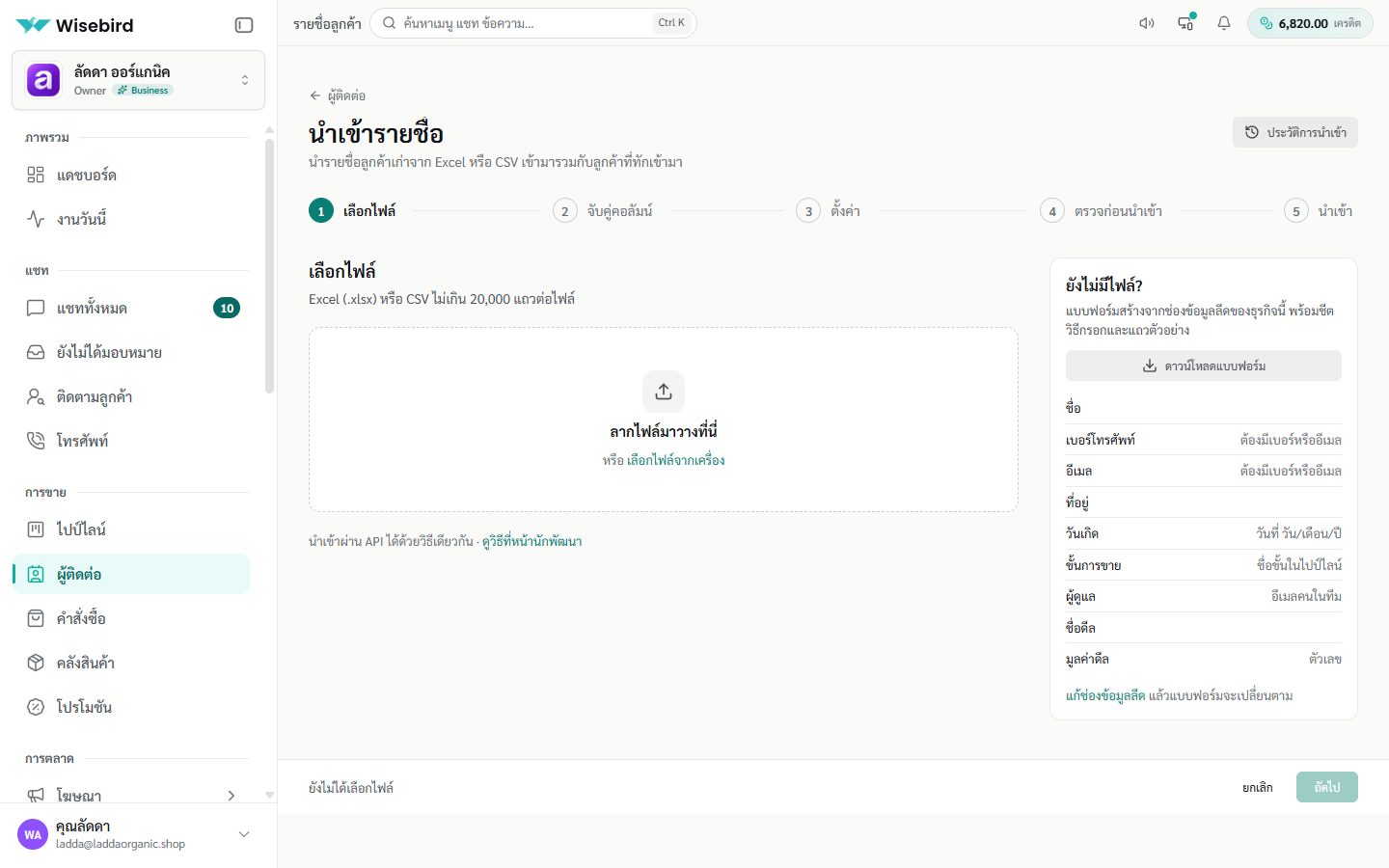
The import page — The 5 steps are along the top. No file yet? Press "Download template" on the right for a sample file If Thai text in a CSV looks garbled, save it again as "CSV UTF-8", or use .xlsx instead.Match the columns
Tell the system what each column in your file is, e.g. "Customer name" → Name, "Tel" → Phone. Columns you don't need can be left out.
Settings
Import as
Contacts only, or Contacts and open a deal in the pipeline (choose the stage and owner)
If the contact already exists
Fill empty fields only · Overwrite · or Skip
the same person = the same phone or e-mail
Check, then import
You see what will happen to every row first — new, merged with an existing contact, skipped, or an error. Nothing is saved until you press Import.
Imported the wrong file? Go to Import history and press Take back within 30 days. Contacts that changed after the import are kept.