01Recording a won sale
Open the sale form
In the customer's chat, press Close Sale (shopping-bag icon) in the header. The Record Sale Outcome window opens on the Won tab.
If you already picked products on the Price tab, press Close sale / await payment with this basket — the products come pre-filled.Pick products and add contact details
Press Search products…, choose what the customer bought and adjust quantities with − / +. The total uses your catalogue prices and promotions automatically.
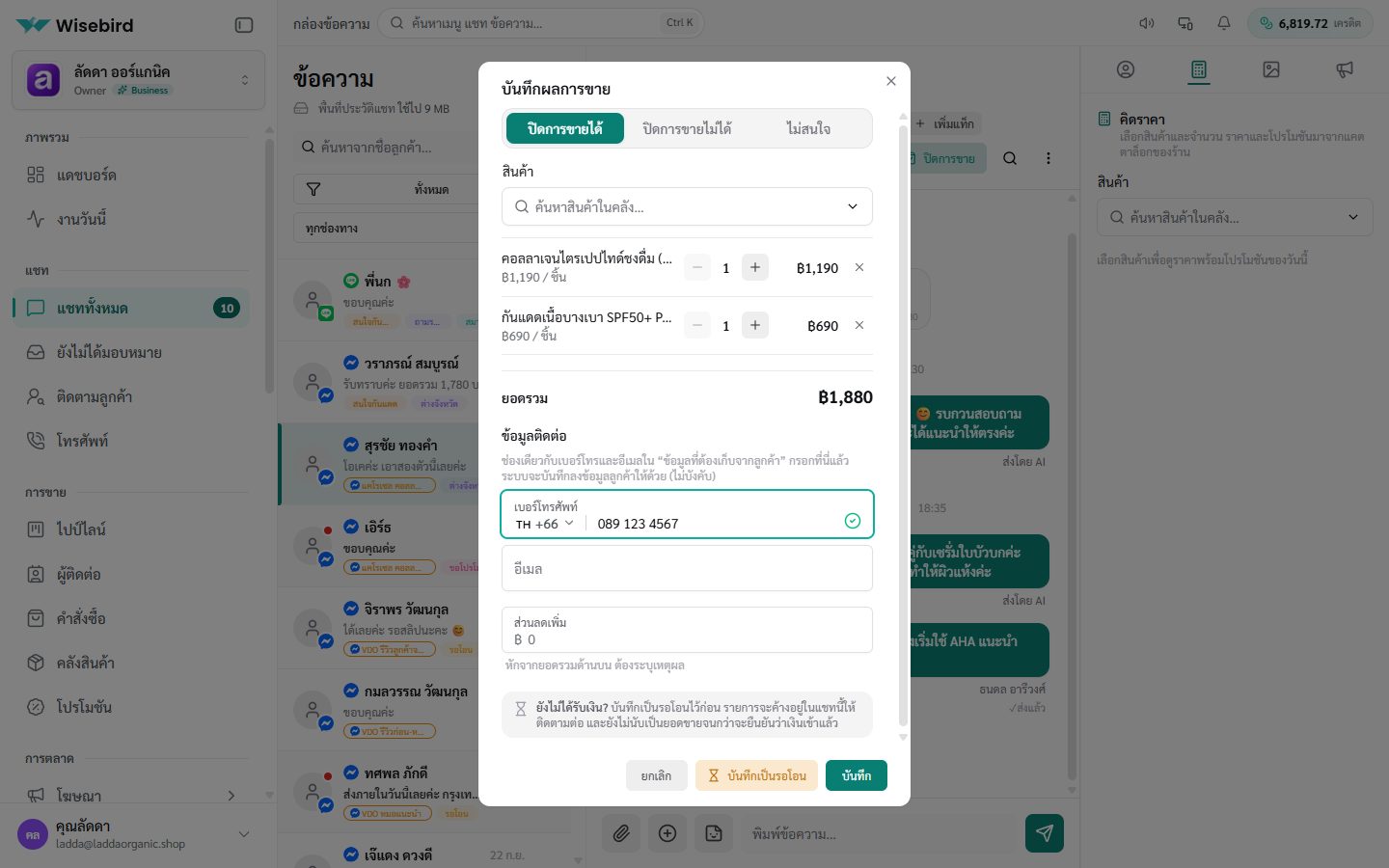
Record Sale Outcome — Won — Two products, the total, a phone number checked by the system (green tick), and the "Save as awaiting payment" and "Save" buttons - Contact details — enter the phone or email the customer gave in the chat; it is saved to the customer's record too (your shop may require at least one before a sale can be closed)
- Extra discount — taken off the total; needs a reason, and only people allowed to give discounts can use it
Only products in your catalogue can be picked. If a product is missing, ask an admin to add it first.Save
Press Save. You'll see "Sale closed successfully!", the chat gets an outcome label, and the sale appears on Orders and the sales dashboard straight away.
02Agreed but not paid: awaiting payment
Use the same form as a won sale, but press Save as awaiting payment (yellow) instead. Wisebird remembers the products and the agreed amount, but does not count it as a sale until you confirm the money arrived.
See what's awaiting payment
After saving, a yellow strip appears under the chat header with the amount, the products, who recorded it and how many days it has been waiting. Everyone who opens the chat sees the same strip.
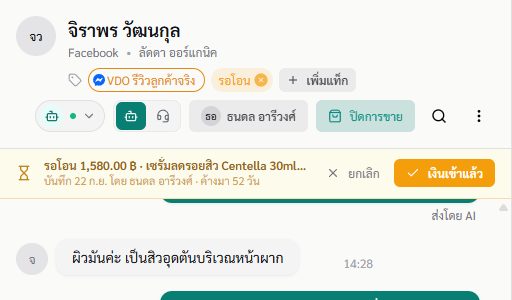
The awaiting-payment strip — Awaiting payment ฿1,580 · serum × 2 · when and by whom · days waiting · "Cancel" and "Payment received" See every chat still awaiting payment with the inbox filter › Sales outcome › Awaiting payment.
Money arrived: confirm
When you get the slip or see the money in your account, press Payment received on the strip. The Confirm payment received window shows the agreed products and amount — check them and press Confirm.
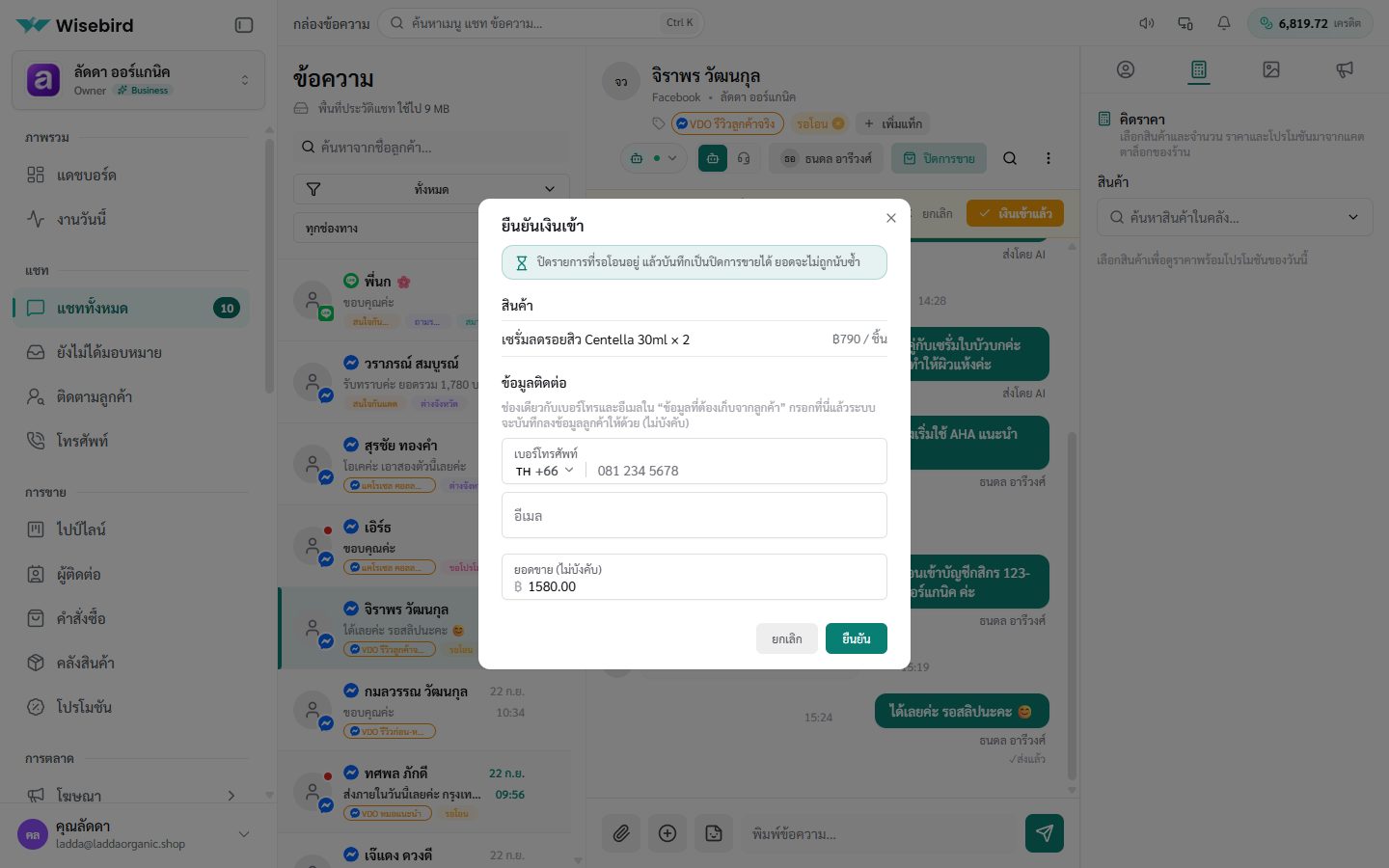
Confirm payment received — The products and amount agreed when it was saved as awaiting payment — you can still edit them before confirming The awaiting-payment entry is closed and recorded as a won sale, so nothing is counted twice. The price used is the one agreed at the time, even if the promotion has since ended.Customer changed their mind: cancelif needed
Press Cancel on the strip and confirm. The entry disappears from the chat without being recorded as won or lost. If the customer is no longer buying, record the outcome again as Lost.
03Lost, and not interested
Lost — choose a reason
Open the same window, press the Lost tab, choose a reason and press Save.
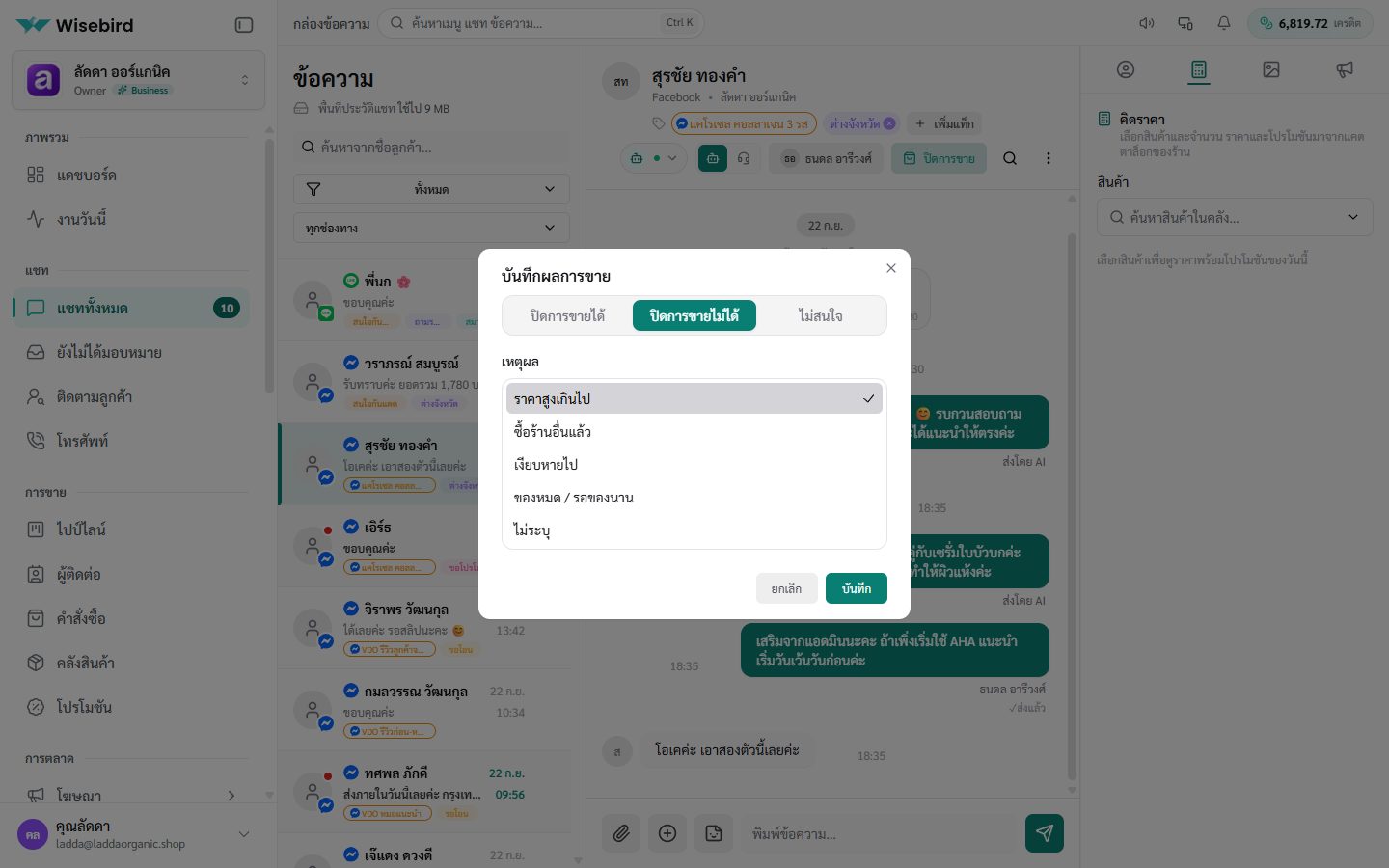
Lost — Sample reasons: price too high · bought elsewhere · went quiet · out of stock / long wait · not specified These reasons add up on the sales dashboard, so you can see why you lose customers most often. The business owner edits the list in Settings, on the Sales tab.
Not interested
For chats that were never about buying — general questions, job applications, wrong numbers. Press the Not Interested tab and Save. The chat is left out of your sales KPIs.
04Who gets the credit
- The sale counts for the chat's primary owner; collaborators get an assist
- An unassigned chat can be closed too — the sale counts for whoever pressed Save, and the chat stays unassigned
- The business owner decides who may record an outcome (owner · the chat's primary owner · collaborators) in Settings, on the Sales tab
- Sales outside a chat, such as in-store, are recorded from the customer's page in Contacts with Record Sale