01Before you start
- Available when your plan includes it. If there is no button, or you see "Auto Knowledge isn’t enabled on this plan", contact the Wisebird team
- You need a fair number of chats answered by your admins — the better they answered, the better the knowledge
- Customer names and phone numbers are always hidden before the AI reads anything
- A run uses AI credit; you see an estimate before you can start
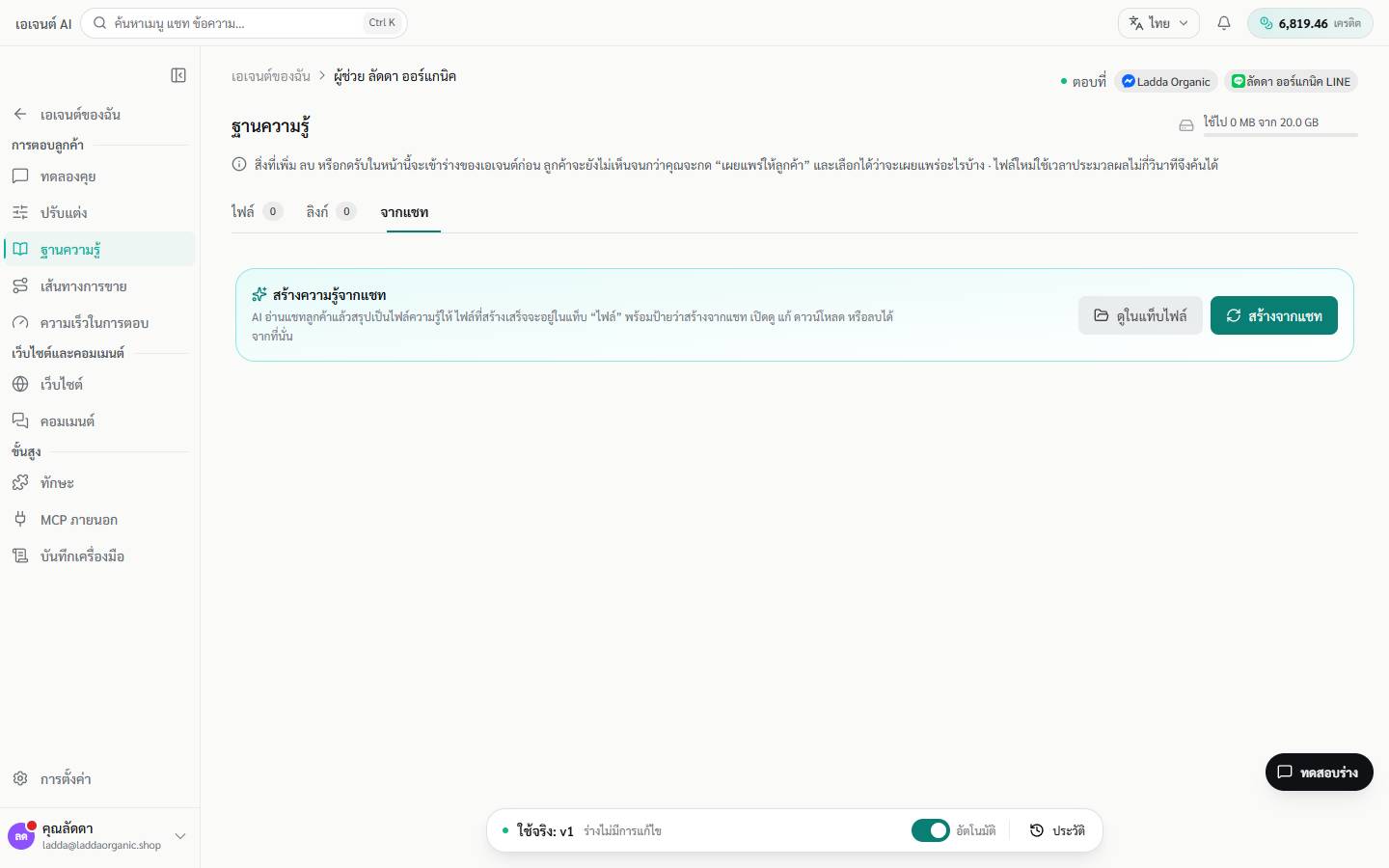
02Choose the chats the AI reads
Press "Generate from chats"
The Create knowledge from real chats window opens: your choices on the left, and the job summary on the right, updating as you choose.
Choose channels
Each channel shows how many chats qualify, the average messages per chat and how often admins or the AI replied. By default only the channels this agent answers are listed.
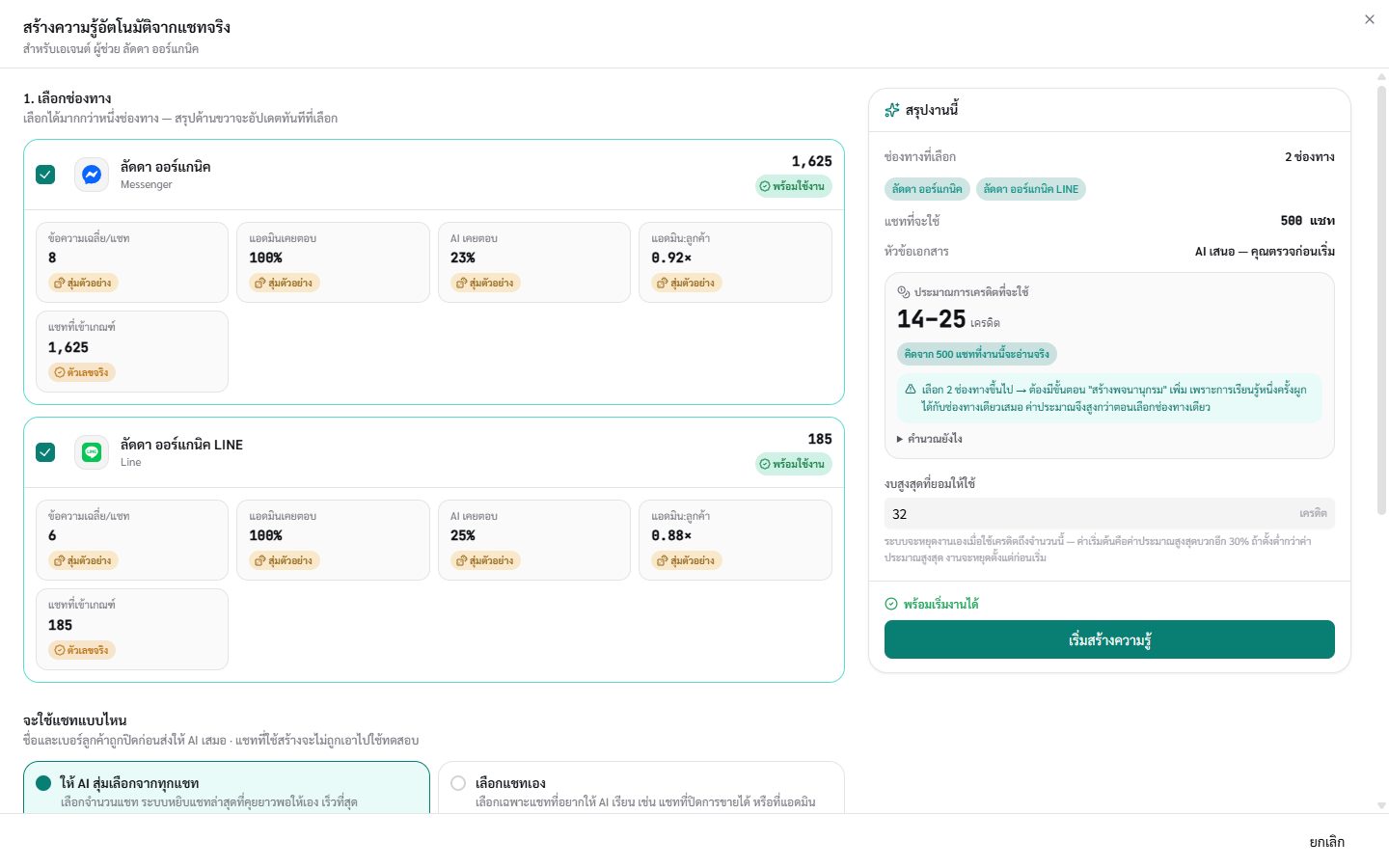
Step 1: choose channels — Channel cards with chat figures; the summary on the right holds the credit estimate and the maximum budget Warning: "most conversations were answered by the AI, not an admin"
Decide whether the AI’s own replies may count as examples
fine if the AI already answers well
Warning: "this conversation may only show one side"
Add another channel too
LINE can’t see what admins type in the LINE OA app
The channel is still importing its chat history
Wait for it to finish, then start
Choose which chats, and how many
Option 1
Let the AI sample all chats
Pick a number (100 · 500 · All); it takes the latest chats that are long enough. Fastest.
Option 2
Pick chats myself
Only the chats you want it to learn from, e.g. chats that closed a sale — at least 10.
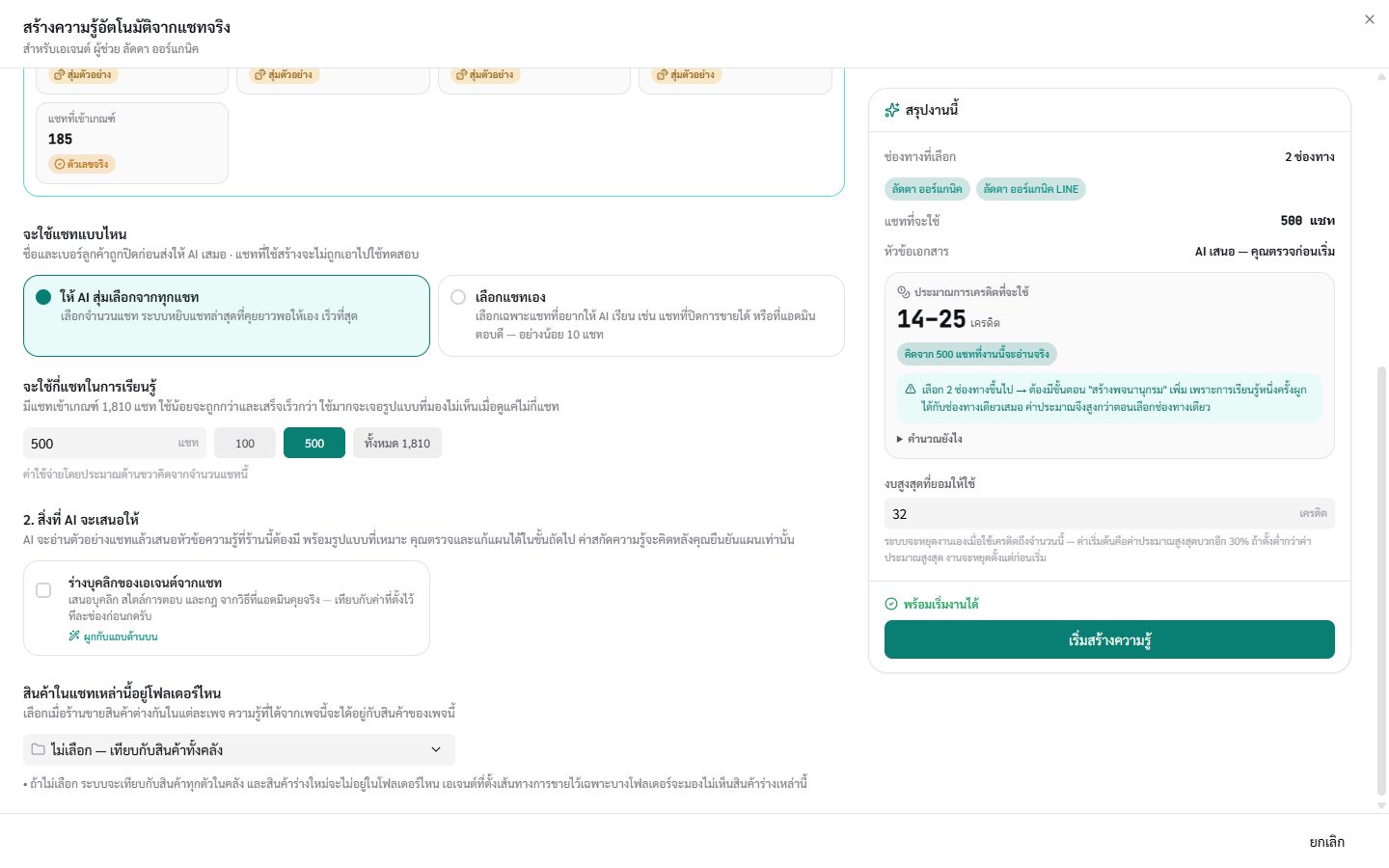
How many chats, and what the AI will propose — Fewer is cheaper and faster; more finds patterns a few chats can’t show. Tick the persona box if you also want a personality proposal. If your products are split into folders by Page, also choose the folder the products in these chats belong to, so draft products land in the right place.
Check the credits, set a budget, press "Start creating knowledge"
Estimated credits is shown as a range. Maximum budget defaults to the top of the estimate plus 30%; if the run reaches it, it pauses and waits for you.
First the AI reads sample chats to make a plan — about 1–2 minutes. You can close the window: the plan waits in the From chats tab and appears in the bell.
03Review the plan, then let the AI build
When you see Your knowledge plan is ready to review, you get the topics the AI proposes (up to 8). Each one shows how often customers asked, its format (Q&A, table, steps, policy, shop info) and where it will go.
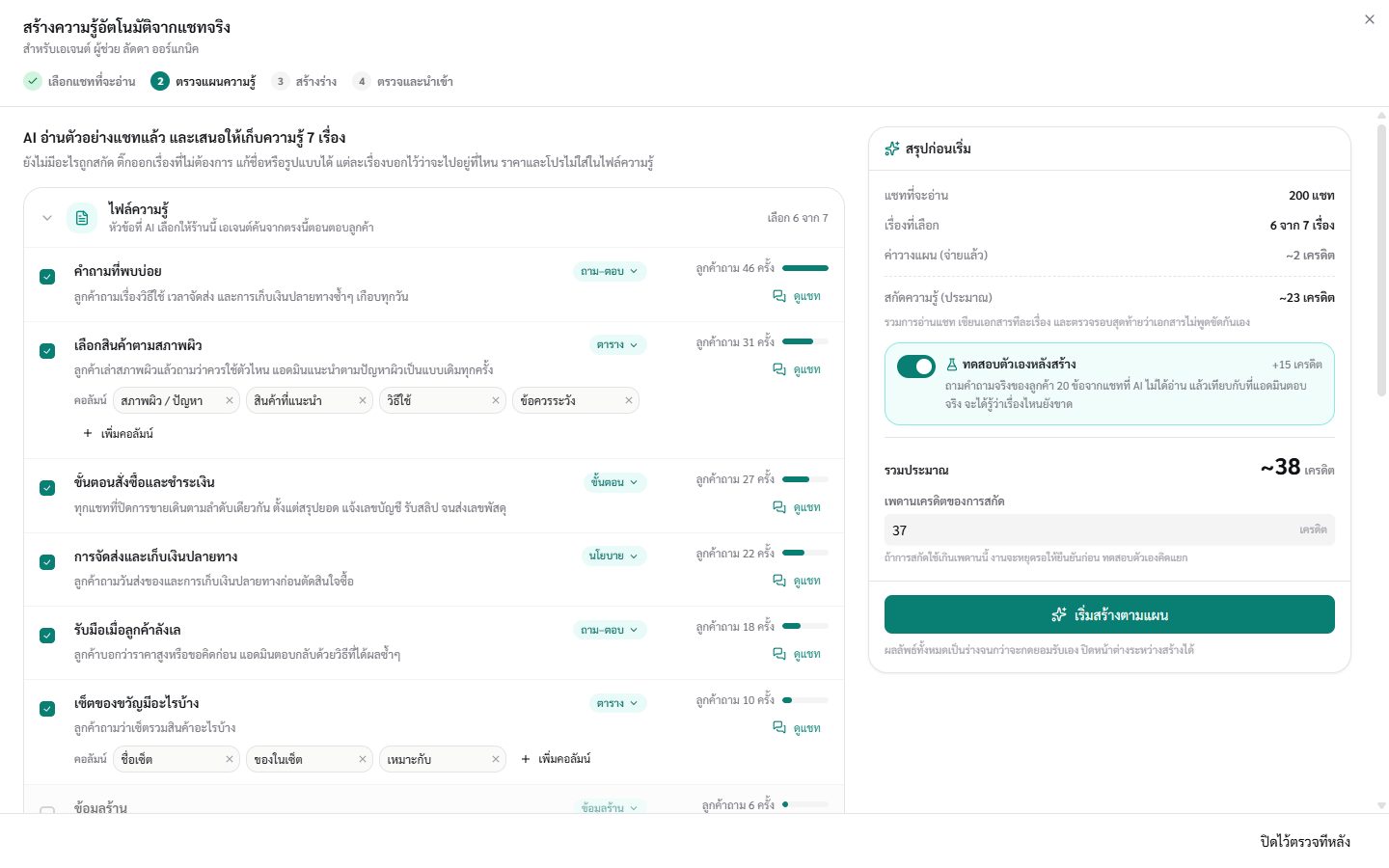
Fit the plan to your shop
- Untick topics you don’t want; rename them or change the format. Press View chats to see the chats behind a topic
- Press Add a topic for anything the AI missed
- Besides knowledge files, the AI may propose draft products, message presets, customer fields and handoff rules — keep each group or not
Prices and promotions never go into knowledge files; the AI proposes them as draft products or promotions instead, which are not sold until you accept them.Press "Start building from this plan"
Check the summary: the planning fee (already paid), the estimated extraction cost and the credit ceiling. Turn on Test itself after building if you want to know how well the draft agent answers real questions (charged separately).
A plan not started within 7 days is cancelled.
04Review the results and import
When it finishes you see Drafts ready to review in the From chats tab and in the bell. At the top: how many chats this run read, what it created where, and items worth checking, such as prices taken from chats.
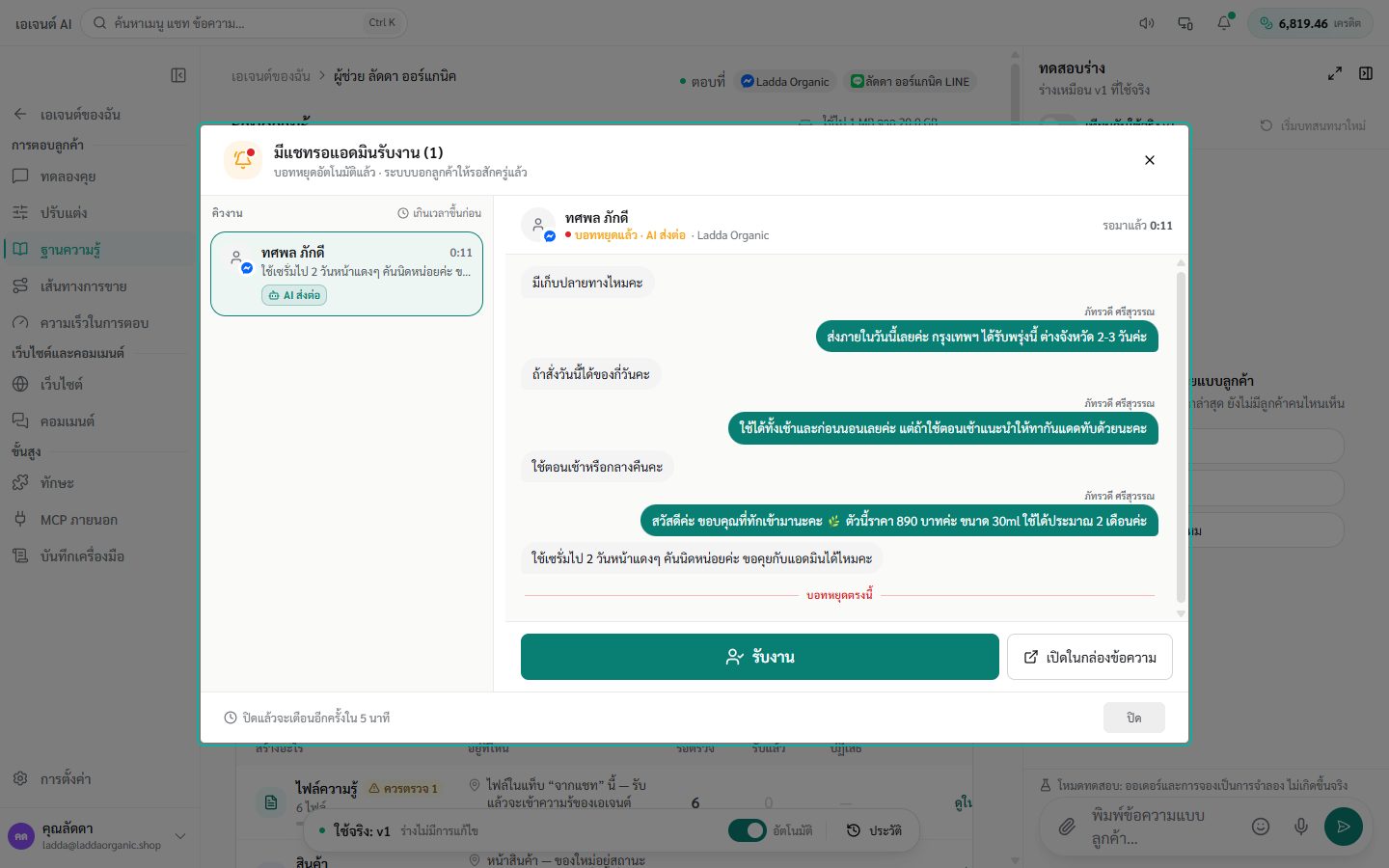
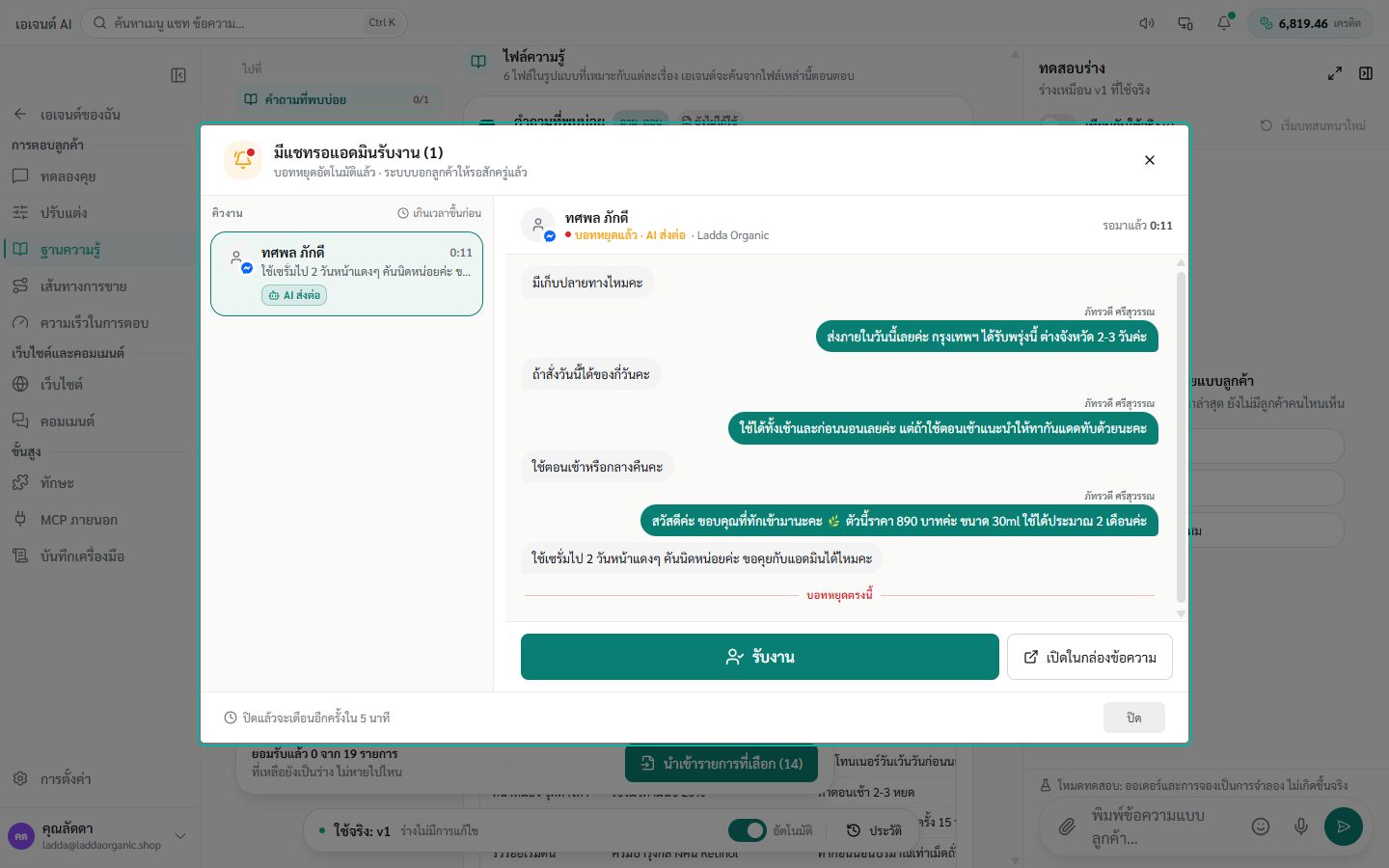
Accept or reject each item
- An accepted knowledge file goes into the agent’s draft and appears on the Files tab under Files created automatically from chats; you can edit it before and after accepting
- Draft products and promotions can be priced in the test chat but are not sold until you accept them
- Items you have accepted or rejected fold away under N already decided — press Show to open them again. Accepted products, promotions, presets, customer fields and rules are changed on their own page (the Edit in … link on each item)
- Items you haven’t checked stay here; nothing is lost
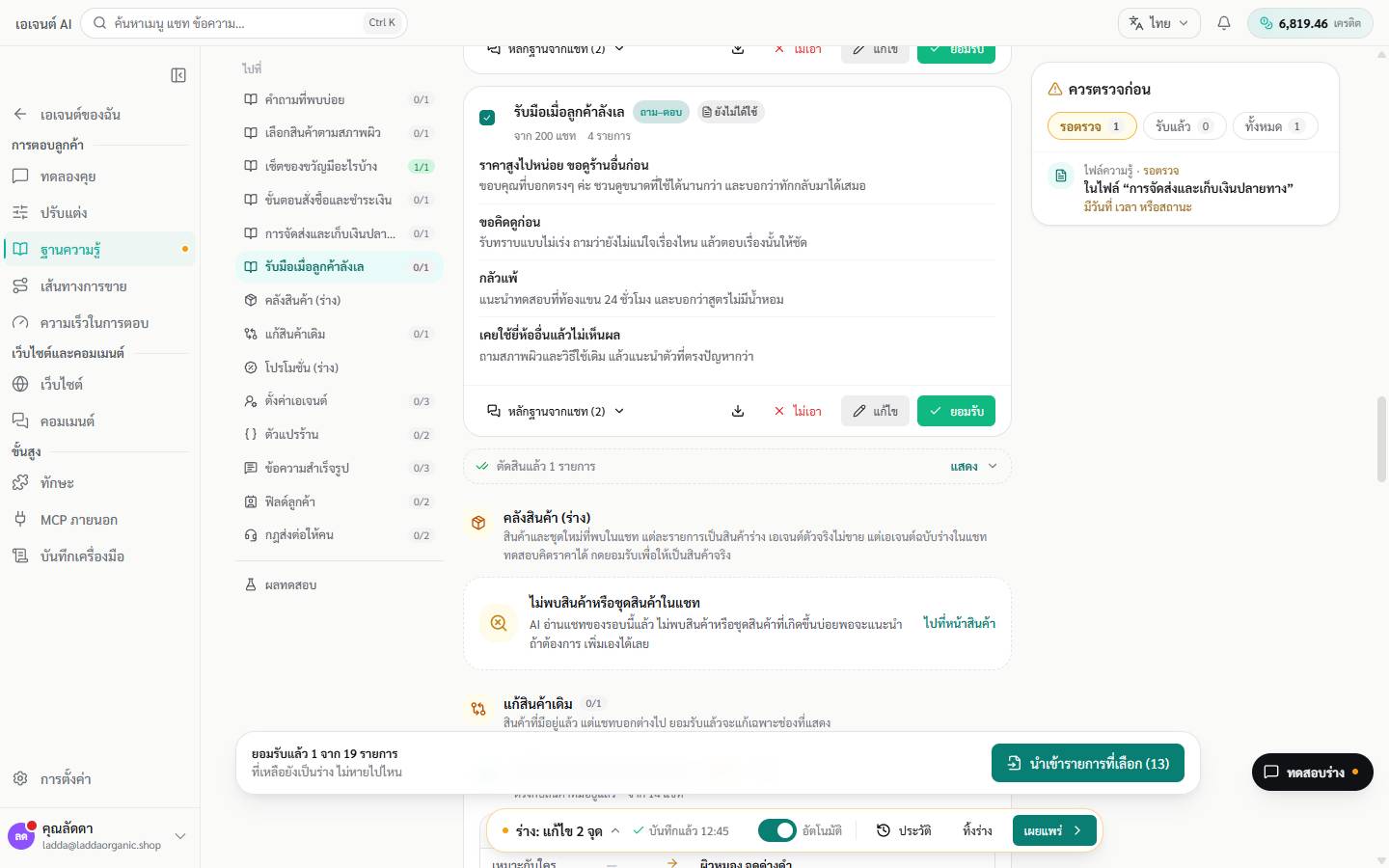
Decided items folded away — The accepted file has left the list; a "1 already decided · Show" line stays, and the left menu counts 1/1 When every item is decided, the page shrinks to an All reviewed · waiting to publish card. What you accepted is already in the draft; to change more, press View / edit more.
Old chats may mention prices, promotions or opening hours that have changed, and anything nobody ever asked about won’t be in the drafts. Always check the "worth checking" items before accepting.Try with real chatsoptional
Press Try with real chats: you get 5 real conversations the AI did not learn from, with the draft agent’s reply. Nothing is sent to any customer.
- Read each one and choose OK or Needs fixing, with reasons (wrong information, too long, should hand over…) and It should say…
- Press Summarise what to change: it proposes changes to knowledge, rules or personality; tick the ones you want and save them to the draft
- Run another round on what still needs fixing, or press Finish when you are happy
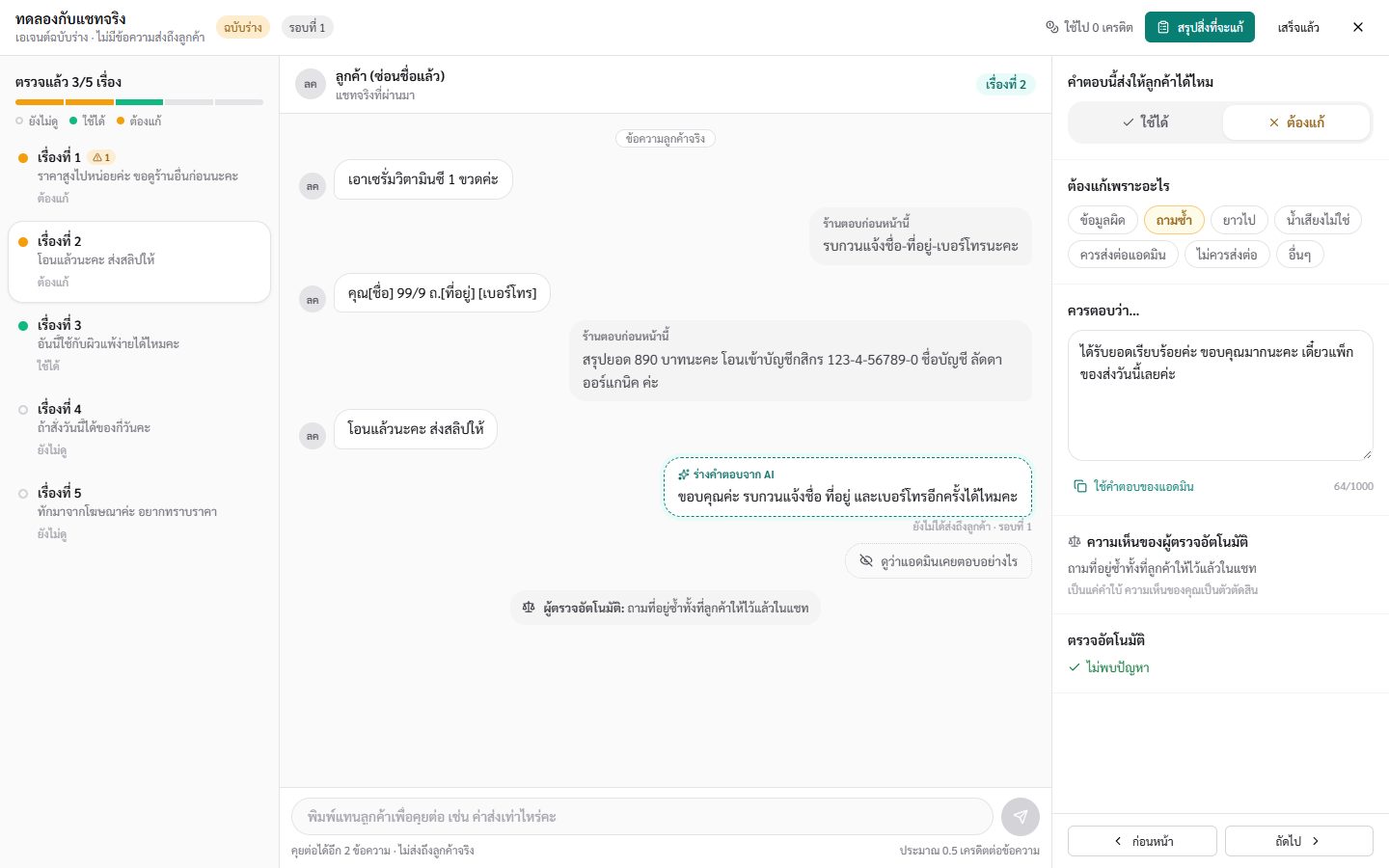
The "Try with real chats" page — Left: the conversations checked and still to see · middle: the real chat and the AI’s draft reply · right: "OK / Needs fixing", the reasons and "It should say…" Round 1 is free. Summarising changes and later rounds use credit; the price is shown every time first.Publish to customers
What you accept is still in the draft. Try it in the Test draft panel, then press Publish — see the test and publish guide.
Earlier runs are listed in the Run history table under the Build knowledge from your chats card: date, chats read, accepted, rejected and credits per run. Press View results to open that run’s summary under its row.
05Credits, budget and refunds
At the start
The (small) planning fee is charged
After you confirm the plan
Extraction is charged as used, never above your ceiling
If it reaches the budget
The run pauses; finished work is kept
Enter a new budget and continue
If the run fails
Your credits are returned automatically, and you can press "Try again"
You can close the window while it builds; progress shows in the bell and in your browser tab’s title. See credits used on the Plan & credits page.