01Draft vs live
Live
The version customers talk to
Numbered v1, v2…; changes only when you publish
Draft
What you are editing
Try it straight away; customers see it only after you publish
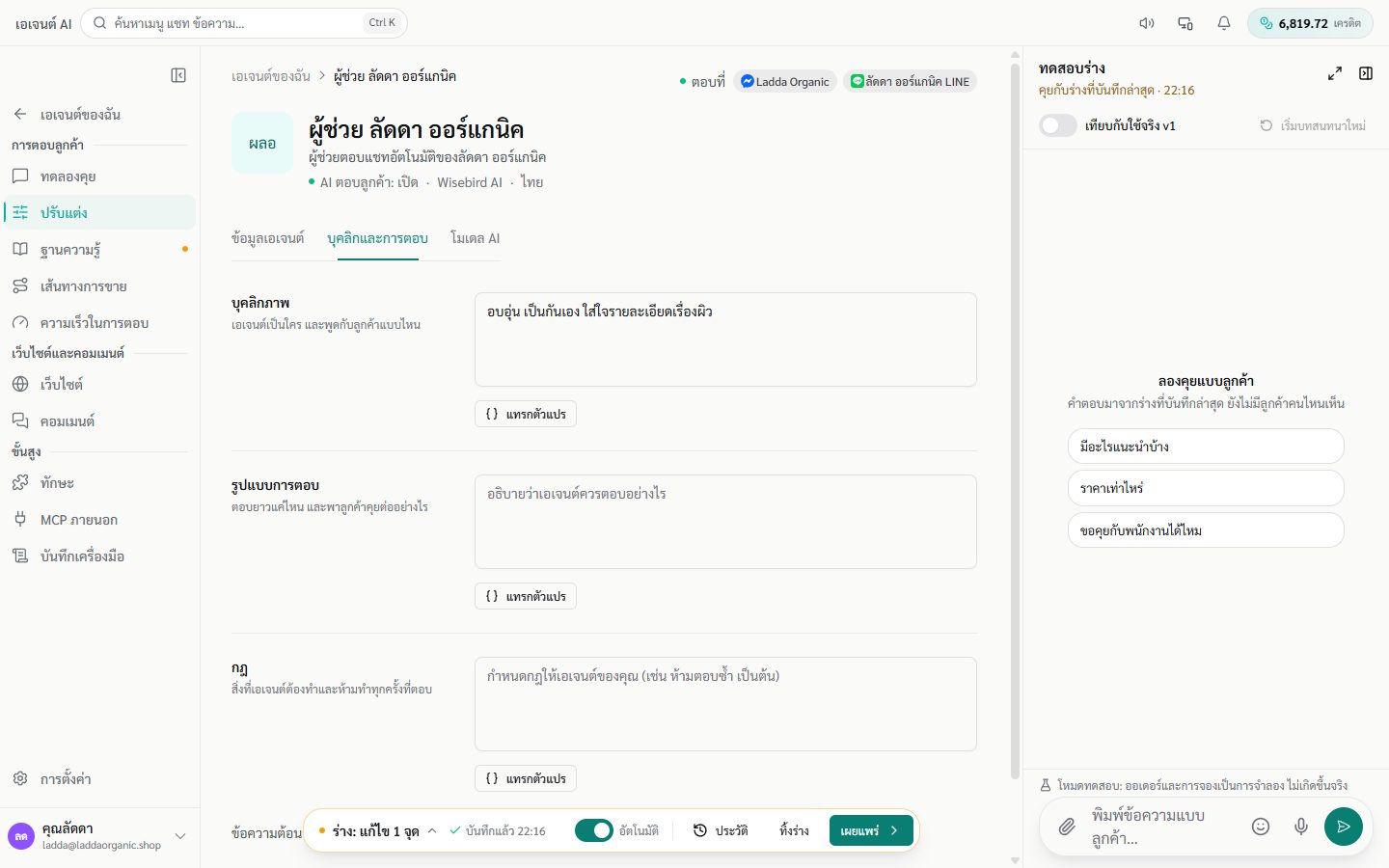
The bottom bar of the agent pages shows the status, e.g. Draft: 1 change(s) · Saved 22:16. With the Auto-save switch on, edits are saved to the draft for you; with it off, a Save to draft button appears.
02Chat like a customer
Open "Test chat"
The agent’s first menu item. At the top, choose to talk to the Draft or the Live version; press a sample question or type as a customer would. You can send pictures and files too.
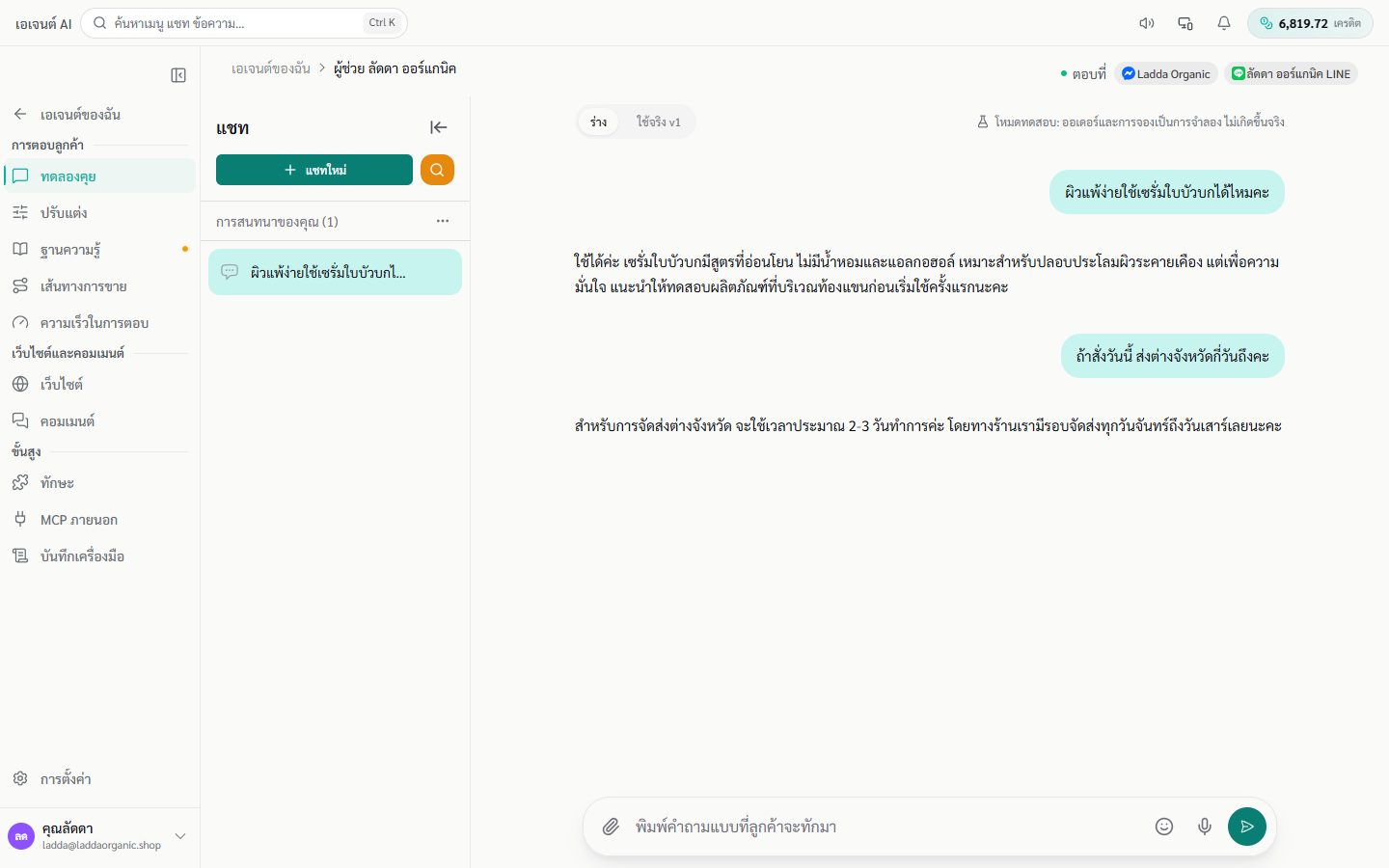
The Test chat page — Chatting with the draft as a customer; these answers come from an FAQ file just added to the draft - Test mode: orders and bookings are simulated, nothing really happens, and nothing reaches any customer
- Conversations are kept under Your Conversations; press New Chat to start over
- Test chats use AI credit just like real replies
Use the "Test draft" panel while you edit
Every agent page has the Test draft panel on the right: edit, then ask again straight away. It shows which saved draft it is talking to, and warns you if there are edits not saved yet.
Switch on Compare with live to ask the draft and the live version at once and see both answers.
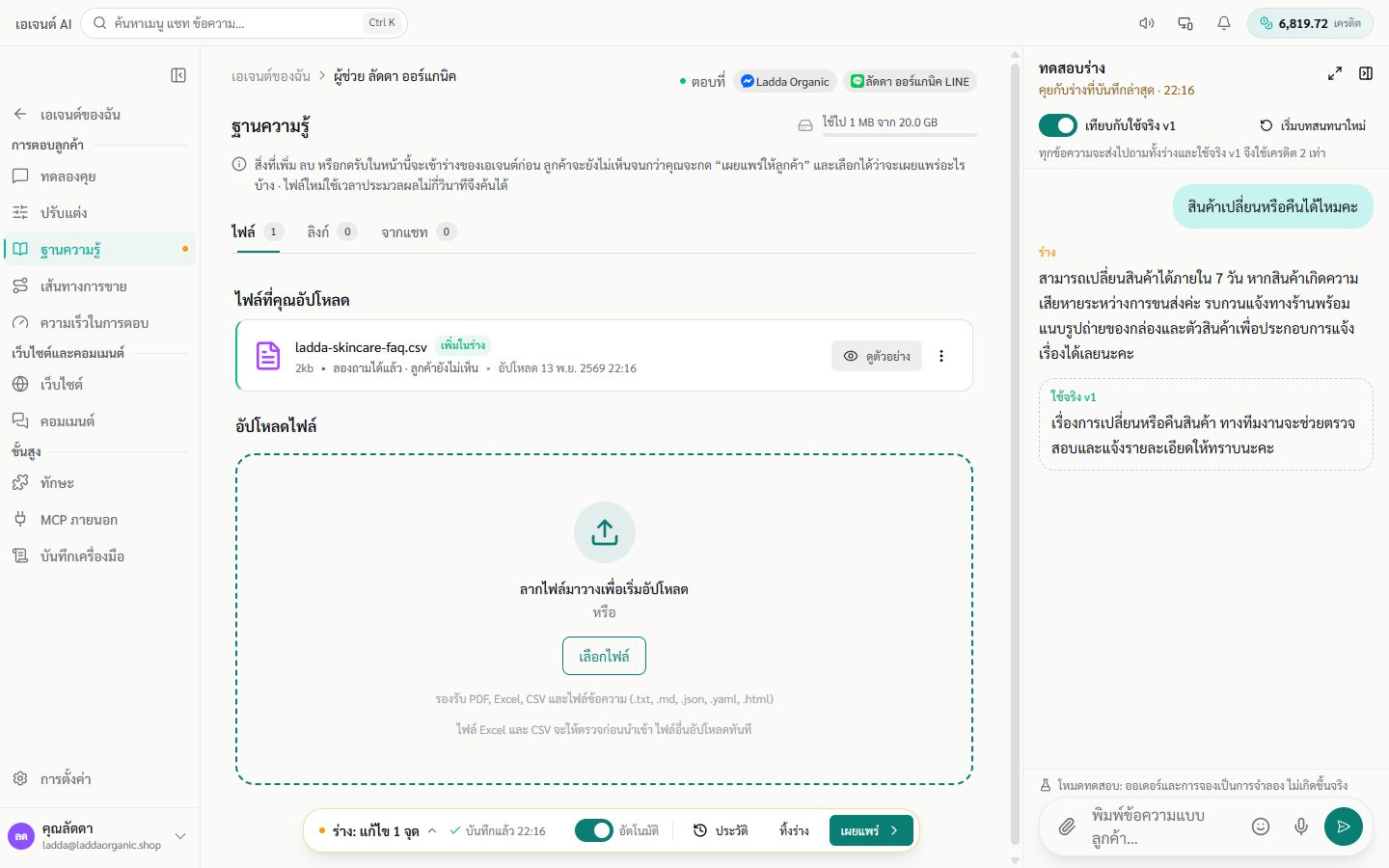
Comparing draft and live answers — Same question: the draft answers fully from the new file, live v1 still answers vaguely Compare mode sends every message to both versions, so it uses double credit.
03Publish to customers
Press "Publish" in the bottom bar
Publish to customers lists what changed from the live version, grouped by page (e.g. Knowledge Base +1). Each change has a tick box; unticked changes stay in the draft for later.
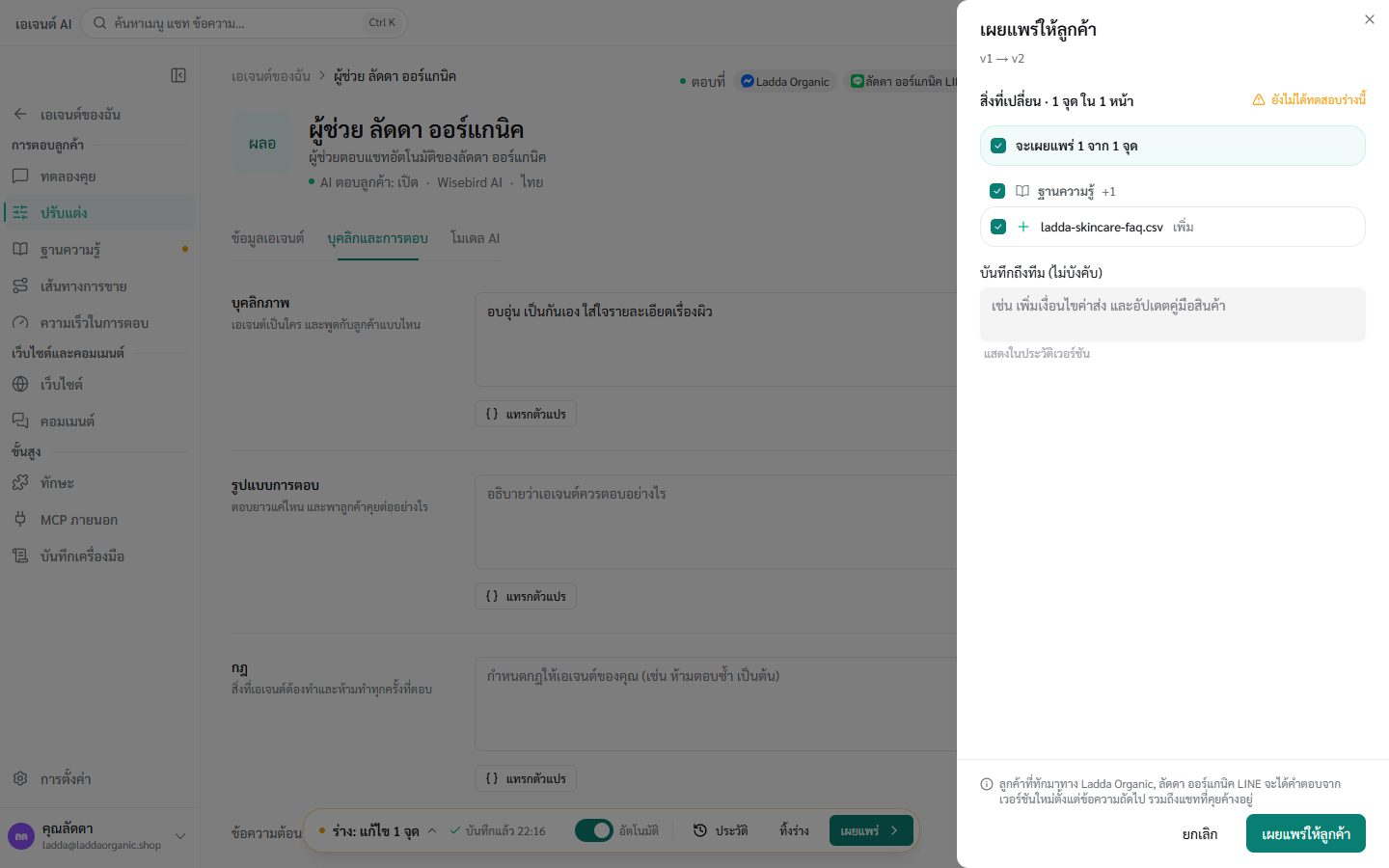
The Publish to customers drawer — v1 → v2: choose the changes to publish, add a note for the team; the footer says which channels get the new version Check the warnings, then press "Publish to customers"
"This draft has not been tested yet"
Ask a few questions in the Test draft panel first
A knowledge file is still processing
Wait a moment — only that file is held back; the rest can be published
No channel uses this agent yet
Press "Start answering" and pick a channel, or customers won’t see it
Add a Note to your team (optional), e.g. "added the returns FAQ" — it shows in the version history — then press Publish to customers. Customers get answers from the new version from their next message, including chats already in progress.
04Version history and discarding a draft
Press History in the bottom bar. Every publish is kept, with the time, who published, the note and what changed.
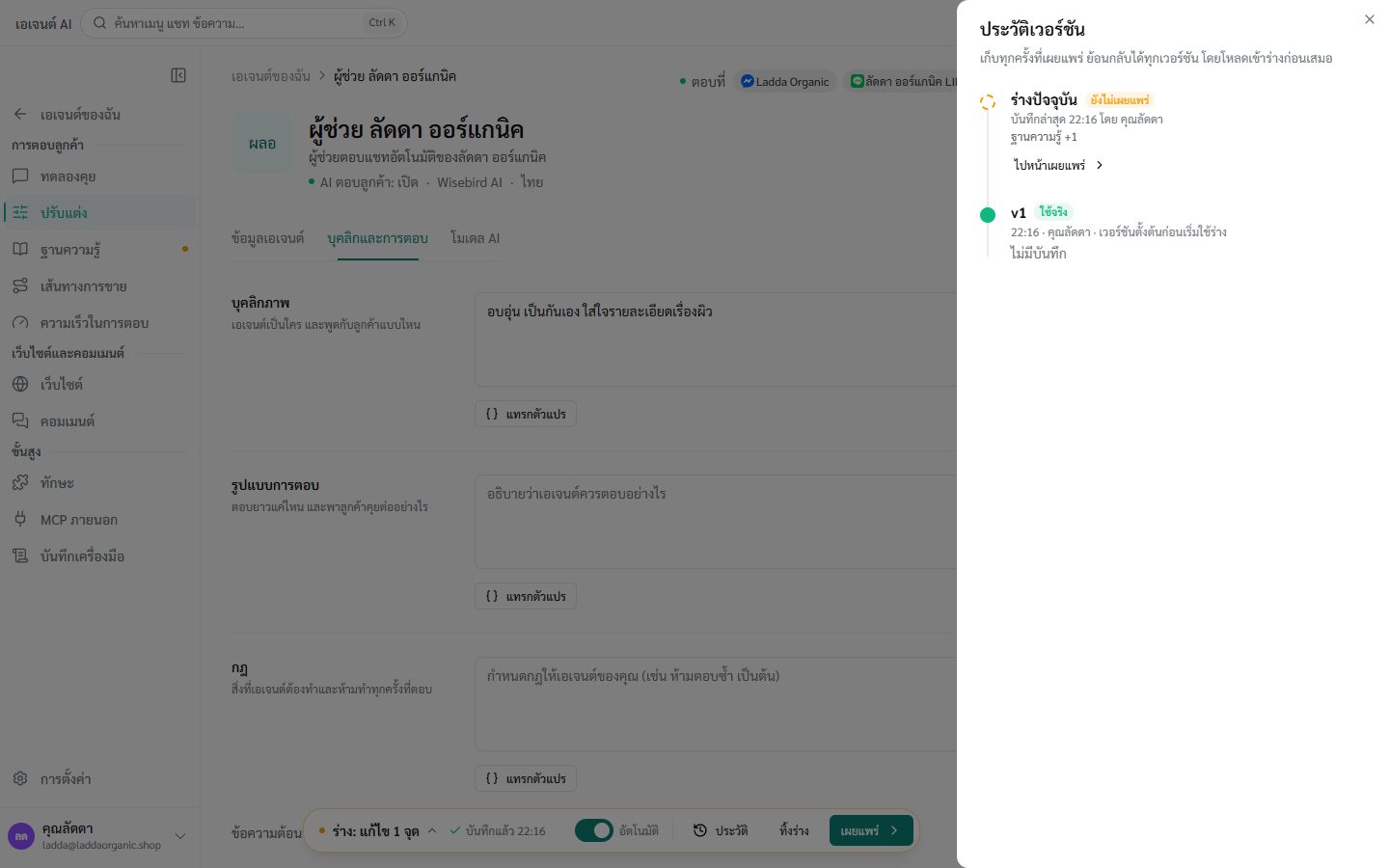
- Restore this version — always loads the old version into the draft first; test it, then publish again for customers to get it
- Discard draft — the draft goes back to the live version; every change is lost and can’t be recovered, and knowledge files added only in the draft are deleted