01What happens when the AI stops
1
The customer types one of your words, or the AI decides to hand over, or a condition you chose is met
2
The AI sends one closing message, e.g. "Got it — passing you to an admin, please hold on"
3
The chat gets the stop tag and the AI stops answering it
4
Your team is alerted and someone presses Take it
5
When done, press Hand back to bot, or let chats return to the AI automatically after a quiet spell
02Set up the handoff
Enable it and add the words that stop the AI
Switch Enable on at the top of the card. Under 1 When a customer types these words, type a word and press Enter, or press a suggestion such as talk to admin, complaint, refund, claim.
The recommended match is "the word appears in the message". Type a customer message in Test a match and you see at once whether the bot would stop.
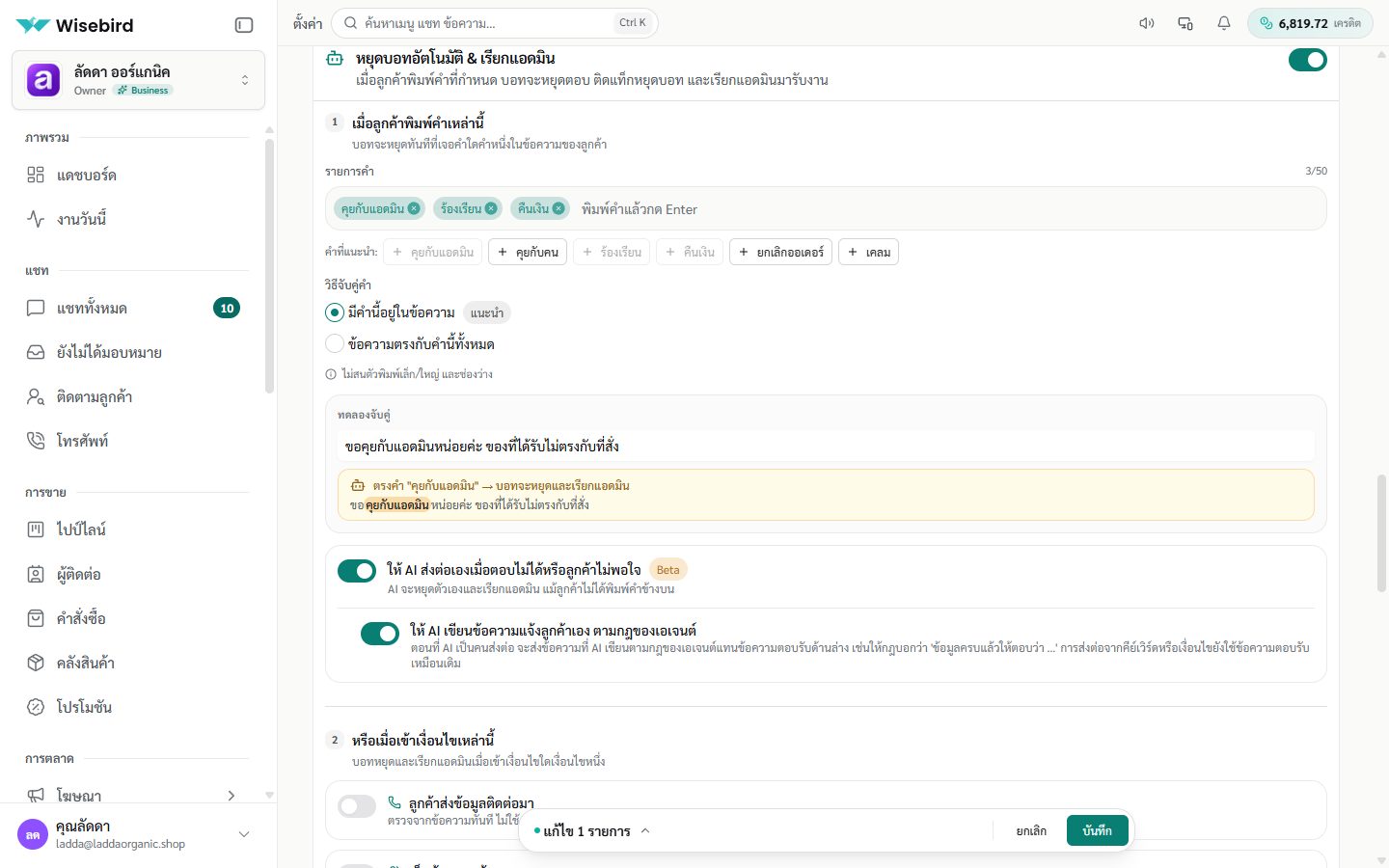
Section 1: words that stop the bot — Add words and try a customer message; the yellow box shows which word matched. Below: the switch that lets the AI hand over on its own Let the AI decide to hand overBeta
Turn on Let the AI hand over on its own when it can’t help or the customer is upset. The AI stops itself and calls an admin even if no word from section 1 was typed, and hands over whenever the agent’s rules say so.
Also turn on Let the AI write the customer message itself, following the agent’s rules if the AI should tell the customer the line written in your rules (e.g. "once everything is collected, say: an admin will confirm your order shortly") instead of the one fixed closing message.
Handoffs triggered by a word (section 1) or a condition (section 2) still use the closing message in section 3.Choose extra conditions and the closing message
- The customer sends contact details — stops when a phone number or e-mail appears; checked instantly, no AI
- Customer details are complete — stops once the AI has collected every field you chose (turn on customer-data collection on the Pipeline page first)
- The deal moves to a chosen stage — stops when the customer’s card enters a stage you pick, e.g. awaiting payment
In section 3, Reply once before stopping, edit the message that tells the customer they are being passed to an admin.
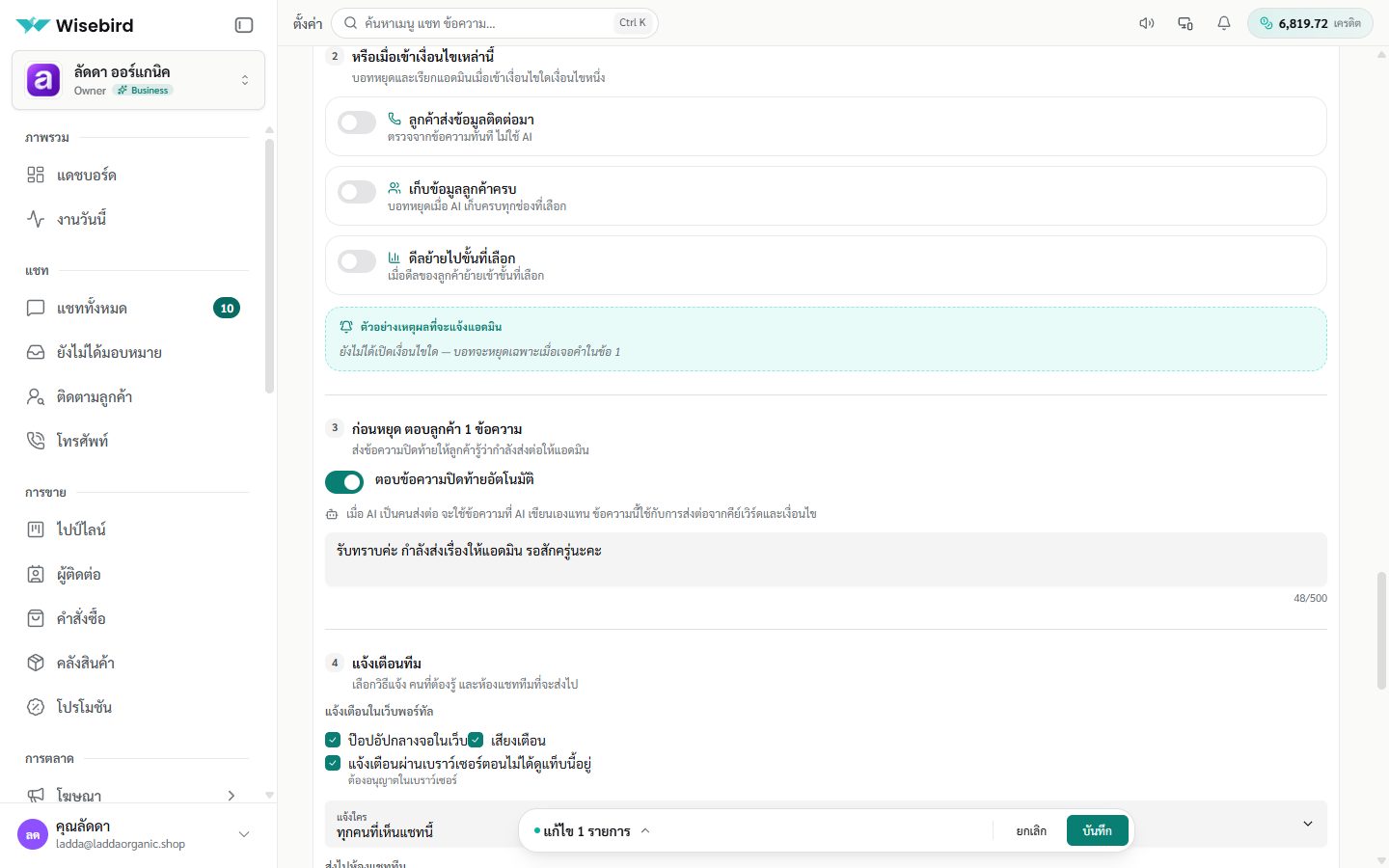
Sections 2 and 3: conditions and the closing message — Turn on the conditions you need, then edit the closing message to the customer Choose how to alert the team, then press "Save"
- Section 4 Notify the team — popup, sound, browser notification; alert everyone who can see the chat or only its owner; also send to a team chat room (Telegram/LINE)
- Section 5 If nobody takes it — remind every N minutes, how many times, and how long before it counts as overdue
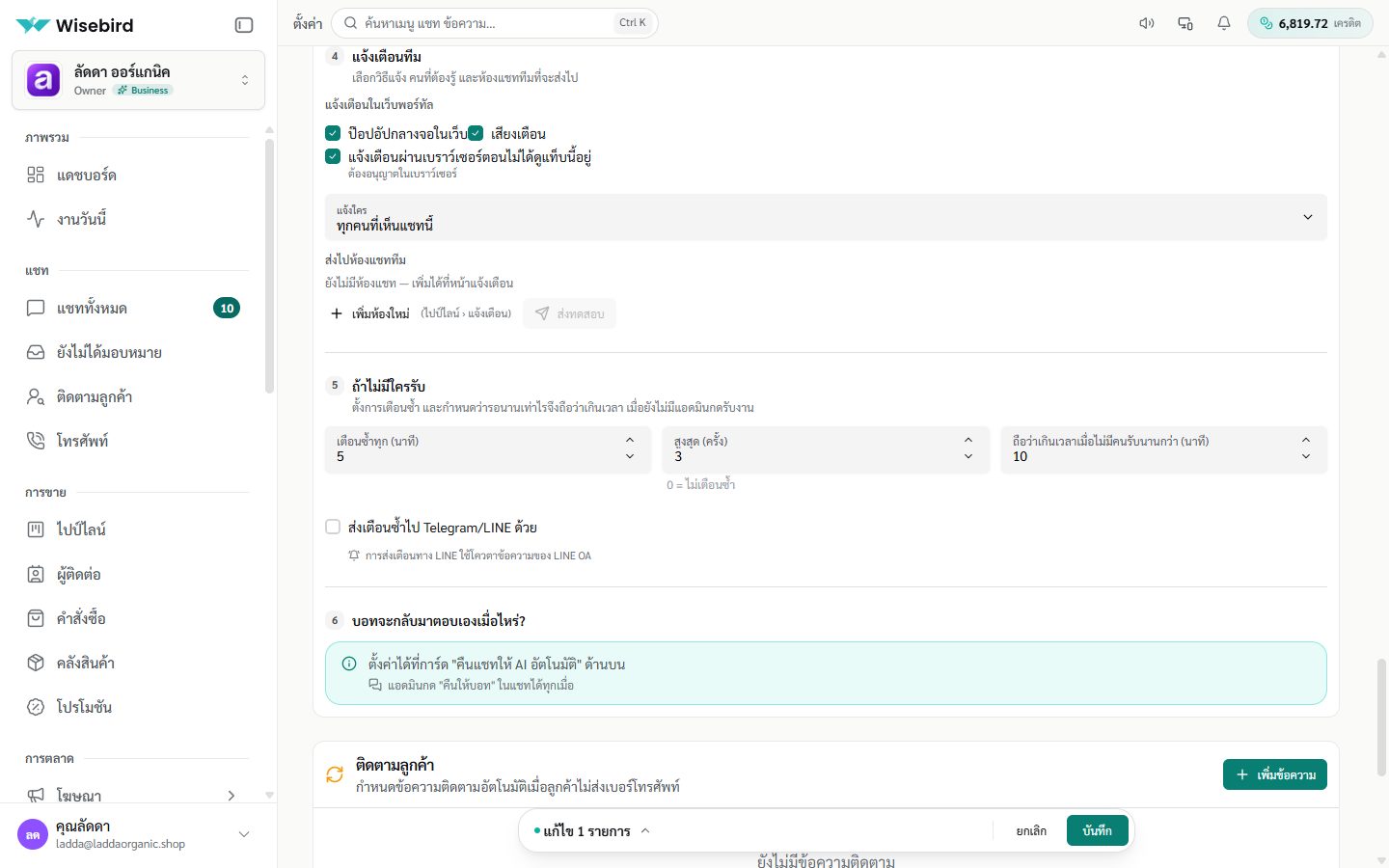
Sections 4 and 5: alerts — Choose how and whom to alert, then the reminders — press "Save" in the bottom bar when done Nothing takes effect until you press Save in the bar at the bottom of the page.
03When a chat is waiting for an admin
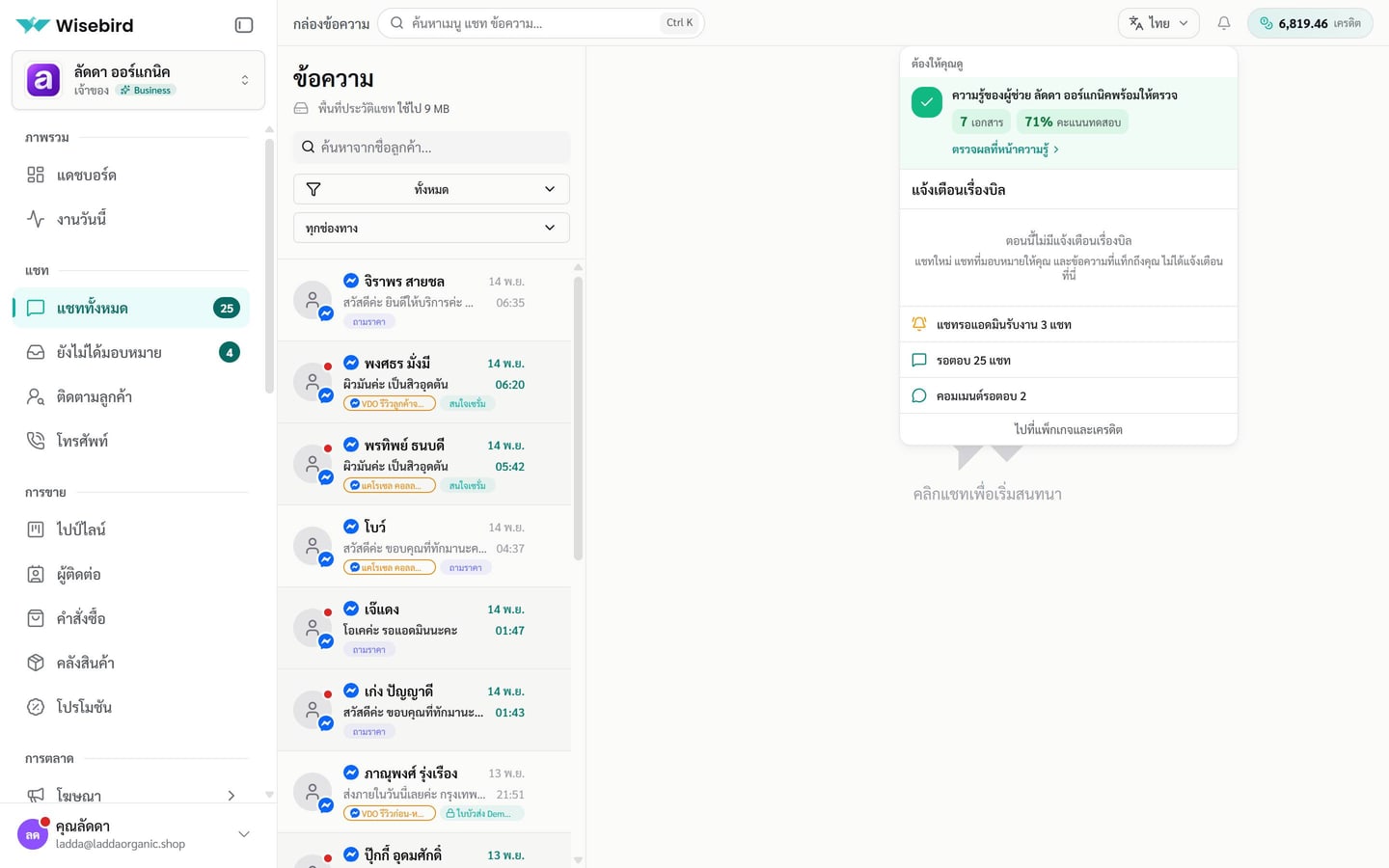
Everyone alerted sees the Chats waiting for an admin popup: the queue on the left (overdue first), the selected chat on the right.
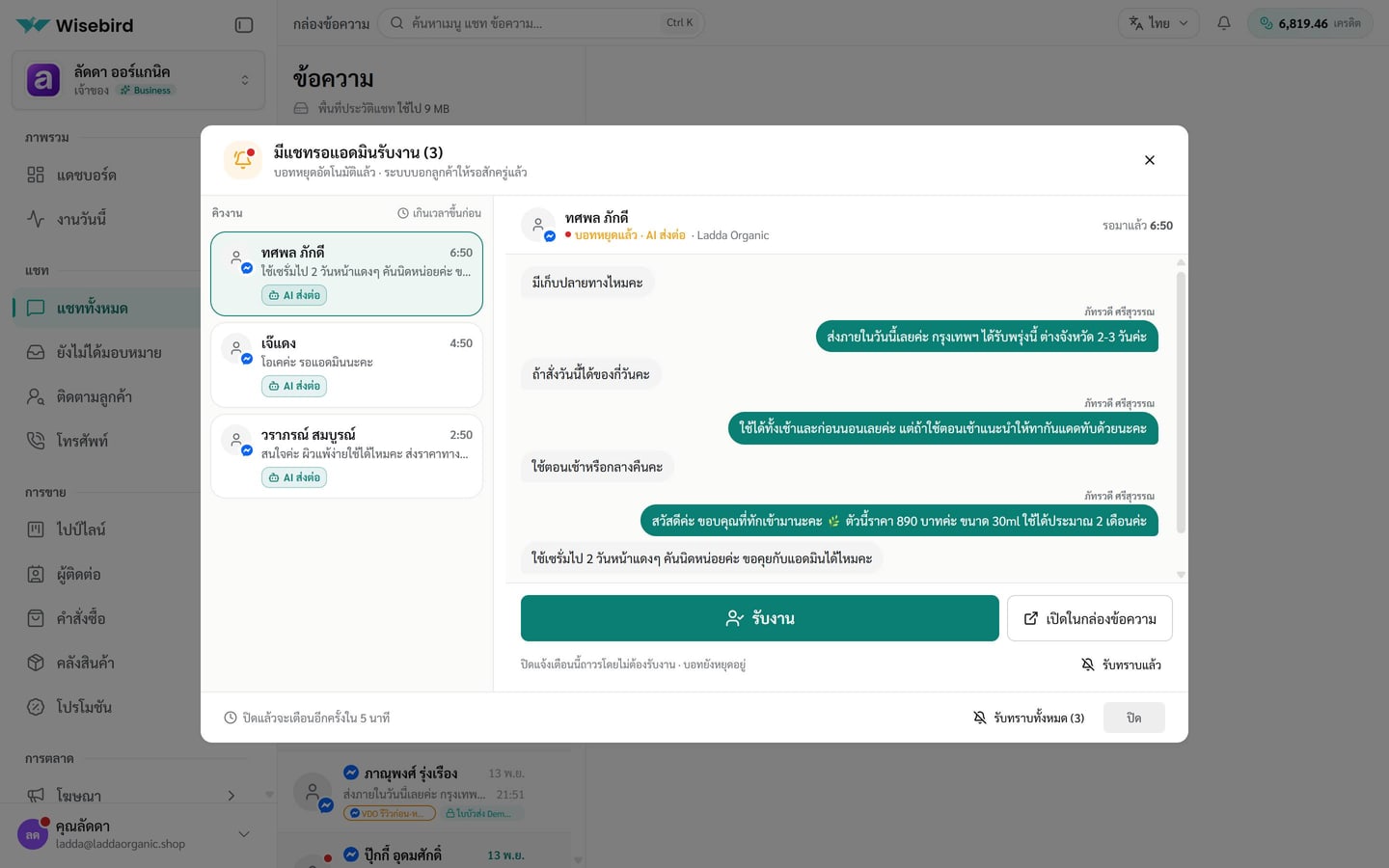
- Take it — you become the chat’s owner and can reply right in the popup; if someone was faster, you see their name
- Open in inbox — reply from the chat page as usual
- Hand back to bot — the AI answers this chat again
- Acknowledge — closes this chat’s alert for good without taking the chat: the popup does not come back and is not reminded again. The bot stays stopped. Made for teams that answer customers in Facebook’s own app
- Acknowledge all (at the bottom of the popup, once 2 or more chats are waiting) — acknowledges every waiting chat at once, after a confirm
04What the AI does when an admin replies
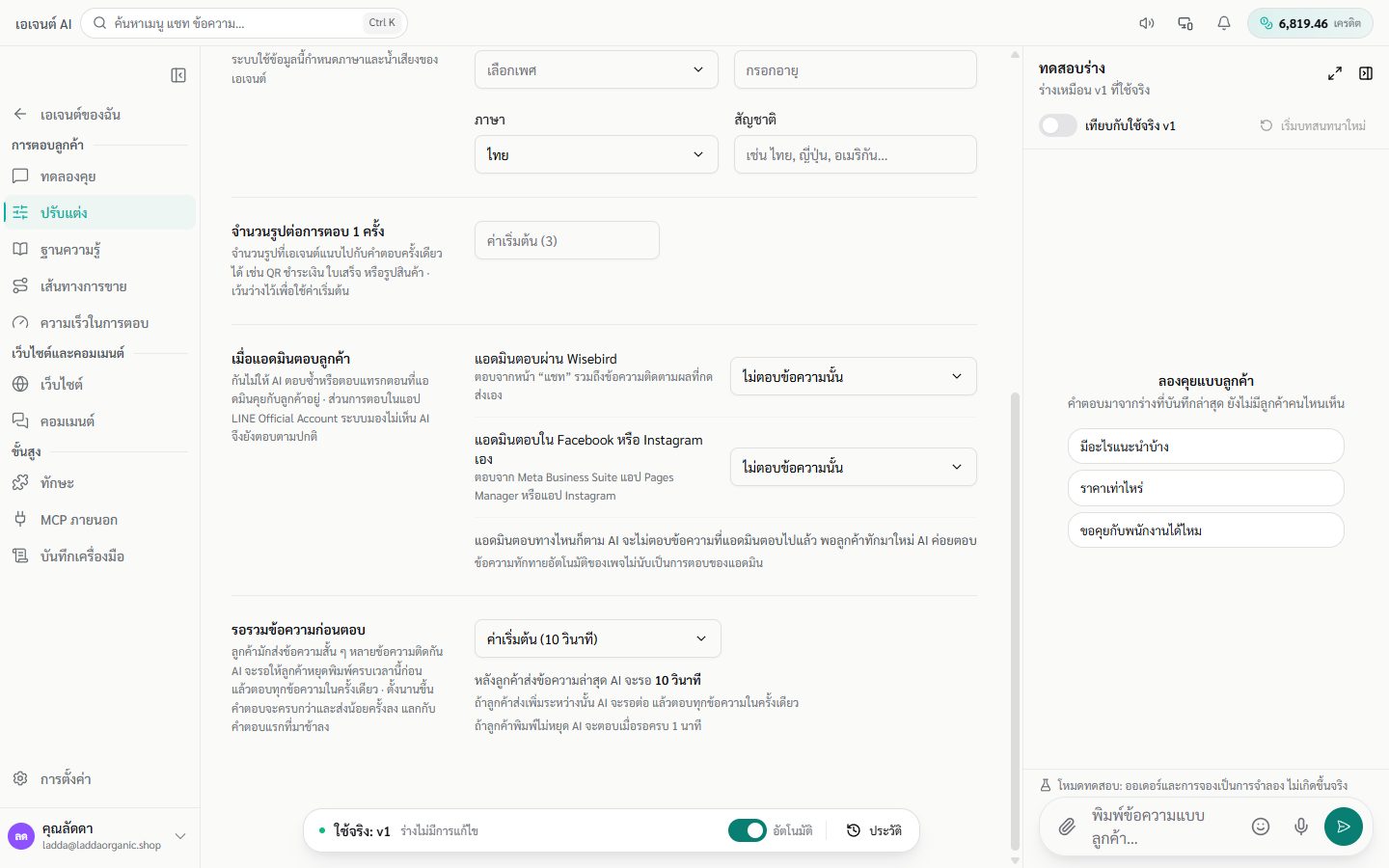
This stops the AI repeating or talking over an admin. Set it on the agent › Config › Agent info tab › When an admin replies, separately for replies made in Wisebird and replies made directly in Facebook or Instagram.
Option
Skip that message
The AI skips a message an admin already answered and replies to the customer’s next one
Option
Pause the AI for a while
The AI stays quiet in that chat for the minutes you set, counted from the admin’s last reply
Option
Stop the AI in that chat
The AI stays off until someone turns it back on for this chat
Option
AI replies as usual
The AI keeps answering, knowing what the admin already said
Changes here go into the agent’s draft first; press Publish for them to reach customers.