01How webhooks work
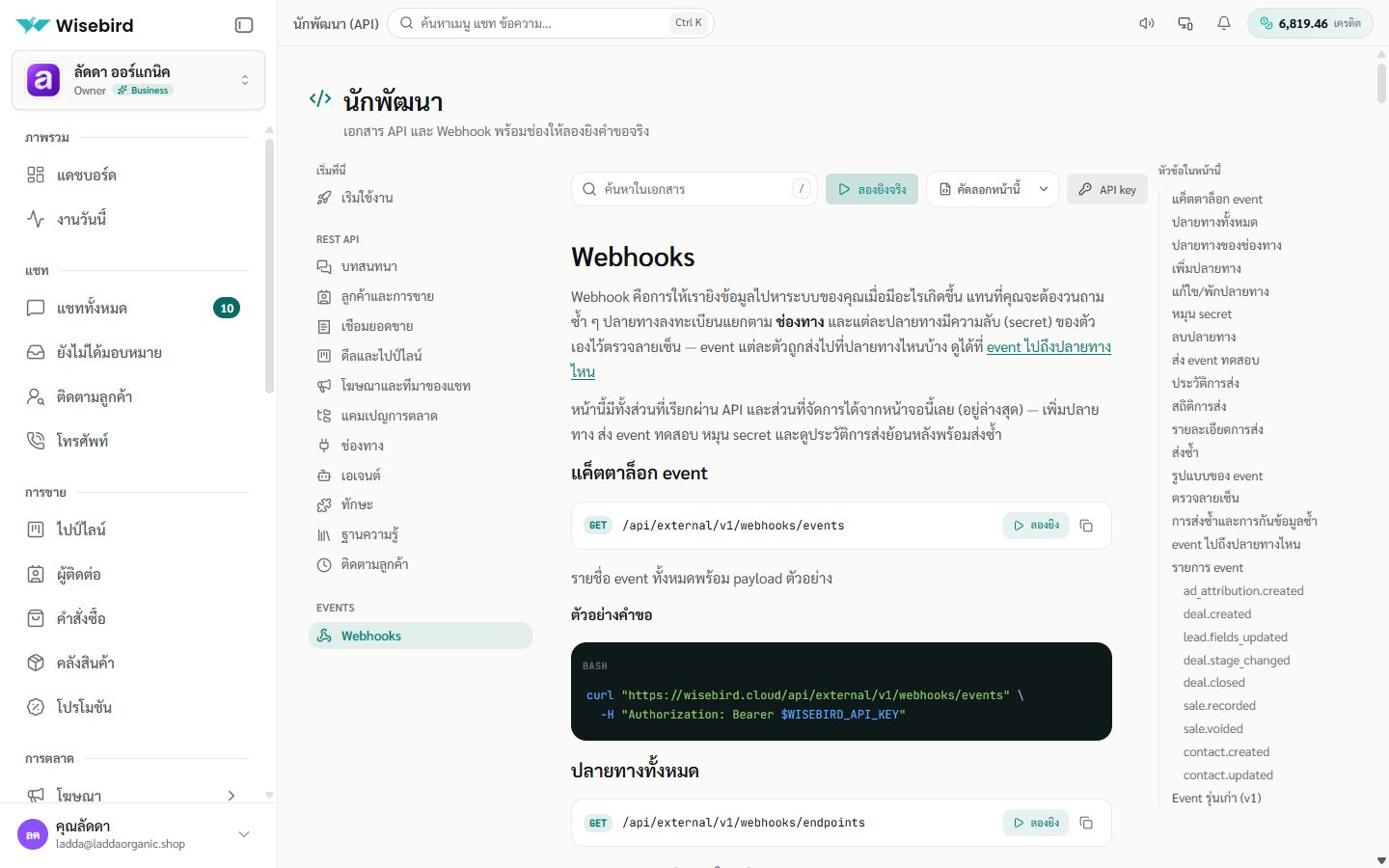
- Endpoints (URLs) are registered per channel — each Facebook Page or LINE OA
- Every endpoint of a channel receives every event; your system should answer 2xx and skip events it does not know
- Each endpoint has its own secret for checking signatures
- The URL must be public — localhost and private networks cannot be reached
02Add an endpoint and test it
Add an endpoint
Open Developer › Webhooks, scroll to Webhook endpoints, pick the Channel, enter your system's URL, then press Add endpoint.
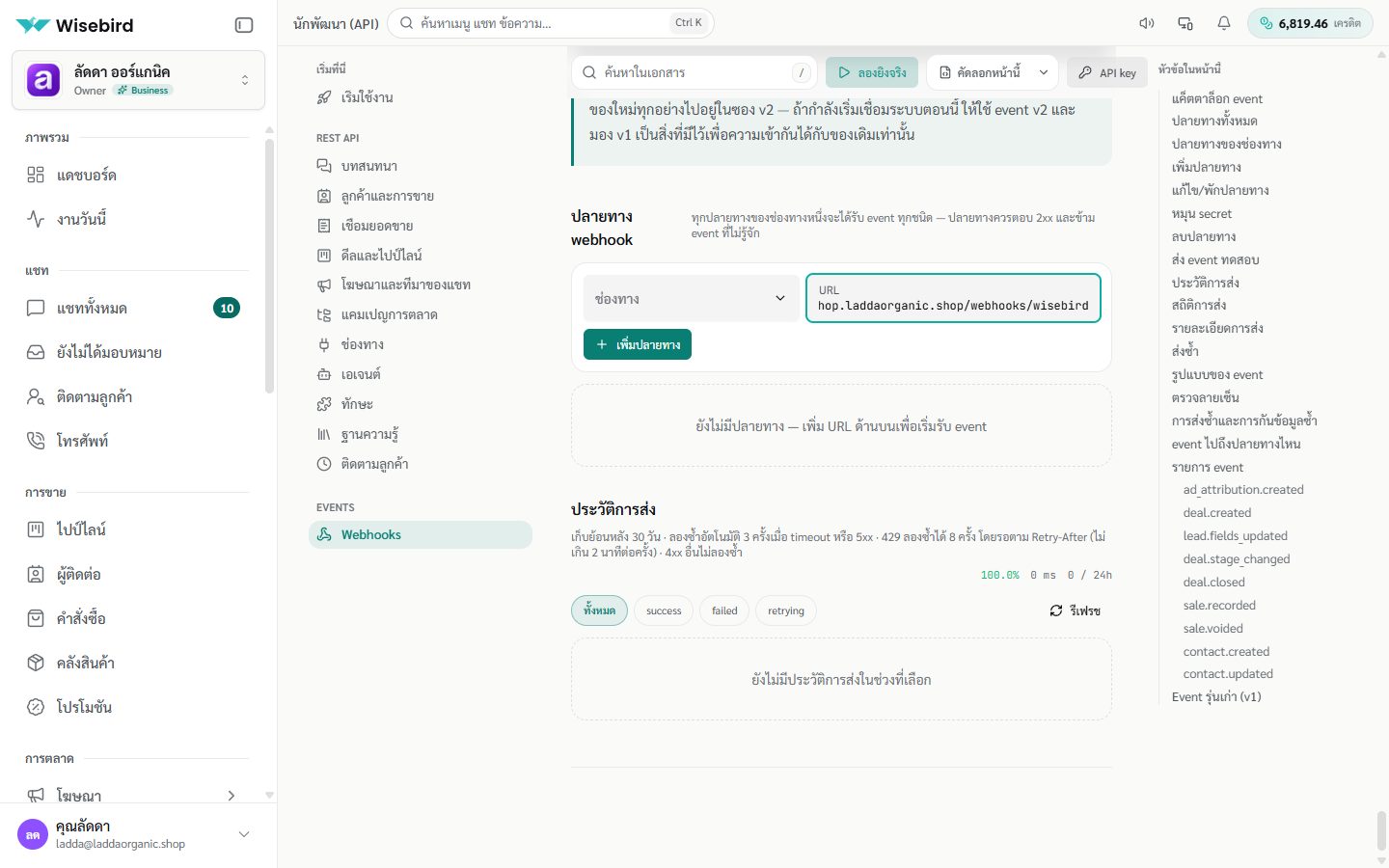
Webhook endpoints and the delivery log — Pick a channel, enter the URL and add it; below is the delivery log for the last 30 days Copy the secret straight away
After adding the endpoint the secret is shown once. Store it in your system to check signatures.
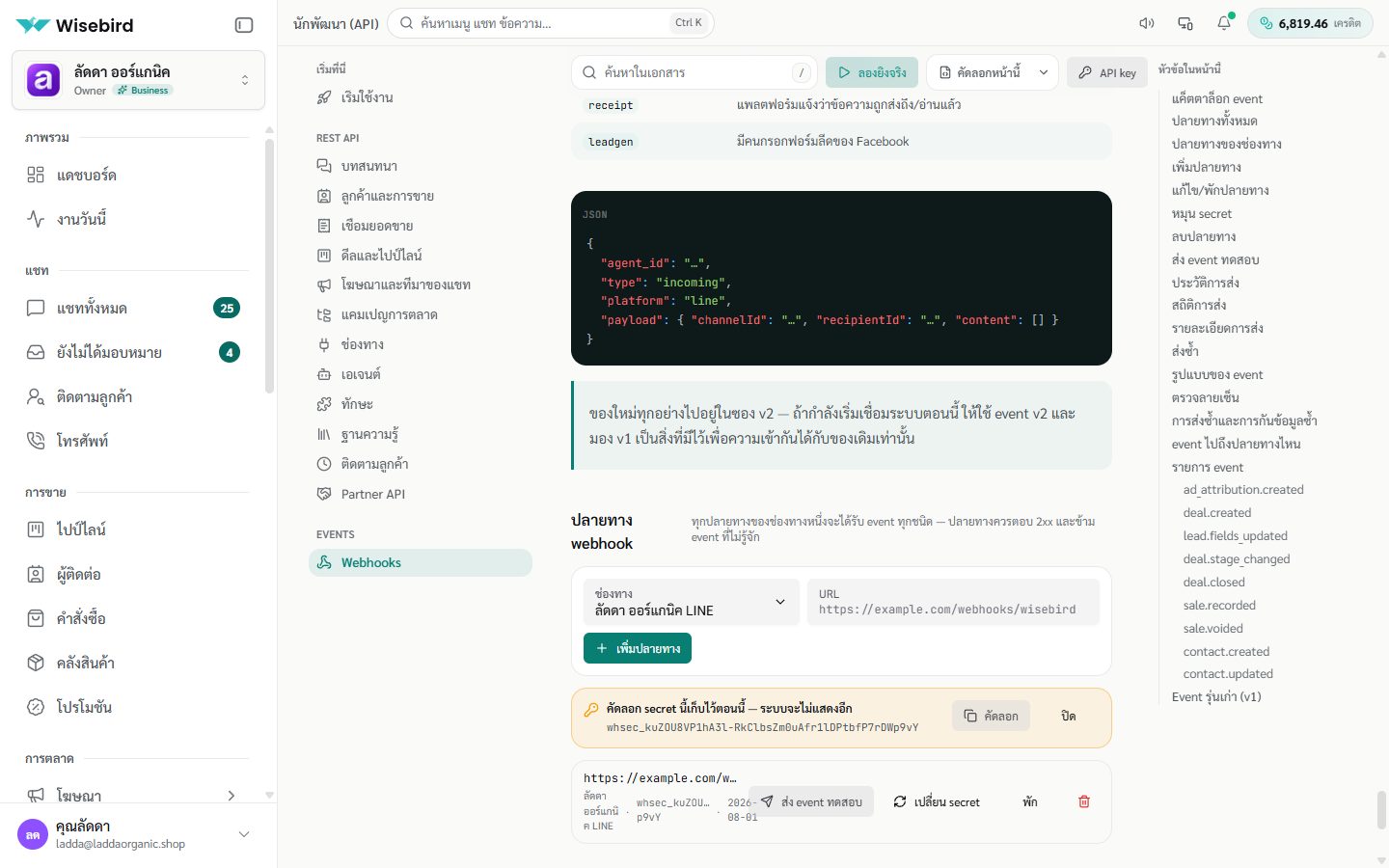
The secret of a newly added endpoint — An orange box "Copy this secret now — it will not be shown again" with Copy and Close; below it the new endpoint's row (secret shortened) and Send test event · Rotate secret · Pause · Delete Send a test event
Press Send test event on the endpoint's row. A sample payload goes through the real delivery path with livemode: false — make sure test data never flows into your live system.
Check the Delivery log below. Filter by all · success · failed · retrying and see each attempt's status, number of tries and the body sent.
Pause, rotate the secret or deletewhen needed
Pause
Stop sending to this URL for now; press "Resume" to start again
Rotate secret
Issue a new secret; the old signatures stop being valid at once
have your system ready for the new secret first
Delete
The URL stops receiving events immediately and its secret is destroyed
03Verifying the signature
Every request from Wisebird carries X-Wisebird-Signature in the form t=<unix time>,v1=<hmac sha256>. v1 is computed over "time." followed by the raw body, using that endpoint's secret.
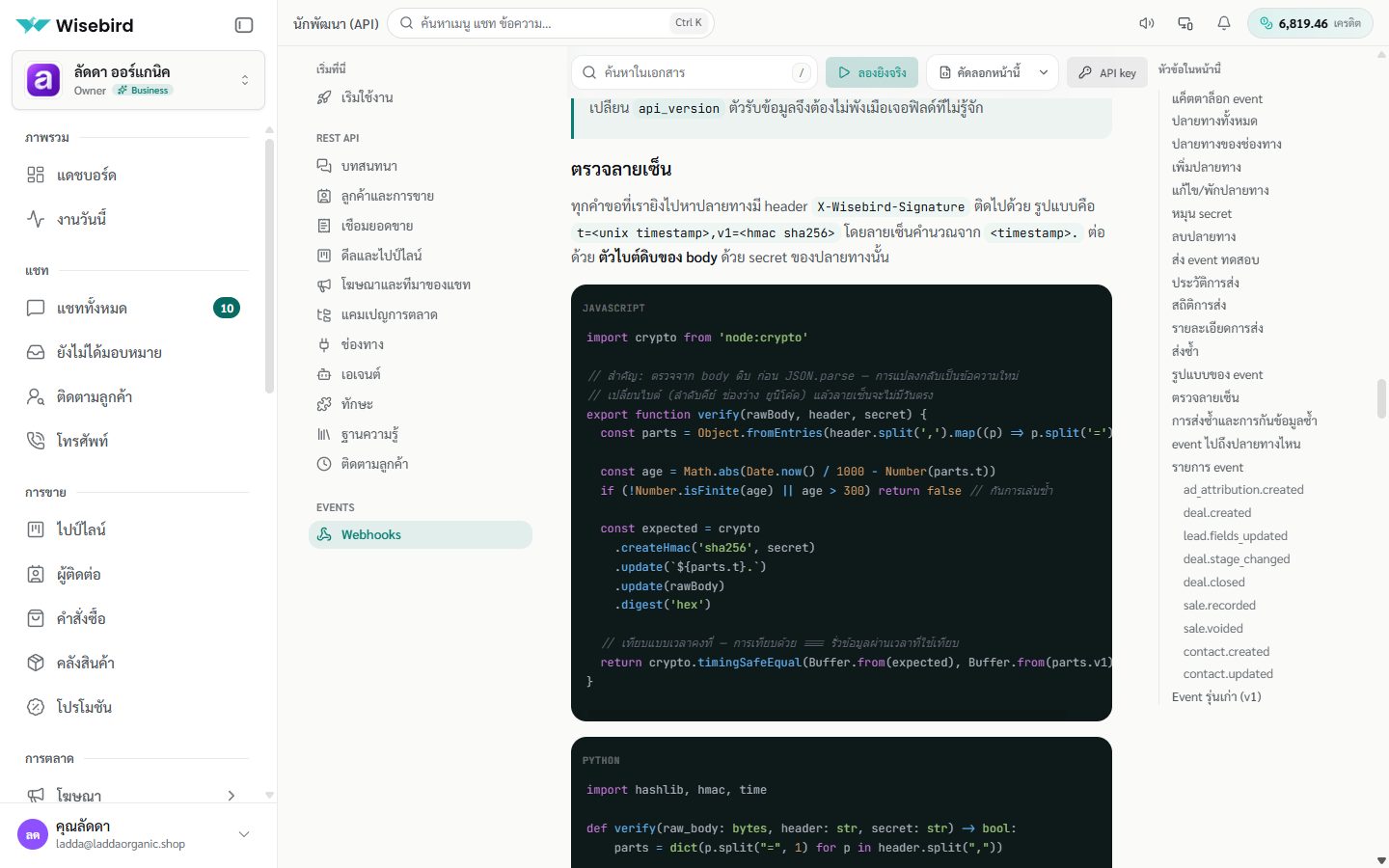
- Verify the raw body before parsing JSON — parsing and re-serialising changes the bytes and the signature never matches
- Check the age of t — e.g. no older than 5 minutes — so an old request cannot be replayed
- Compare in constant time (e.g. timingSafeEqual), not with ===
04Retries and duplicates
Your endpoint answers 2xx
Delivered
Timeout or 5xx
Retried automatically 3 times
429 (slow down)
Retried up to 8 times, waiting for Retry-After
at most 2 minutes each time
Any other 4xx
Not retried — that event will not be sent again
check the delivery log and resend it yourself
Every retry — automatic or by pressing Resend — uses the same event_id. Your system must store processed event_ids and skip ones it has seen: a delivery that succeeded but answered too slowly also counts as failed and is sent again.
05Payload format and the event list
Current events all share one envelope. The event's own data is in data; the rest describes the event.
- event — the event name, e.g. deal.closed; check it before reading data
- event_id — a unique id, for de-duplication
- api_version — the payload version (new fields can appear without a new version, so your system must not break on unknown fields)
- occurred_at — when it happened, not when it was sent
- livemode — false for test events
- business_id and channel — the business and channel of the event
Events:
Every event's details and sample data are on Developer › Webhooks, under the event list.
There are also five legacy (v1) events — incoming · outgoing · update_tag · receipt · leadgen — kept unchanged for systems connected earlier. They carry no event_id; if you are starting now, use the current events.