01Create an account
Free 14-day trial, no credit card needed. There are two ways to sign up.
Fill in the sign-up form
Open the sign-up page and enter your First name, Last name, E-mail, a Password (at least 8 characters) and Confirm password.
The bar under the password shows its strength — aim for at least "Good". If it warns that the password is one of the most guessed, pick another.
Tick that you accept the Privacy Policy and Terms of Service, then press Create account (it only becomes active once ticked).
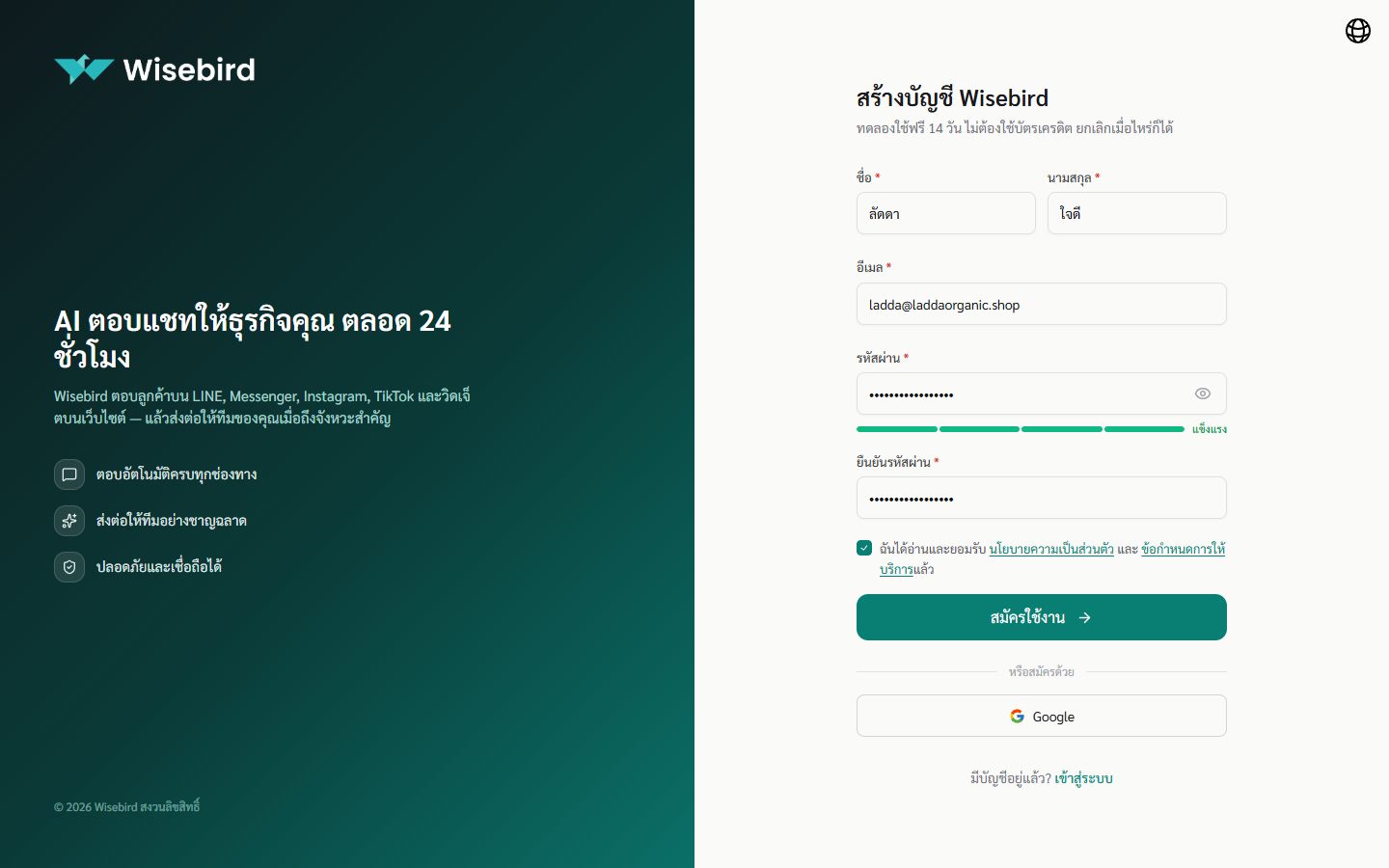
The "Create your Wisebird account" page — Enter your name, e-mail and password, tick the box, then press "Create account" · or use the Google button below You can sign up with Google instead. Press Google under "or sign up with" and choose your account. No separate e-mail confirmation is needed — Google has already confirmed it.Confirm your e-mail
After signing up you see Check your e-mail. Open your inbox and press the confirmation link Wisebird sent. The link works for 24 hours.
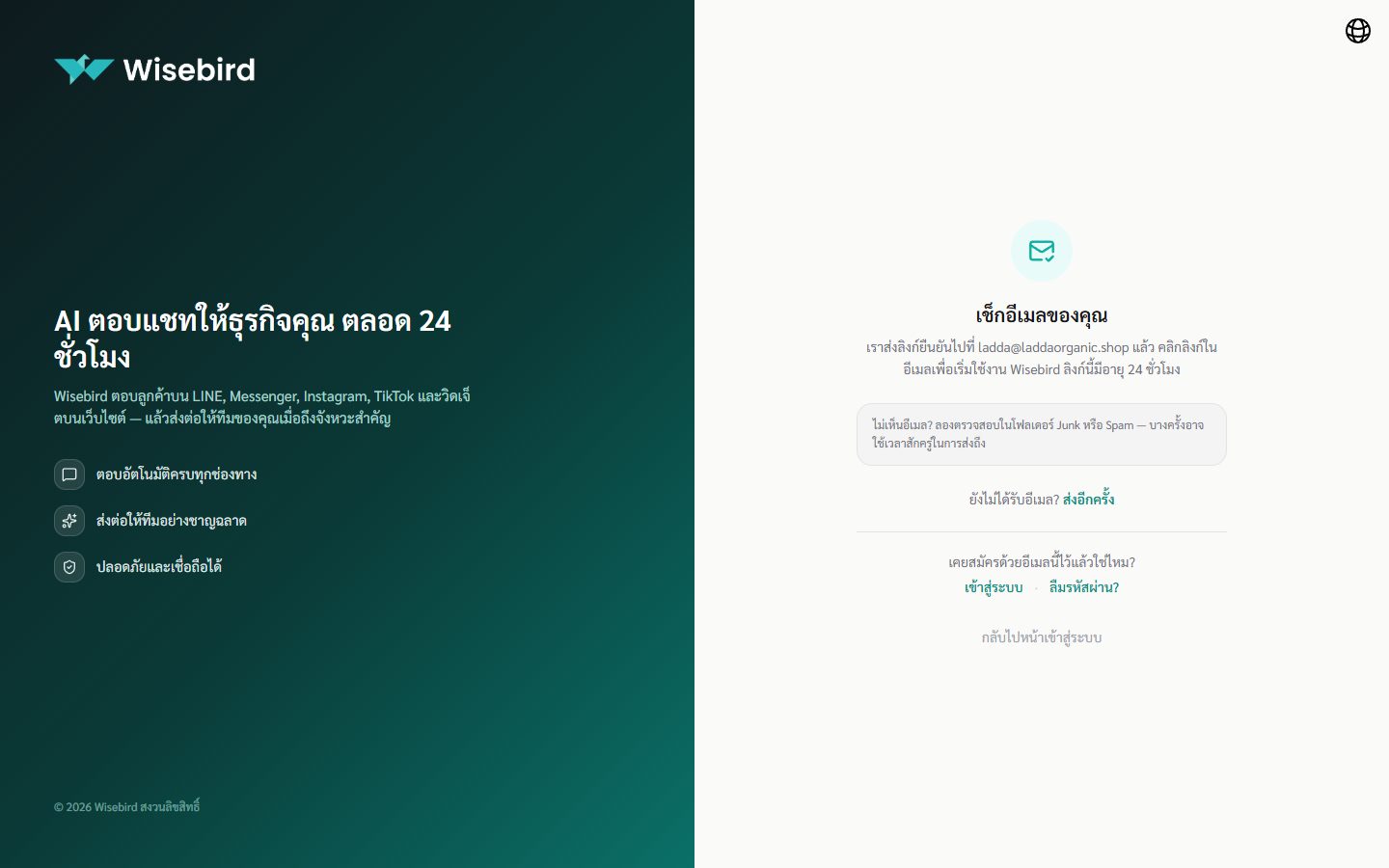
The "Check your e-mail" page — Shows where the link was sent · press "Resend" if it has not arrived Screenshot: the confirmation e-mail from WisebirdThe e-mail with the confirm button — open it from your mailboxScreenshot coming soon The link takes you to the sign-in page with Email verified — you can sign in now.
Can't find it? Check Junk or Spam first. Still nothing — press Resend (you can resend after about 30 seconds).
02Sign in
Sign in with e-mail and password
Open the sign-in page, enter your E-mail and Password, and press Sign in.
Tick Remember me (30 days) on your own computer or phone: you stay signed in for 30 days from the last time you used Wisebird. Without it, a sign-in lasts 7 days.
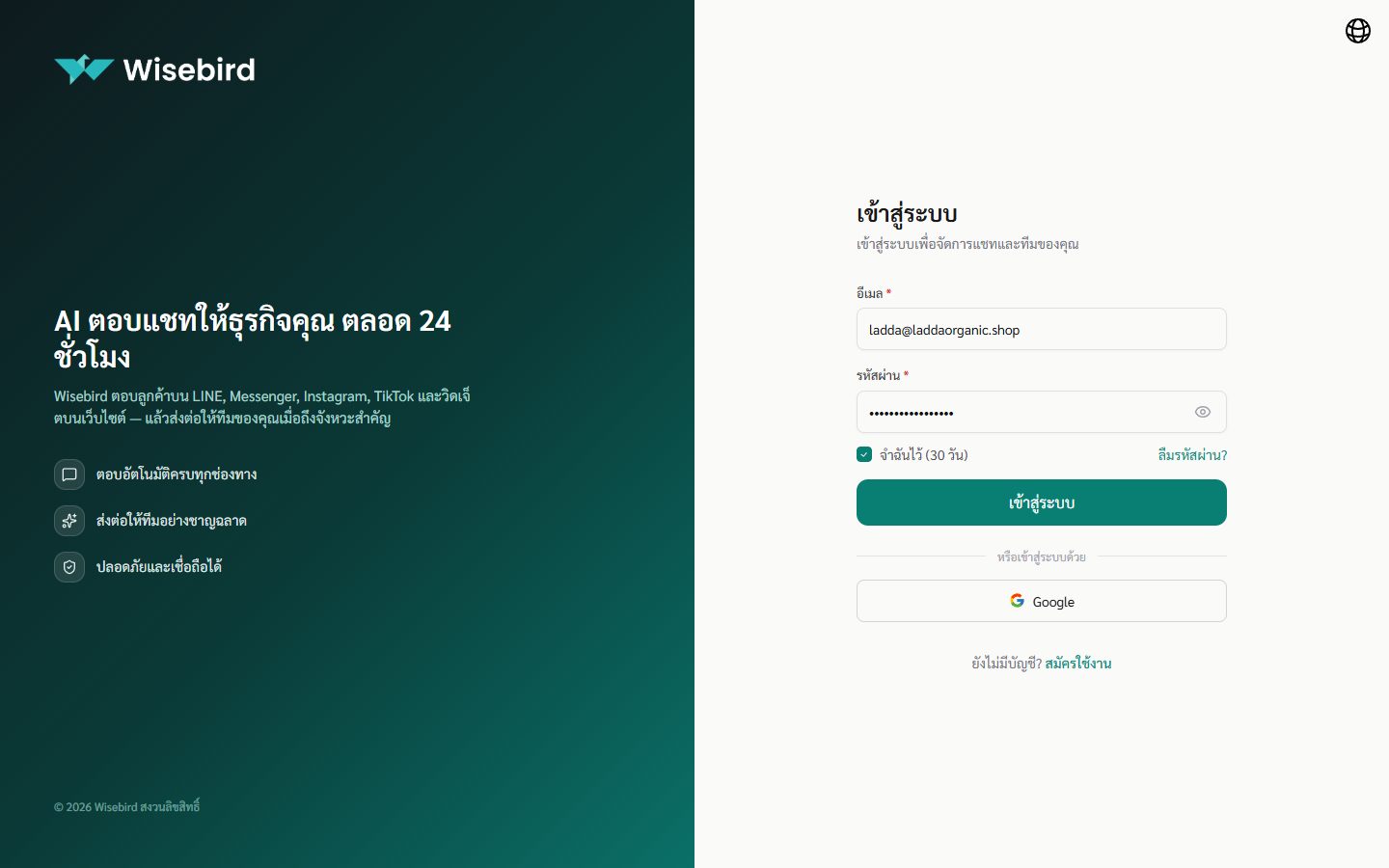
The sign-in page — E-mail, password, "Remember me (30 days)", "Forgot password?" and the Google button On a shared or public computer, do not tick "Remember me" and always sign out when you finish.
03Forgot your password
Ask for a reset link
On the sign-in page press Forgot password?, enter the e-mail you signed up with, and press Send reset link.
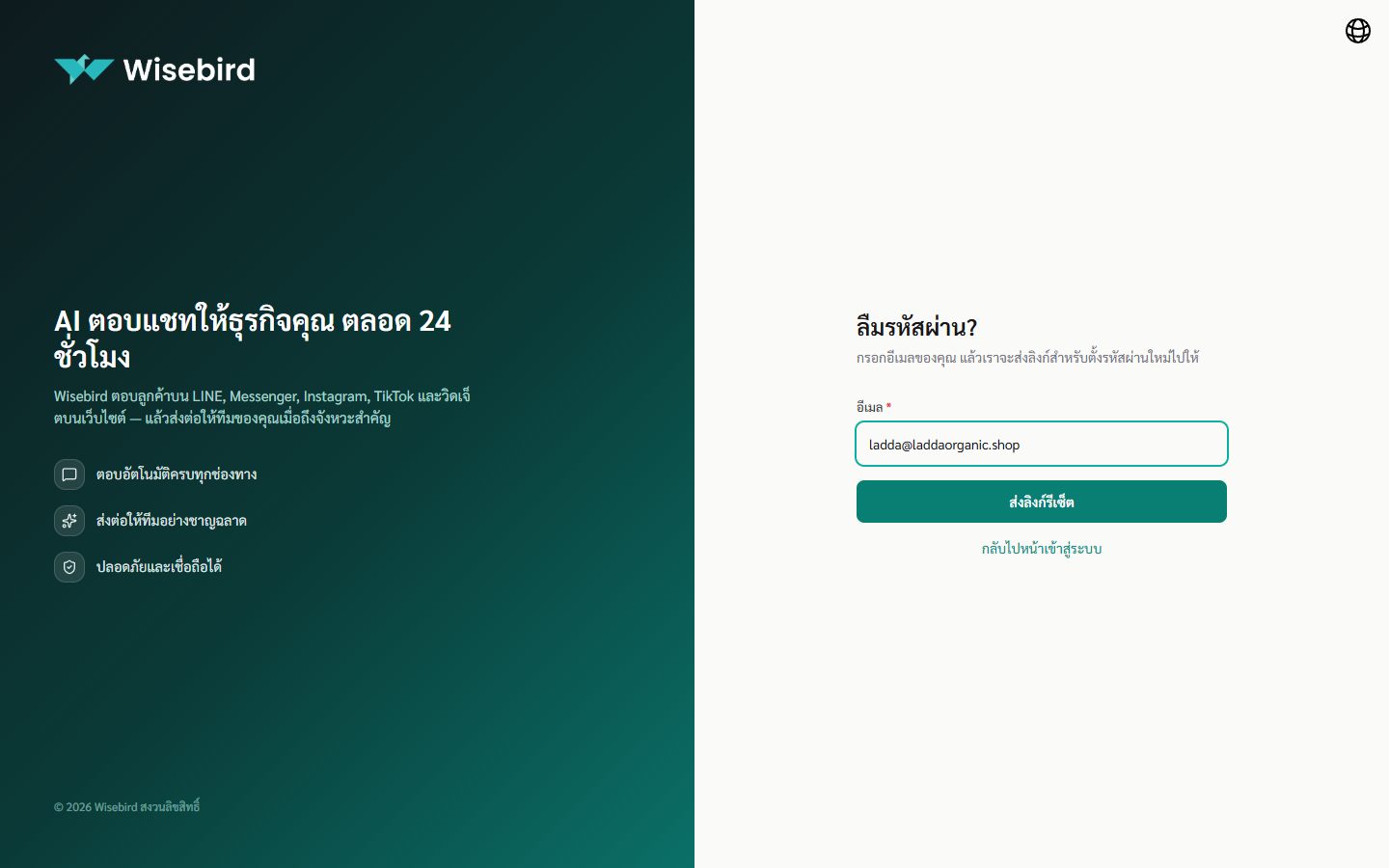
The "Forgot password?" page — Enter your e-mail, then press "Send reset link" 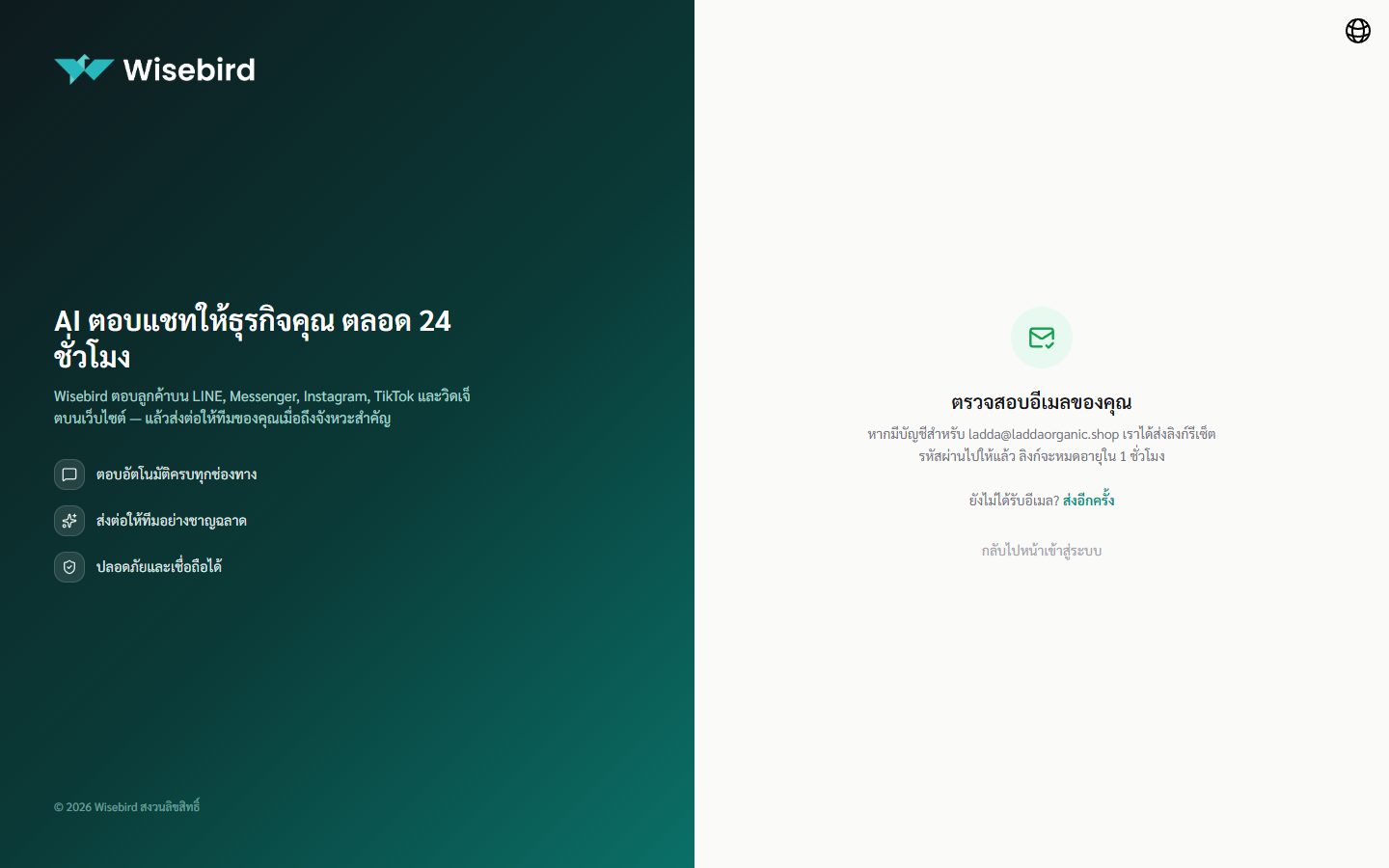
The "Check your e-mail" page — The reset link works for 1 hour · press "Resend" if it has not arrived Set a new password
Open the link within 1 hour, enter a New password and Confirm new password, and press Reset password. Then sign in with the new password.
If it says Link invalid or expired, press Request a new link and use the newest e-mail.