01User Information
Press your name at the bottom left › Profile. The top shows your name, e-mail and your role in the business you are in.
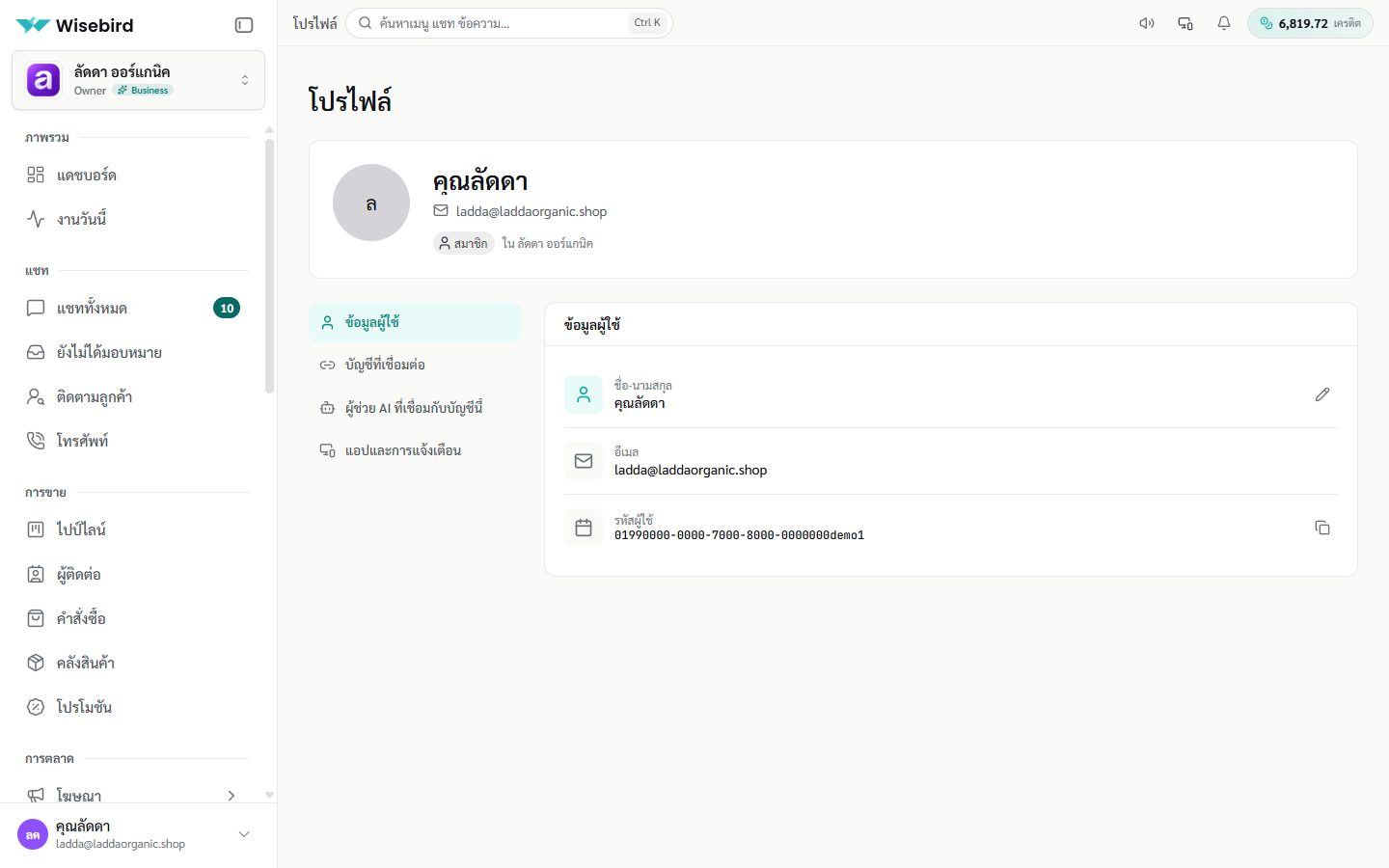
- Edit your name — press the pencil beside your full name. This is the name your team sees in chats and the member list.
- User ID — press copy. The Wisebird team may ask for it when helping with a problem.
02Connect Google or LINE
Once connected, you can sign in with the Google or LINE button — no password to remember — and e-mail + password still works.
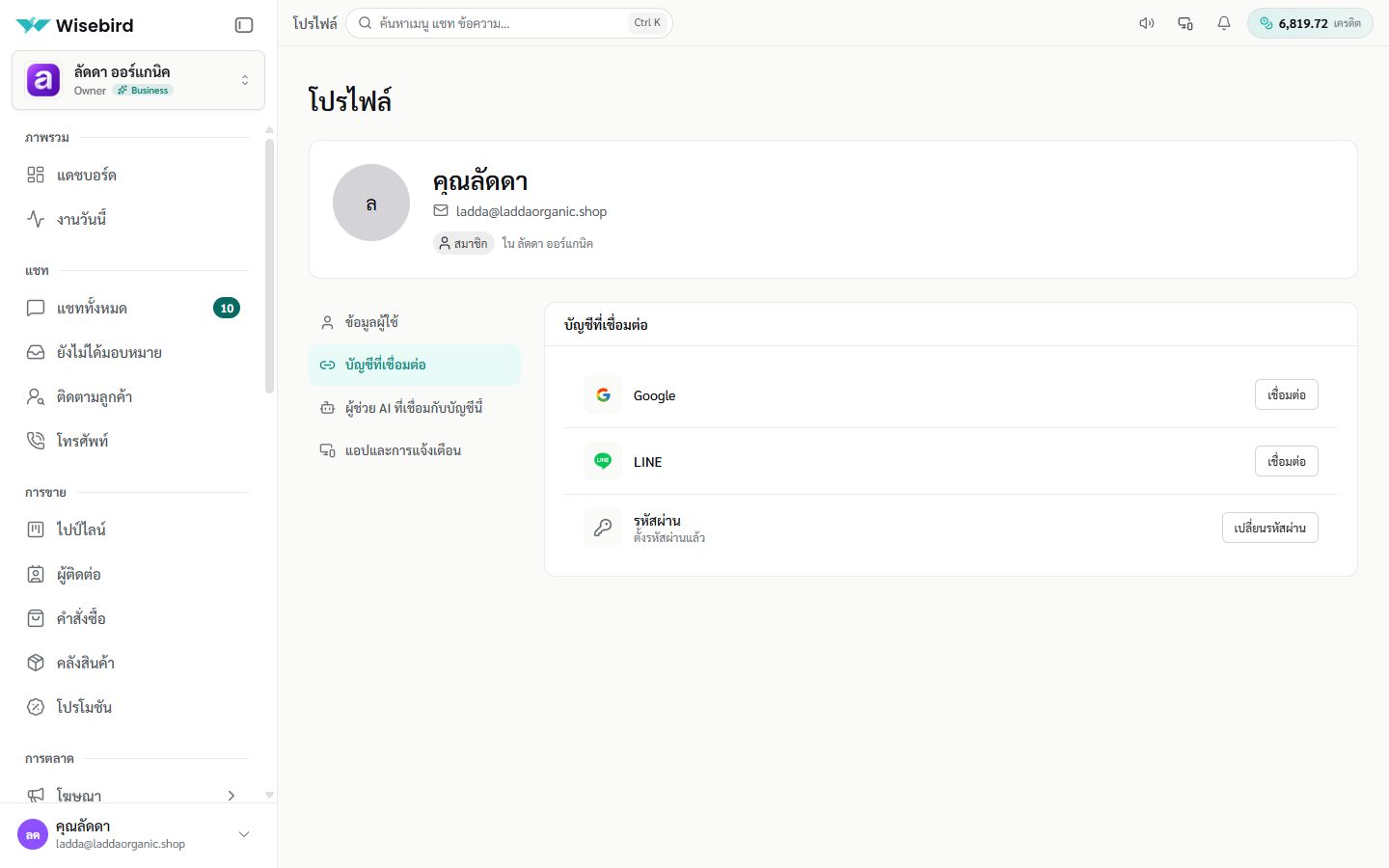
Press "Connect"
In Profile › Connected Accounts, press Connect beside Google or LINE.
Confirm with Google or LINE
You go to Google or LINE — choose your account and allow access. You come back to your profile with … connected successfully and the row shows Connected.
If it says That account is already connected to a different user, that Google / LINE account belongs to another Wisebird account. Sign in to that one and unlink it first, or use a different Google / LINE account.
03Unlink
Press Unlink beside an account you no longer use, then confirm. You can connect it again any time.
04Set or change your password
Press "Change password" or "Set password"
If you have a password, press Change password, enter your Current password, a New password (at least 8 characters) and Confirm password, then Save.
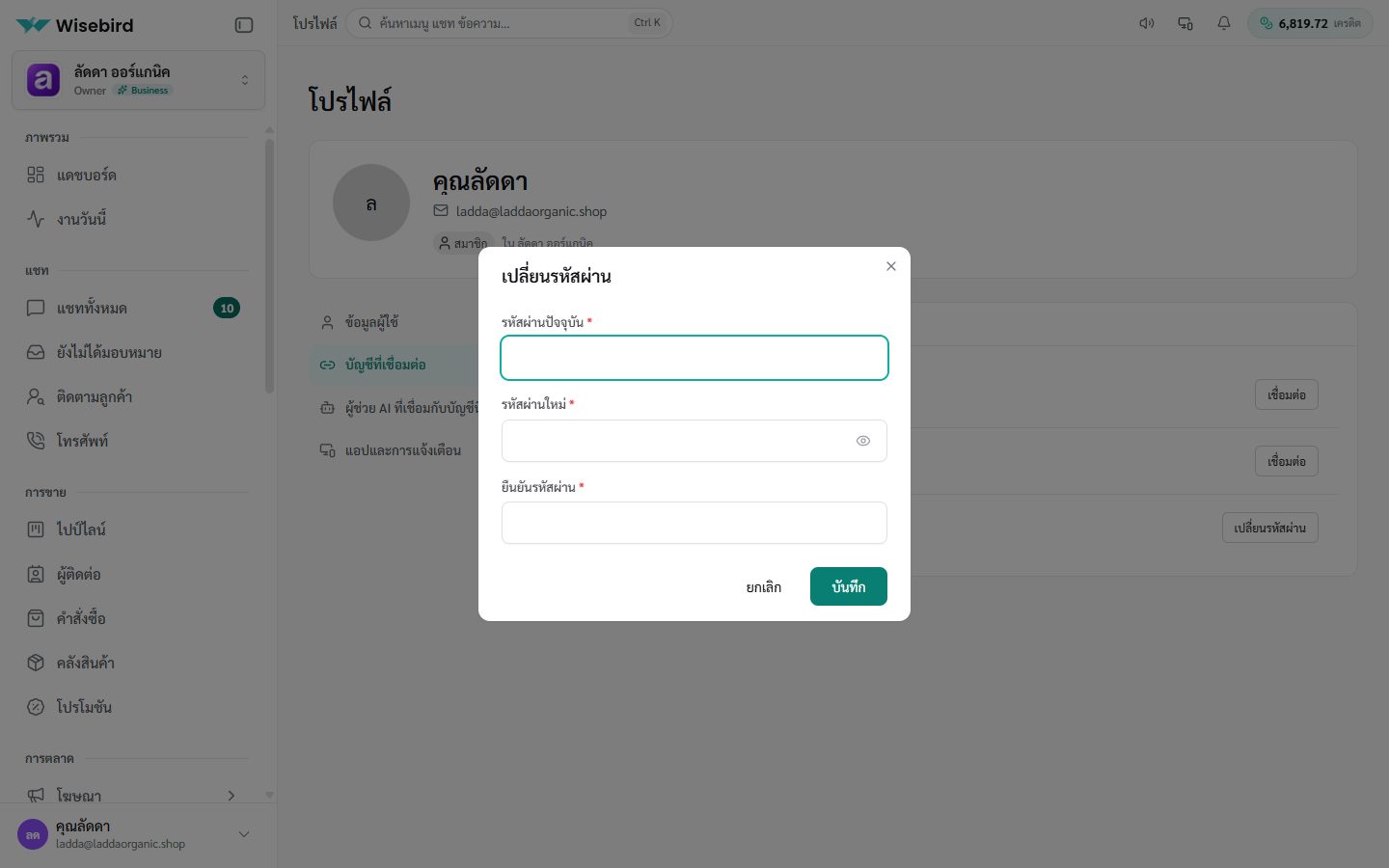
The "Change password" window — Current password · new password · confirm · Save If you signed up with Google or LINE and have no password, the password row says Not set. Press Set password and enter the new password twice — from then on you can also sign in with e-mail + password.
If you signed up with LINE without sharing your e-mail, you can't set a password yet — there is no e-mail to sign in with. Keep using the LINE button.