01The Library page
Open Library under Sales.
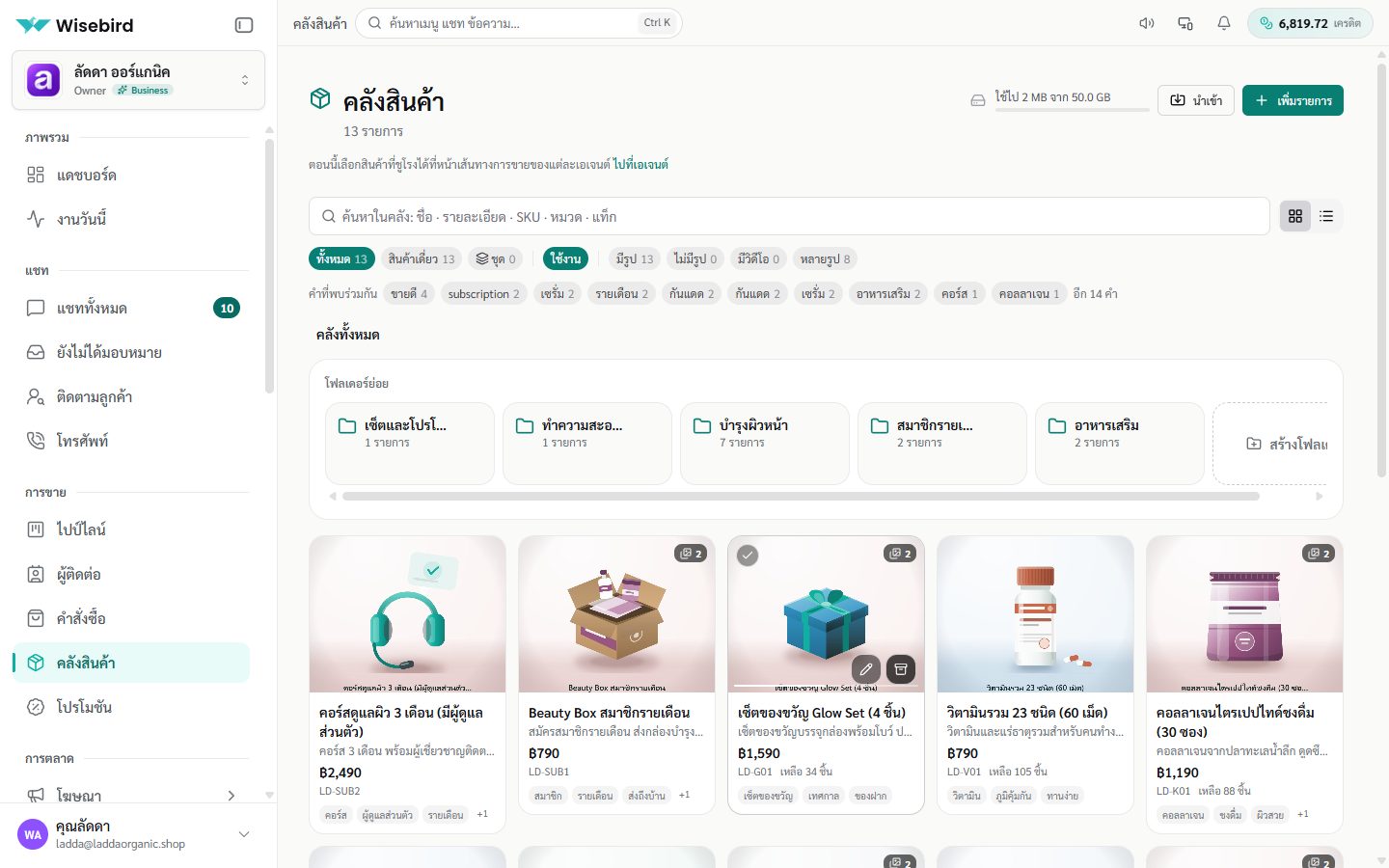
- Search finds products by name, description, SKU, category and tag
- The All · Single items · Sets chips separate plain products from sets; the Active chip hides archived products
- The Has photo · No photo · Has video chips find products with no picture — the AI cannot send a picture that does not exist
- The buttons on the right switch between Cards and Table
02Add a product
Press "Add item" and choose "Single item"
Press Add item at the top right. At the top of the form choose Single item (one piece, sold at this price).
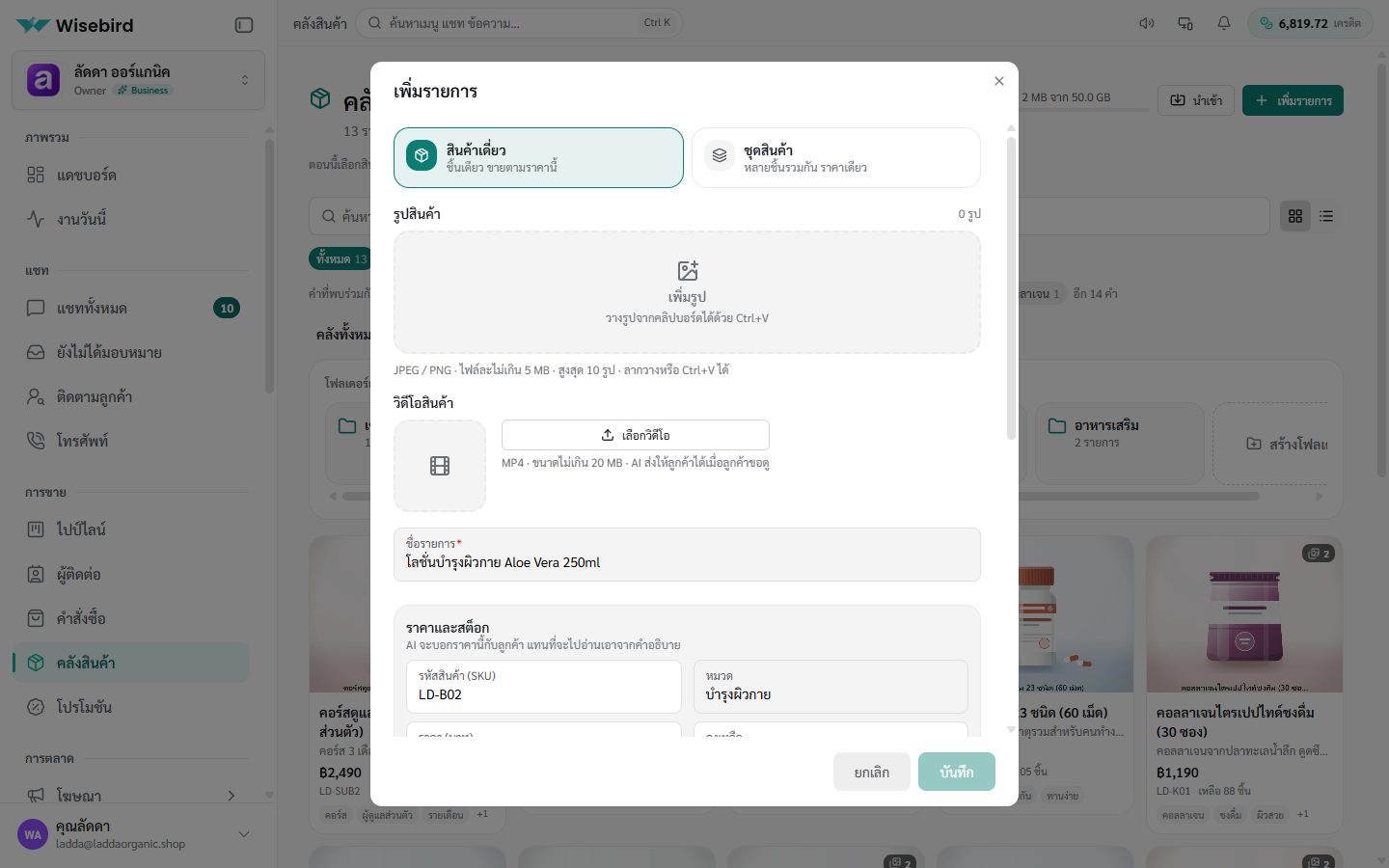
The Add item form — Add up to 10 photos (drag them in or paste with Ctrl+V) and one video - Photos: JPEG / PNG, up to 5 MB each
- Under each photo you can add a description (up to 300 characters), such as benefits, how to use or an FDA number. The AI uses it to pick the photo that matches what a customer asks about. Press Let AI write it for a draft from the photo, then edit it
- Video: MP4 up to 20 MB — the AI sends it when a customer asks to see it
- Give the Item name enough detail, such as size or model
Price and stock
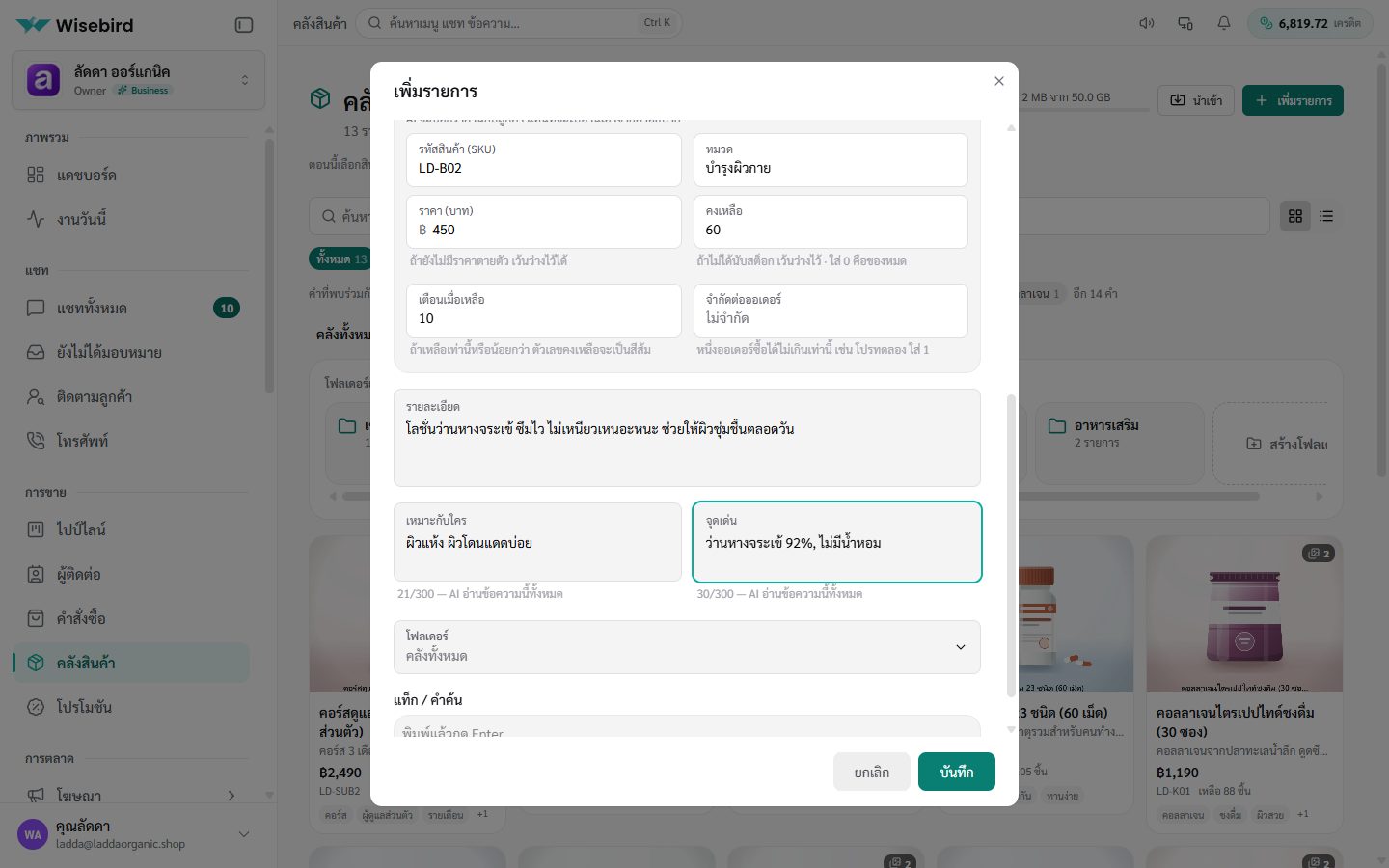
Price, stock and descriptions — Price and stock fields sit in one box; below are the description, best for, and highlights - Price (baht) — the price the AI tells customers. No fixed price yet? Leave it empty
- Stock — leave empty if you don't count stock · 0 means sold out · Warn me at turns the number orange when it runs low
- Max per order — a customer can buy at most this many in one order, e.g. 1 for a trial offer
- Best for and Highlights (up to 300 characters each) — the AI reads all of it when recommending
- Folder and Tags / keywords — help your team and the AI find things by words that are not in the name
Press Save. The product appears in the library and the AI sees it straight away.
03Make a set (bundle / pack)
Use a set when you sell the same thing in packs (1 / 2 / 3 tubes of sunscreen) or several things together (serum + sunscreen). The system then knows what is inside, the AI describes it correctly, and it can suggest a better-value set on its own.
Choose "Set" and give it a set price
In the Add item form choose Set at the top. The price field becomes Set price (baht) — the set always sells at this price; it is never worked out from what is inside.
Say what is in the set
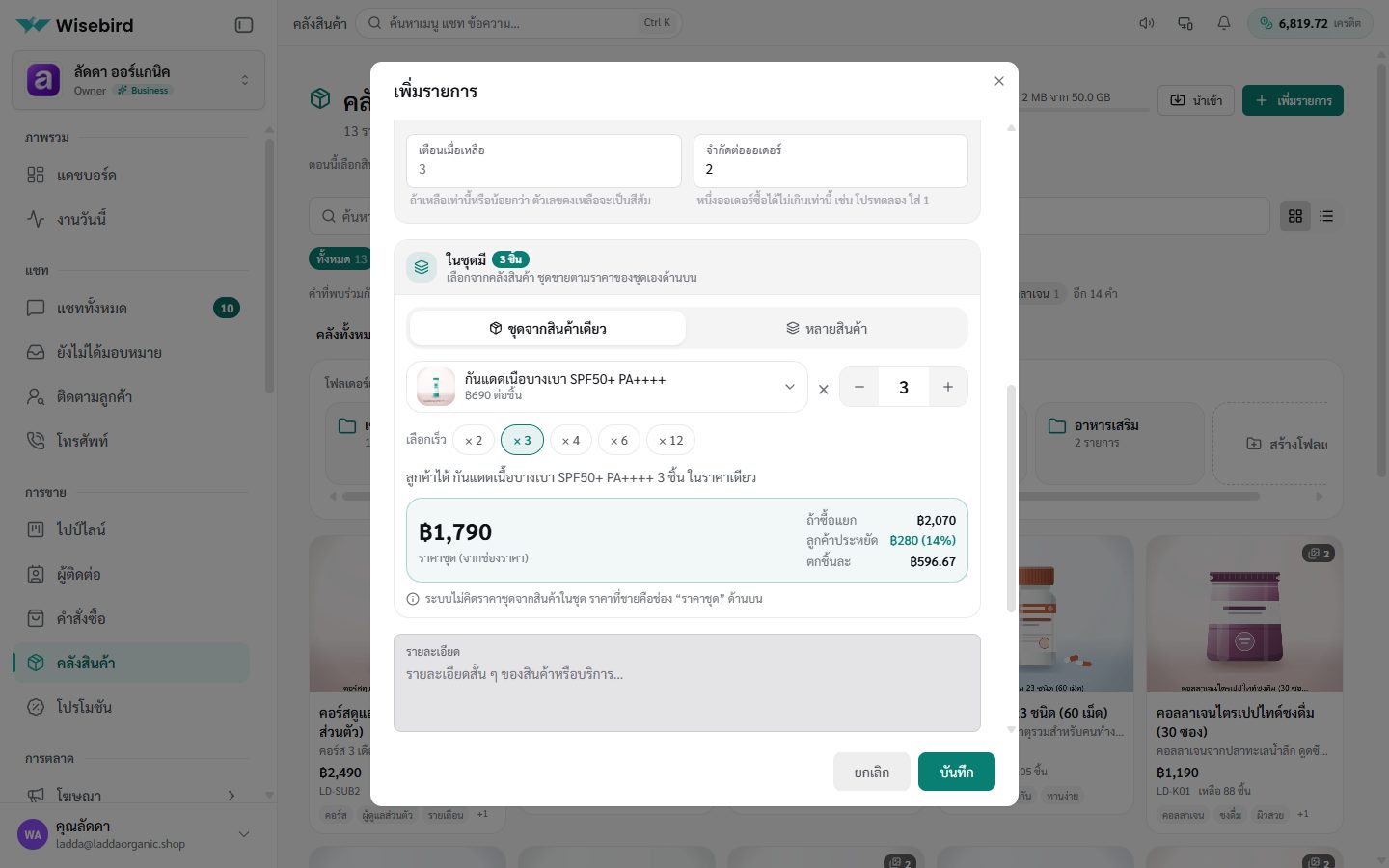
The "What's in this set" section — One product × 3 — it shows the price bought separately, what the customer saves, and the price per unit One product × N
Pick the product, then a quick pick × 2 / × 3 / × 4 / × 6 / × 12, or adjust with − / +
Several products
Search and press **Add** for each product, with its quantity
A set cannot contain another set, and one set holds up to 20 products.
04Folders and products you stopped selling
- Press Create folder in the sub-folder row (up to 5 levels deep), then drag products into a folder
- Deleting a folder moves what is inside up to the parent folder — nothing is lost
- Hover over a product card and press Archive (the box icon) — it is hidden from the library and the AI stops offering it
- To sell it again: switch off the Active chip, show Archived, and press Unarchive