01Typing and sending
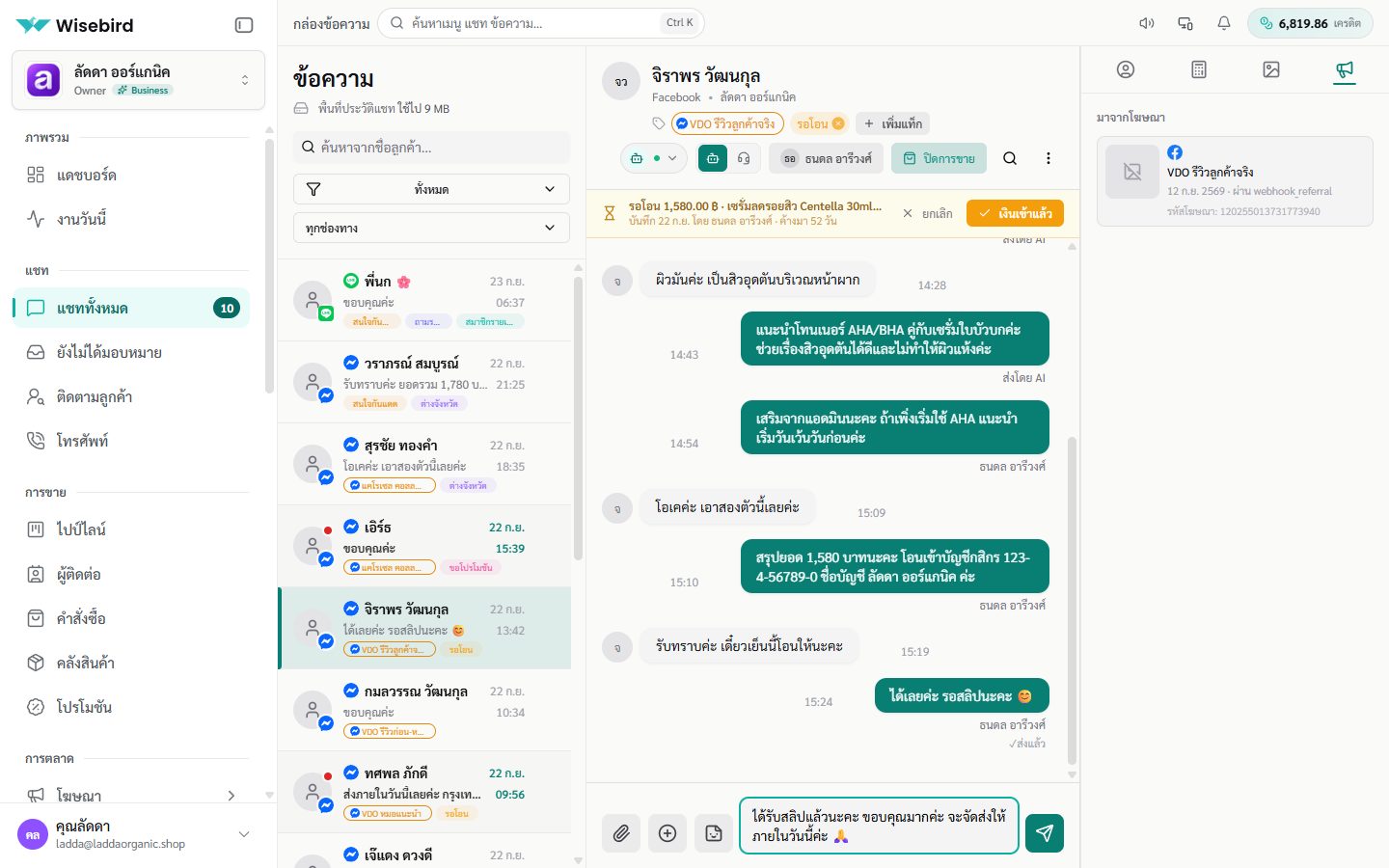
Type and send
Type in the box and press Enter or the send button. For a new line inside the same message, press Shift + Enter.
When someone on the team replies in a chat, the AI goes quiet in that chat for the time set on the agent, so it never talks over you. To keep a person answering this chat for good, press "Human agent" in the chat header.Attach a picture, video or file
Press the paper clip and choose a picture, video, audio or document (PDF, Word, Excel, text). Files appear above the reply box — check them, then press send.
The sticker button appears only in LINE and Facebook chats, because Instagram and TikTok do not let shops send stickers.
02Replying to a specific message (quote)
When a customer asks several things in a row, quoting the message you are answering makes it clear which question you mean. The quoted message shows inside the bubble, on your side and on the customer's.
Pick the message to answer
On a computer
Hover the message and press the ↩ button beside it
or right-click the message and choose "Reply"
On a phone / tablet
Long-press the message and choose "Reply"
or swipe the message towards the middle of the screen
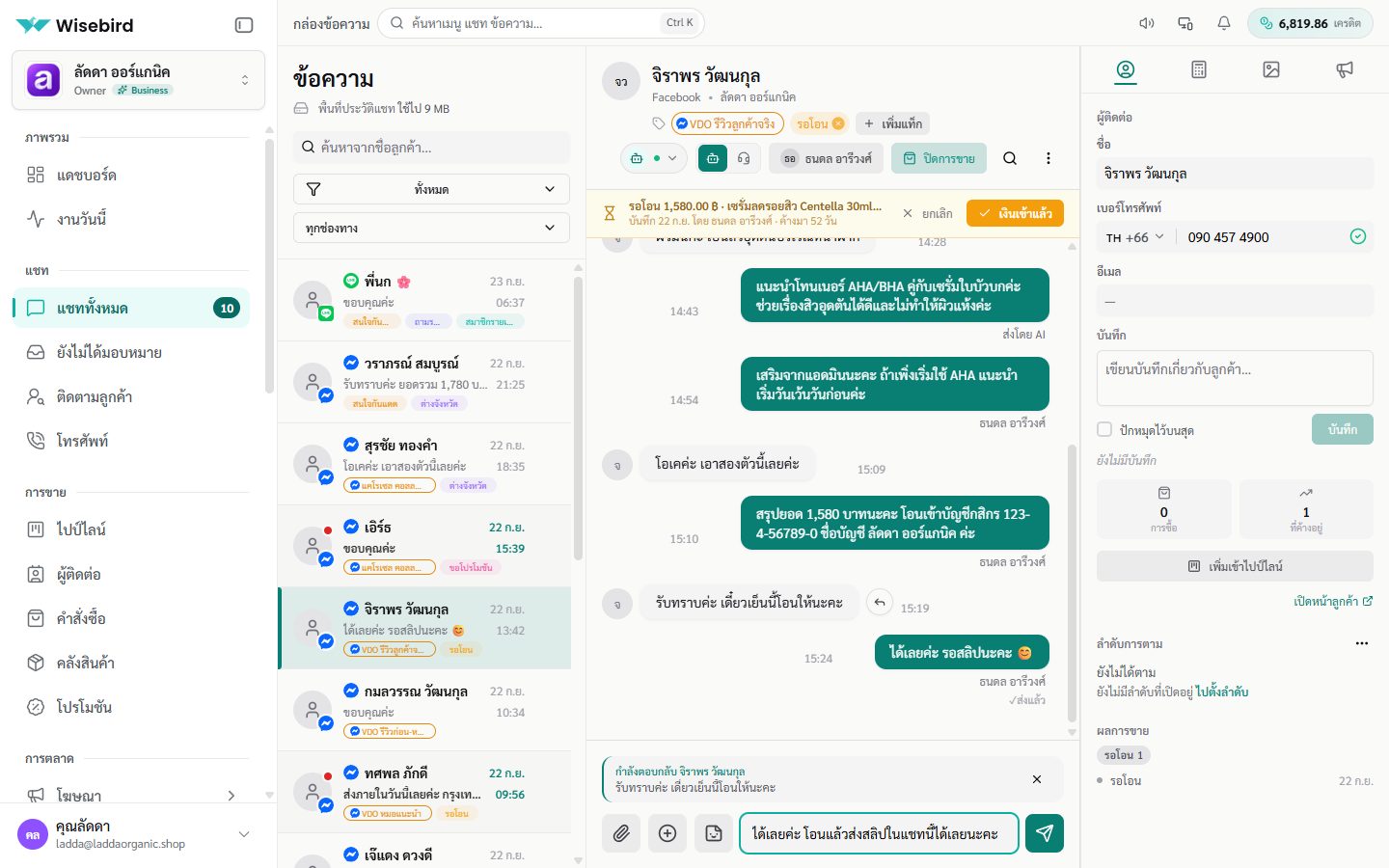
Replying to a message — A "Replying to…" bar appears above the reply box — press × to cancel Type your answer and send
Type as usual and send. The quoted message shows inside your bubble; press the quote to jump back to the original.
03Presets
Keep the messages your team types again and again — bank details, opening hours, delivery terms — on the Presets page, and use them in any chat in one click.
Open presets
Press ⊕ beside the reply box. The window has three columns: folders · the list of messages (search by name or text) · what the customer will see.
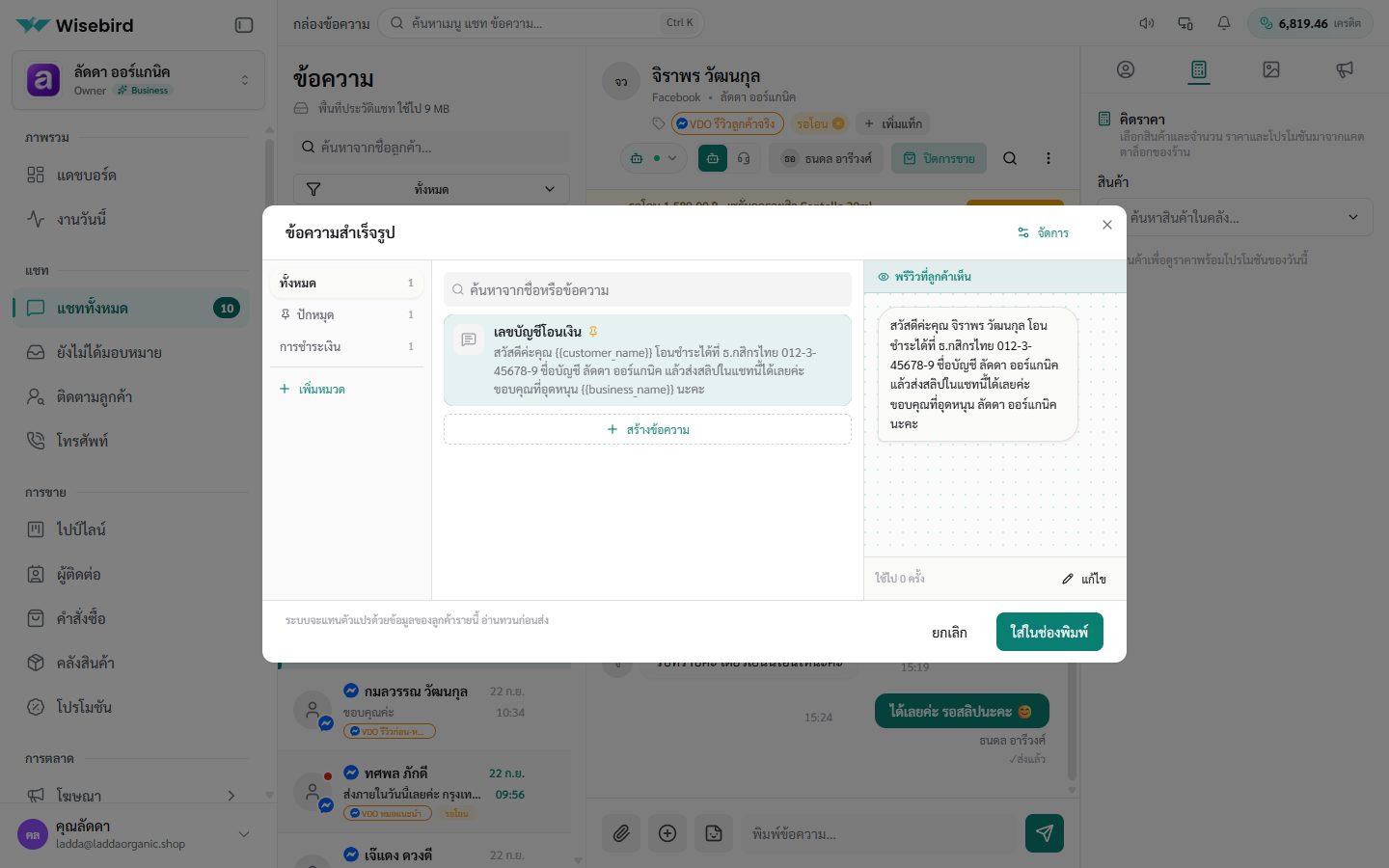
The presets window — Pick a folder on the left, a message in the middle, check the preview on the right, then press "Insert into composer" Insert, check, send
Press Insert into composer. The text (and picture, if any) goes into the reply box and is not sent until you press send — you can still edit it.
If the message has variables such as {{customer_name}}, {{business_name}} or {{admin_name}}, the real words are filled in when it is inserted. If a value is missing, that word simply disappears — the customer never sees curly braces.
Create, edit, pin and file presets on the Presets page. Team members who can't edit see it read-only but can still use presets in chats.
04Links and pictures in a chat
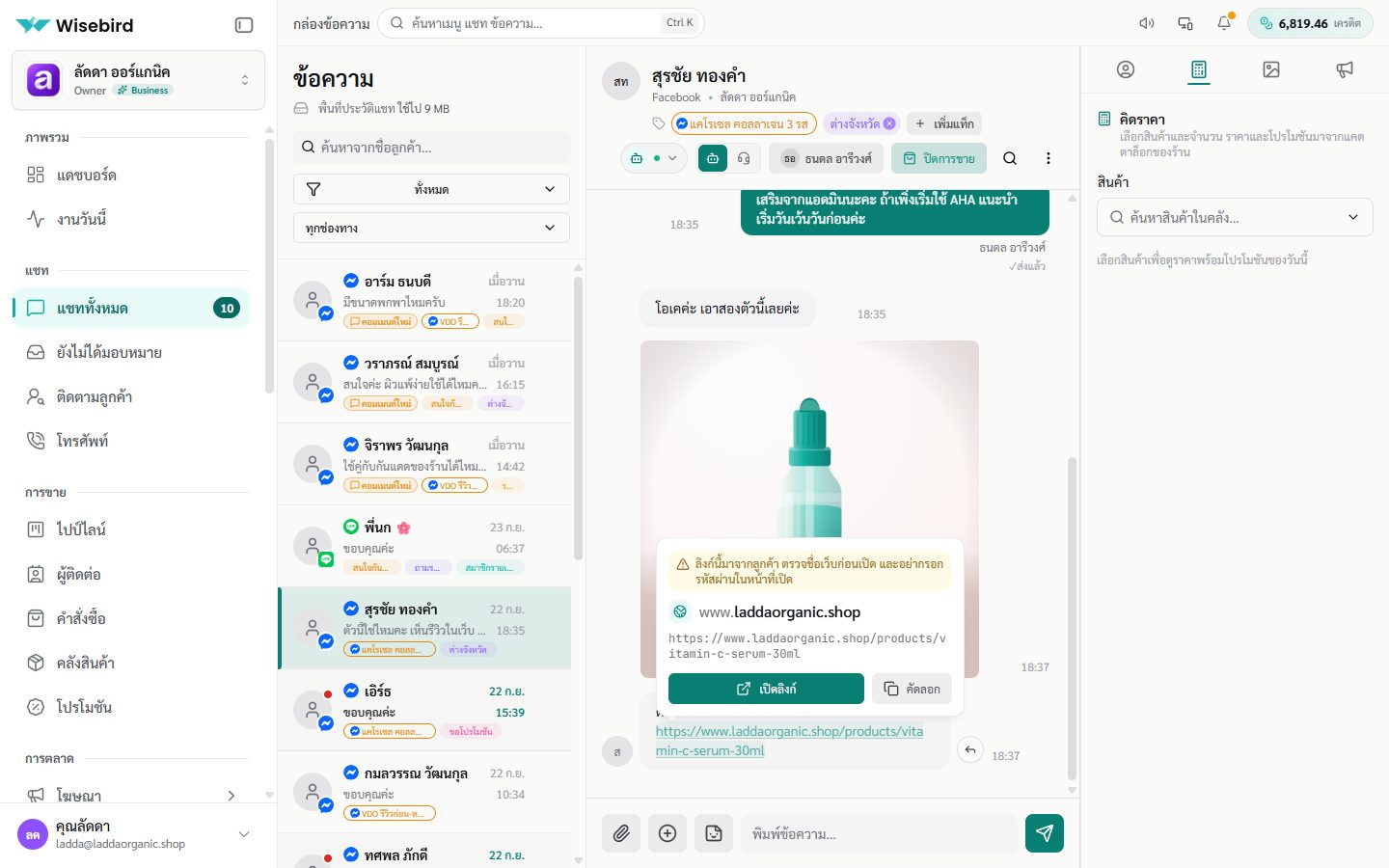
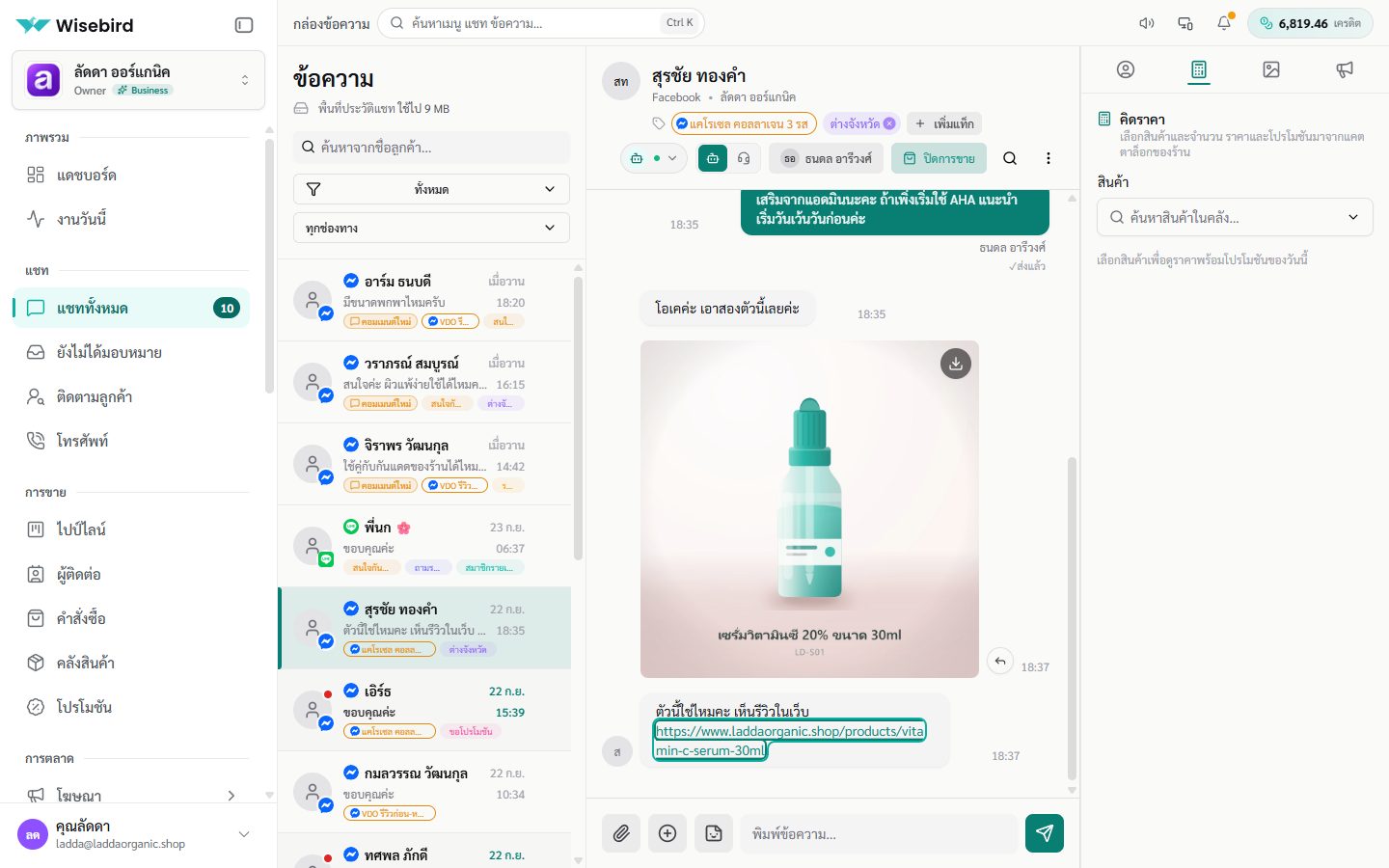
Links in messages — addresses starting with http, https or www can be pressed, but nothing opens straight away: a small card shows the site name (main part in bold) and the full address, with Open link and Copy.
Downloading pictures and videos — hover a picture or video and press Download. When a customer sends several pictures in one message there is also Download all (.zip). On a phone, long-press the picture and choose from the menu. Up to 50 files at a time.
05Pricing in the chat
The Price tab (calculator icon) in the right panel uses the prices and promotions from your products and promotions, so nobody does sums by hand and your team quotes the same price the AI does.
Choose products and quantities
Press Search products…, pick products (several if you like) and adjust quantities with − / +. The total applies today's promotions automatically.
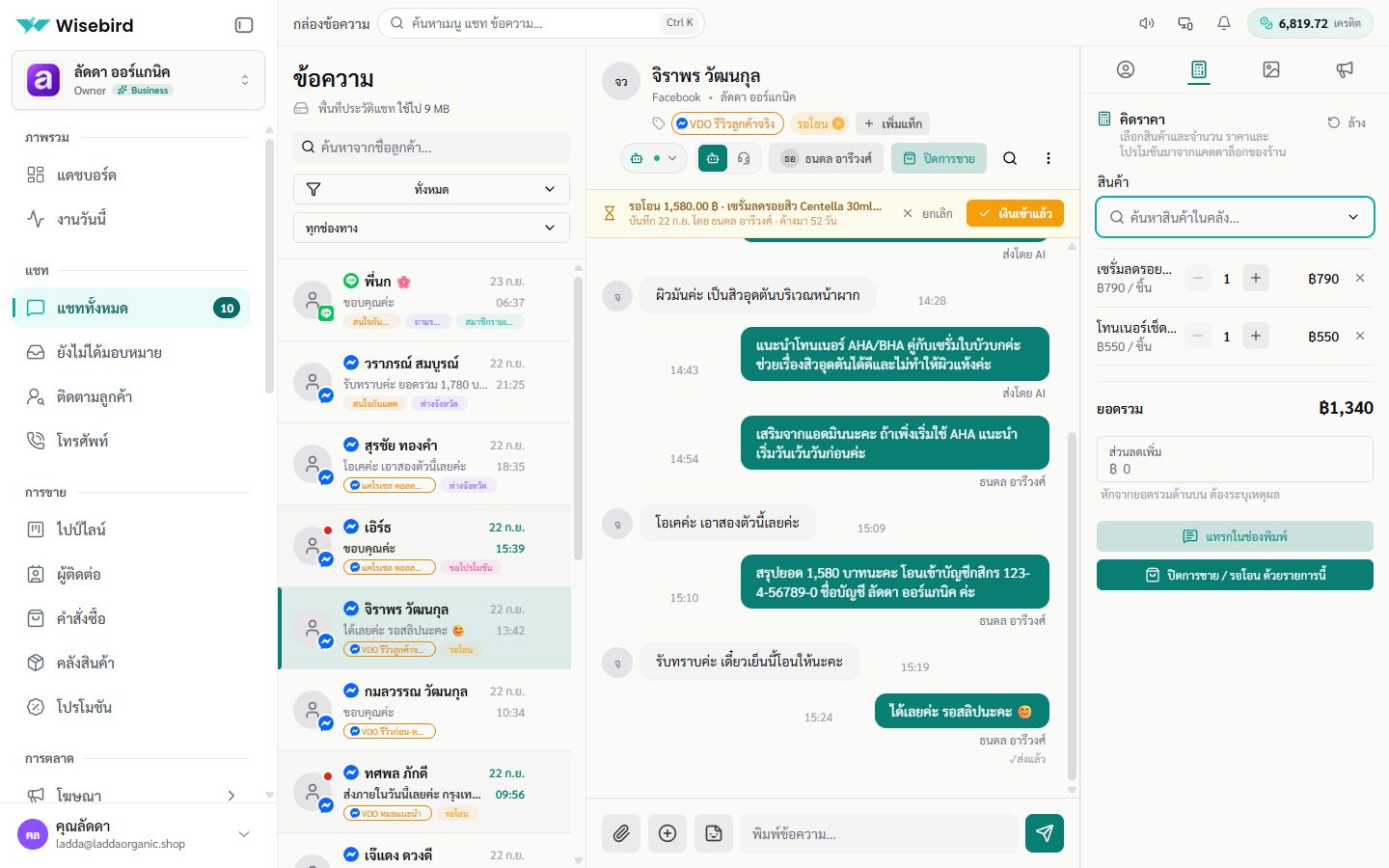
The Price tab — Two products, the total, an extra-discount field, and the "Insert into reply box" and "Close sale / await payment with this basket" buttons Send the price, or close the sale
- Insert into reply box — puts the item list and total into the reply box; check it and send
- Close sale / await payment with this basket — opens the sale form with these products already filled in (see the "Closing a sale" guide)
An extra discount needs a reason, and only team members allowed to give discounts can enter one.