01Account overview
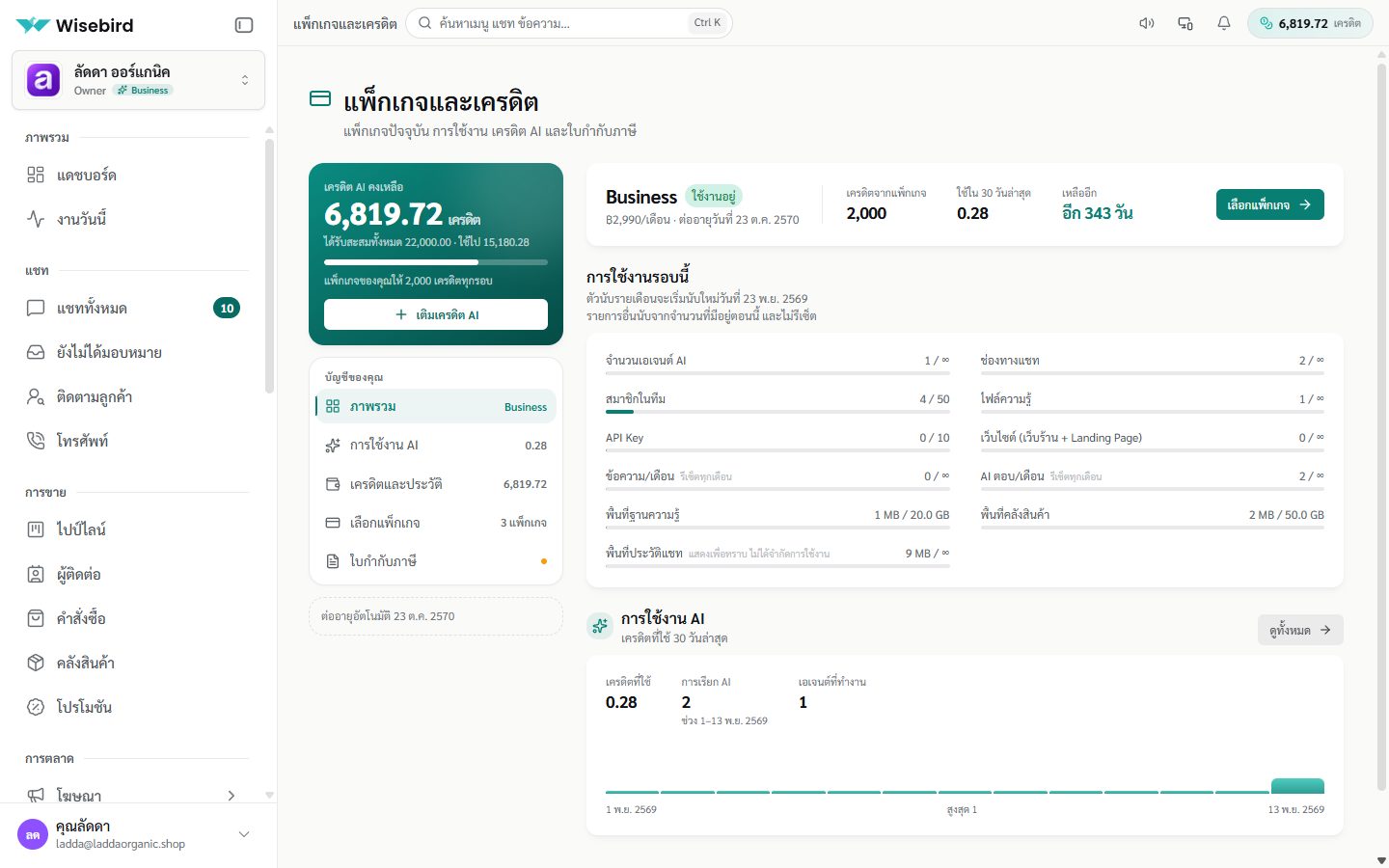
- AI credits left — with the total received and used so far
- Current plan — price, renewal date, credits from the plan and days left
- Usage this period — agents, channels, members, API keys, knowledge storage and more against your plan's limits; monthly counters restart each cycle
The menu on the left takes you to: Overview · AI usage · Credits & history · Choose a plan · Tax invoice.
02Top up credits
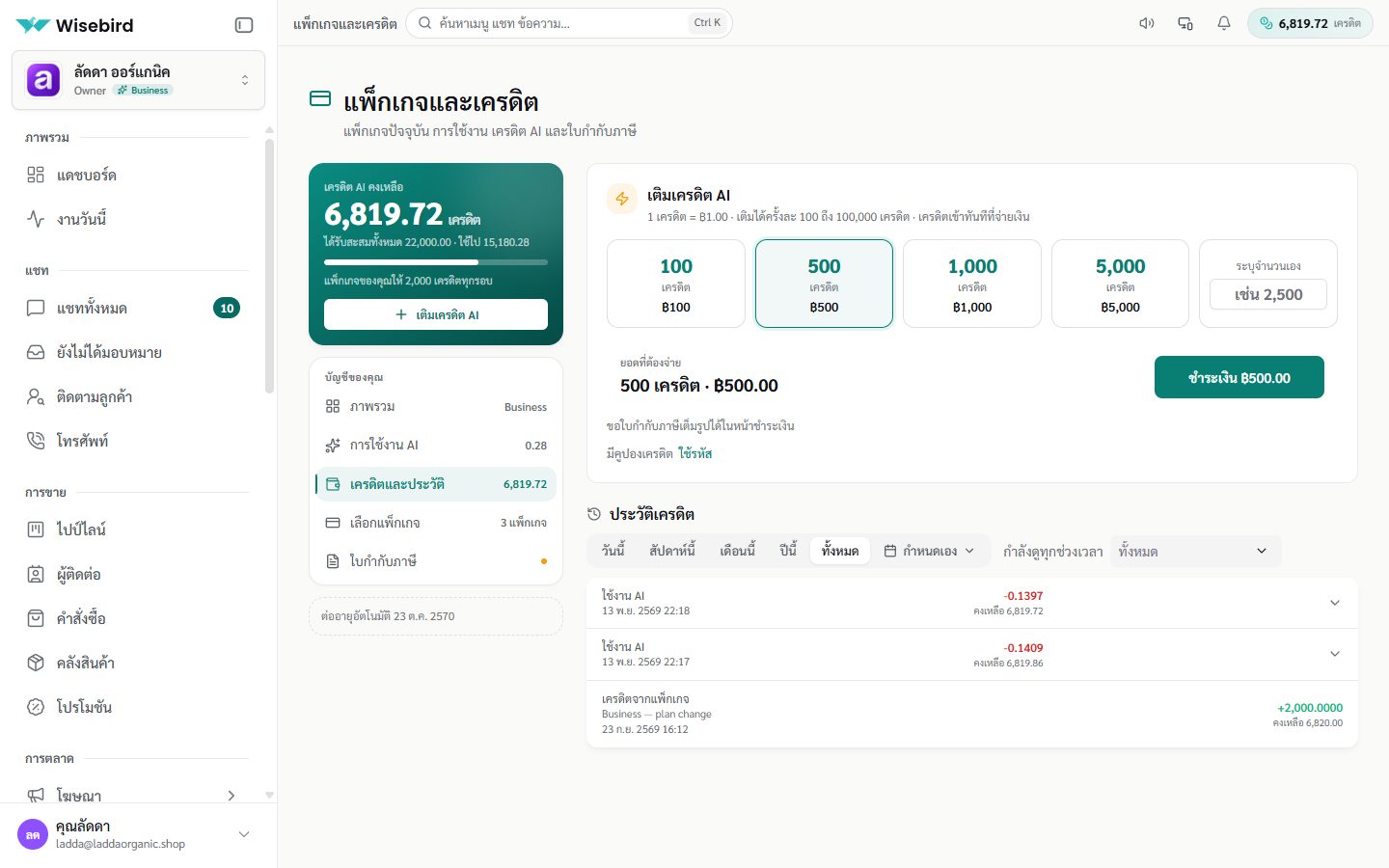
Press "Top up AI credits"
The button on the credit card at the left, or open Credits & history.
Choose how many credits
Pick 100 / 500 / 1,000 / 5,000 credits or type into Your own amount. The rate and the limits per top-up are shown under the heading (currently 100 to 100,000 credits).
You pay already includes VAT and fees.
Press "Pay"
Pay by QR or card. Credits arrive as soon as the payment succeeds. You can ask for a full tax invoice on the payment page.
03See where credits went
AI usage shows credits used, AI calls, tokens processed and a split by agent, for any period you choose.
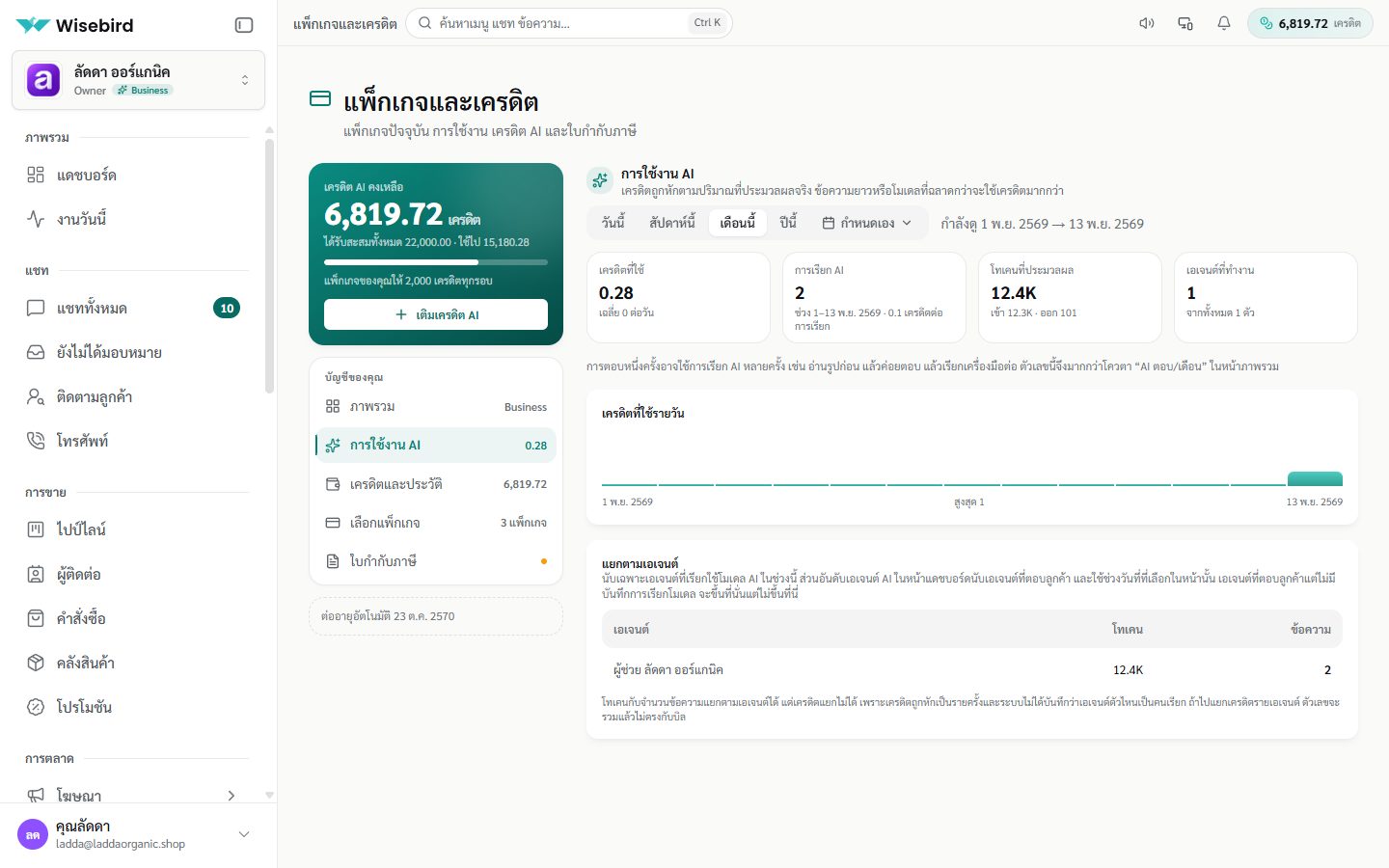
Credit history (under Credits & history) lists every time credits went up or down, with the balance after each line. Filter by period and type — AI usage, top-up, plan credits, refund and so on.
04Change or renew your plan
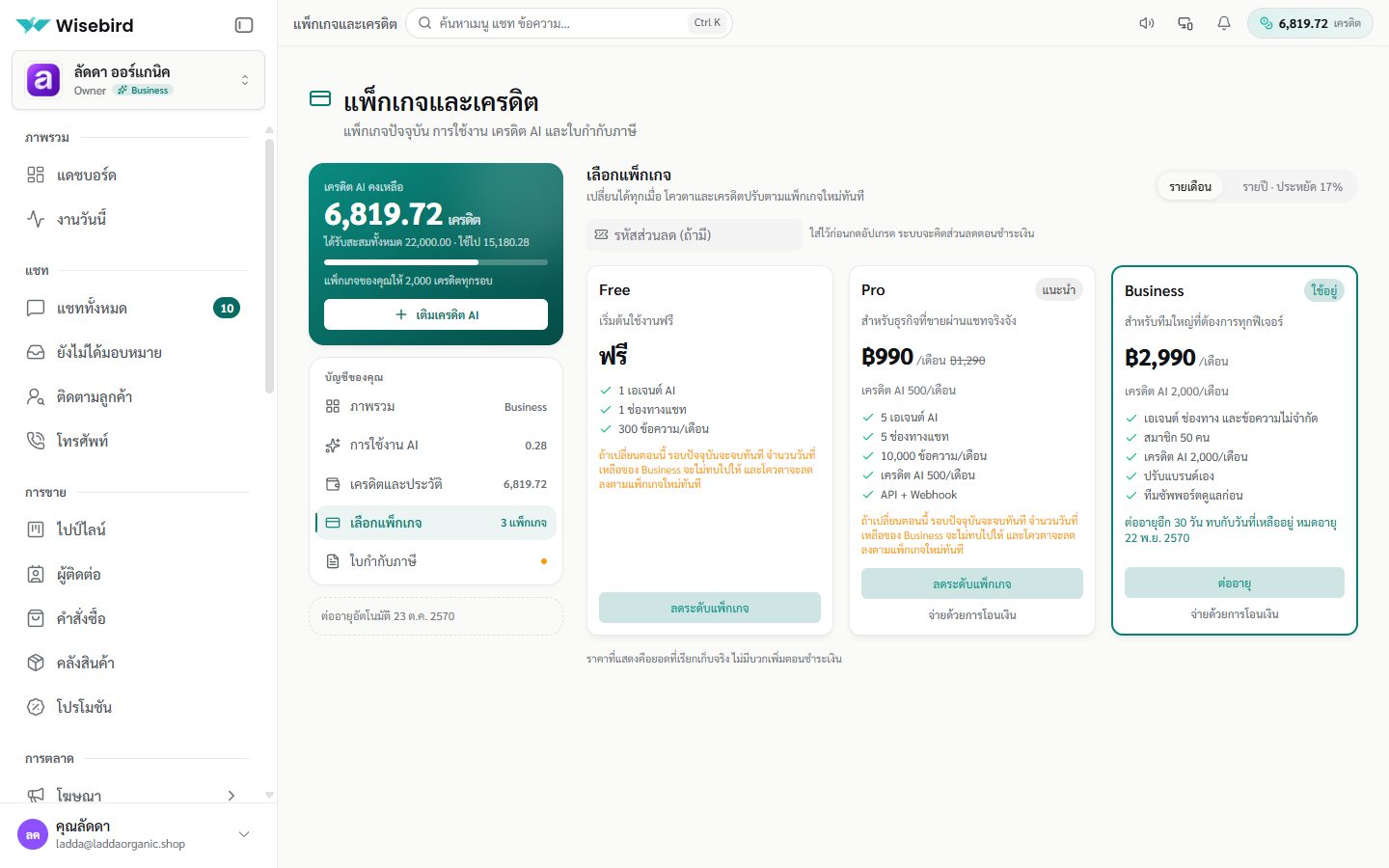
Choose monthly or yearly
The switch at the top right. Yearly costs less (the saving is shown on the button).
Add a discount code (if you have one)optional
Type it in Discount code (optional) before upgrading; the discount is applied at payment.
Press the button under the plan you want
Your current plan has Renew (added to the days you have left). Other plans have an upgrade or Downgrade button, and Pay by bank transfer as an alternative.
Downgrading ends the current cycle at once, the days left are not carried over, and your limits drop to the new plan immediately — read the orange note under the plan first.
05Tax invoice
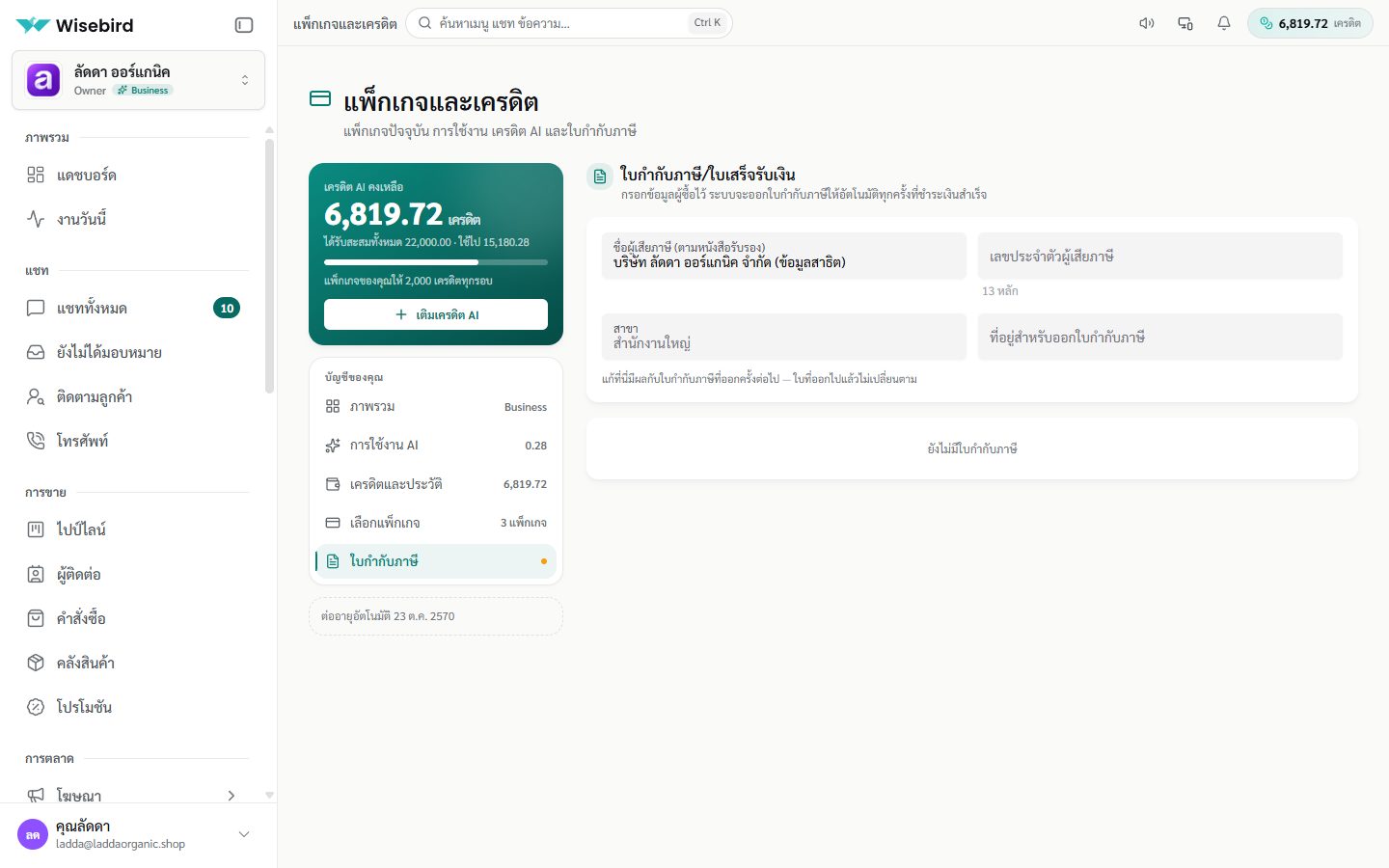
Open Tax invoice and fill in the taxpayer name as registered, the 13-digit tax ID, branch and address. A tax invoice / receipt is then issued automatically for every successful payment, and issued invoices are listed below.