01Reading the board
Open Pipeline under Sales. The Board tab is where the team works every day.
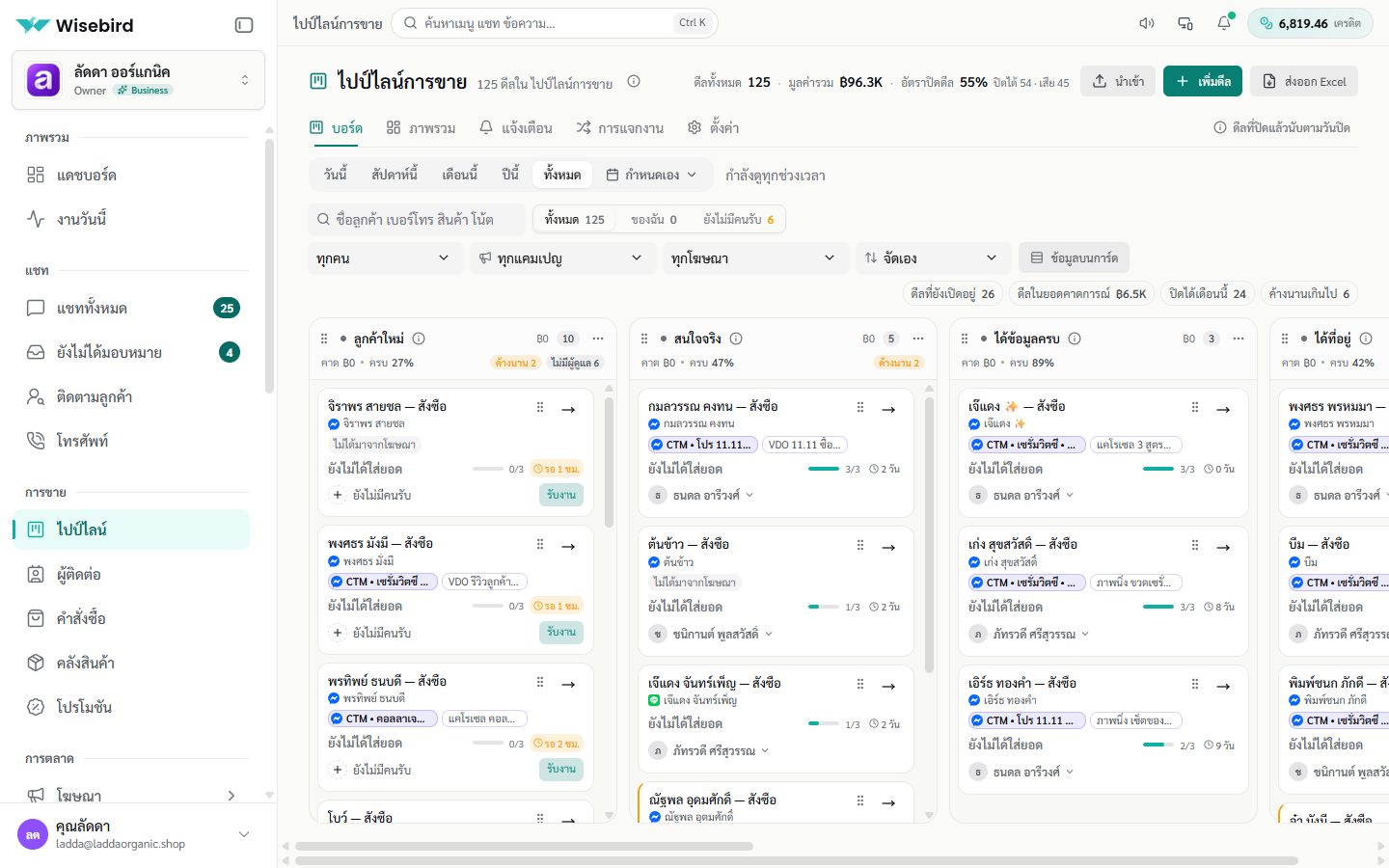
On a card
Deal and customer
With the channel icon (Facebook / LINE) and the campaign/ad the customer came from
On a card
Value and details
The deal value (or "No amount yet") and a bar like 2/3 = required fields filled in
On a card
Days
How long it has been in this stage — turns orange past the stage's limit
On a card
Owner
Who on the team looks after this customer — press to change
- The search box finds one card fast — by customer name, phone, product or note
- All · Mine · Unclaimed split the cards by owner
- Filters for Owner · campaign · ad, and sorting such as oldest in stage or highest value
- The number chips at the top (Open deals · In the forecast · Won this month · Sitting too long) — press one to see only that group
02Working with cards
Move a card to another stage
Drag the card to the column you want, or press the → button at the top right of the card and pick a stage.
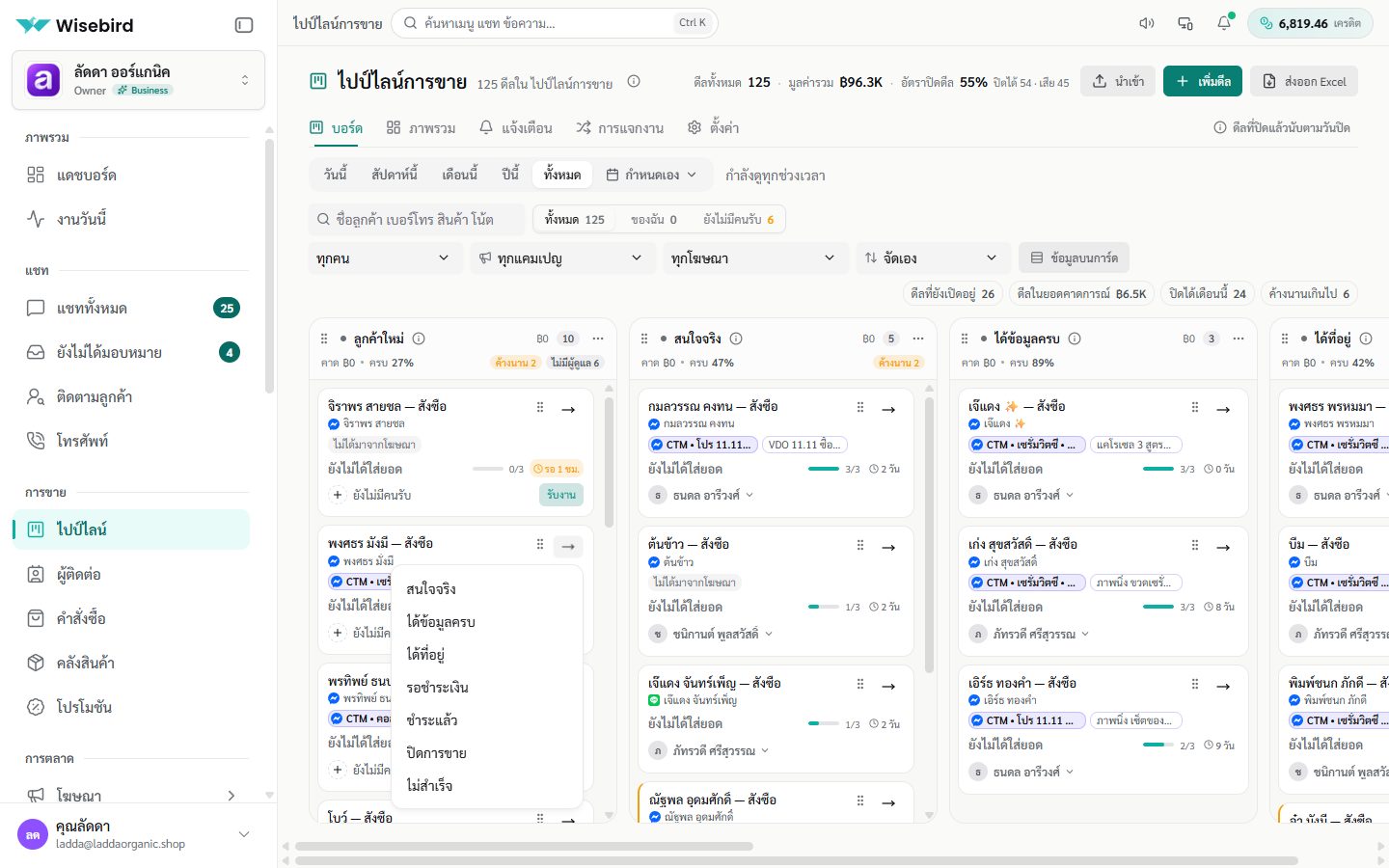
The move menu — Press the arrow on the card, then pick the stage A card you move by hand is marked Moved by hand, and the AI no longer moves that card between stages (it can still fill in its details). If you use AI to move stages, let it work first.Open the deal
Press a card and a small window appears — choose Deal details (or Customer page to go to the contact).
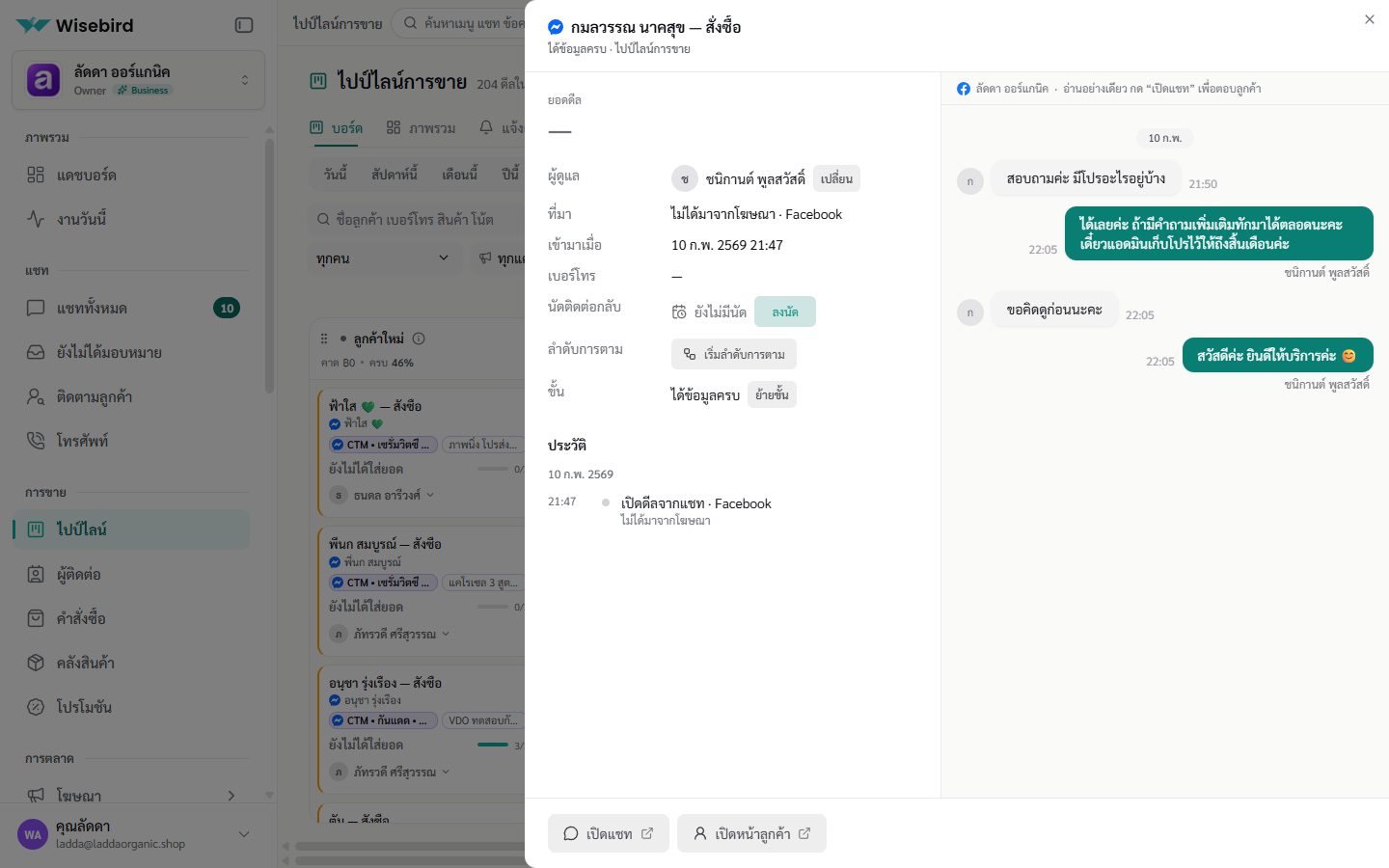
Deal details — Left: the deal and its history. Right: the customer's chat (read-only) - Owner → press Change to hand it to someone else
- Callback → press Set a callback and you are reminded when it is due
- Sequences → press Start a sequence to send follow-up messages in a series
- Stage → press Move stage · the Open chat button at the bottom is for replying
Add a deal yourself
For customers who did not come through chat — they phoned, or walked into the shop — press Add deal at the top right.
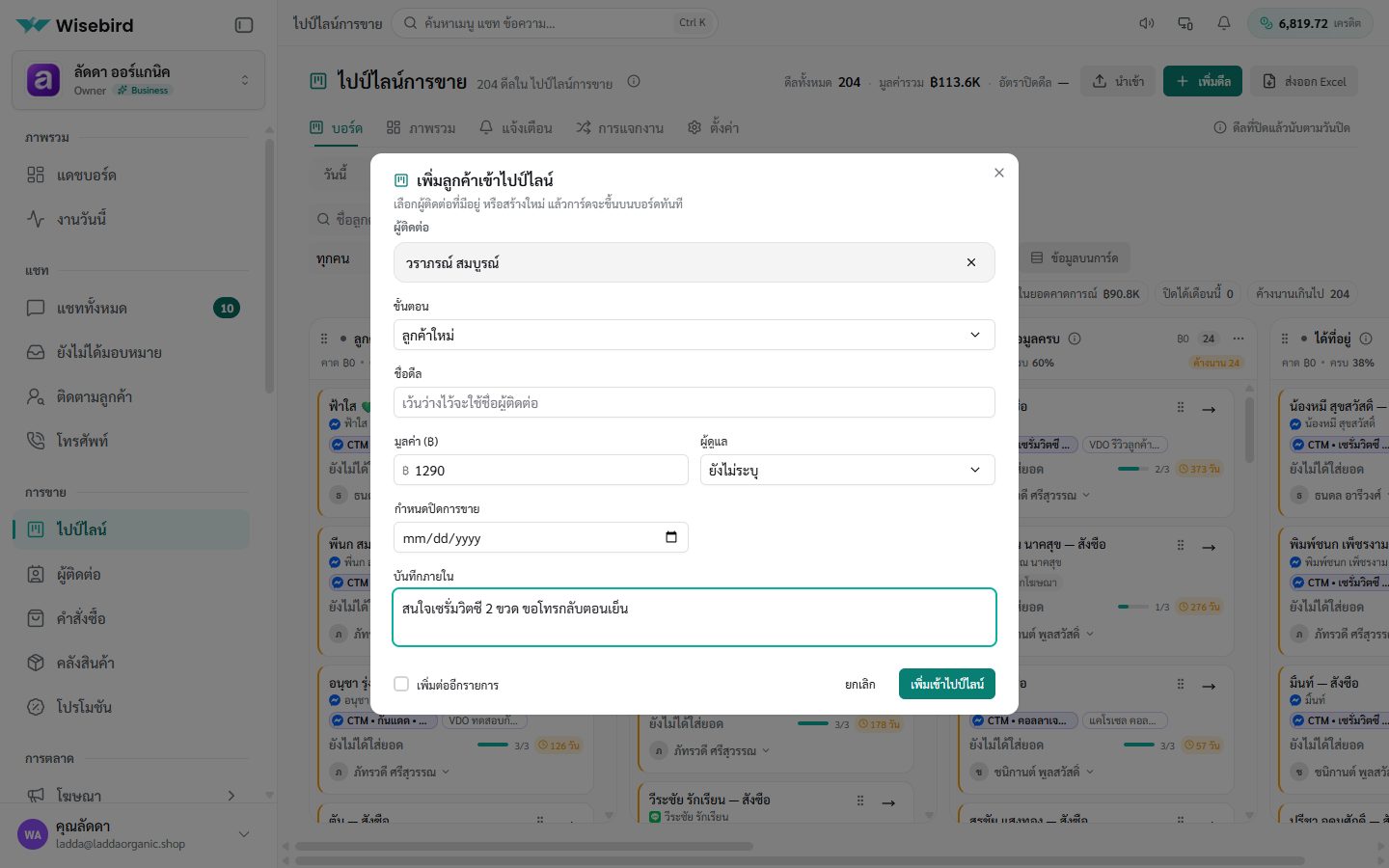
Add a customer to the pipeline — Pick an existing contact or create one, choose the stage, enter the value, owner and an internal note - In Contact, search by name or phone. Not there? Type the name and choose to create a new contact
- Choose the Stage for the card (usually the first one)
- Enter the Deal name (optional), Value (THB), Owner and Expected close date
- Press Add to pipeline — tick Add another after this one to add several in a row
If the customer already has a card in this pipeline (marked "Already on the board"), that card is used instead of opening a second one.
03Set up your sales stages
The Settings tab (owner or admin) has three parts: Know who is messaging you · What to collect from a customer · Sales pipeline.
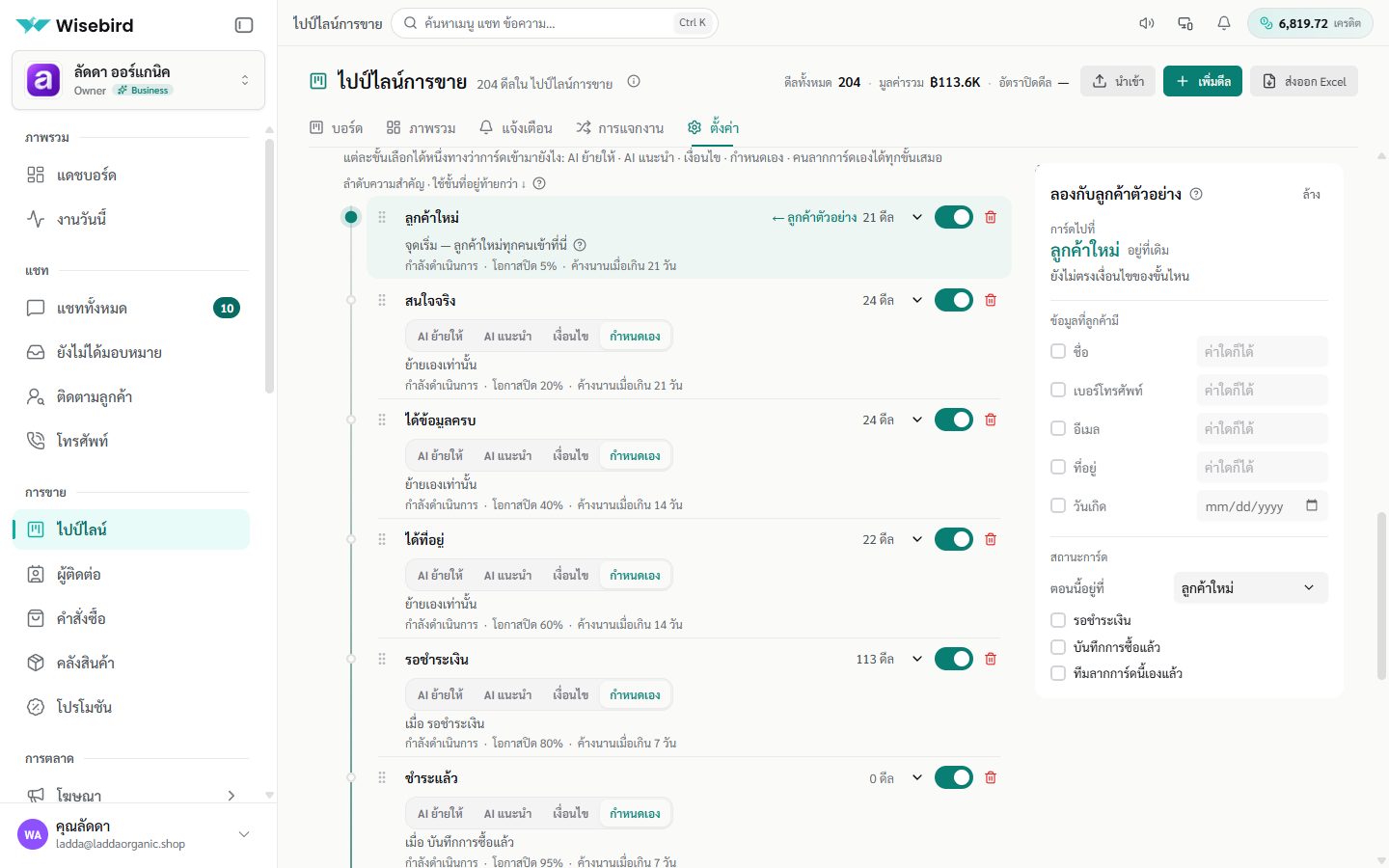
AI moves it
The AI reads the chat and moves the card into this stage itself
AI suggests
The AI proposes the move and someone on the team confirms
Rules
Moves when something happens, e.g. a sale recorded as awaiting payment, or a purchase recorded
Manual
Only the team moves it
any card can always be dragged by hand
- Each stage's chance to close % drives the forecast on the column header
- Overdue after N days makes the card turn orange when it sits too long
- Add new customers to the pipeline automatically gives every new customer a card in the stage you choose as soon as they message (no AI involved)