01What's on the Marketing page
Level 1
Campaign
The big goal, e.g. "Vitamin C serum launch, year end", with a budget and dates.
Level 2
Media
A channel used in the campaign, e.g. Facebook or a fair booth, each with its own budget.
Level 3
Activity
What actually happened, with numbers: spend, leads, impressions, clicks and dates.
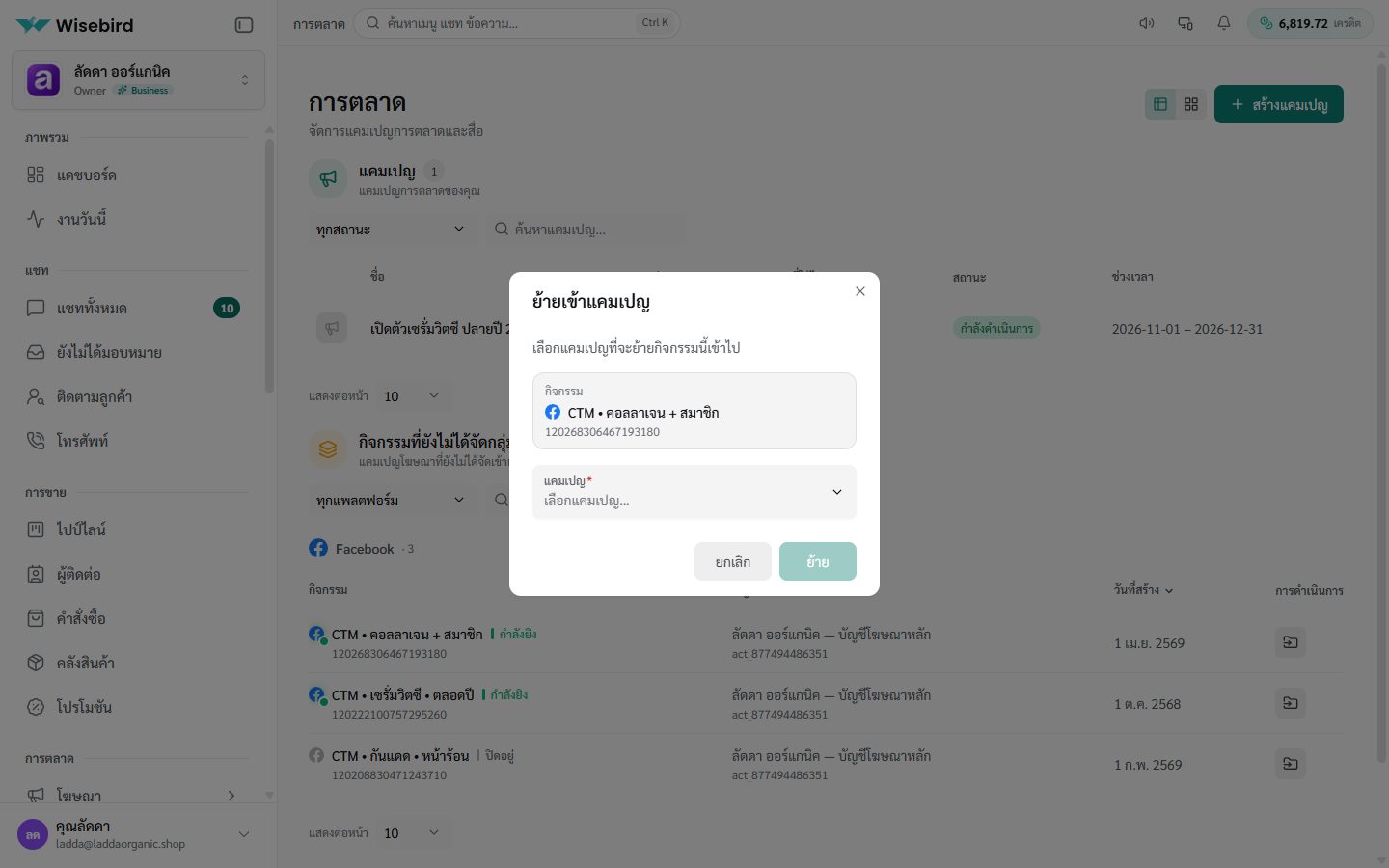
Switch between table and card view at the top right, filter by status or search by name.
02Create a campaign
Press "Create campaign" and fill it in
Enter the campaign name (required), a description, the budget and the start / end dates. Add a cover with the upload button, then press Create campaign.
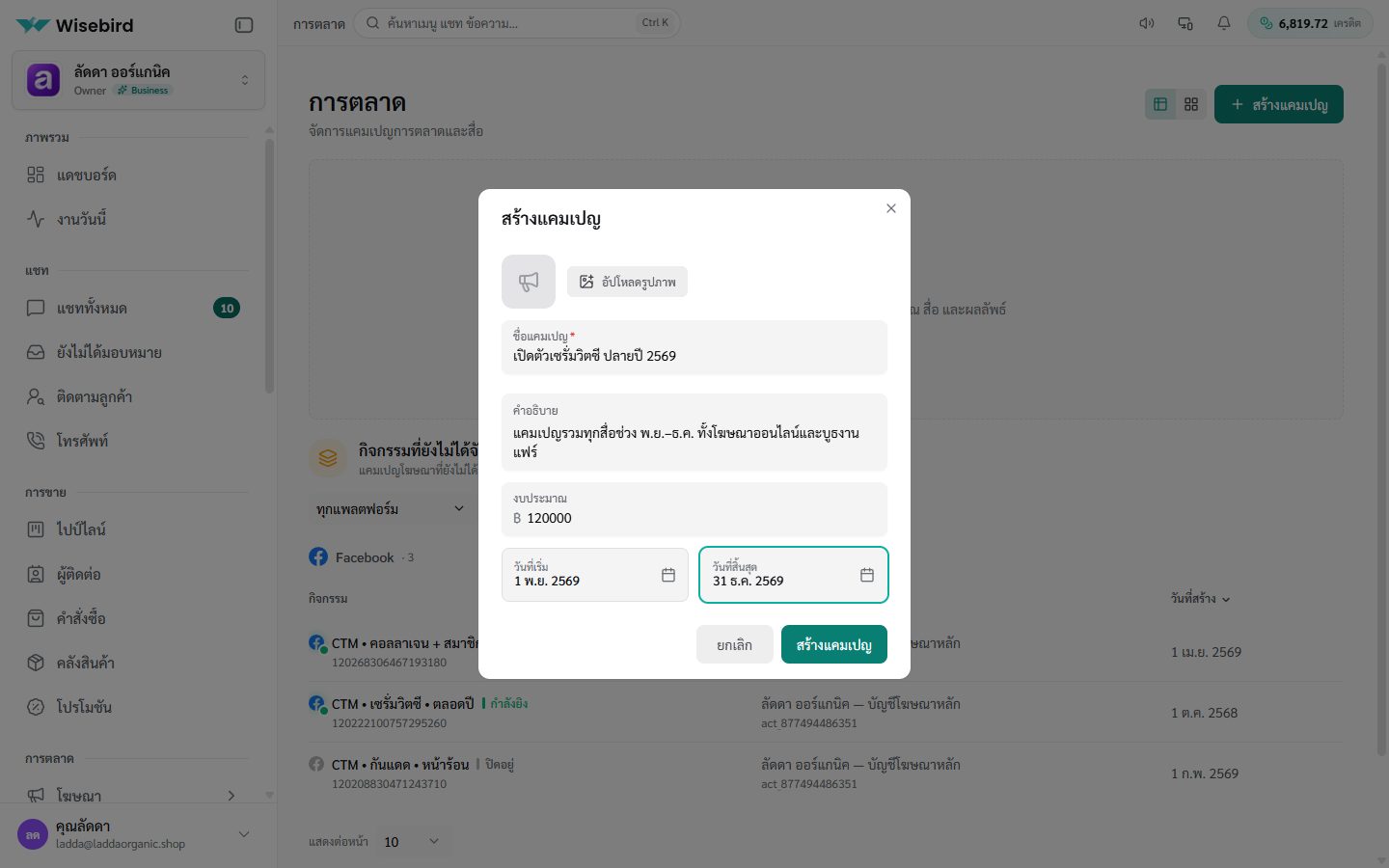
Create campaign — A 120,000-baht campaign running November–December Click the campaign name to open it
The campaign page shows spend against budget plus total spend, leads, impressions and clicks; below are its media and agencies.
03Add media and activities
Press "Add media" and choose where it comes from
Ads run on Facebook / TikTok
Choose "From a platform" and tick the ungrouped ad campaigns
numbers come from the platform and cannot be edited
Billboard, influencer, print, radio, TV, event
Choose "Enter manually" and enter the numbers
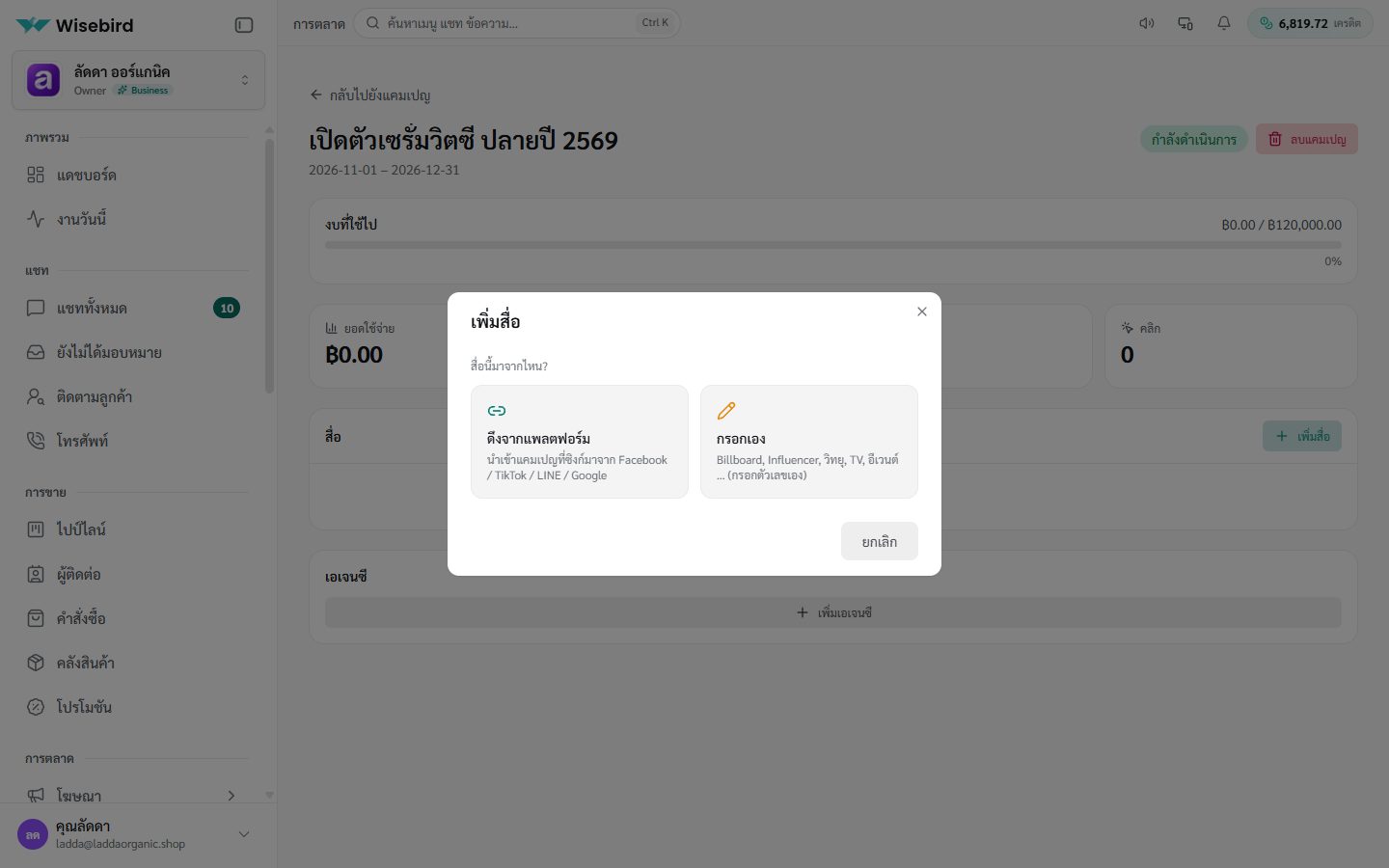
Where does this media come from? — The two choices in the Add media window Fill in a media yourself
Choose a category, then enter the media name, media budget and type (online / offline), and press Create + add activity.
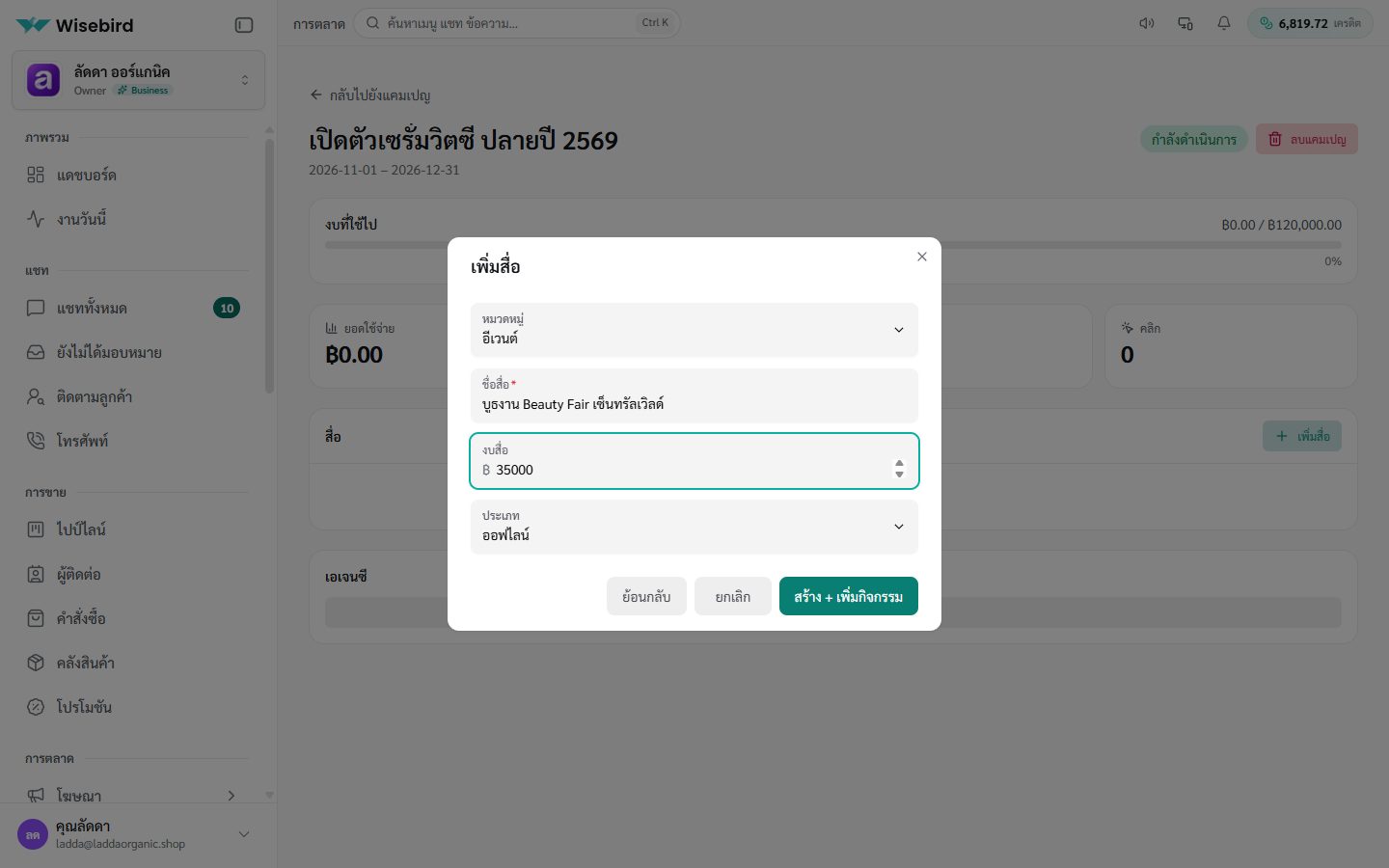
Media filled in by hand — A Beauty Fair booth, category event, budget 35,000 baht Add its first activity
Enter the activity name, budget, spend, leads, impressions, clicks and start / end dates, then press Add activity. Media and campaign totals add up from the activities.
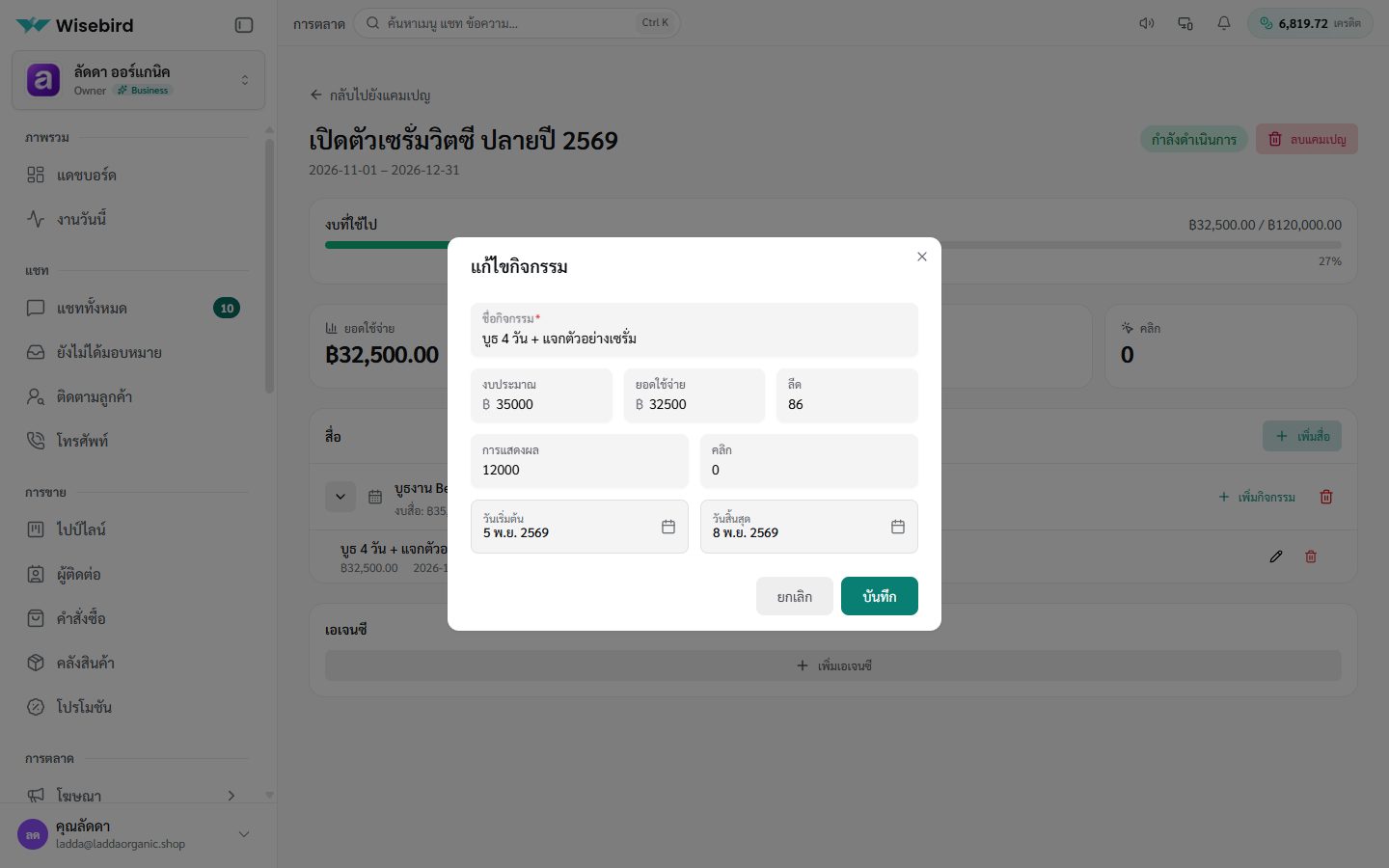
Activity details — Edit later with the pencil next to the activity A hand-filled media must keep at least one activity. To remove the last one, delete the whole media instead.Check the campaign
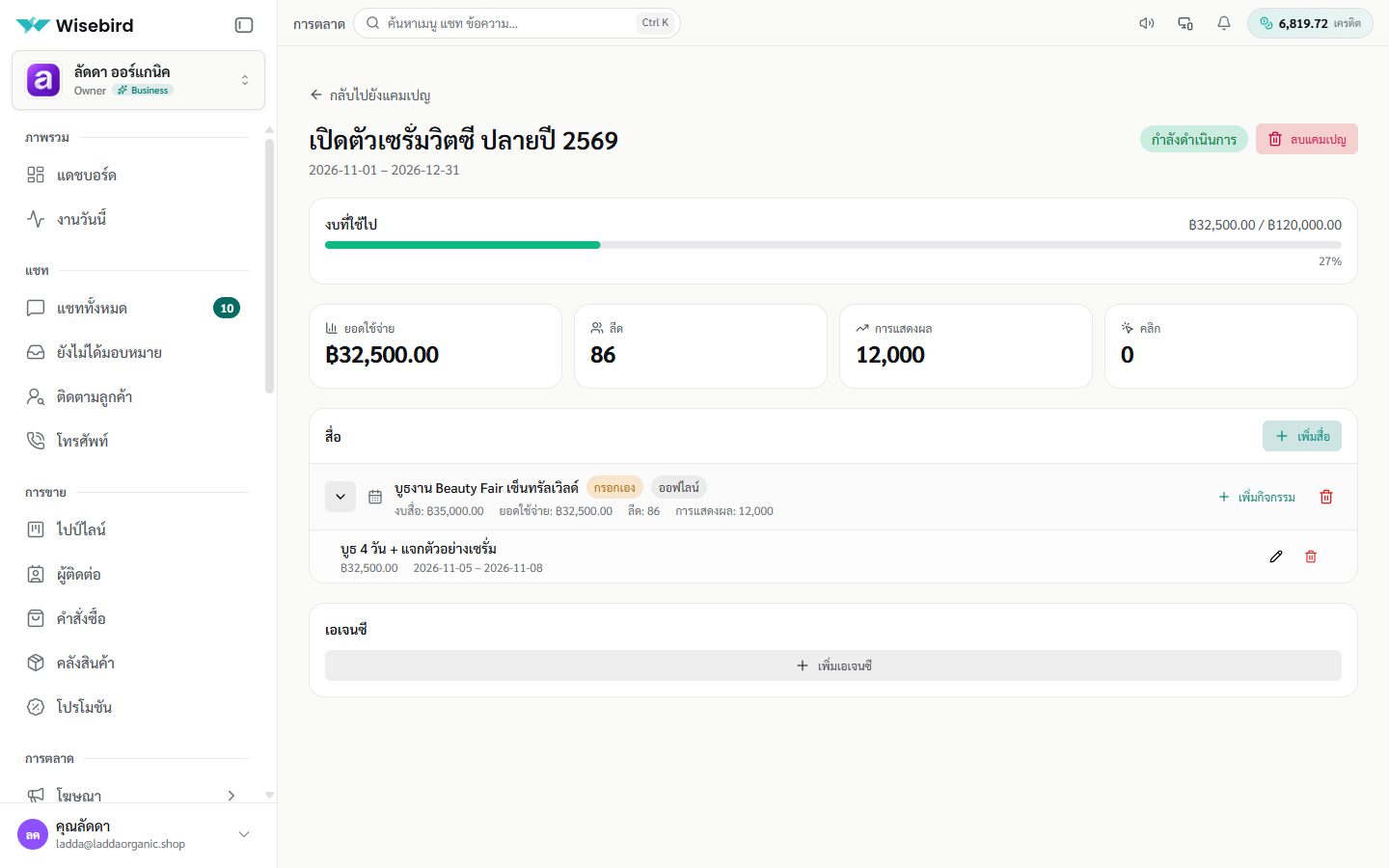
Campaign after adding media — The budget bar moves with the spend of every activity; press the arrow before a media to see its activities If an agency runs the campaign, press Add agency at the bottom to note it.
04Place ads that are in no campaign yet
Ungrouped activities on the Marketing page are ad campaigns pulled from your ad accounts that are not yet in any marketing campaign.