01How duplicates are found
Contacts are grouped when they share a phone number (081-234-5678 and +66 81 234 5678 count as the same number) or an e-mail, backup ones included, however it arrived — a chat, an ad form, an import, or your team typing it in later.
- A matching name alone does not count — too many people share names
- A number on more than 10 contacts (such as the shop's own number) is not used for grouping
- Nothing is merged automatically — a person always checks and confirms
02Merge duplicates
Choose the main contact and the ones to merge
On Contacts, press the orange Merge candidates button at the top right (a red number on its corner shows how many groups are waiting). Each card shows what the contacts share, the channel each came through, and when it was added.
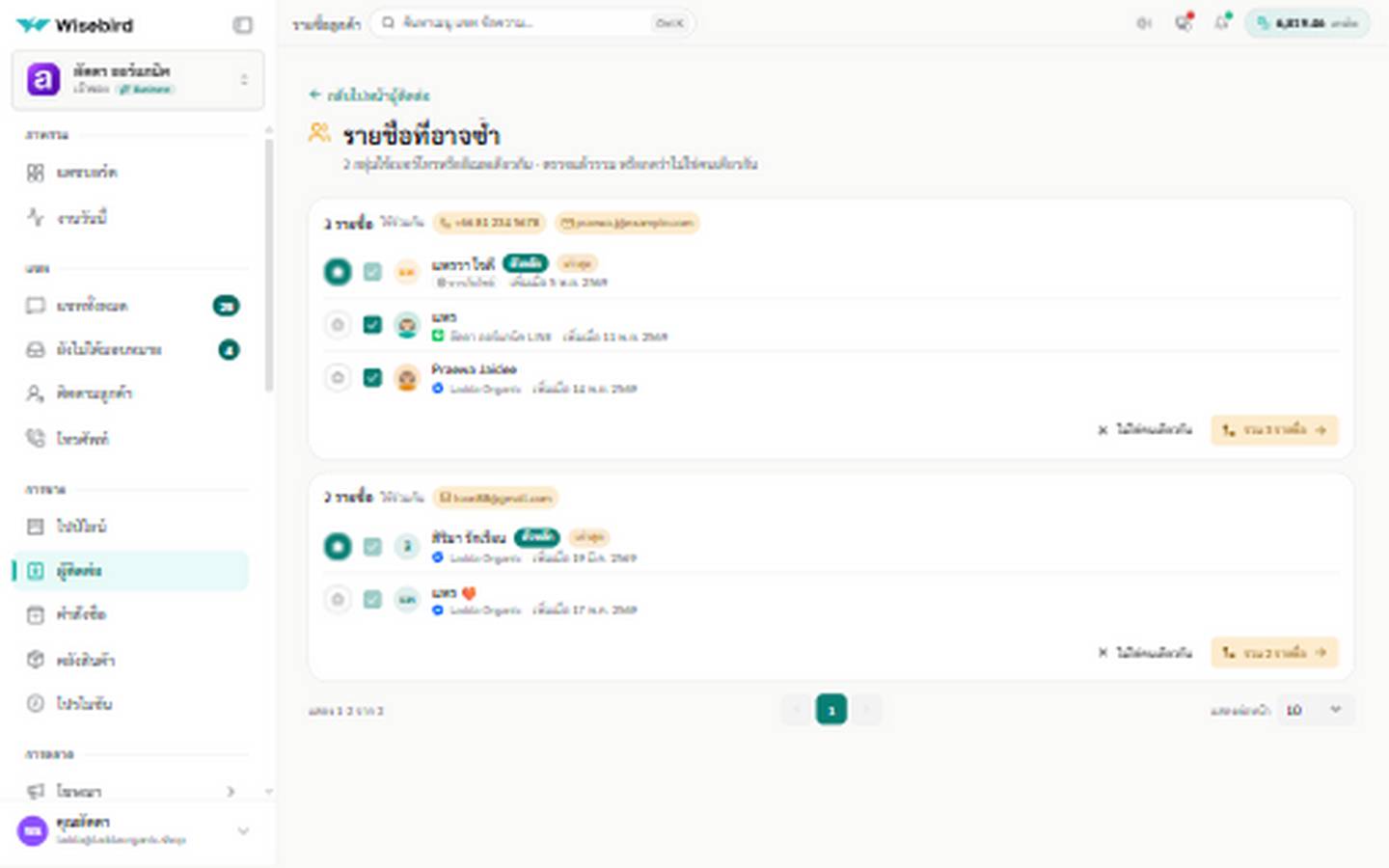
A group in Merge candidates — Press ★ to choose the main contact, tick ☑ the ones to merge, then press "Merge N contacts" - ★ The main contact is the one that stays; links and connected systems keep using it. By default it is the oldest
- ☑ can be unticked if someone in the group is a different person (at least 2 must remain)
Pick the value to keep in each field
The Merge duplicate contacts page shows one column per contact. Press the value you want to keep — name, phone, e-mail, address, owner. The chosen one is marked Keep. Change the main contact with Make main on a column header, or add another contact by searching.
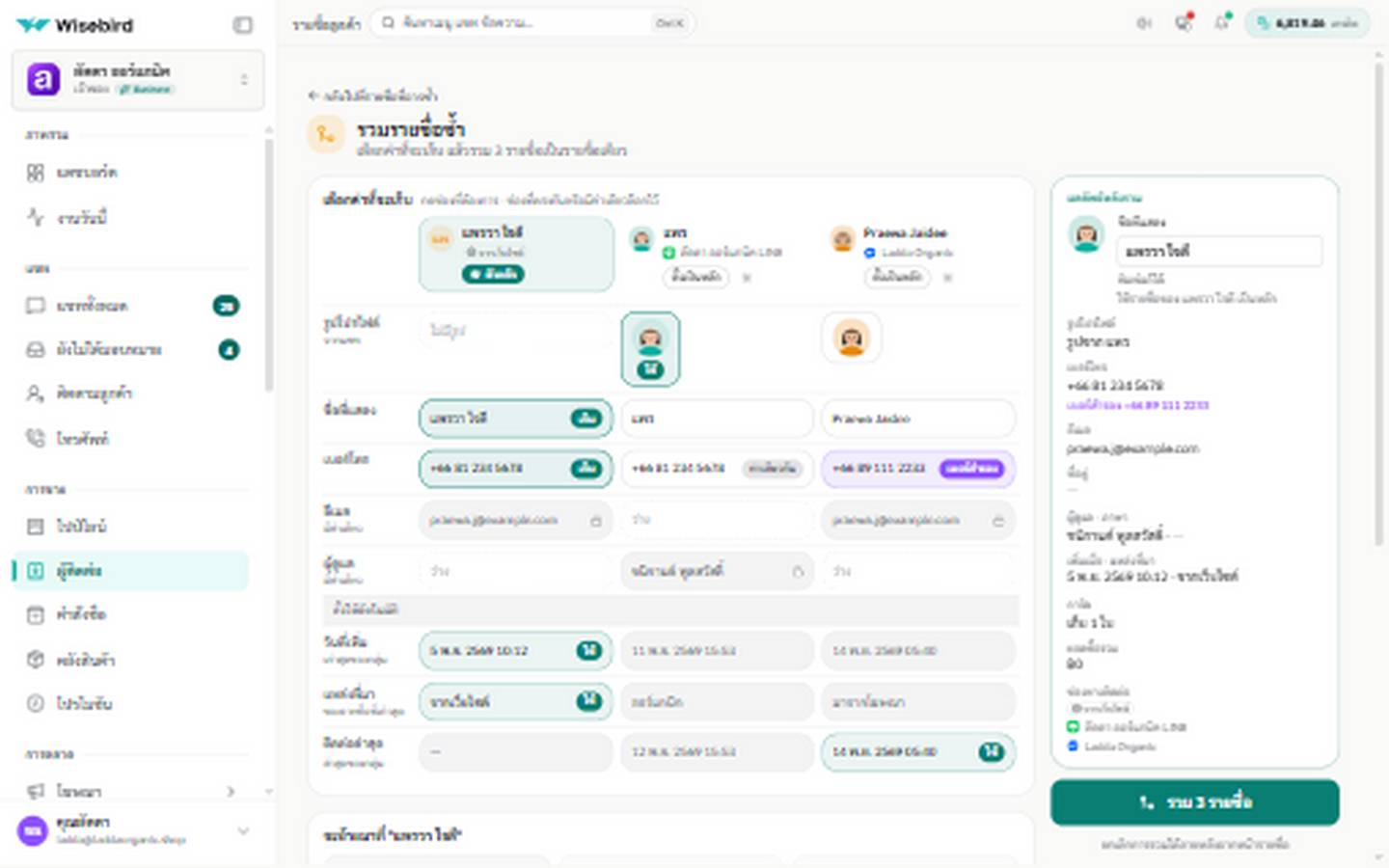
The pick table — Fields that match or exist only once are locked. A phone you did not pick is marked "Backup phone" - Phones and e-mails you did not pick are not lost: they become backup phones / e-mails, are searchable, and match new chats
- Date added and source always come from the oldest contact, since the others arrived later
- Last contacted comes from the most recently contacted one
- Profile picture (top row): pick the chat picture of any of the contacts (website and imported contacts have none). It follows the customer when they change their picture in that app
- Name: type a new one in the result panel on the right before merging. A typed name is never replaced by a name from a chat
Choose the pipeline card to keep
If the group has more than one open card in the same pipeline, one is kept — by default the one at the farthest stage; you can pick another.
- The cards not kept are hidden: not on the board and not counted in any total or report
- Hidden cards can be opened from the merge's Details
- Closed cards (won or lost) move as history; nothing to choose
Check the result and merge
The panel on the right (at the bottom on a phone) shows the contact after the merge, and Moves to … counts the chats, notes, purchases, follow-ups and call-backs that move. Press Merge N contacts, then Merge.
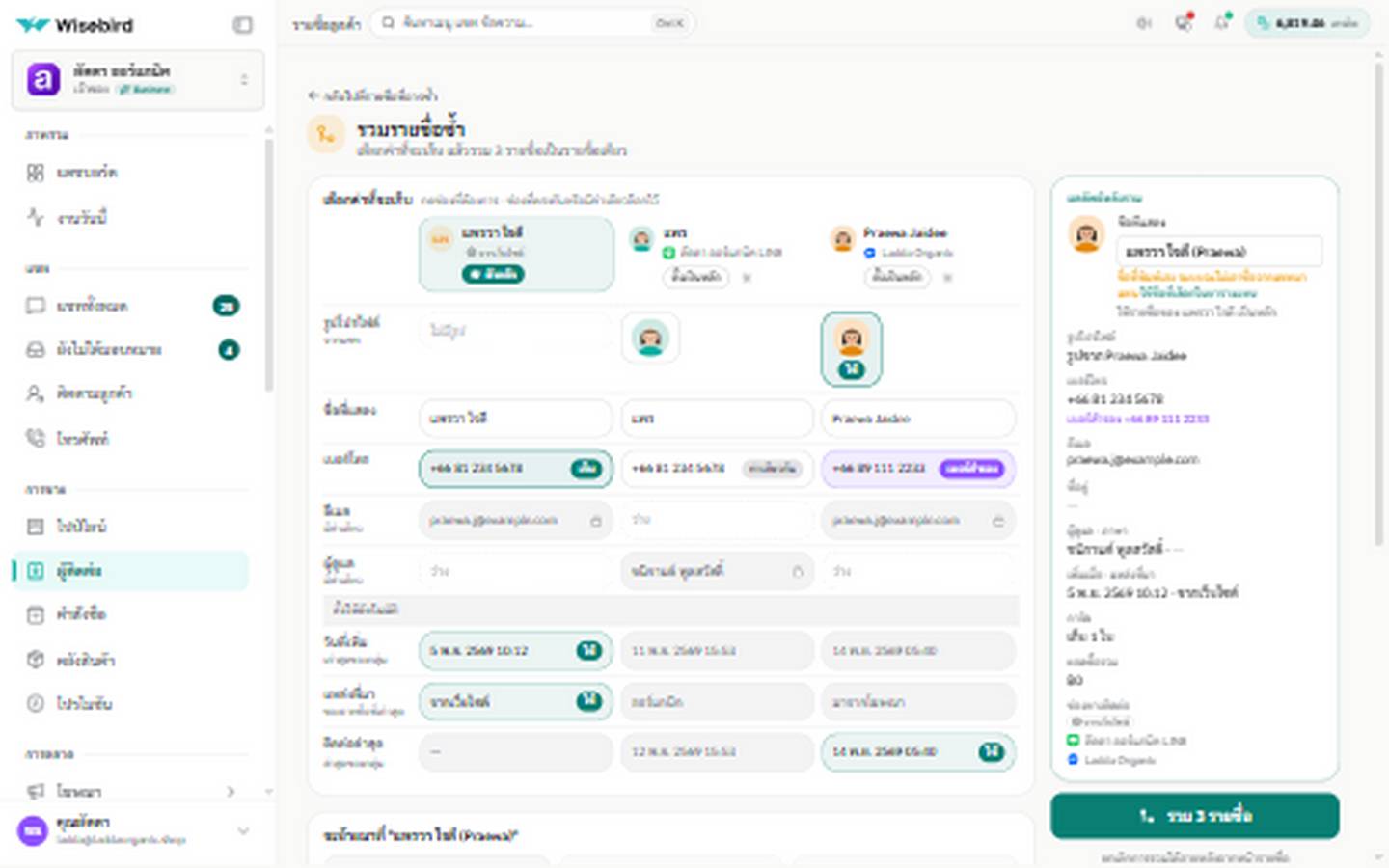
Result after merging — The result panel follows your choices as you make them: the picked picture at the top left, and the name you can type over Merged contacts are not deleted — they are hidden from the list and come back if you undo the merge.
03Undo a merge
The main contact's page shows a Merged N contacts into this one banner. Press View details to see who was merged, which values changed, what moved and the hidden cards, or Undo merge to split them again.
- The merged contacts come back as they were, with their own chats, notes, purchases and cards; hidden cards return to their stage
- The main contact's values go back to what they were before, except fields someone edited after the merge (the edit stays)
- Things added after the merge, such as a new note or purchase, stay on the main contact — there is no way to tell whose they were
- If the main contact was later merged into someone else, undo that later merge first
04If they are not the same person
For example a parent and child sharing a phone, or staff typing the shop's e-mail for several customers: press Not the same person on that group's card and it leaves the list. If only some of the group are different people, untick ☑ them and merge the rest.