01Create an API key
Open Settings, API keys tab (only people with developer permission see it). The table lists every key with its permissions, creation date and status.
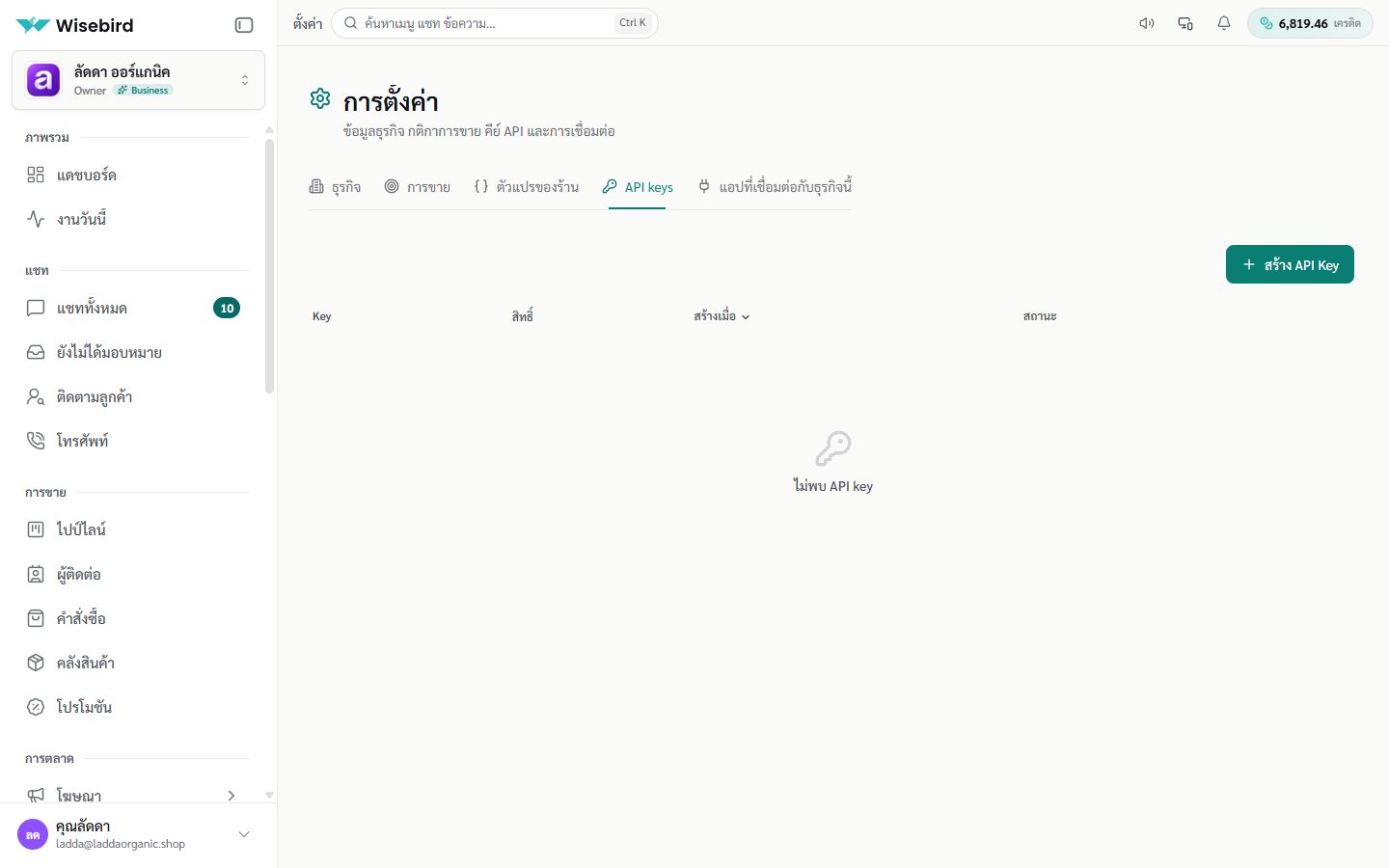
Press "Create API Key" and name it
Use a name that says which system uses it, e.g. "Shop POS", so you know which key to delete when you stop using that system.
Choose an expiry
Choose 30 / 60 / 90 / 365 days, or no expiry.
The expiry can only be set when the key is created — it cannot be changed later.Choose the key permissions
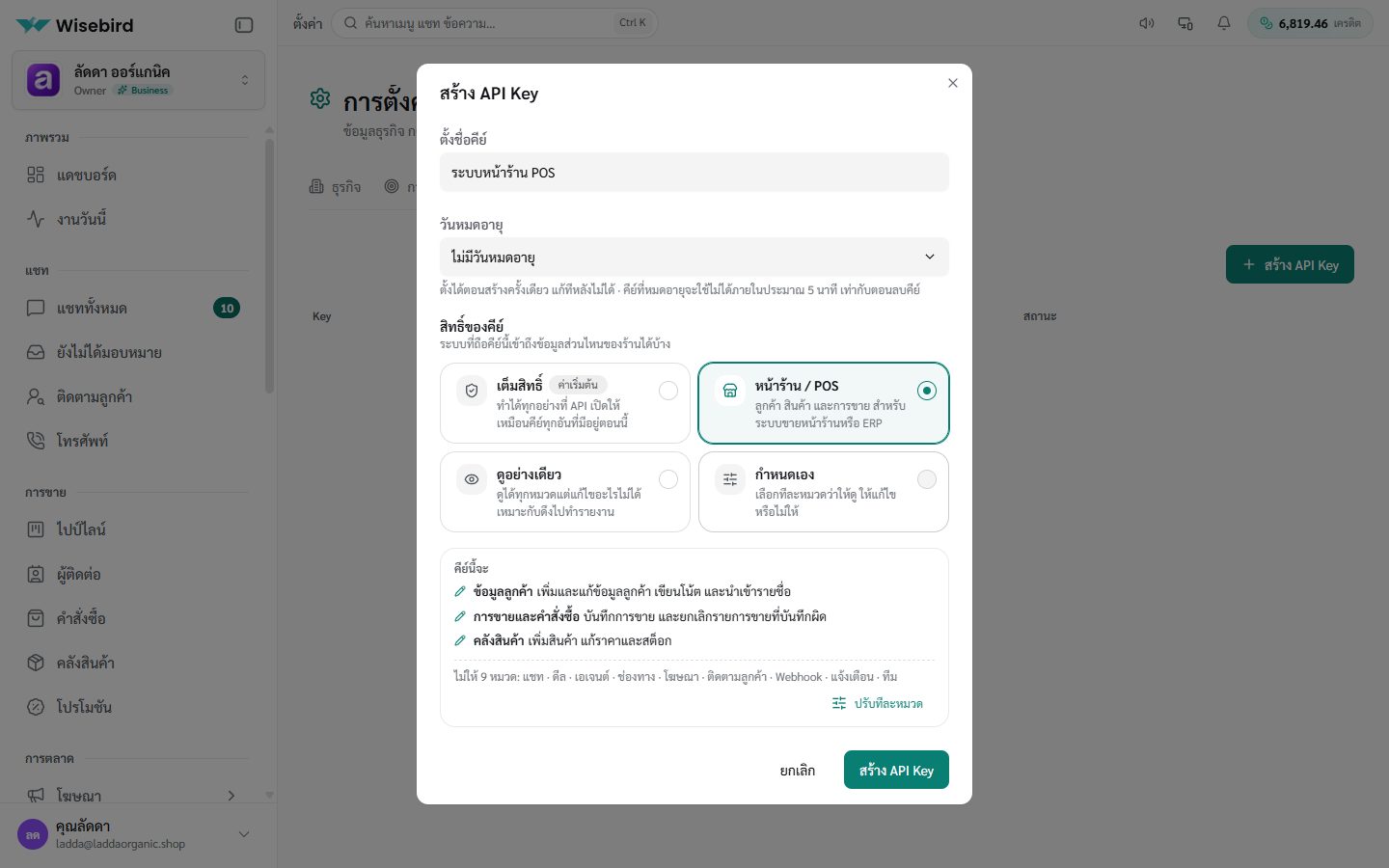
Create API Key — "Storefront / POS" selected; the box below sums up what this key can and cannot do Full access
Everything the API allows, including reading channel access tokens and adding members
the default
Storefront / POS
Contacts, products and sales — for a point-of-sale or ERP
View only
Read every area but change nothing — good for reporting
Custom
Choose view, edit or none for each area
"Edit" on Channels lets the key take your LINE and Facebook access tokens — whoever has a token can message customers as your shop without Wisebird. Only give it to a system that truly needs it.Press "Create API Key" and copy the key at once
The key starts with fak- and is shown only this once. Wisebird stores only a hashed copy and cannot show it again; if you lose it, delete it and create a new one.
Keep the key on your server only, e.g. in an environment variable. Never put it in website or mobile-app code — anyone who sees it can use your shop's data.
02Manage existing keys
- Edit permissions — change what the key may reach; it applies to the next request, and removed areas answer 403
- Disable / Enable — pause a key without deleting it
- Rename and Delete Key — deleting cannot be undone; systems using the key lose access
03Calling the API
Every endpoint shares one base address, sends and receives JSON, and a key only ever sees its own business's data.
Base URL
https://wisebird.cloud/api/external/v1
Add the endpoint, e.g. /conversations, /contacts, /deals.
Authentication
Authorization: Bearer fak-…
Or the X-API-Key: fak-… header if Authorization is used for something else. Never put the key in the query string.
A good first request: GET /conversations?limit=1. A 200 response means the key works.
04The Developer page and live requests
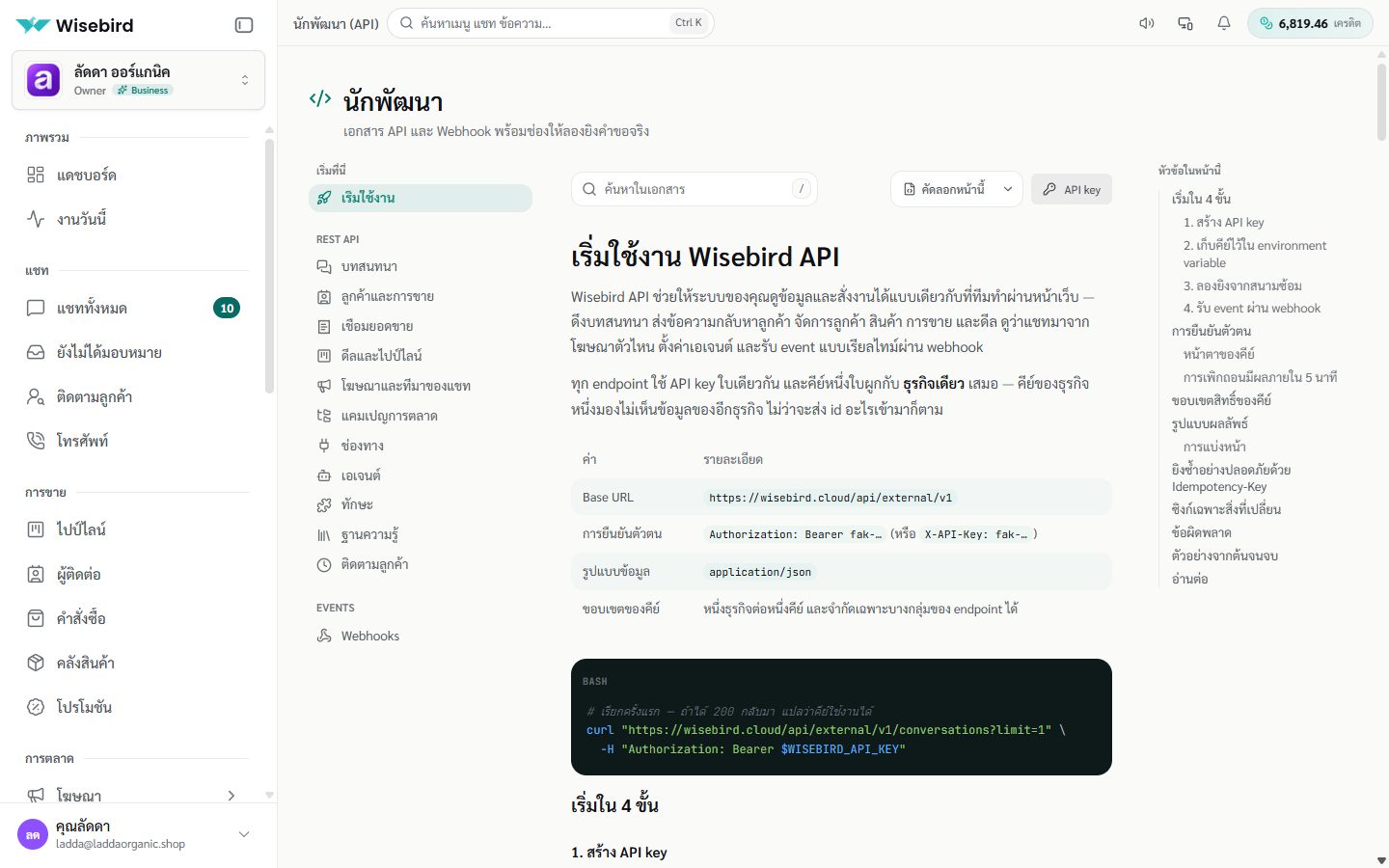
The Developer page documents every area of the API — conversations, contacts and sales, sales feeds, deals and pipeline, ads and chat sources, agents, knowledge, and Webhooks.
- Search the reference — press / to search quickly
- Copy page — paste it to your developers or an AI that helps write code
- API key — paste a key here to use with live requests on this page
Press "Try it" on an endpoint
Every endpoint has a Try it button. A panel opens on the right with that endpoint's parameters; switch endpoint from the box at the top of the panel.
Paste your key, fill in values, press "Send request"
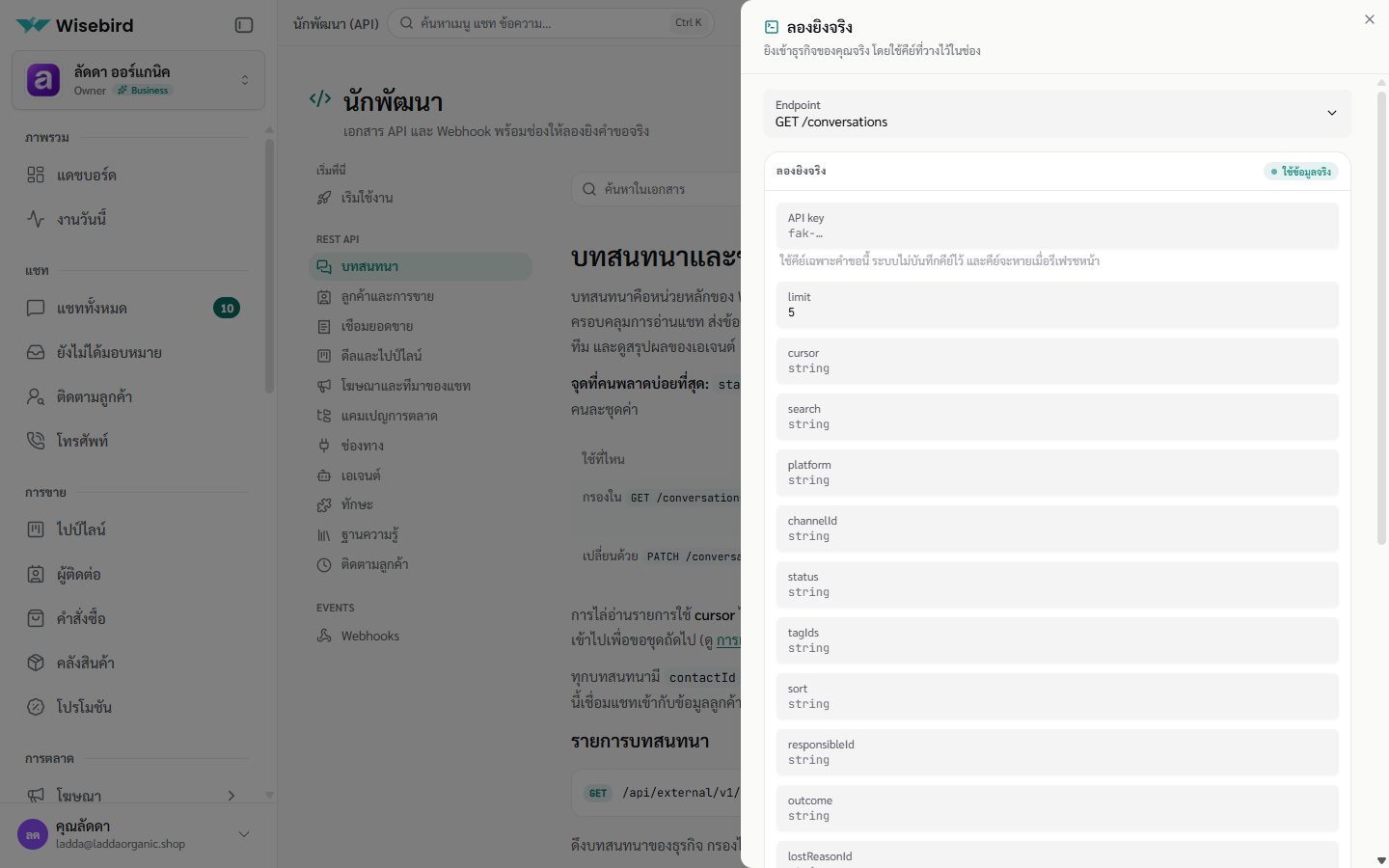
Live request panel — API key box, parameters, the send button and sample code in cURL / TypeScript / Python Requests hit your business for real — endpoints that change or send data really do. The pasted key is used for this request only, is not saved, and is gone when you refresh.