01The Sales journey page
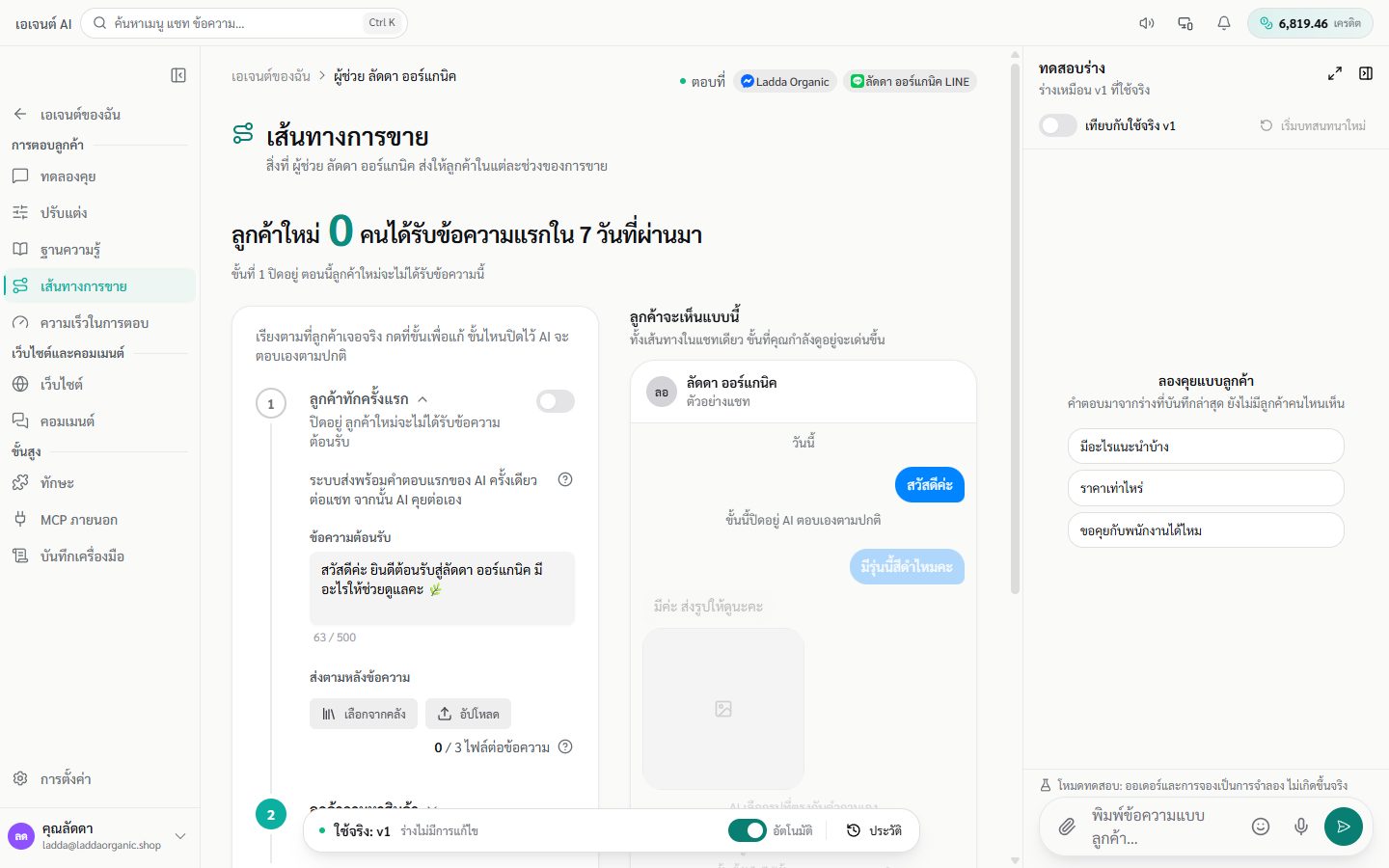
On the left, the moments in the order customers meet them, each with an on/off switch. On the right, What the customer sees shows the whole journey as one chat, with the moment you are viewing highlighted.
02Welcome message and products
Set the welcome messageCustomer messages for the first time
Type the Welcome message (up to 500 characters), and attach pictures or a video to send after it with From the catalogue or Upload. Then switch the moment on.
- It is sent with the AI’s first answer, once per chat — never again even if the customer comes back
- Customers who chatted with the shop before you turned this on don’t get it
Choose the products the agent works withCustomer asks about a product
The AI answers product questions, prices them and attaches pictures from the products in this scope.
Products
The whole library
The default — every folder
Products
Only the folders I pick
For shops selling different things on different Pages, or separate retail and wholesale agents
Products
Do not send product photos
Text only; files in other moments and the payment QR are still sent
Under When the customer hasn’t said what they want, choose Offer the products on my list · Let the AI pick from the library · Answer only what the customer asks.
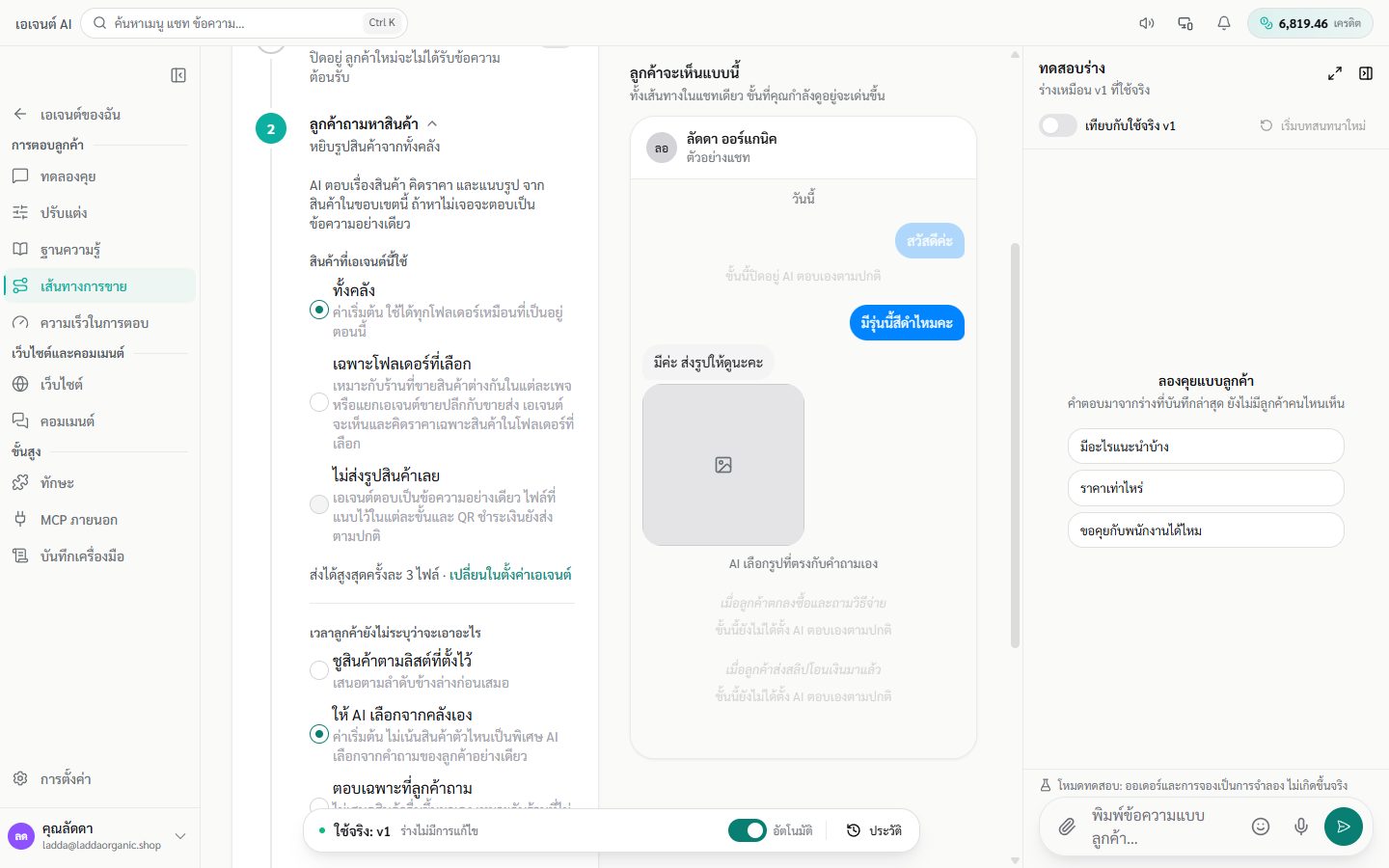
The "Customer asks about a product" moment — The product scope and how products are offered; files per message can be changed in the agent settings
03Message sets for payment, slips and your own moments
Customer is ready to pay and Customer sent the slip are ready to fill in, and Add a moment creates a situation of your own, such as "customer asks how to measure their size".
Name the moment and choose when it sends
The AI reads the situation
Describe it as you would to shop staff, e.g. "the customer agrees to buy and asks how to pay"
the AI matches it against the chat
The customer types a word
Enter words customers tend to type, e.g. "how to transfer", "account number"
Chain message, picture and video blocks
Press Add message · From the catalogue · Upload, and reorder with the up and down arrows. The customer receives one block at a time from top to bottom, every message word for word.
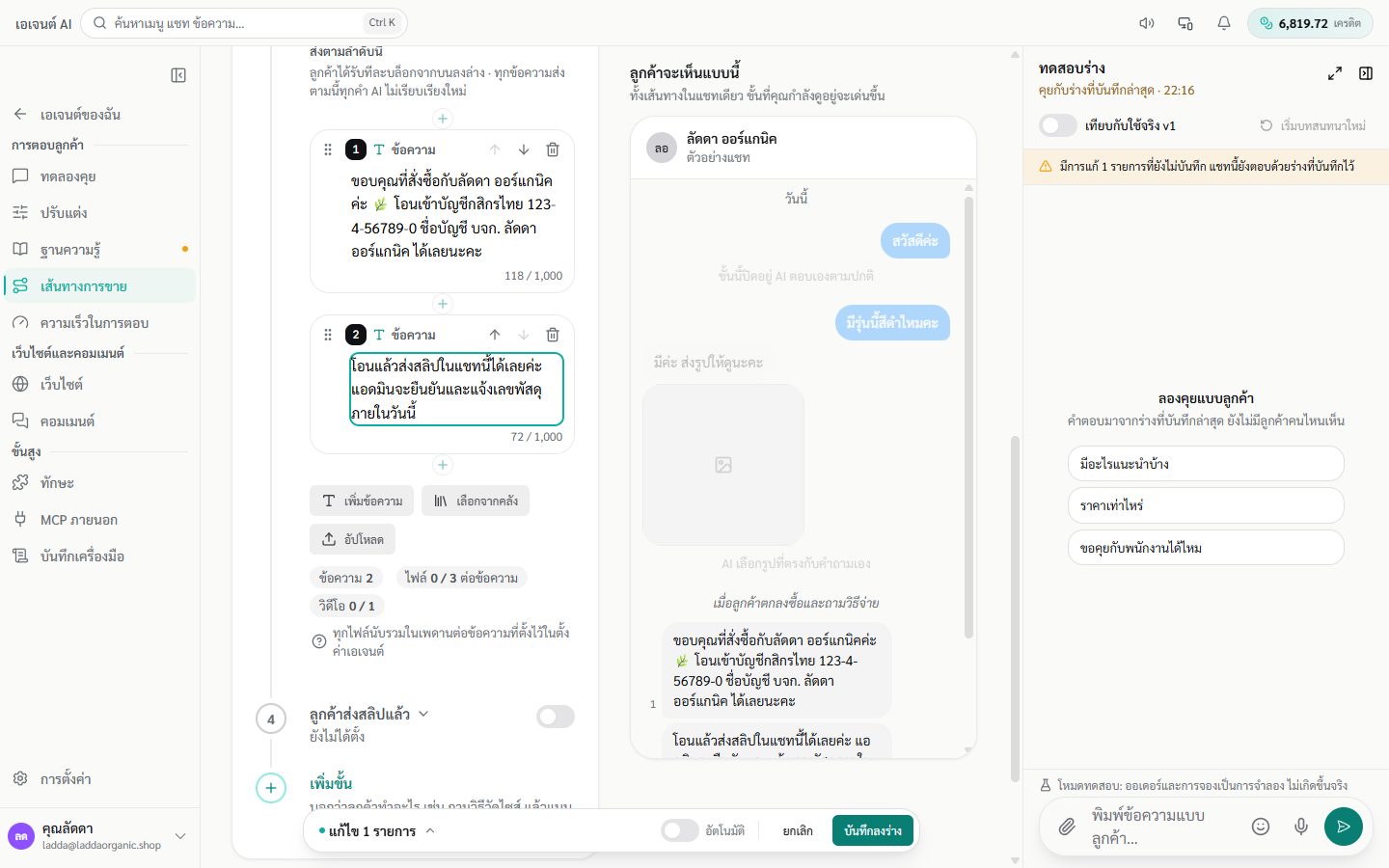
The message set of "Customer is ready to pay" — Two message blocks in order (the account number is an example); on the right, how the customer will see them - A message block can be up to 1,000 characters
- Files count towards the agent’s "Pictures per reply" limit
- A video must be mp4, at most 20 MB, one per moment · TikTok can’t receive video · LINE needs a cover picture, taken automatically on upload
Switch the moment on, then publish
Switch the moment on, try it like a customer in the Test draft panel on the right (e.g. "I’ll take it, how do I pay?"), then press Publish in the bottom bar.
Account numbers, QR codes and texts in these moments reach customers exactly as typed. Check them before publishing.