01What is on this page
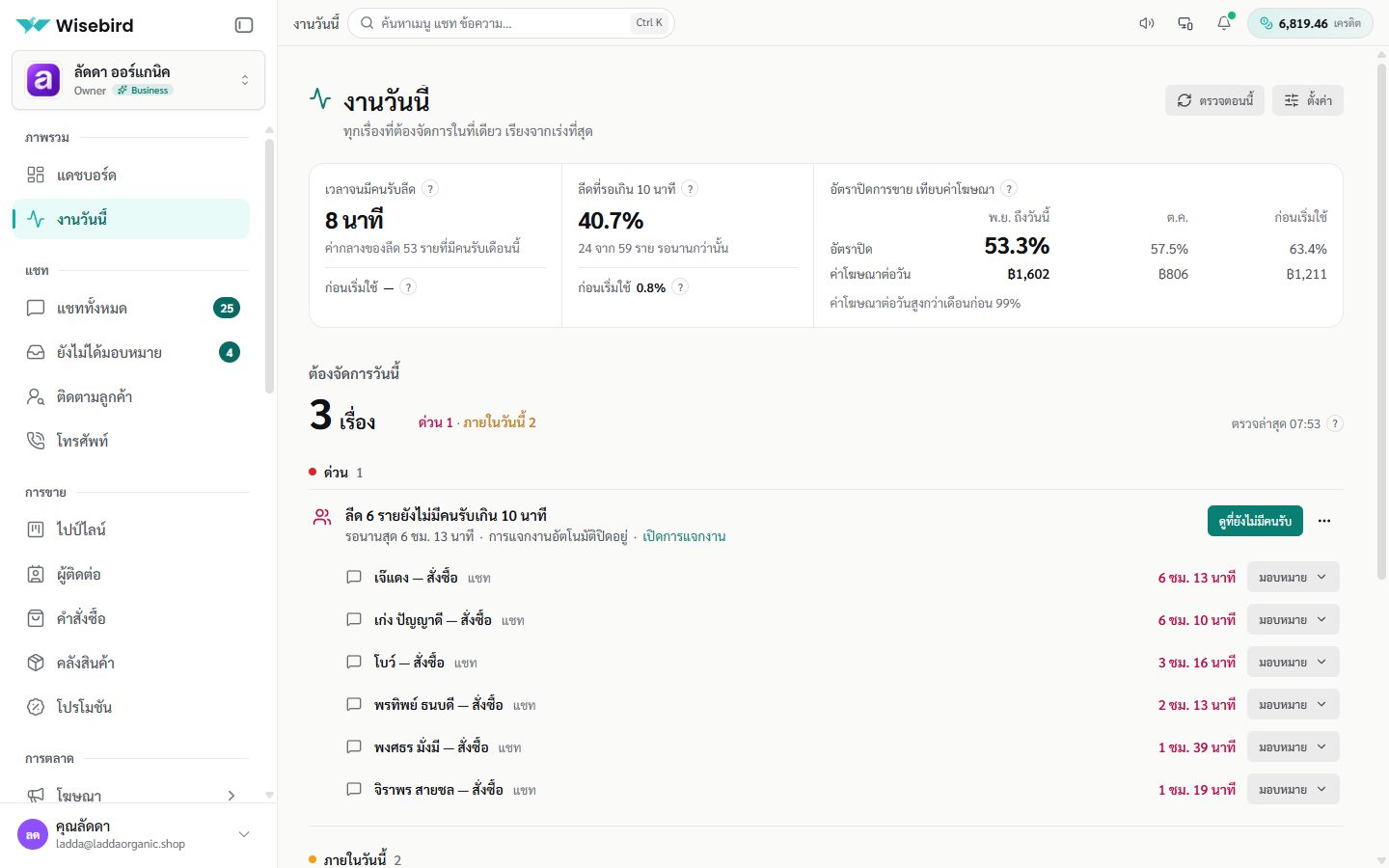
Measure
Time until a lead is taken
The median time from a lead arriving to someone taking it (or the system assigning it), this month.
Measure
Leads waiting too long
The share of this month's leads nobody took within your limit (10 minutes by default).
Measure
Close rate vs ad spend
This month so far against last month, with ad spend per day, so you can tell whether a change came from the budget.
The Before launch box is the 30 days before your shop started taking or assigning leads in Wisebird — use it to see how much things improved. Under "Time until a lead is taken" that box always reads —, because nothing timed lead claims before then.
02Work through today's list
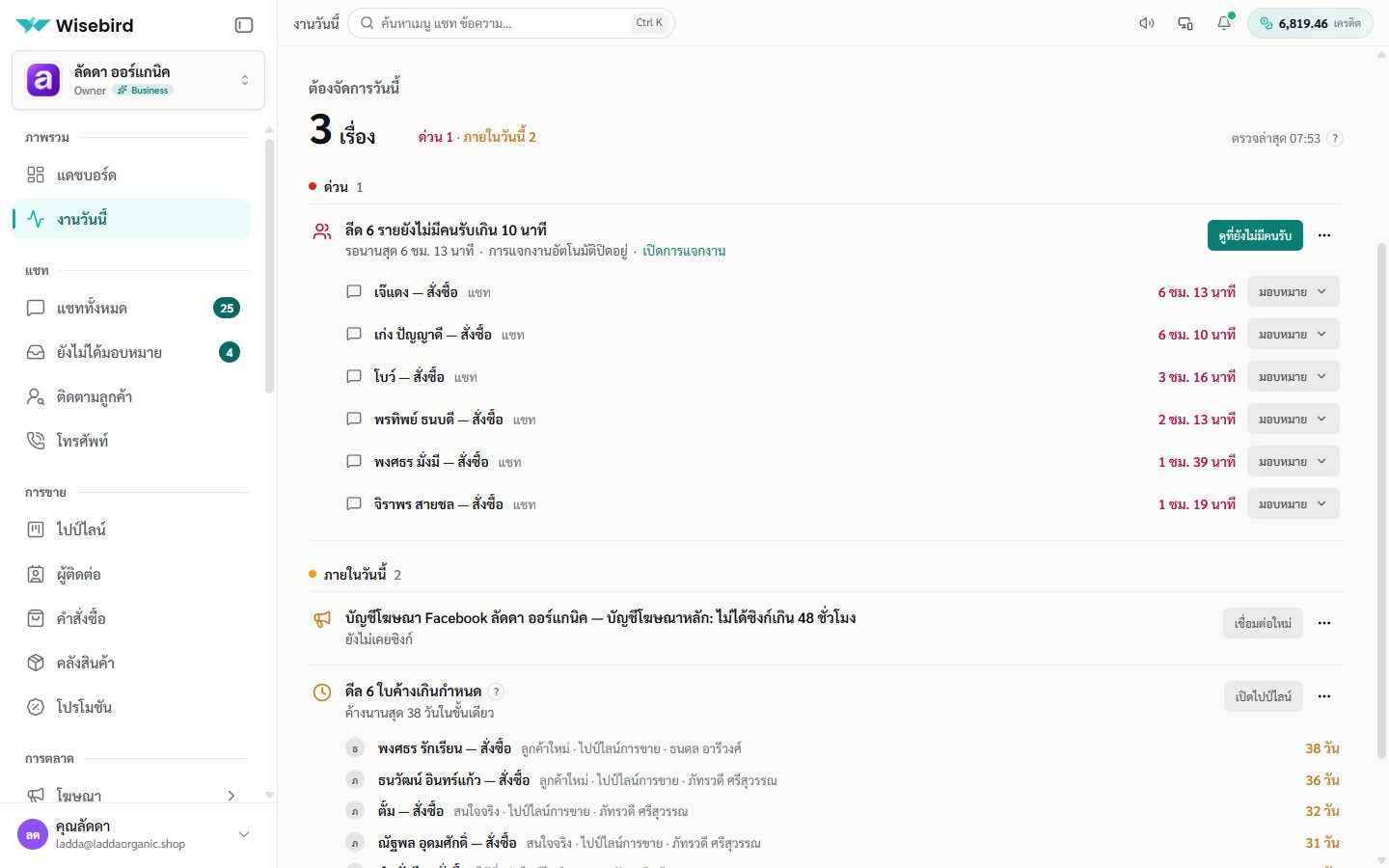
Start with "Urgent"
The list is sorted most urgent first. Do the Urgent group (red dot) before the Within today group (orange dot).
Things that may appear:
Lead not takenDeal stuck too longChannel disconnectedAd account cannot syncCredits running lowAlert could not be deliveredCustomer details could not be collectedPress the button beside the item
A lead nobody took
Press "Assign" and pick a teammate, or take it yourself
A deal stuck too long
Press "Open pipeline", then follow up or move the card
A channel or ad account disconnected
Press "Reconnect"
Credits running low
Press "Top up credits"
estimated from the last 7 days of real use
An alert could not be delivered
Press "Fix destination", send a test, then "Send again"
Hide what can waitoptional
Press ⋯ beside the item and choose Hide for 1 hour or Hide until tomorrow morning. If something new comes up, it comes back straight away.
Hiding only applies to this device, and the item still appears in the morning summary.Press "Check now" when you are done
The page re-checks by itself. After fixing something, press Check now (top right) to see the result at once. With nothing left it says All clear.
03Limits and the morning summary
Press Settings at the top right. These settings apply to everyone in the business.
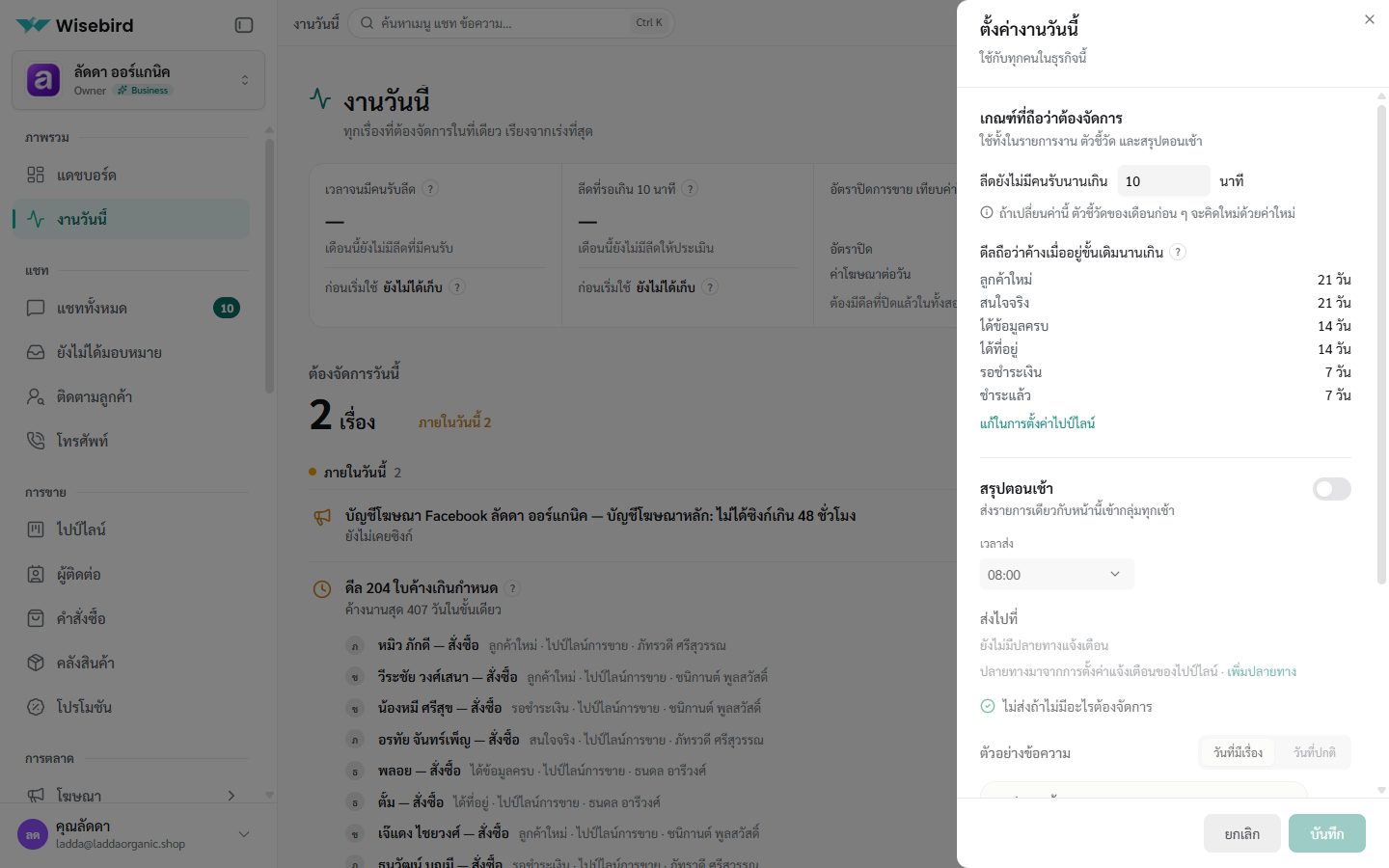
Set how long a lead may wait
Enter the minutes in A lead nobody has taken for more than. The default is 10 minutes.
Changing it recalculates the measures of earlier months with the new value.Check when a deal counts as stuck
Each pipeline stage has its own number of days, e.g. New 21 days, Awaiting payment 7 days. Change them through Edit in pipeline settings.
Turn on the morning summary
Switch on Morning digest, choose the send time and send to (a team chat such as LINE or Telegram), then press Save.
Press Send a test now to check the group receives it. With no destination yet, press Add a destination to go to the pipeline alerts page.
On a day with nothing to handle, nothing is sent — the group stays quiet.