01Choose the business to work in
If you belong to several businesses, you see Which business are you working on? after signing in. Each card shows your role (Owner / Admin) and how many channels, agents and members it has.
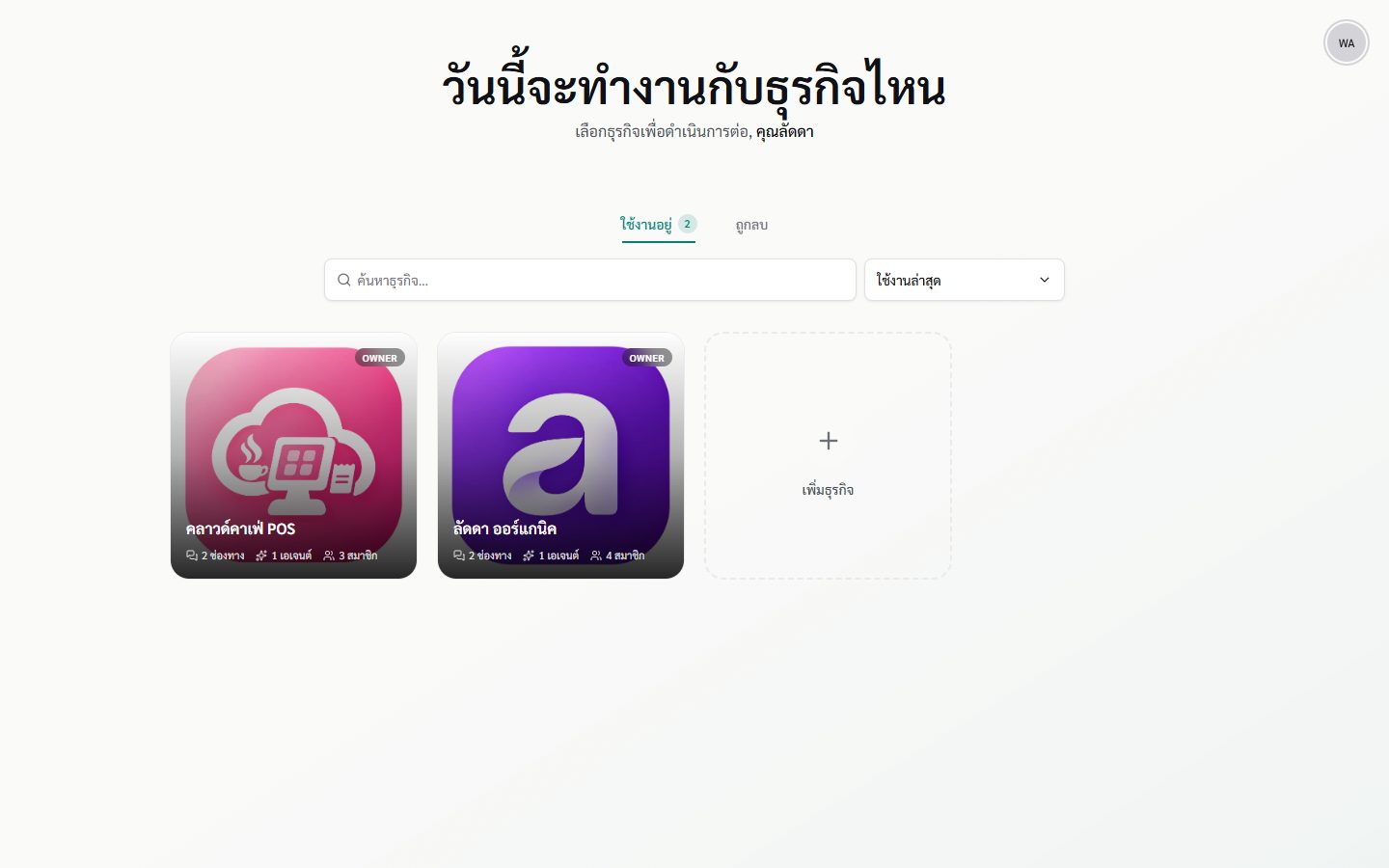
- Type in Search businesses… to find one by name
- Change the order: Recently active, name A–Z / Z–A, Newest first / Oldest first
- Press a card to open that business
02Create a business
Open the create page
Press the Add business card on the business picker, or Create new business in the business switcher.
Enter a name and logo
Enter the Business name (at least 3 characters). Everyone on your team sees it.
The Business logo is optional: JPG, PNG or GIF up to 5 MB, ideally square. You can skip it and add it later in the business settings.
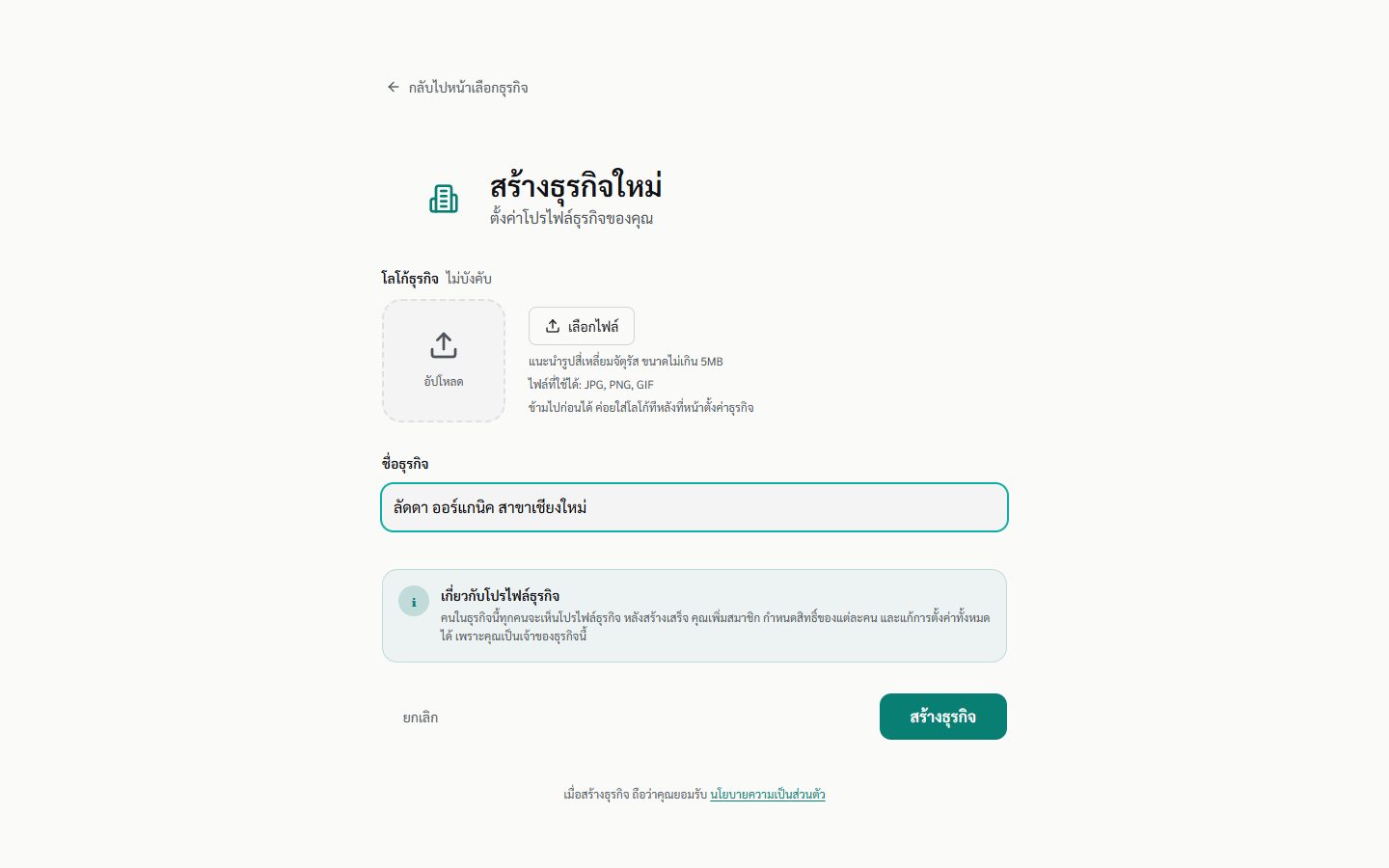
The "Create a new business" page — Logo (optional), business name and the "Create business" button Press "Create business"
Wisebird creates the business, makes you its owner, and takes you straight to its Getting started page. Continue with First-time setup.
If you press Cancel or Back to businesses while filling it in, you are asked before the name and logo are thrown away.
03Switch business while you work
Open the business switcher
Press the business box at the top left of the menu. A list of your businesses opens (with a search box) — press the one you want.
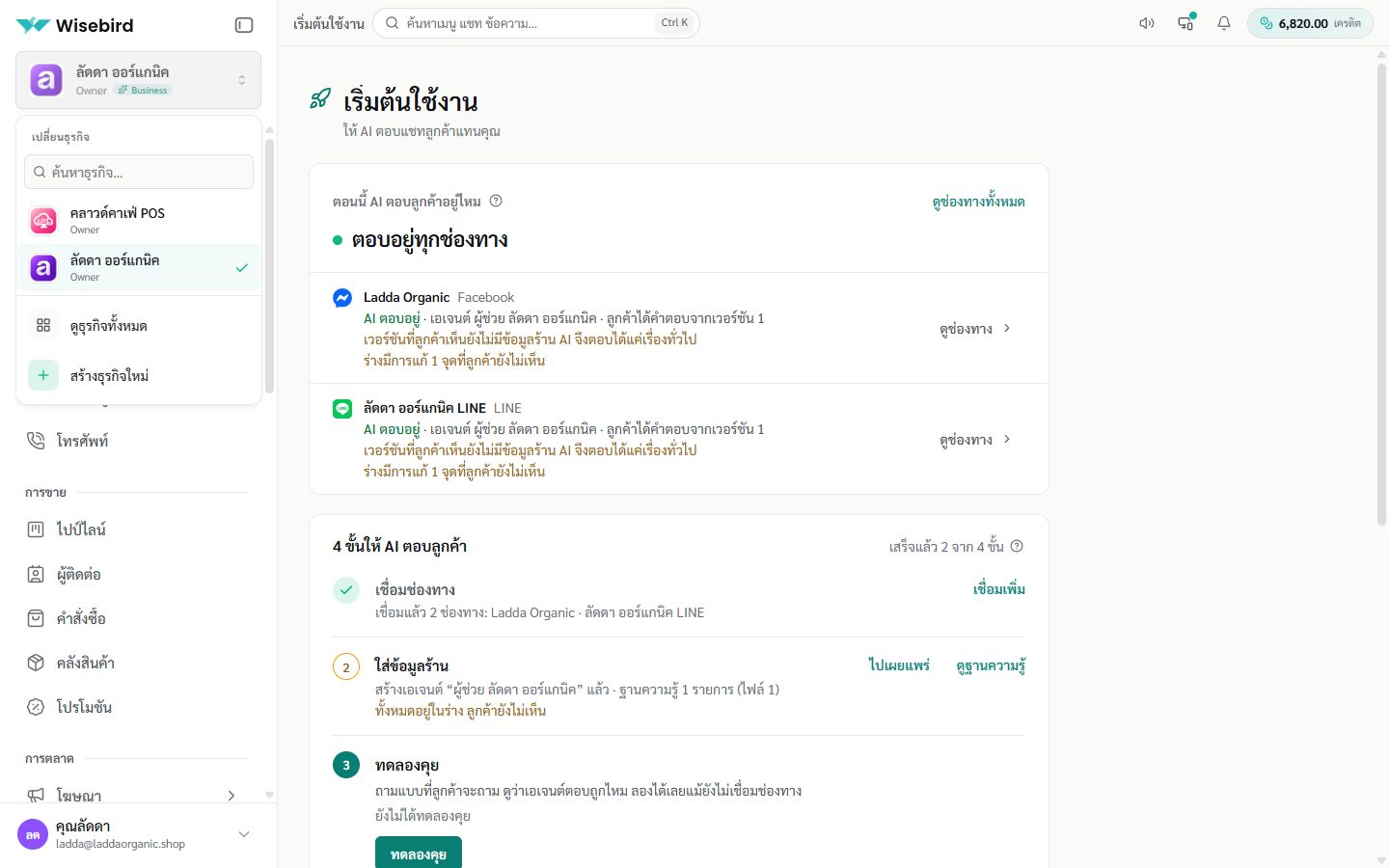
The "Switch business" menu — The current business has a tick · "View all businesses" and "Create new business" at the bottom The page reloads in the same section of the new business — if you were in a chat, you land on that business's chat list.
04Opening a chat link from another business
A teammate sends you a chat link (from the chat's ⋯ menu › Copy chat link) while you are working in another business. Wisebird knows which business the chat belongs to and asks you first.
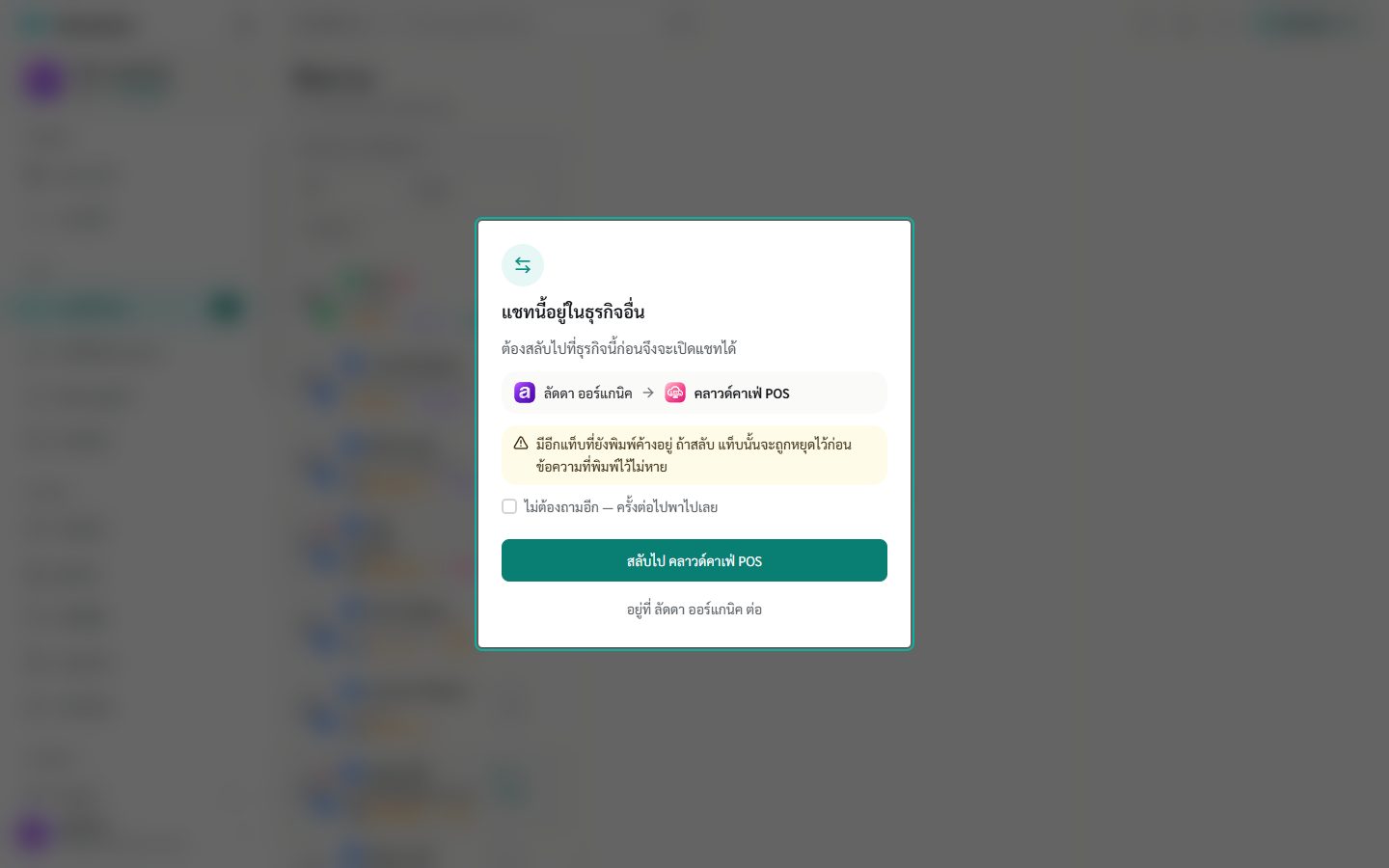
You want to open the chat now
Press "Switch to [business]" — you land on that chat in the other business
You do not want to switch yet
Press "Stay in [business]" — nothing changes
You do not want to be asked again
Tick "Don't ask again — take me there next time"
turn it off under Profile › App & notifications
If this account is not a member of that business, you see You don't have access to this chat. Ask the owner to invite you, or press Use another account if you have one that can (see Use several accounts in one browser).