01Choose how each channel is followed up
At the top of the Sequences tab is Which channels to follow up. Choose per channel; it takes effect immediately.
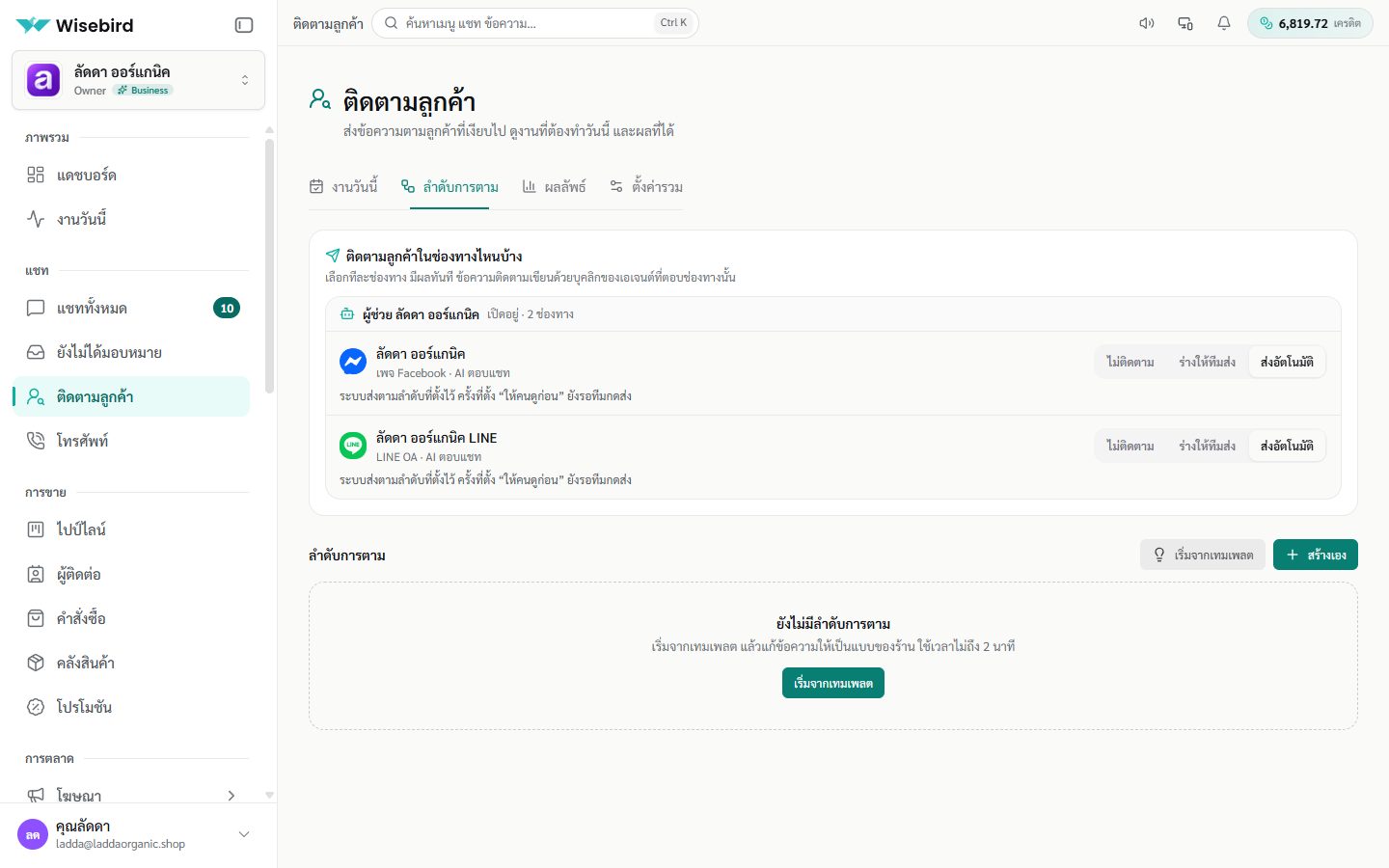
Mode
Don’t follow up
Nothing is sent or drafted on this channel
Mode
Draft for the team
Every message waits on the Today tab for your team to read and send
Mode
Send automatically
Messages go out per your sequences; steps set to "Review first" still wait for the team
02Build a sequence
Press "Start from a template" and pick a situation
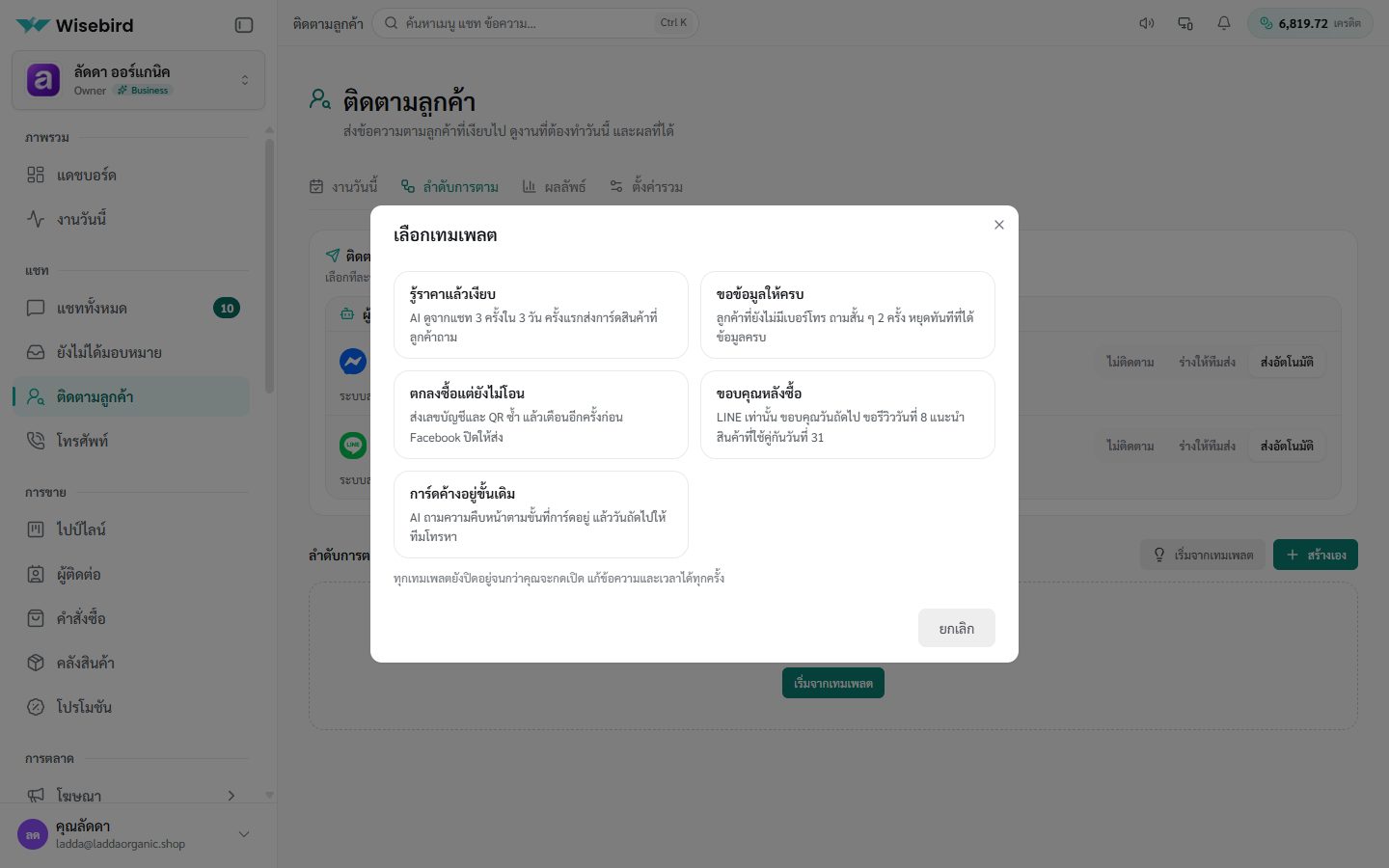
The Pick a template window — Templates for common situations; every template stays off until you turn it on Templates:
Quiet after the priceComplete customer detailsAgreed to buy, hasn’t paidThanks after a purchaseCard stuck in a stagePrefer a blank page? Press Create.
Choose channels, and who presses send
Under Which channels, tick the channels this sequence uses, then choose Who presses send.
You trust the messages
Send automatically
sent at the times you set
Your team should read them first
Review first
they wait on Today for an admin to send
The AI should read the chat every time
Let AI decide
it sends, skips, or asks a person
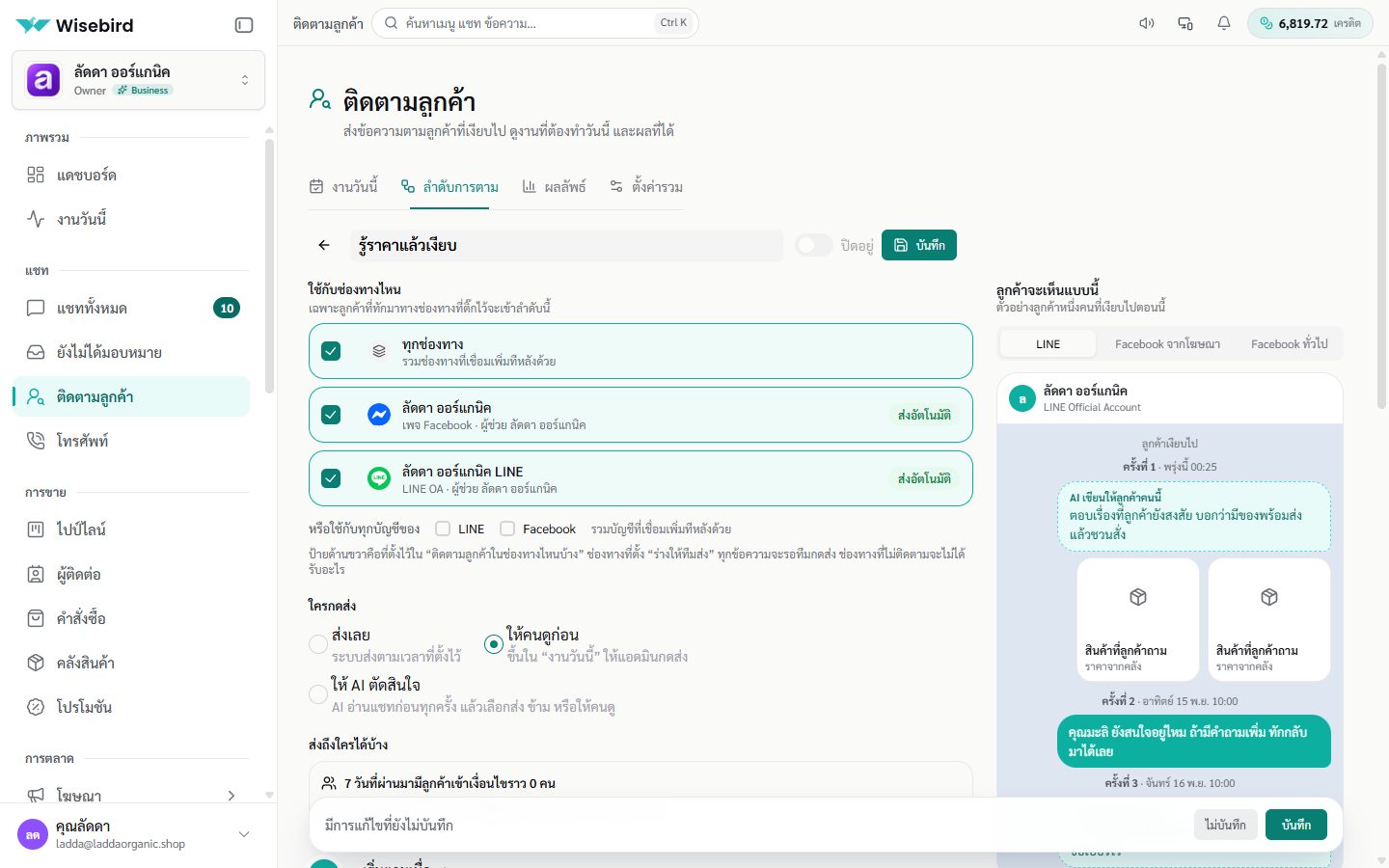
The sequence editor — Name, channels and who presses send; on the right, "What the customer sees" previews the chat for LINE and Facebook Set when it starts and what each step sends
- Start when — e.g. Customer goes quiet after we reply · AI reads the chat (describe in your own words who should be followed up) · Customer details are missing · Card stuck in a stage · After a purchase · An admin starts it
- Step 1, 2, 3… — for each, set when it sends and What this one does: Send a message (typed by you, or written by the AI, optionally with product cards) or A task for a person, such as a call
- Stop when — a customer reply, an admin reply or a request to stop always ends it; add more, such as a recorded purchase
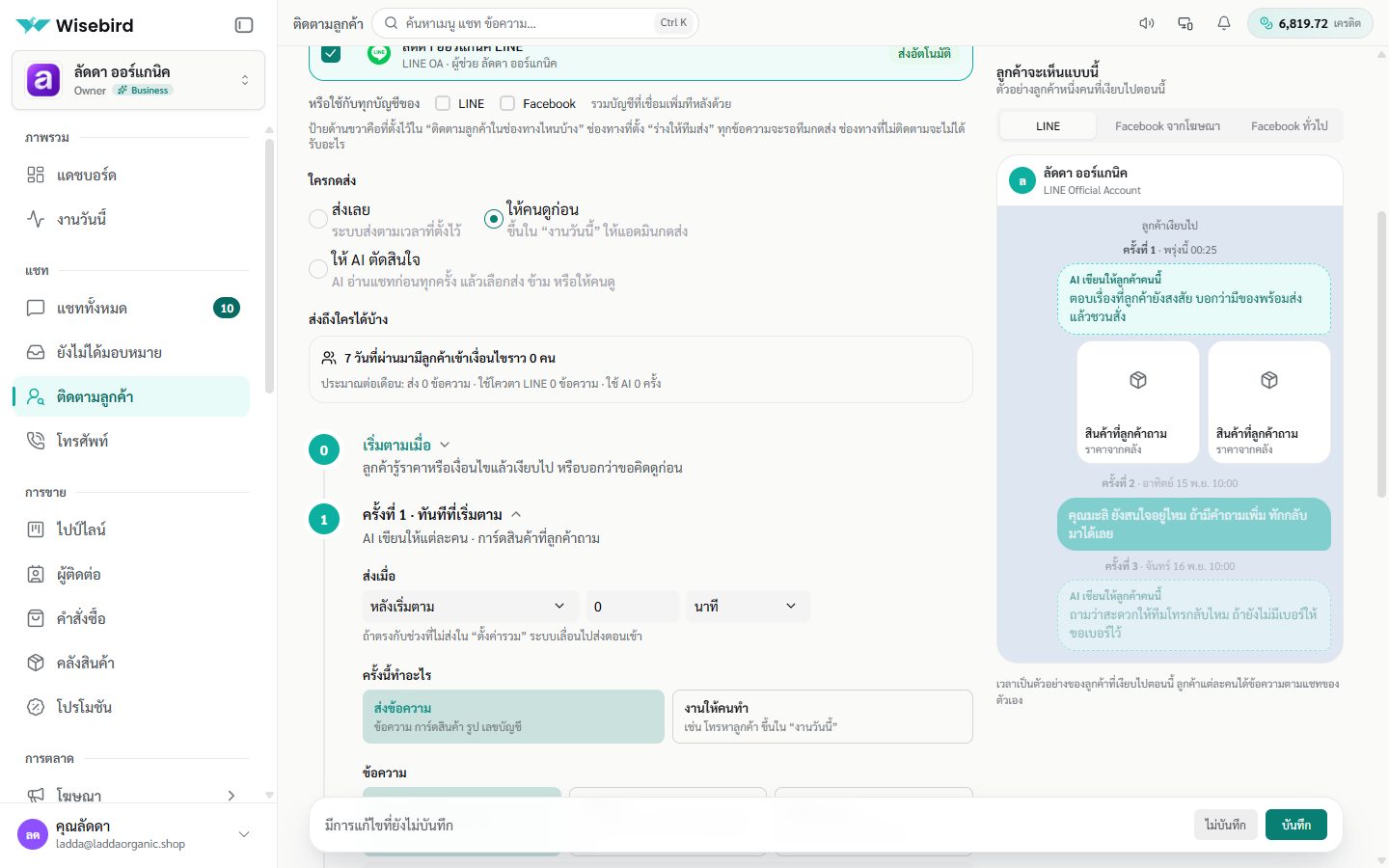
The start condition and step 1 — Open each step to set its timing and content; the preview on the right follows along Facebook doesn’t let a shop message a customer who has been quiet for more than 24 hours. Steps past that point are skipped and marked "Can’t reach Facebook".Press "Save", then turn the sequence on
Press Save, then the switch next to the sequence name. You are asked whether to also follow up customers who went quiet in the last 24 hours; press Turn on.
Before turning it on, check Who it can reach: how many customers matched in the past 7 days, and roughly how much LINE quota and AI it will use per month.
03Settings, Today and Results
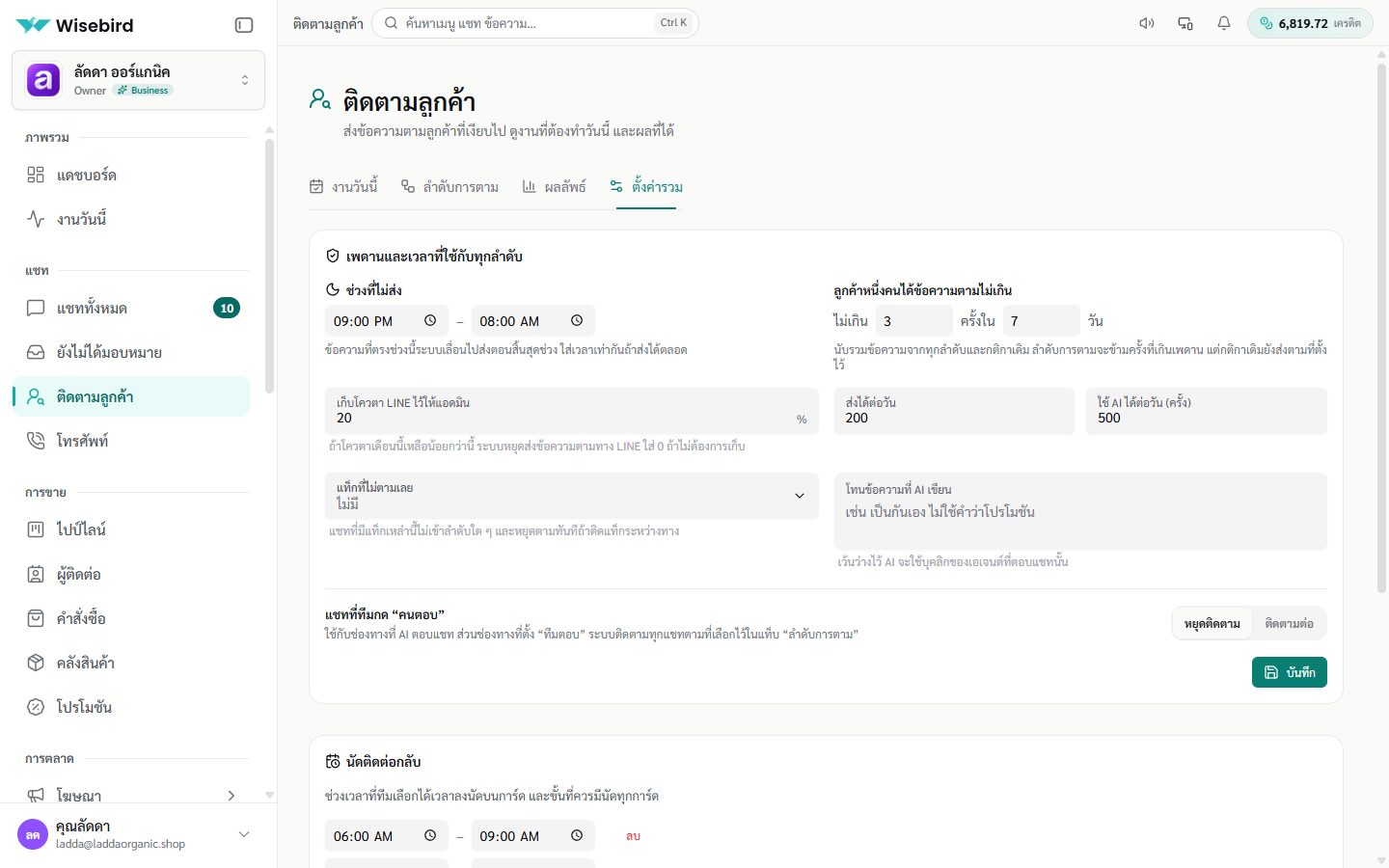
- Quiet hours — e.g. 21:00–08:00; anything due then is sent when they end
- At most N follow-ups per customer in D days — across all sequences
- LINE quota kept for admins — below this share of the month’s quota, LINE follow-ups stop
- Never follow up chats with these tags, and what happens in chats the team switched to “Human”: stop or keep following up
Today collects messages waiting for review, call tasks and call-backs. Results shows how many customers came back to chat and how many bought within 7 days of a message.