01The activity log
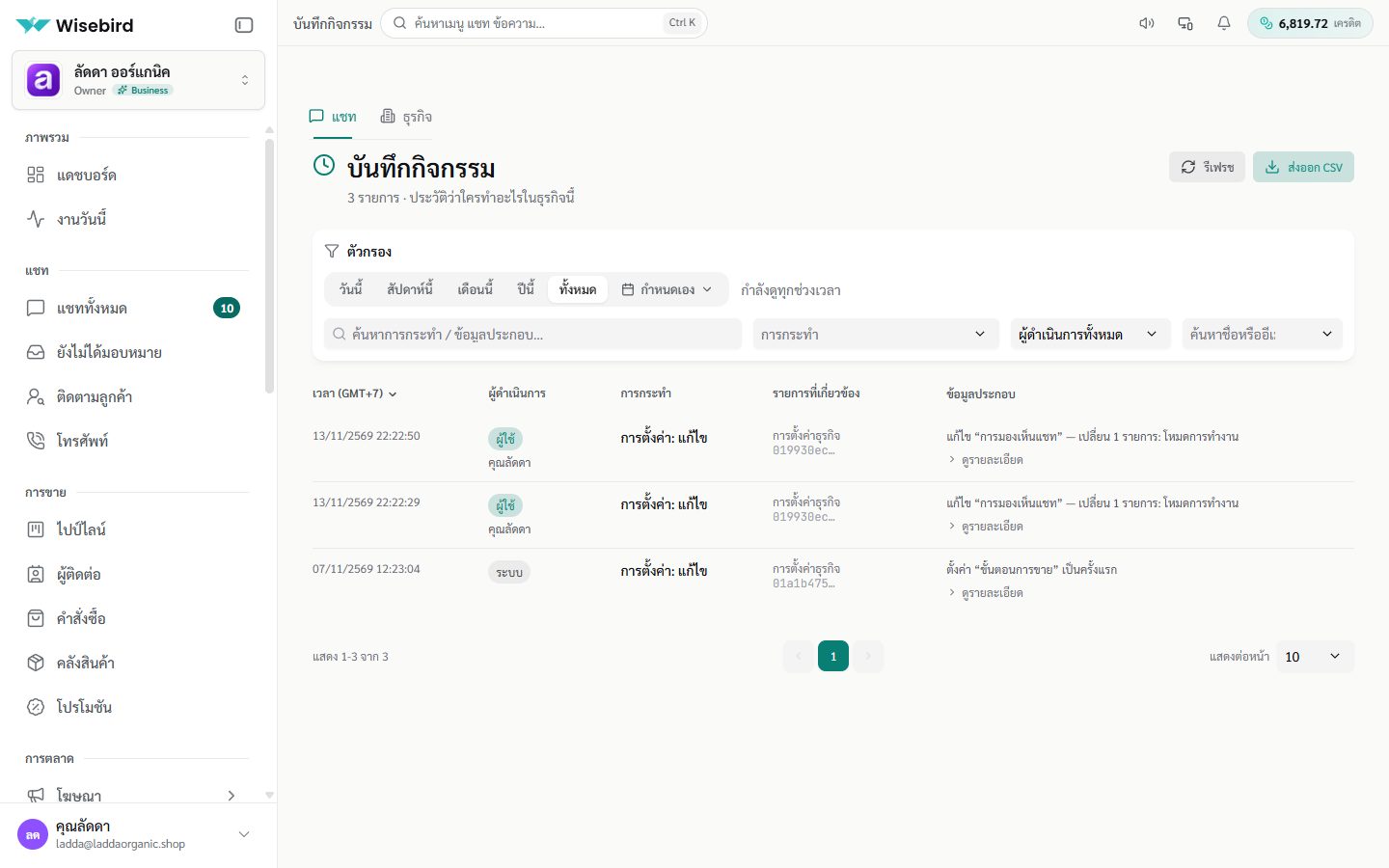
Tab
Chat
Merging contacts, assigning and claiming chats, status changes, sale outcomes, recording or voiding sales, settings changes.
Tab
Business
Creating, editing and deleting agents, connecting or disconnecting channels, inviting members and changing their roles, roles, ownership transfers and plan changes.
There are three kinds of actor: User (someone on your team), System (automatic jobs) and AI agent.
Filter to what you are looking for
Pick a period (Today · This week · This month · This year · All · Custom), type in Search action / metadata…, choose Actions, choose an actor or search for a person. Press Clear all to start again.
Filters are kept in the link: switching tabs keeps them, and you can copy the link so someone else sees the same results.See an entry's details
Press See details under an entry to see what changed from what to what — for example "Edited Chat visibility — 1 change".
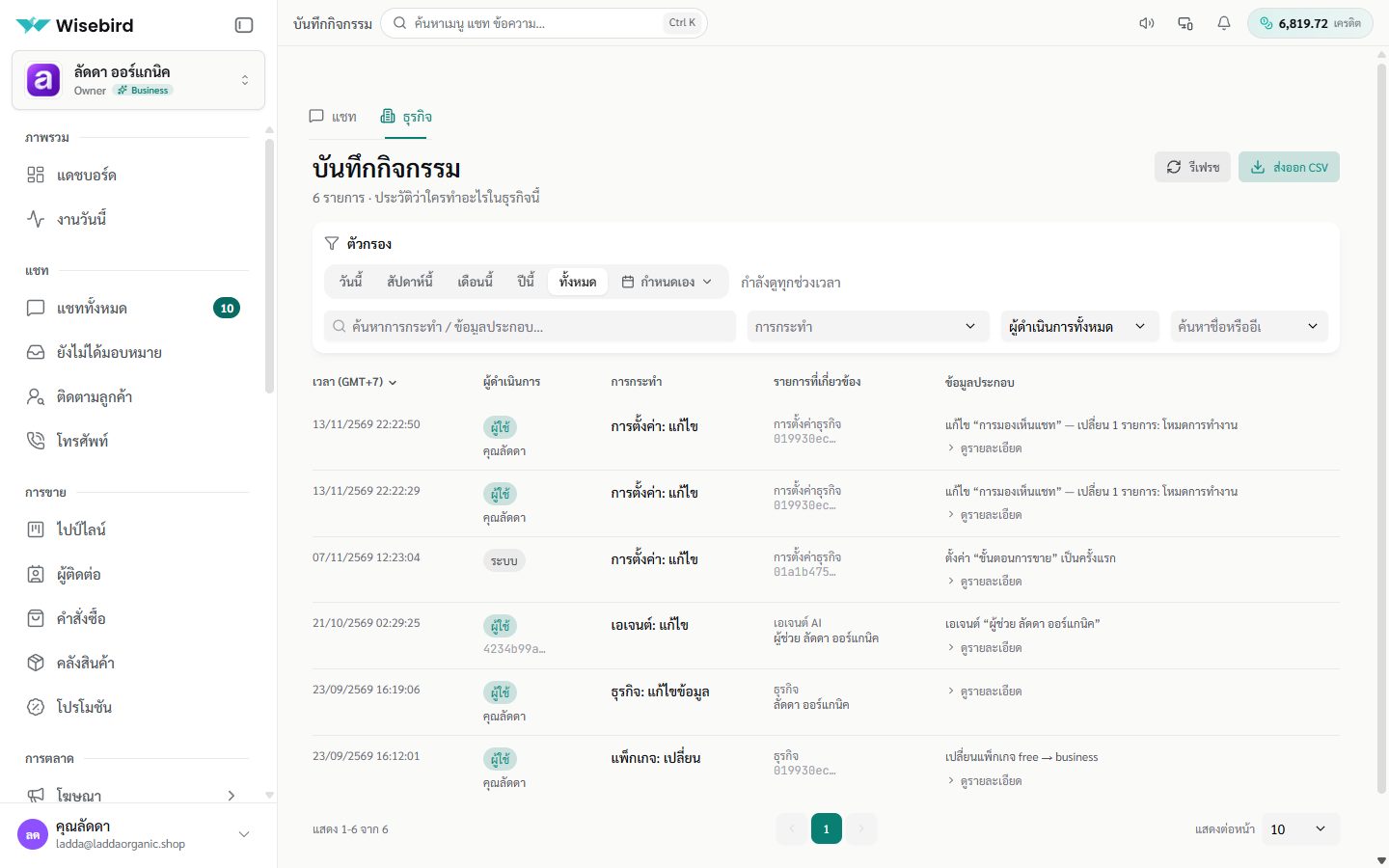
Activity log, Business tab — Entries for editing an agent, editing business details and changing plan Export to a fileoptional
Press Export CSV at the top right. The file holds the entries matching your current filters and opens in Excel or Google Sheets.
02The Trash
A deleted business, agent or channel does not disappear straight away: it goes to the Trash for 30 days. Each item shows when it was deleted and how many days are left before it is deleted for good.
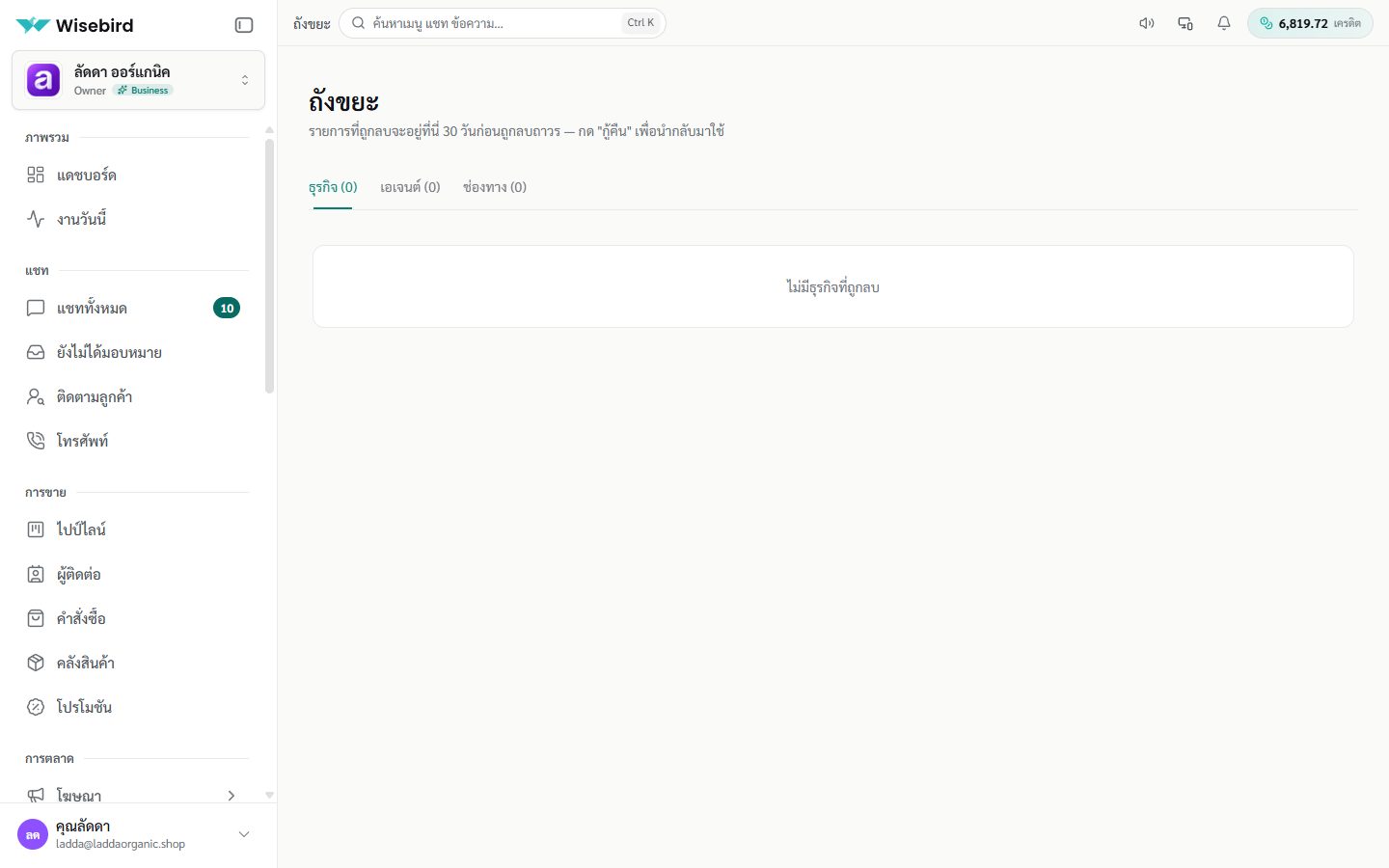
Restore
Pick the tab and press Restore on the item. It comes back as it was.
Delete permanently (only if you are sure)cannot be undone
Press Delete permanently, type the item's name exactly, then press Delete permanently now.
This cannot be undone. Its chats, posts, comments and statistics are deleted at once — without waiting the 30 days.